

By Edy Werder, a tech blogger with 20 years of experience in IT infrastructure
Do you want to unlock the full potential of your ESXi environment by implementing a flawless Virtual LAN (VLAN) setup?
Imagine a highway system without lanes—chaos reigns, with no order or structure. In virtualization, VLANs are the lanes that bring order to network traffic. VLANs, or Virtual Local Area Networks, provide essential segmentation within a virtualized environment, making them a crucial component for anyone working with VMware ESXi.
ESXi VLANs enhance security by isolating network segments and improve performance by reducing network congestion. Before setting up VLANs, you need a solid understanding of ESXi, the virtual switch, and the underlying network infrastructure.
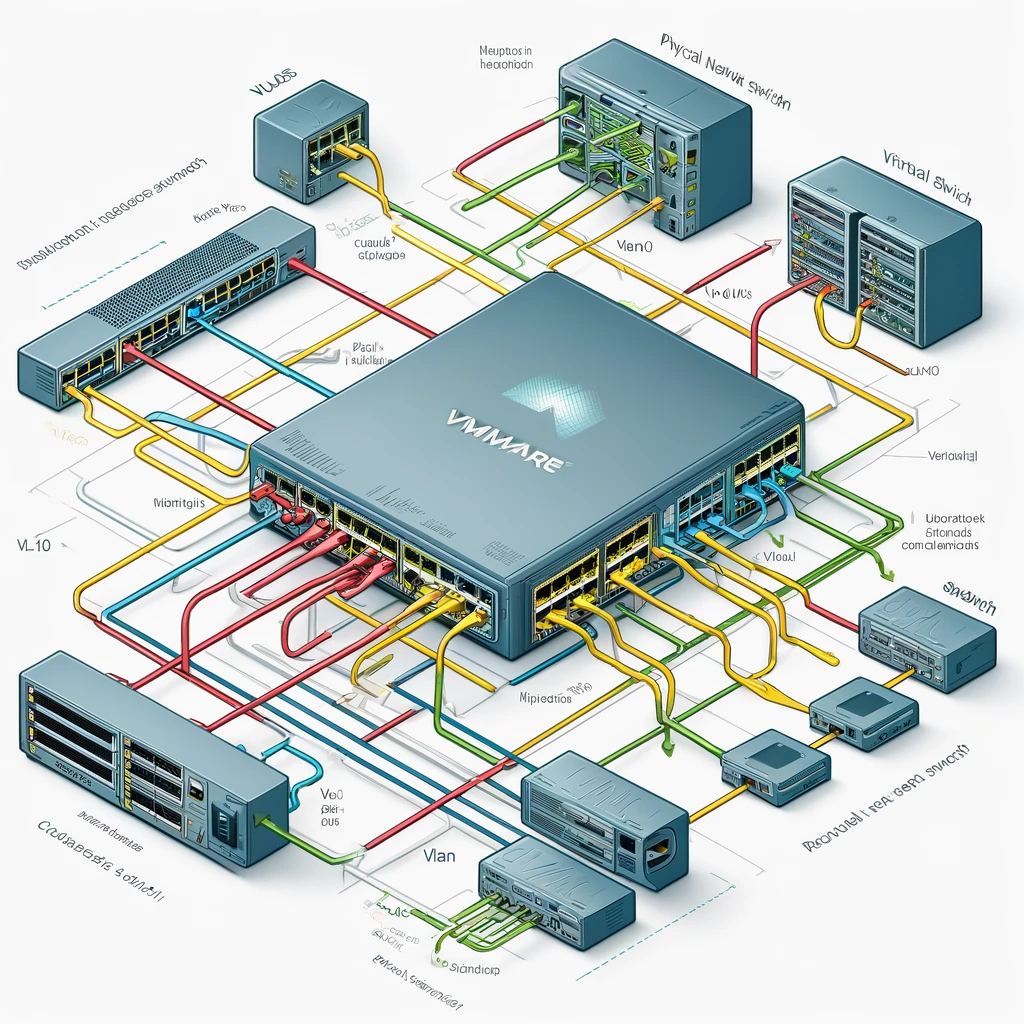
Implementing VLANs offers numerous advantages that can significantly enhance your network’s functionality. Below are the key benefits of integrating VLANs into your virtual environment:
You should establish a few prerequisites before setting up VLANs on VMware ESXi. This groundwork ensures a smooth and successful VLAN implementation. First and foremost, you must clearly understand your network structure and the goals you aim to achieve with VLANs. Additionally, here’s what’s essential:
Lastly, having some technical savvy and the know-how to configure these settings in VMs and ESXi hosts is a significant plus!
The world of VLAN tagging is all about where the magic happens – right at the point of tagging network traffic. The key differences among VST, VGT, and EST revolve around that specific spot.
With Virtual Switch Tagging (VST), the ESXi vSwitch tags the packets before they leave the host. It’s the middle manager of tagging, you could say. Your host network adapters must connect to trunk ports on the physical switch. With VST, the virtual switch handles much of the heavy lifting, making sure each data packet is labeled with the right VLAN as it travels through the virtual landscape.
Virtual Guest Tagging (VGT) gives power to the virtual machine itself. Here, the VMs take charge of their tagging, like putting their name on their lunchbox before heading to the fridge. The host takes those packets, tags intact, and passes them along. This method will require an 802.1Q VLAN trunking driver installed in the guest OS to understand and manage VLAN tags.
External Switch Tagging (EST) is like outsourcing – the physical switch outside of the ESXi environment does all the work. The VMs and virtual switches just use a single LAN, and the external physical switch sorts it all into VLANs. It’s simple and hands-off from the virtual perspective.
Each method has its place, depending on your network’s complexity, security requirements, and management preferences. But no matter which road you take, you end up with a neatly organized flow of traffic that knows where to go.
The table below provides a quick reference to help you compare these methods.
| Feature | Virtual Switch Tagging (VST) | Virtual Guest Tagging (VGT) | Tagging (VGT) External Switch Tagging (EST) |
|---|---|---|---|
| Tagging Responsibility | ESXi host’s virtual switch | Virtual machine (VM) | Physical network switch |
| Configuration Complexity | Moderate | High | Low |
| Flexibility | Centralized management, easier to configure | Highly flexible, VM-specific tagging | Limited flexibility, depends on the physical switch |
| Common Use Case | General purpose, simplifies administration | Scenarios needing VM-level VLAN control | integration with existing physical networks |
| Performance Impact | Minimal, handled by the virtual switch | Potentially higher, depending on VM configuration | Minimal, handled by physical switch |
Example: A company has an ESXi host running multiple VMs that must be separated by department, such as HR, Finance, and IT. The IT team uses VST to manage VLANs directly from the ESXi host. Each department’s network traffic is tagged and managed through port groups assigned to specific VLAN IDs (e.g., VLAN 10 for HR, VLAN 20 for Finance, VLAN 30 for IT), making it easy to maintain and administer from a central location.
Example: A software development firm must run various development and testing environments on the same physical server. To incorporate an efficient virtual machine networking stack, each VM, configured for different projects, needs specific network isolation and control. Using VGT, each VM is configured to handle its own VLAN tagging, enabling developers to independently manage their network traffic without impacting other VMs. This setup allows the developers to configure their environments as needed, ensuring efficient project segregation and workflow.
Example: A large enterprise has a sophisticated physical network infrastructure with multiple VLANs configured on its Cisco physical switches. It decided to integrate VMware ESXi hosts into this network. By using EST, the physical switches manage the VLAN tagging. The ESXi hosts are connected to the physical network without configuring VLANs on the virtual switches, leveraging the existing network setup for traffic segregation and management.
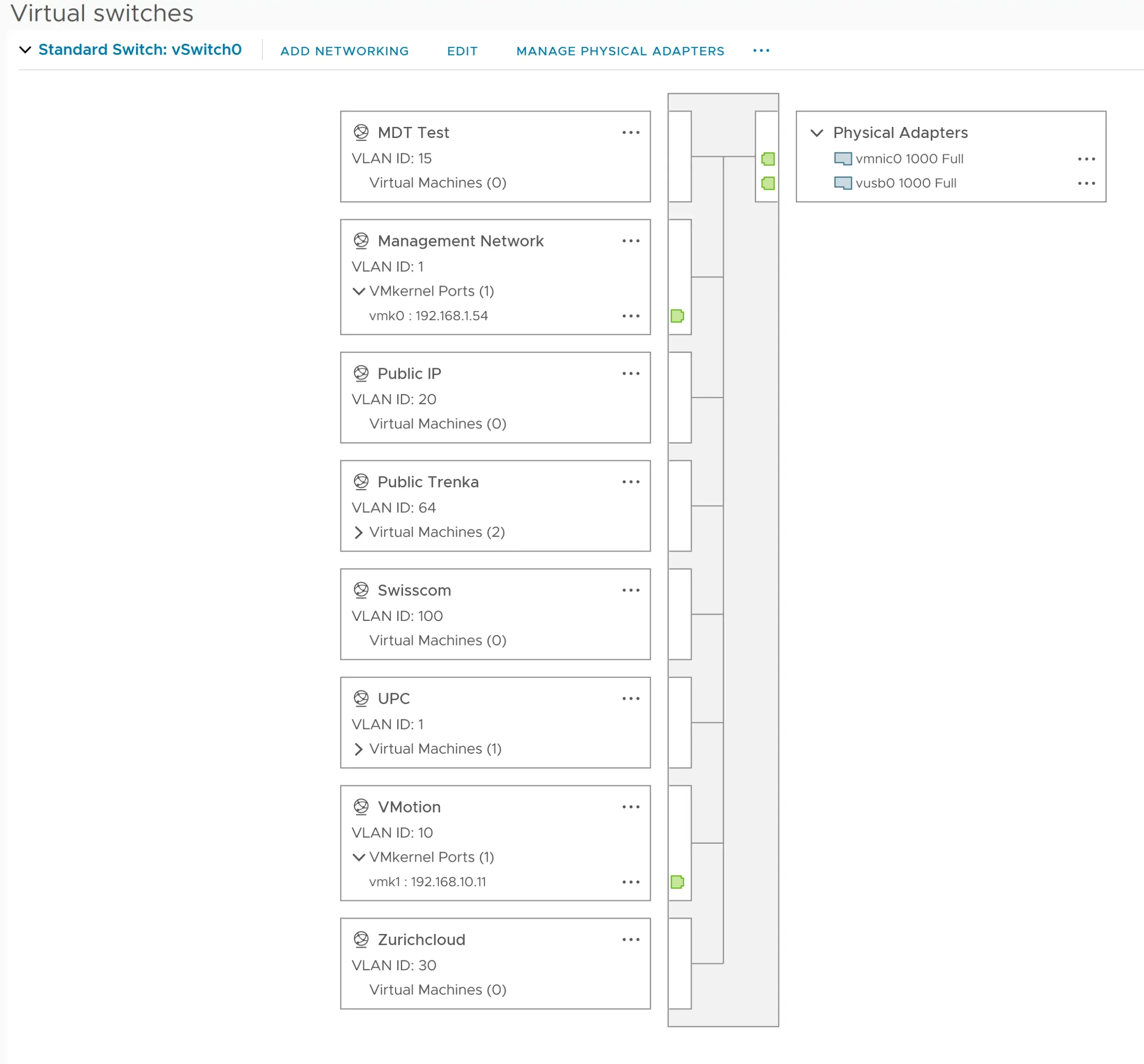
Creating a VLAN in vCenter involves configuring the virtual switch to recognize and manage VLAN traffic. Follow these steps to set up a VLAN.
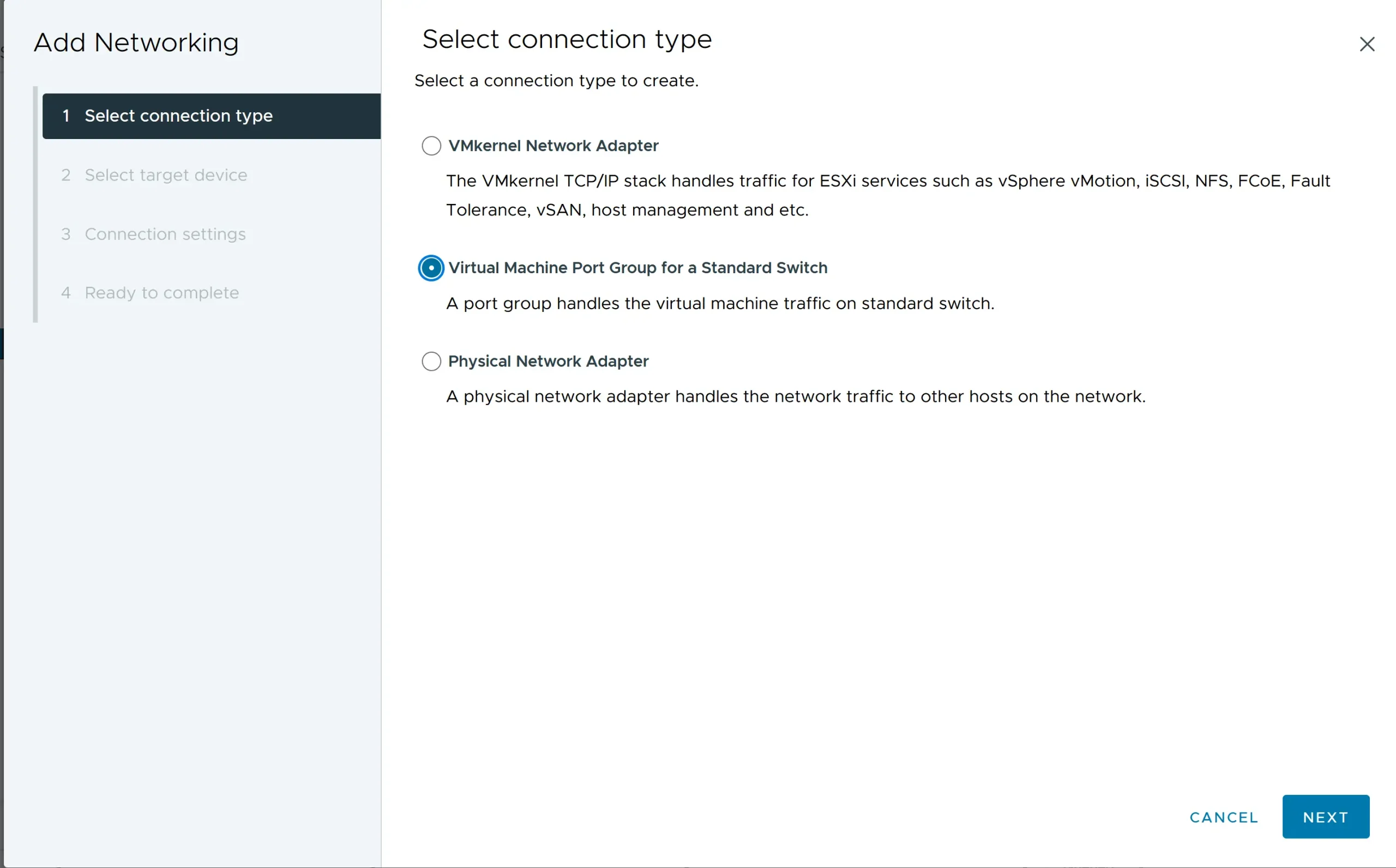
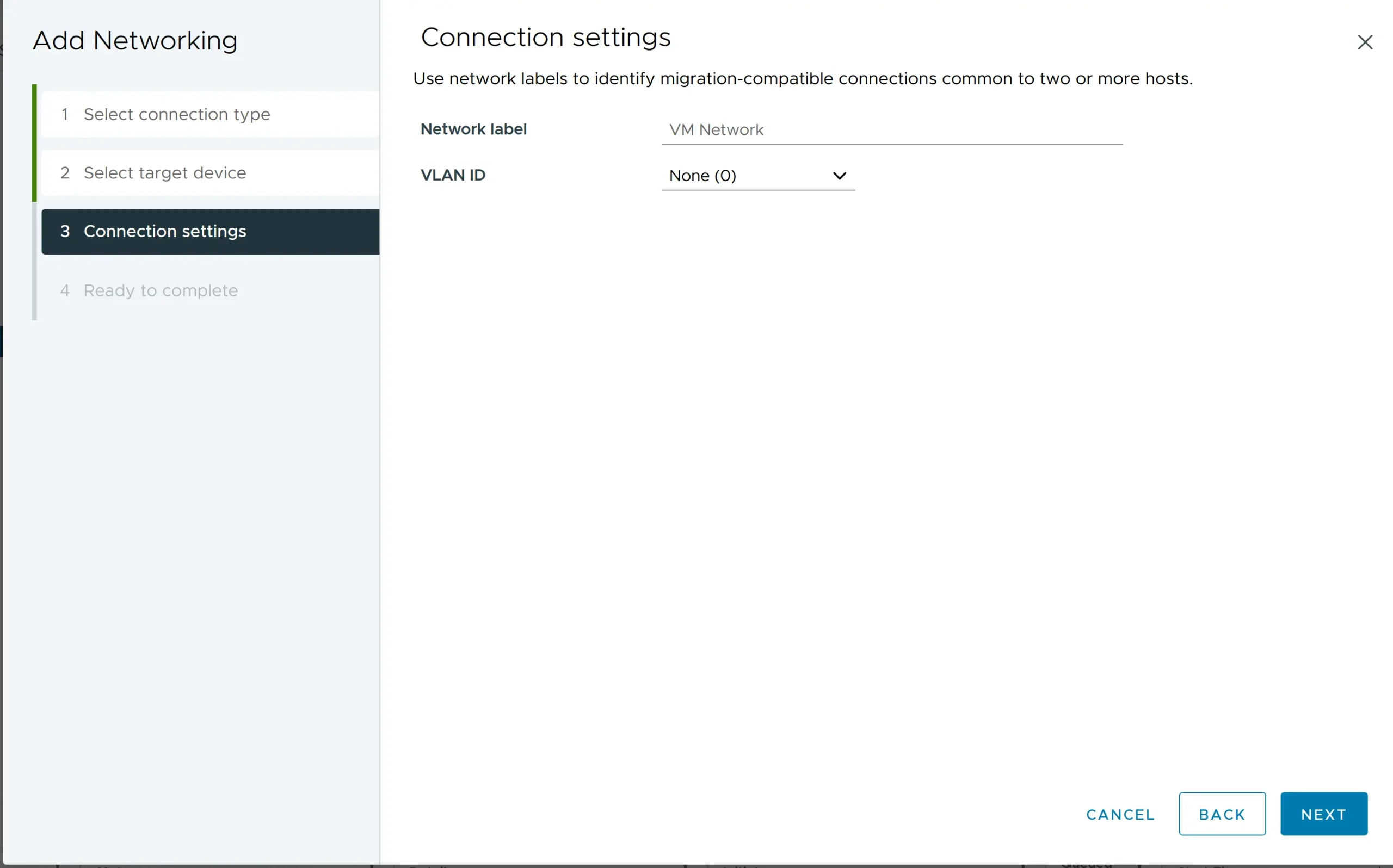
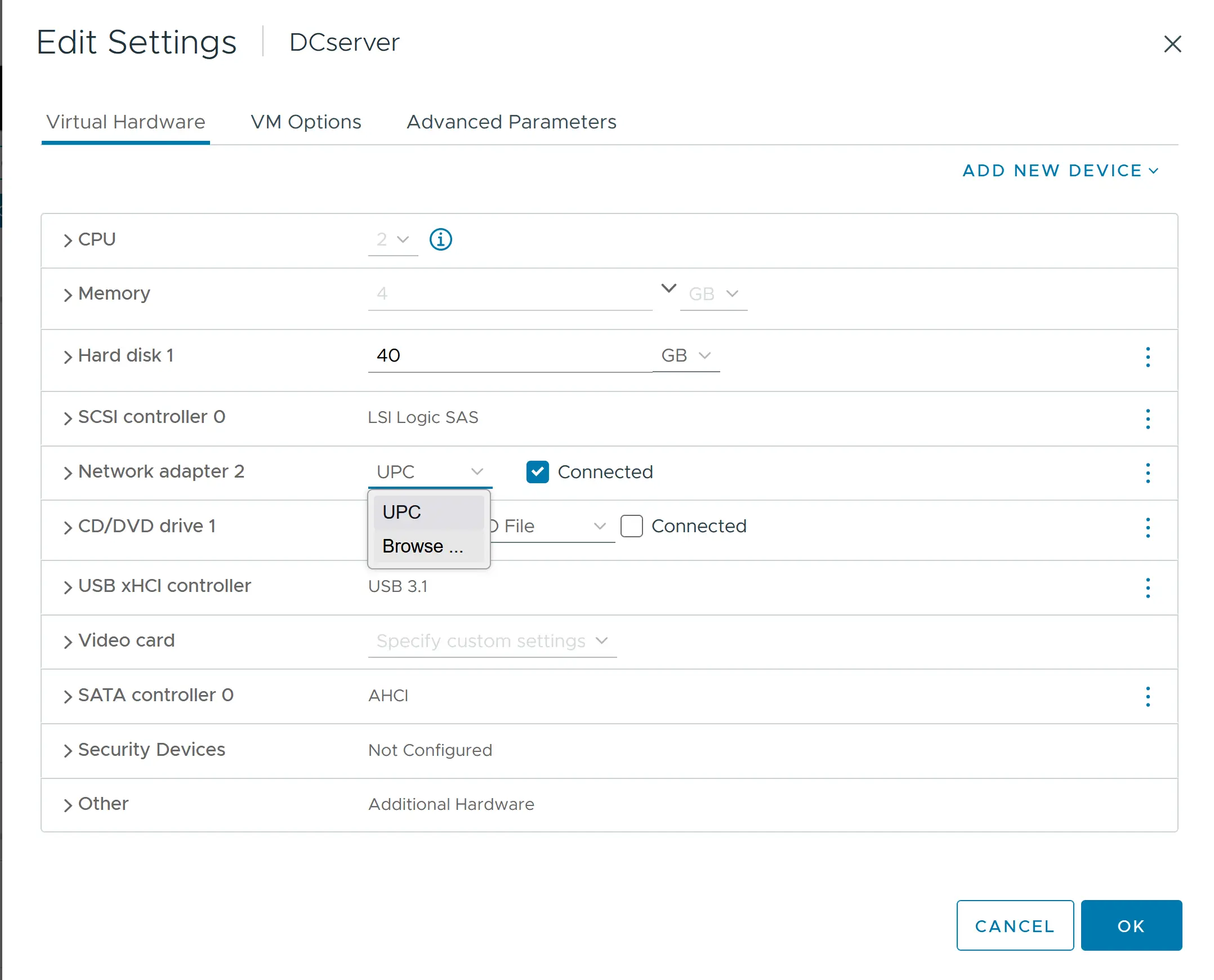
Expert Tip: Always double-check that your physical switch trunk mode ports allow the specific VLANs you’ve tagged. Otherwise, it’s like sending invitations to a party without giving guests the address — the packets won’t know where to go! And keep a record of those VLAN IDs. Mistakes can lead to cross-wired data or, worse, a security hiccup. You’re now set to enjoy the nifty segmentation and neat traffic management that VST promises!
Remember, Standard Virtual Switches are great for small to medium-sized environments or wherever fine-grained control over each host’s networking setup is needed. If you’re looking for more centralized management, consider Distributed Virtual Switches for VLANs.
Check out the table below for great deals on servers available on Amazon.
| Product Name | View on Amazon |
|---|---|
| Dell PowerEdge Dell R630 Server | 2X E5-2690 v4 = 28 Cores | 128GB RAM | 2X 1TB SSD (Renewed) | View on Amazon |
| Dell PowerEdge R730 Server 2X E5-2680v4 2.40Ghz 28-Core 128GB 8X 4TB 12G H730P (Renewed) | View on Amazon |
| ProLiant MicroServer Gen11 Tower Server w/one Intel Xeon E-2434, 3.4GHz 4-core 1P 32GB-U VROC 4LFF‑NHP 4TB HDD iLO KIT 180W External PS (HPE Smart Choice P74440-005) | View on Amazon |
| HPE ProLiant DL20 Gen11 Rack Server w/one Intel Xeon E-2436 Processor, 2.9GHz 6‑core 1P 32GB‑DR MR408i‑o 4SFF 2x500W RPS | View on Amazon |
| Dell PowerEdge R830 Server 2.20Ghz 56-Core 128GB 16x 300GB 15K H730P Rails (Renewed) | View on Amazon |
| Dell PowerEdge R440 Server 2X Gold 6126 2.60Ghz 24-Core 96GB 960GB SSD + 3.6TB (Renewed) | View on Amazon |
| HPE ProLiant DL380 Gen9 2U RackMount 64-bit Server + 2×8-Core E5-2640v3 Xeon 2.6GHz CPUs + 64GB PC4-2133P RAM + 8×600GB 10K SAS SFF HDD, P440ar RAID, 4×GigaBit NIC, 2×Power Supplies, NO OS | View on Amazon |
| HPE Proliant DL380 Gen10 8B SFF 2U Server, 2X Intel Xeon Gold 6126 2.6Ghz (24-cores Total), 192GB DDR4 RAM, 8X 1.2TB 2.5” 10K SAS 12Gbps, P408i-a SR 2GB RAID, No Operating System | View on Amazon |
You must know where to look to play detective with your VLANs on an ESXi host. Checking the VLANs is crucial for troubleshooting and ensuring your network is configured correctly.
Here’s how you can check VLANs on your ESXi host:
Expert Tip: Don’t just give those VLAN IDs a quick glance. Make sure they match your intended network design. If something seems off, investigate by comparing them to your physical switch settings. A mismatched VLAN ID can lead to network mayhem, and nobody wants that. A vigilant double-check now saves you from a networking headache later!
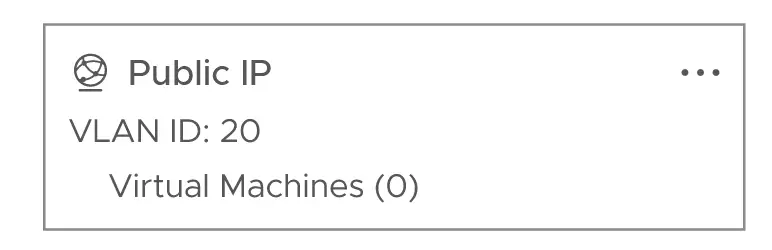
The VLAN to port setting in a VMware ESXi host bridges your virtual network and your VLAN configuration. It dictates which VLAN a particular port group on a virtual switch belongs to.
When you peek into these settings, here’s what you’ll typically see:
When configuring a port group, the settings typically include:
VLAN 0 indicates that the traffic should be untagged when leaving the ESXi host. Essentially, when a port group is configured with VLAN ID 0, any traffic passing through that port group will not have any VLAN tags. This is often used to signify default or native VLAN traffic.
Consider an ESXi host connected to a physical switch where VLAN 1 is the native VLAN (default VLAN for untagged traffic). If you have a port group configured with VLAN 0, any VM connected to this port group will send untagged traffic to the physical switch, which will be treated as part of VLAN 1.
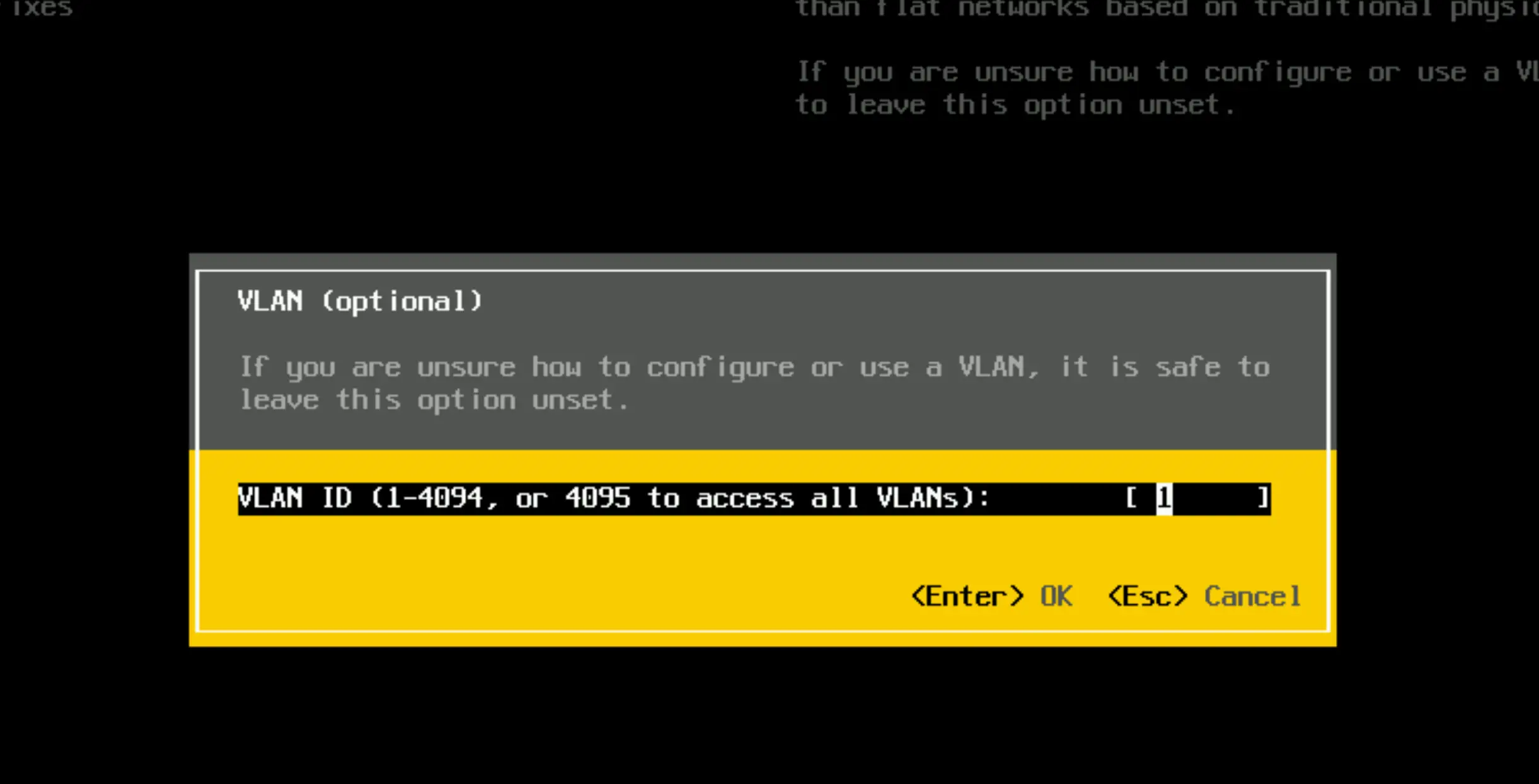
VLAN 4095 in the ESXi universe is like a backstage pass for your virtual machines, letting them mingle with all the other VLANs. It’s your go-to setting if you want your VMs to handle the tagging chores.
Let’s decode this number:
Expert Tip: If setting a port group to VLAN 4095, double-check that your virtual machine OS has the right network adapter driver for VLAN tagging. Not all operating systems sip the same coffee; some might need an extra configuration shot to tag right. With VLAN 4095, you’re giving your VMs a VIP networking ticket, so make sure they’re dressed up with the appropriate drivers to enjoy the VLAN party!
Setting the management network to VLAN 4095 in VMware ESXi is generally not a good idea. Here’s why:
VLANs are more than just network segments; they’re building blocks for a robust and dynamic virtual node infrastructure. Wrapping everything up, remember that VLANs provide crucial network isolation while managing and optimizing traffic.
Here’s the cheat sheet for VLAN essentials:
I’d love to hear from you. Was this article helpful? Share your thoughts in the comments below. If you prefer, you can also reach me by email or connect with me on Reddit at Navigatetech.
Before you go, if you’re interested in setting up a home lab for VMware ESXi, you might find the guide on creating a VMware ESXi Barebone Homelab very useful. It provides detailed steps for building a cost-effective and efficient lab environment, which complements your knowledge of configuring VLANs on ESXi. This setup can be an excellent way to further experiment and enhance your skills. Happy lab building!
Hi, I'm Edy Werder. I write hands-on guides about servers, virtualization, NAS and WordPress, based on setups I run in my own homelab. Real configs and real results, no fluff.
Enjoying the content?

