

By Edy Werder, a tech blogger with 20 years of experience in IT infrastructure
Discover how you can seamlessly increase VMware disk size without downtime and explore expert tips and tools to keep your virtual machines running smoothly.
When managing virtual environments with VMware, understanding the basics of VMware storage is crucial. VMware offers a variety of disk types tailored to meet different needs and performance requirements. Here’s a brief overview of the main disk types you’ll encounter:

Here are some quotes from VMware experts about the disk types
John Doe, VCP (VMware Certified Professional): “For high-performance applications, I always recommend using Eager Zeroed Thick Provisioned disks. They provide the best performance due to the pre-allocation and zeroing of space at creation, which minimizes latency during data writes.”
Jane Smith, VCAP (VMware Certified Advanced Professional): “In environments where storage efficiency is crucial, Thin Provisioned disks are my go-to. They allow for over-provisioning of storage resources, which is highly beneficial in development and test environments where the actual disk usage might be significantly less than the allocated space.”
Michael Johnson, VMware vExpert: “For applications requiring direct access to physical storage devices, such as databases with heavy I/O demands, Raw Device Mapping (RDM) is the best choice. It allows VMs to directly access a storage device, providing the necessary performance and functionality.”
Understanding these disk types enables you to make informed choices regarding your storage strategy, ensuring efficiency and scalability in your VMware environment. Such foundational knowledge is crucial for tasks like expanding VMware disk size, a process that significantly boosts the flexibility and capacity of your virtual machines.
In a dynamic virtualized environment, storage requirements can change rapidly. Here are some common reasons why you might need to expand your VMware disk:
By proactively managing your storage needs and expanding VMware disks as necessary, you can ensure that your virtual environment remains robust, responsive, and ready to meet the evolving demands of your business.
Before expanding your VMware disk, preparing adequately is essential to ensure a smooth and successful process. Here are some key steps to take:
One of the most critical steps before making any changes to your VMware disk is to back up your data. This precaution ensures that you have a restore point in case anything goes wrong during the expansion process. VMware offers various backup solutions to help you create full backups or snapshots of your virtual machines. Having a reliable backup can safeguard your data and minimize downtime if issues arise.
Using separate disks for each guest partition is a good practice when managing virtual machines. This method offers several advantages, particularly when expanding partitions later on. Here’s why:
By preparing thoroughly and following these best practices, you can ensure a smooth and efficient process when expanding your VMware disk. This preparation protects your data and enhances your virtual environment’s overall performance and manageability.
Expanding the disk size of a VM Guest Windows system involves a few key steps, which can be broadly categorized into using vCenter settings to increase the disk size and then verifying and applying the new disk size within the Windows Guest operating system. Here’s a step-by-step guide to help you through the process:
Log in to vCenter: Open your vCenter client and log in with your administrative credentials.
Locate the Virtual Machine: In the vCenter inventory, find the virtual machine whose disk size you need to increase. Right-click on the VM and select Edit Settings.
Modify the Disk Size:
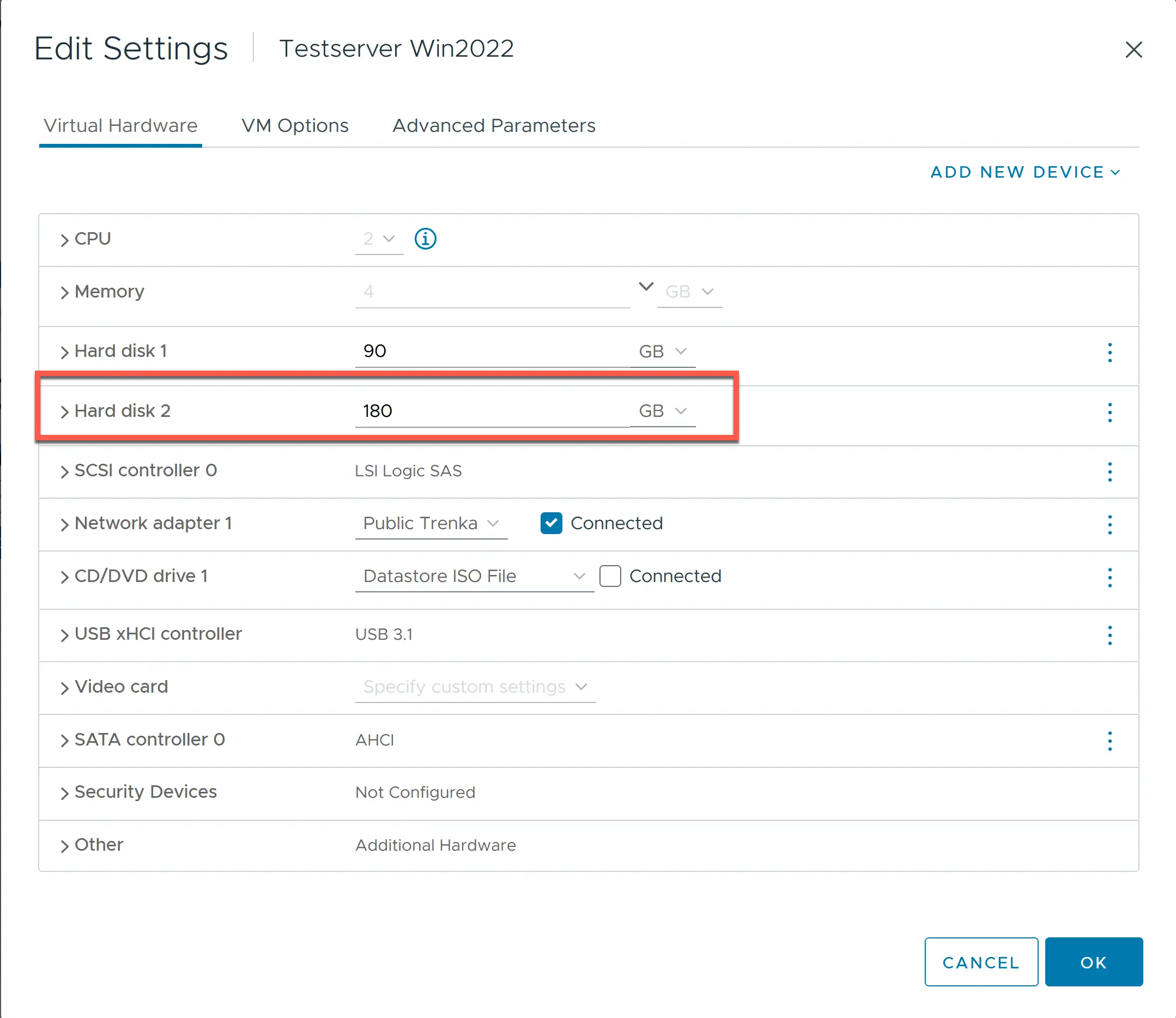
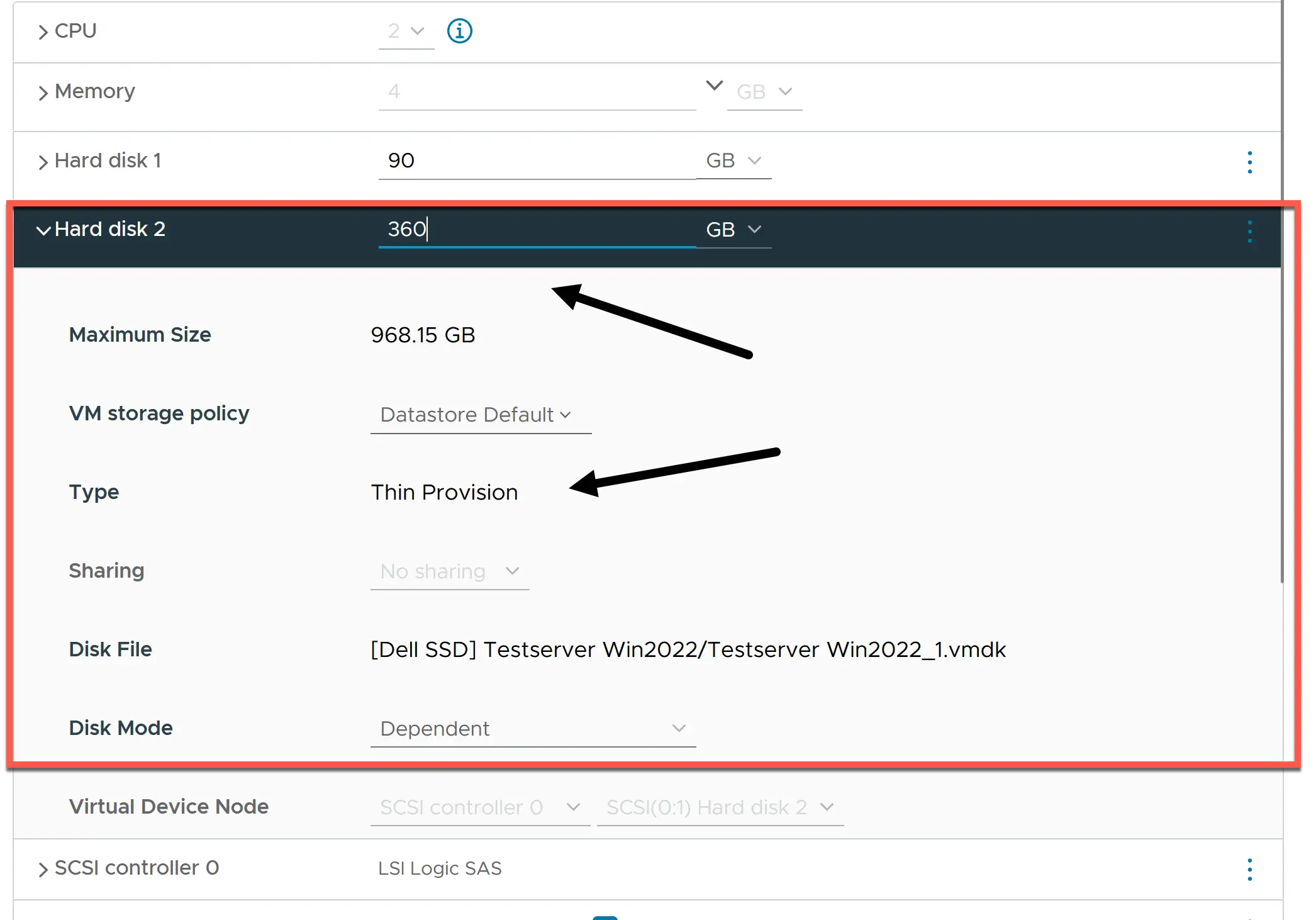
Please note the disk type in this example is Thin Provision. The physical VMDK file will use only the space needed.
Power on the VM: If the VM was powered off during this process, power it back on. The disk size has now been increased at the VMware level, but this change needs to be recognized and applied within the Windows guest OS.
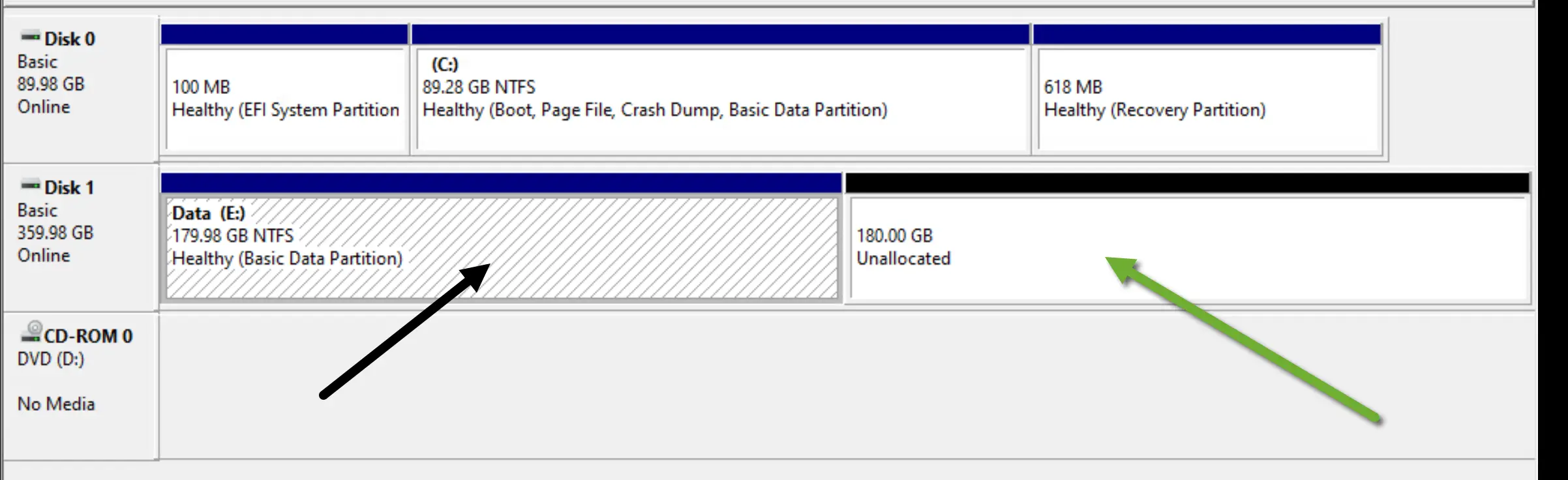
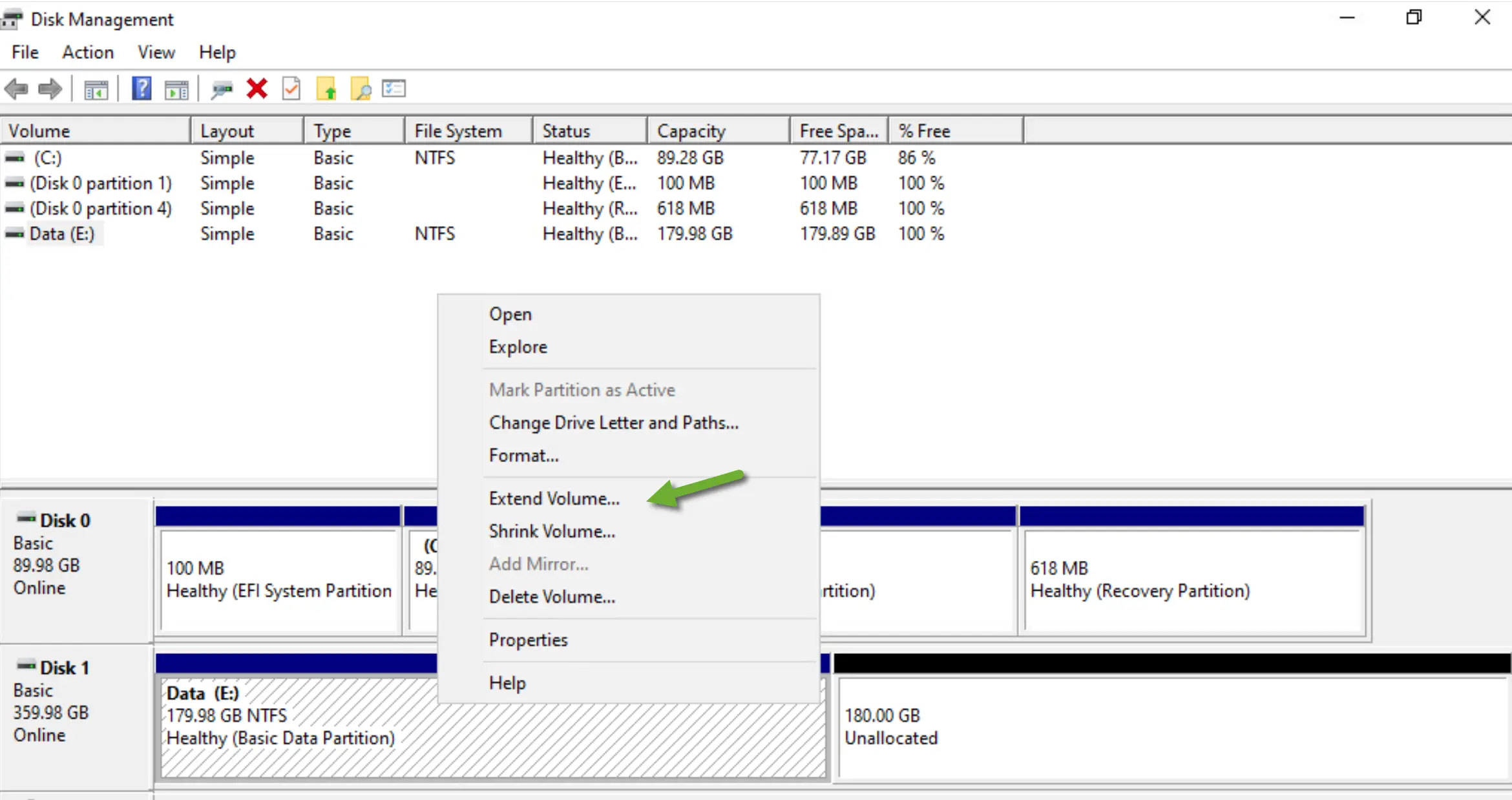
By following these steps, you can successfully resize the disk for a VM Guest Windows system, ensuring that your virtual machine has the necessary storage space to meet its operational demands.
You can use the same procedure to shrink a volume, too.
Expanding the disk size of a VM Guest running Ubuntu involves steps similar to those in vCenter as with a Windows VM, but the process within the Linux guest is different. Here’s a detailed guide:
Here is the disk information using the command lsblk before resizing the disk
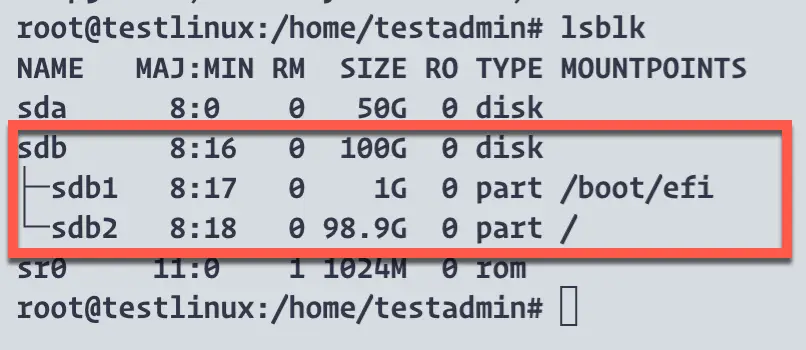
In our case, we want to resize disk sdb from 100GB to 200GB
The procedure for a Linux guest is the same as that for a Windows Guest, so I will not repeat it.
I’m using Ubuntu 24.04 Server to show you how to resize a disk in Linux
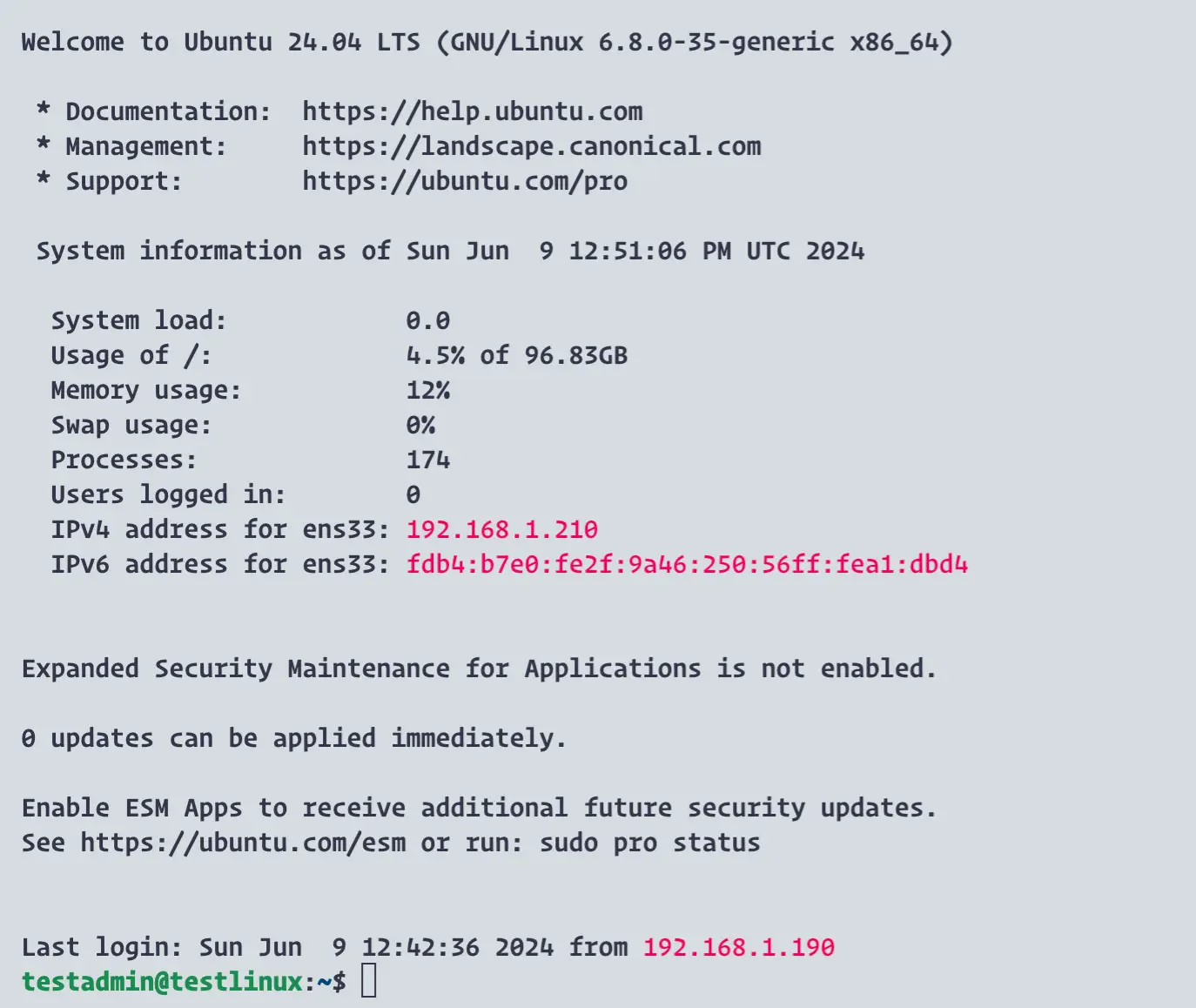
sudo partprobe To notify the operating system of partition table changes. Sometimes it is necessary to rescan the SCSI bus. If possible, I recommend a quick reboot of the VMlsblk command to list the block devices and check the new disk size.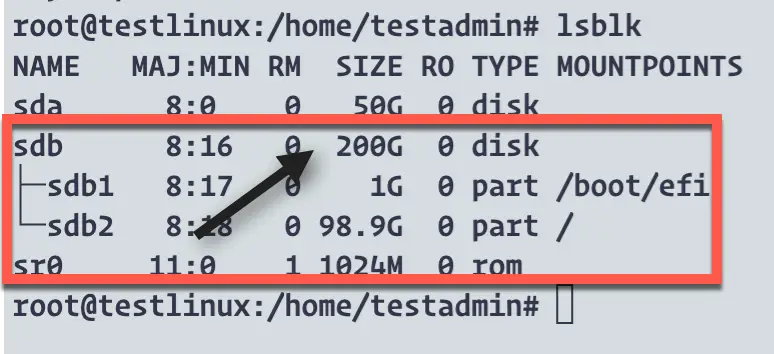
In the screenshot above we see sdb has a new disk size 200G.
/dev/sdb2).in our examplegrowpart To resize the partition:sudo growpart /dev/sdb 2/dev/sdb is the disk, and 2 Is the partition number.sudo resize2fs /dev/sdb2sudo xfs_growfs /dev/sdb2lsblk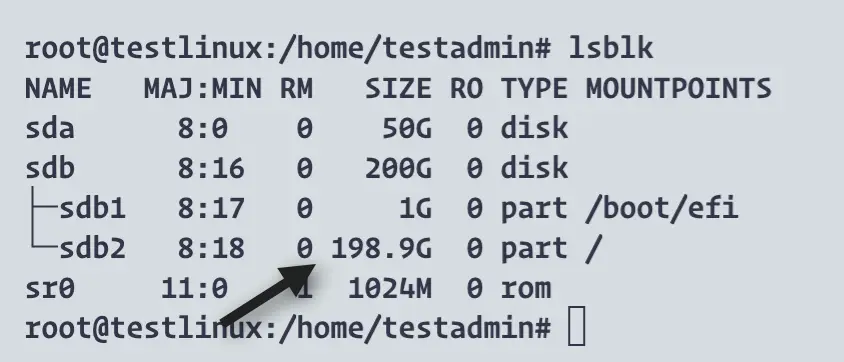
Following these steps, you can resize the disk for a VM Guest running Ubuntu to ensure your virtual machine has the necessary storage space to meet its operational demands.
When expanding disk sizes in a VMware environment, there are advanced considerations to keep in mind to ensure a smooth and efficient process. Properly addressing potential issues and utilizing powerful tools like GParted can help you manage your disk partitions effectively in both Windows and Linux environments.
Expanding disk sizes is generally straightforward, but several issues can arise. Being aware of these potential problems can help you troubleshoot effectively.
echo 1 | sudo tee /sys/class/scsi_device/*/device/rescanlsblk and fdisk -l in Linux, or use Disk Management in Windows.fdisk in Linux or Disk Management in Windows, carefully note the start sector of existing partitions. When recreating partitions, ensure the start sector matches exactly to avoid overlap.sudo e2fsck -f /dev/sdb1sudo xfs_repair /dev/sdb1chkdsk Utility:cmd
chkdsk C: /fpartprobe in Linux to inform the kernel of partition table changes:sudo partprobeGParted is a powerful graphical tool for managing disk partitions. It provides a user-friendly interface for handling complex disk management tasks. For more flexibility, it is available as a GUI application and also as a live CD.
sudo apt-get install gpartedsudo gparted/dev/sdb)./dev/sdb1) and select Resize/Move.sudo lsblk
sudo df -hYou can use the GParted Live CD for more complex scenarios or if you cannot install GParted on your system. This is particularly useful when dealing with system partitions or when the OS cannot handle partition resizing due to being in use.
Using GParted simplifies arranging and resizing partitions, providing a visual interface that reduces the risk of errors. It’s particularly useful for complex partitioning tasks and helps ensure that all changes are accurately applied.
Keeping track of disk space usage is crucial for maintaining the performance and efficiency of your virtual machines. Here are two free software options that can help you monitor disk space effectively:
Platform: Windows
Description: WinDirStat is a free disk usage statistics viewer and cleanup tool for Windows. It provides a visual representation of disk usage through treemaps, making it easy to see which files and directories are consuming the most space. It also offers the ability to clean up unwanted files directly from the interface.
Features:
Website: WinDirStat
Platform: Linux
Description: ncdu is a disk usage analyzer with an ncurses interface, designed to find space hogs on a remote server where you don’t have an entire graphical setup available. It provides a fast and easy-to-navigate interface for identifying large files and directories, making it ideal for use on Linux servers and desktops.
Features:
Installation:
Website: ncdu GitHub
These tools are both highly effective for monitoring disk space and providing clear and actionable insights into your disk usage. By regularly using these tools, you can proactively manage your disk space, avoid running out of storage, and maintain optimal system performance.
I’d love to hear from you. Was this article helpful? Share your thoughts in the comments below. If you prefer, you can also reach me by email or connect with me on Reddit at Navigatetech.
Before you go, if you’re interested in exploring alternatives to VMware, you might want to check out Proxmox vs. ESXi. This comparison will give you a detailed overview of the strengths and weaknesses of both platforms, helping you make an informed decision for your virtualization needs. Understanding these differences can be crucial for optimizing your infrastructure. Happy reading!
Hi, I'm Edy Werder. I write hands-on guides about servers, virtualization, NAS and WordPress, based on setups I run in my own homelab. Real configs and real results, no fluff.
Enjoying the content?

