
By Edy Werder, a tech blogger with 20 years of experience in IT infrastructure
Are you seeking a way to establish your own private cloud, independent of services like Google Drive, Dropbox, or OneDrive? If you own a Synology NAS, you already have everything you need. Synology Drive turns your NAS into a secure, flexible, and easy-to-use cloud solution that you fully control.
This guide is written for:
Also, keep in mind that Synology Drive is primarily designed for sync and access. It’s not a replacement for a dedicated backup tool. If you delete a file, the deletion is synced across all devices. For true backups, you should combine it with Hyper Backup or Active Backup.
In this step-by-step tutorial, I’ll show you how to:
By the end, you’ll know how to turn your Synology NAS into a personal cloud that gives you privacy, speed, and full control over your data
Synology Drive is a free application that stores and synchronizes your files across various devices. The server component is hosted on a Synology Diskstation, a network-attached storage.
This setup enables you to access your files from anywhere worldwide, provided you have an internet connection. Since your files are stored on your own NAS, you have full control over their location, unlike other cloud storage services where your files could be stored in multiple remote locations.
One of the primary advantages is its exceptional capability to back up your critical files. In the unfortunate event of losing or damaging your computer, you can easily log in to your Synology NAS and retrieve all your files seamlessly.
Here are a few more:
It is a centralized data storage solution that helps businesses or solopreneurs keep critical data safe and accessible.
Synology Drive is a handy app with an all-in-one solution for file management, collaboration, and data synchronization. The app offers a range of features that make it suitable for both personal and business use.
With its intuitive interface and numerous features, Synology Drive is the ideal solution for anyone seeking an easy-to-use and reliable way to store their data.
Synology Drive creates a folder on your Synology NAS and shares it with those you want to collaborate with. Then, each person can install the Synology Drive client on their device and connect to the shared folder. Any changes made to files in the shared folder will be automatically synchronized across all devices.
It is available on Synology NAS devices that support Synology DSM 6.2.3 or higher. To check if your device supports Synology Drive, go to the Package Center and search for the Synology Drive Server app.
I wrote a separate article about which Synology NAS drive is the best choice.
Synology Drive requires an additional set of these packages.
If you haven’t installed the apps yet, package centers will do so automatically.
Synology Drive was formerly named Synology Cloud Station. To avoid naming confusion and incompatibility issues, it is highly recommended that clients who still use the old version upgrade.
The good news is that Synology Drive runs on most Synology NAS devices without a problem, whether you have a home, small business, or enterprise NAS.

I earn a commission if you make a purchase, at no additional cost to you.
When you use Synology Drive / ShareSync to mirror entire NAS shares between two locations, there’s no guarantee of real-time locking or conflict prevention across sites. Users working on the same file from both sites may overwrite each other. The “losing” version is stored in version history or conflict logs, but it is not always visible to end users, so data loss or confusion can occur unnoticed.
In hybrid setups, the problem compounds:
Synology Drive is fantastic for file distribution, versioning, and remote access, but it’s not a foolproof solution for simultaneous editing across locations.
1. Log in to DSM as an administrator.
2. Go to Main Menu > Package Center > All Packages.
3. Search for “Synology Drive Server” and click Install.
4. Follow the instructions in the installation wizard to complete the installation process.
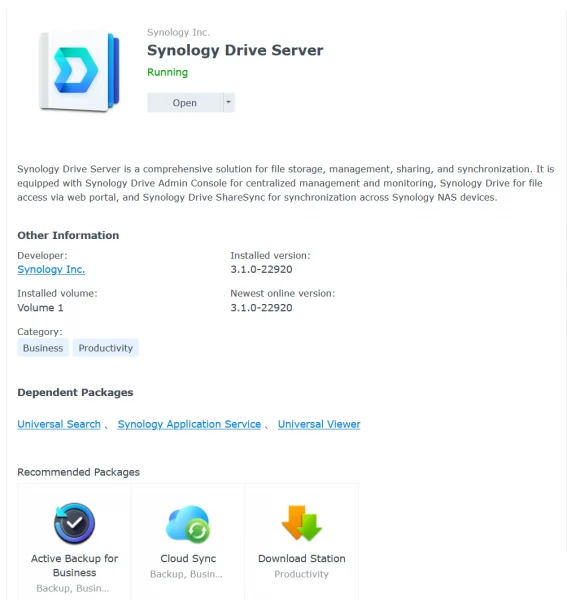
You will then receive a prompt that the permission defined for the shared folder will take precedence. For example, if a user has only read-only share permission for the folder, the user won’t be able to sync.
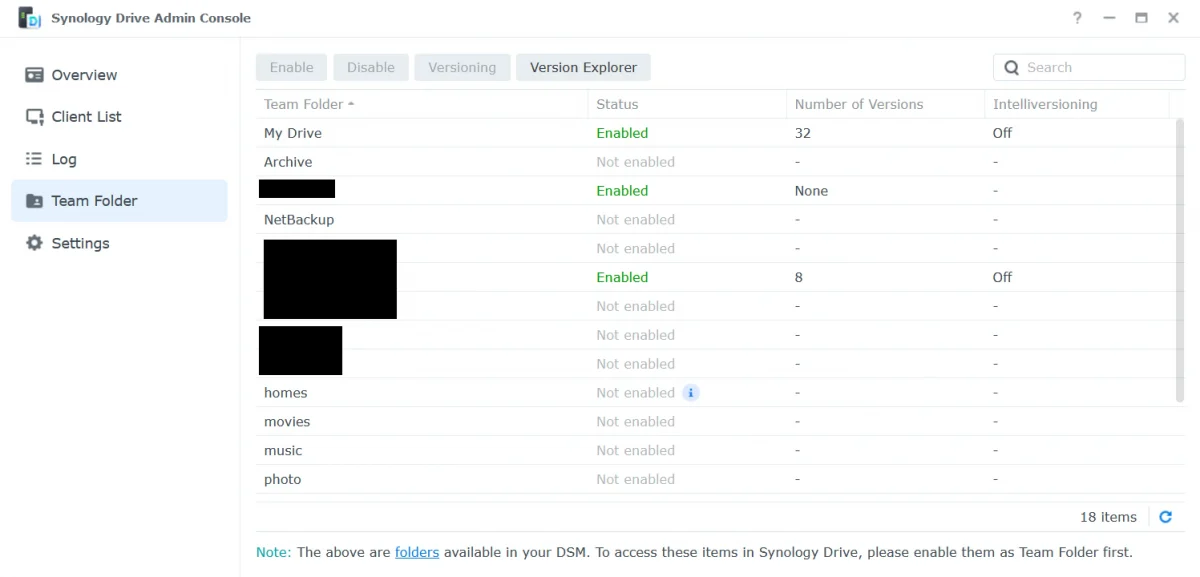
To access the Synology device from the Internet, you need to open these TCP ports for forwarding on the firewall.
80 (link sharing), 443 (link sharing), 5000 (HTTP), 5001 (HTTPS), 6690 (file syncing)
What network ports are used by DSM services? Here is the knowledge base article.
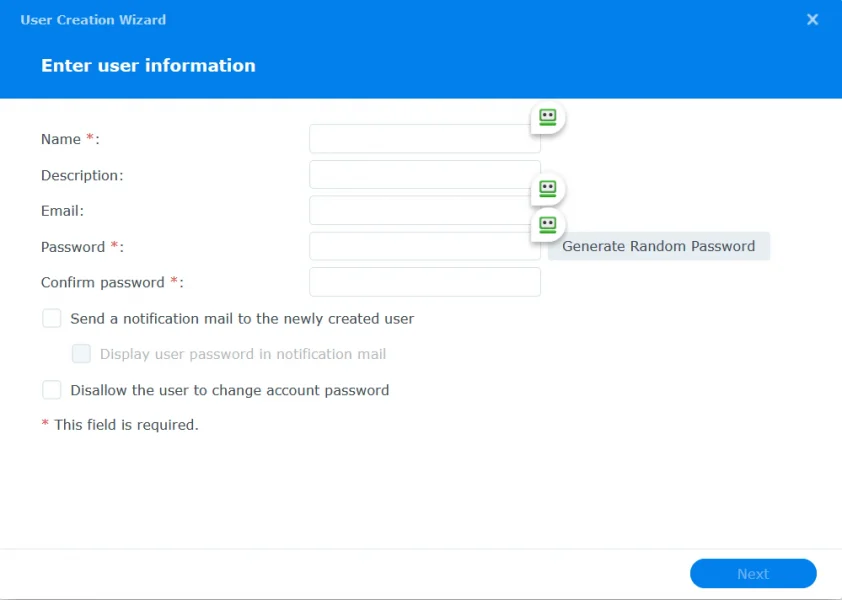
To create a Synology account or login ID, log in to your Synology NAS as an administrator,
The wizard will also prompt you to give the user permission for the folder you want to use with Synology drive.
-A computer running Windows 10 or higher or macOS 10.11 or higher
Installation process:
1. Download the Synology Drive client for your computer from the Synology Download Center.
2. Double-click the downloaded file and follow the instructions in the installation wizard to complete the installation.
3. Once installed, launch Drive and log in with your Synology account to start using it.
Configuration: After logging in, you’ll be prompted to select the folders you want to sync. You can also change advanced settings like bandwidth throttling and proxy settings.
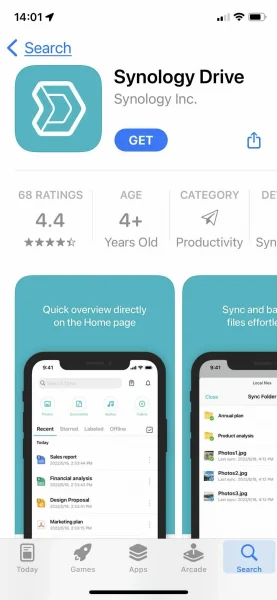
1. Go to the App Store on your tablet and search for “Synology Drive Client.”
2. Tap the “GET” button to download and install the app.
3. Launch the app once it’s installed.
1. Go to the App Store on your iOS device and search for “Synology Drive Client.”
2. Tap the “GET” button to download and install the app.
3. Launch the app once it has been installed.
You can also access Synology from a web browser. You need to know the web address and the port it listens to, usually 5000 for HTTP or 5001 for HTTPS. This is handy in case your computer is unavailable. It’s not the best way, but it’s fine in an emergency.
Synology Drive is a great way to manage your private cloud. I took some screenshots to help you better understand the process. Once you have the client installed on your Windows or Mac machine, follow the installation wizard.
The first step is to create a folder and a Synology user. To reach your Synology, you only need the external address.
The NAS must be accessible over the internet. You can use Synology Drive to keep your files in one place and access them from anywhere.
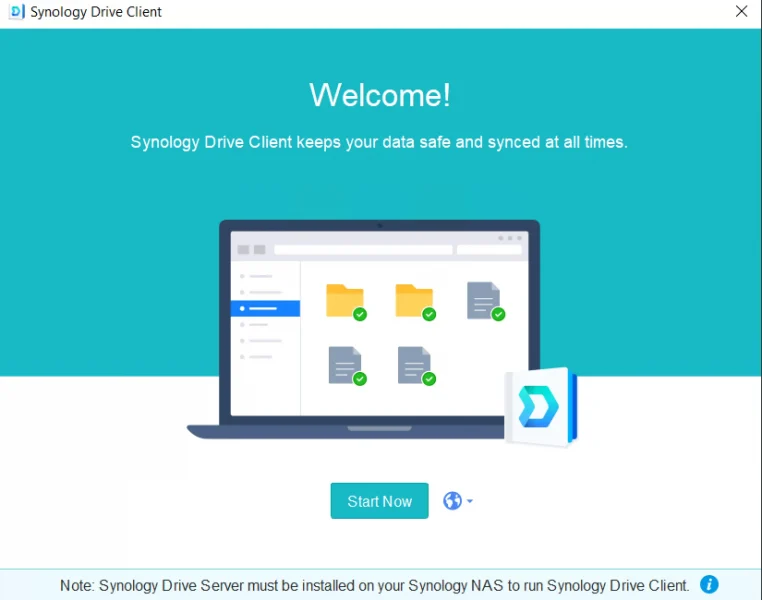
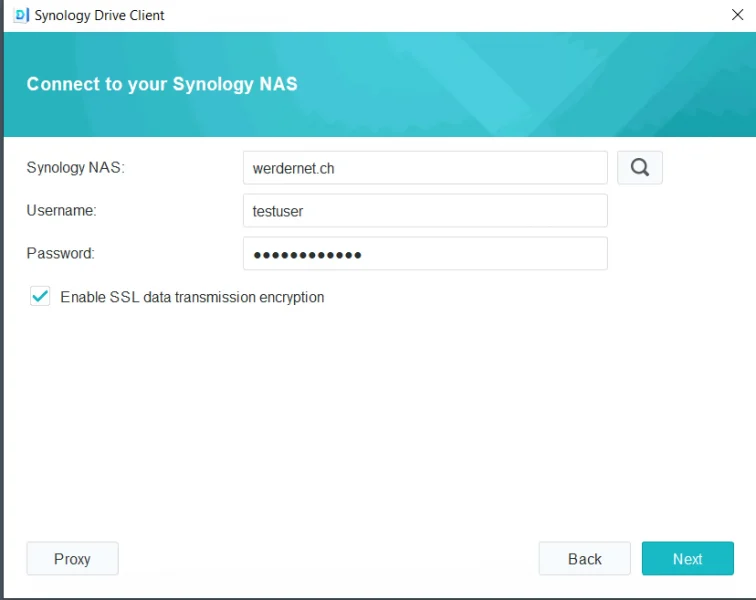
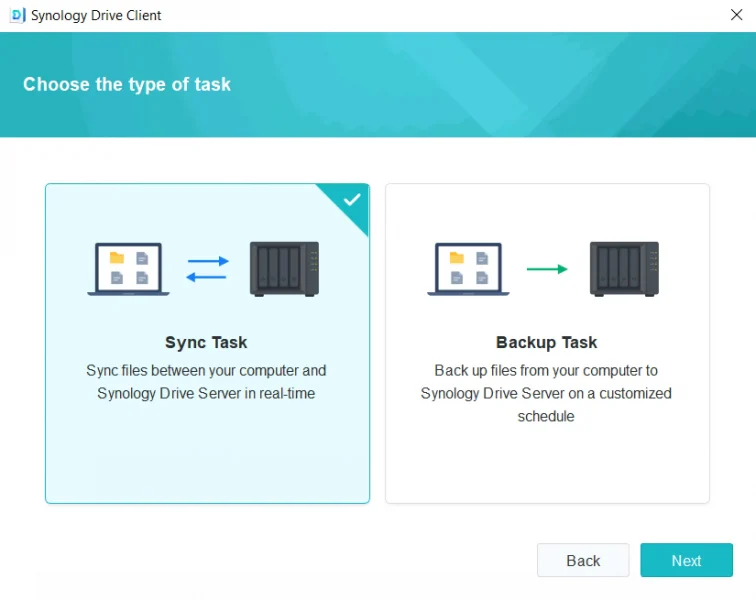
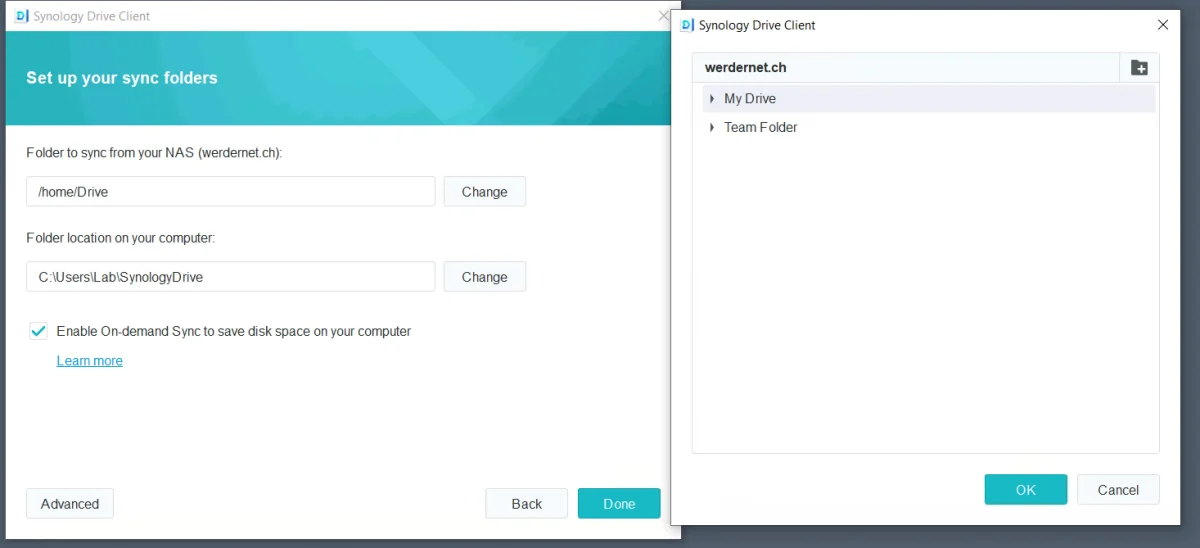
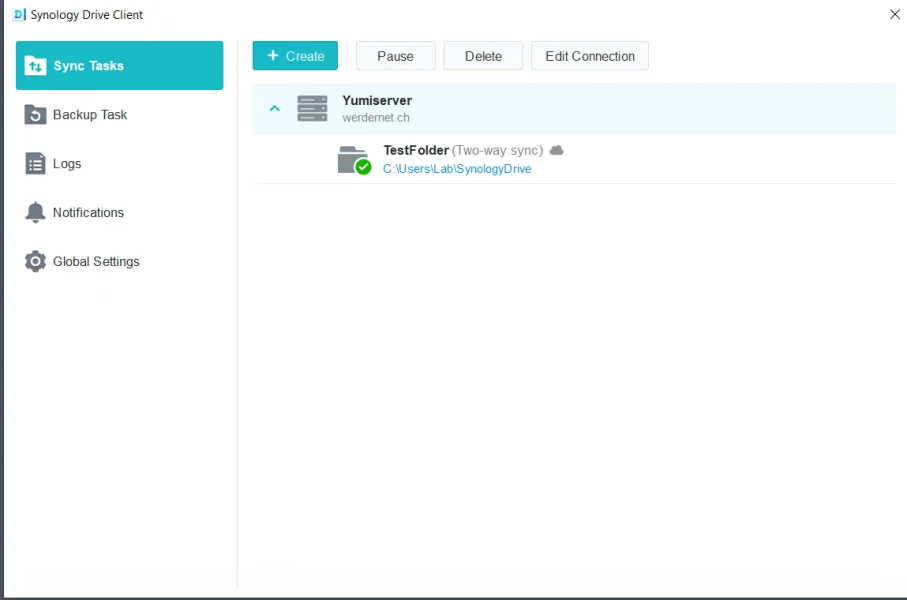
A sync task is the link between a folder on your computer and a folder on your NAS. You create one sync task per folder pair. Synology Drive Client can run several sync tasks at once, so you can sync your Documents folder to one team folder and your photos to another, each with its own sync task.
Each sync task runs two way sync by default. A change on either side lands on the other. You can switch a sync task to one way sync if the NAS should never write back to the local device, which is useful when the local folder is the only source you trust.
On-Demand Sync is worth switching on if your laptop is short on disk. Instead of downloading every file in the sync task, Synology Drive Client shows the full folder tree and streams a file only when you open it. The folder looks complete in Explorer or Finder, but the files stay on the NAS until you need them.
I do not use this half of Synology Drive. I run it for sync, and that is it. But the features exist, and the reason to use them is worth stating plainly.
Synology Office sits on top of Synology Drive and adds documents, spreadsheets, and slides in the browser. Two people can edit the same Synology Office document at once. File lock status syncs with the Synology Drive web portal, so nobody overwrites anyone, and you can lock a file manually to prevent simultaneous edits.
Compared to Office 365, Synology Office is limited. I would not move a team onto it expecting parity. If you want a fuller collaboration stack on your own hardware, Nextcloud is the closer comparison.
So why use it. Independence from Microsoft Cloud. Sync alone does not get you there. If your files sync to your own NAS but your documents still live in Microsoft’s cloud, your private cloud is only half private. Synology Office is the piece that closes that gap. The trade is fewer features for no Microsoft. The same logic runs further than Drive: Synology Directory Server replaces Active Directory and a Windows Server license the same way.
Sharing follows the same logic. A share link can carry a validity period, so access expires without you having to remember to revoke it. File requests work the other way round. Someone outside your NAS gets a link and uploads to you without an account, which is how you collect files from external parties without email attachments. Shared labels let a team tag files with one agreed set instead of arguing about folders.
None of that is why I run Synology Drive. If you are trying to get a small team off Microsoft Cloud entirely, that is when this half of the app earns its place.
Synology provides a Synology account for ease of use, making your NAS accessible from the internet. A Synology account and a login for your Synology device are different. Refer to the official knowledge base article for more information on the difference.
The Synology Account web platform provides users with access to the following Synology services:
Yes, Synology Drive is designed to turn your Synology NAS into a u003cstrongu003epersonal and private cloudu003c/strongu003e. Unlike public cloud services, all your data stays on your hardware, giving you full control over who can access it.u003cbru003eSynology Drive uses the same login credentials as your NAS. Any user with a NAS account can also log in to Synology Drive. Users have read-only access to the root Drive folder by default, but you can customize permissions for each user. You can set different access levels for shared folders or even enable object-level permissions to control access to individual files or subfolders.u003cbru003eFor better security and privacy, I recommend avoiding accounts tied to a DDNS address, as they can expose your NAS to the internet and increase risk.
Synology Drive is designed with privacy in mind. Your files are stored locally on your NAS, not on Synology’s servers—unless you choose to enable cloud sync features.
To enhance security use
These features give you complete visibility and control over your data, making Synology Drive a reliable choice for users who value privacy.
Yes, for sync and private file access. That is the job it is built for and it does it well.
What works for me: sync is reliable. I have not lost a file or hit a sync that would not finish. On my own network it syncs over local gigabit, so it is faster than uploading to a datacentre and pulling it back down. Version history has saved me more than once, because every modified file keeps its previous versions on the NAS.
What does not: it is not a backup, no matter how much it looks like one. It has no offsite copy unless you build one. And you are the support desk. If a drive fails on a Sunday, that is your Sunday.
Who should skip it: if you want file storage you never think about, buy Google Drive. Synology Drive is worth it if you want the data on your own hardware and you accept the maintenance that comes with it.
It depends on what you want to pay for and how much you want to manage. Synology Drive is better if you want your data on your own hardware and no monthly bill. Google Drive is better if you want it to just work and never think about it.
I use both, so here is the honest comparison.
Cost. Google Drive is a subscription. You pay every month, forever, and the price goes up as you need more space. Synology Drive costs nothing on top of the NAS. You pay for the hardware once. My DS723+ with two drives cost around [YOUR PRICE], and Google One at 2 TB runs about [PRICE] a year. That puts my break-even at roughly [X] years. After that, the storage is free apart from electricity.
Speed. On my own network, Synology Drive is the faster of the two. It syncs over local gigabit instead of going out to a datacenter and back. Remotely it depends on your home upload speed, which is the one structural difference: Google uploads into their infrastructure, Synology Drive uploads into your house. On Swiss fibre I have never found that a problem, and I have not run into stuck syncs. Sync clients can hang, but that is true of Google Drive too, so I would not count it against either one.
Privacy. This is where Synology Drive wins, and it is the reason I run it. My files sit on my NAS. Nobody scans them, nobody trains on them, and no account decision by a company can lock me out.
What you give up. You are the support desk. If a drive fails, that is your evening. Synology Drive has no offsite copy unless you build one, so a fire or a theft takes your data with it. I run Hyper Backup to a second NAS for exactly this reason. Google handles all of that for you, and that is worth real money to some people.
I recommend using a Synology NAS with at least two bays in a RAID 1 setup. This will give you some level of protection against drive failure. If you purchase a Synology with more bays, I recommend using a RAID 5 setup. A RAID setup enables replacing a hard drive without powering down the system.
The NAS permanently monitors the drives’ health and will send you an email alert in case of a problem. Make sure the notification alert is correctly installed. With the Storage Manager app, you can view the health of your hard drives at any time.
I recommend using Synology’s Hyper Backup app to back up your Synology Drive. The app supports multiple backup destinations, including local, external, and Synology C2. It also offers features to help you manage your backups, including file versioning, incremental backups, and more.
I would love to get your feedback. Was this article helpful? Please share your opinion with me in the comment section below. Or, if you prefer a more personal touch, feel free to email me directly at info@edywerder.ch. Your thoughts and insights are always appreciated.
Hi, I'm Edy Werder. I write hands-on guides about servers, virtualization, NAS and WordPress, based on setups I run in my own homelab. Real configs and real results, no fluff.
Enjoying the content?