By Edy Werder, a tech blogger with 20 years of experience in IT infrastructure
Have you ever wondered if your Synology NAS is truly secure? You’re not alone. Many Synology users overlook a powerful built-in security tool: the Synology Firewall. While it’s a crucial first line of defense for your NAS, simply turning it on isn’t enough.
Properly configuring the Synology Firewall requires careful consideration and a step-by-step approach. It’s not just about flipping a switch – it’s about creating well-thought-out rules that protect your data while allowing necessary access.
In this guide, I’ll walk you through effectively setting up your Synology Firewall. I cover everything from understanding how the firewall works to creating and ordering rules that suit your needs.
Whether you’re a home user or managing a small business NAS, this information will help you enhance your device’s security.
The Synology Firewall operates slightly differently from what you might expect, and it’s essential to understand this before configuring it.
Here’s the key thing to remember: When you first turn on the Synology Firewall, it doesn’t automatically block any traffic. This might seem counterintuitive, but it’s designed to prevent you from accidentally locking yourself out of your NAS.
So how does it work?
Think of it like this: You’ve installed a new security door but haven’t locked it yet. The door (firewall) is there, but it’s not doing much until you turn the key (set up rules).
This approach gives you control and flexibility but also means you must be proactive in setting up your rules. Don’t worry, though – I’ll guide you through this process step by step.
Remember, your NAS is still open to all traffic until you set up your first “deny” rule, just like before you enabled the firewall. Understanding and correctly setting up your firewall rules is so important.
You might think, “I already have a firewall on my ISP router. Isn’t that enough?” It’s a great question, and here’s why the Synology Firewall offers additional, valuable protection:
For example, if you’ve forwarded ports for Plex or your file station, the Synology Firewall lets you add extra security measures like limiting access to specific IP addresses or setting up more complex rules to protect these entry points. Remember, traffic coming through these forwarded ports would have direct, unfiltered access to your NAS without the Synology Firewall. The Synology Firewall ensures this traffic is scrutinized and controlled, significantly enhancing your NAS’s security.
Think of it this way: Your router’s firewall is like the security guard at the entrance of a building, while the Synology Firewall is the keycard system controlling access to a specific, important room inside that building. Both are valuable and work together to create a more secure environment for your data.
Clear firewall rules are like giving precise instructions to a security guard for your NAS. They determine what traffic gets in and what stays out. Here’s why they’re crucial:
When creating your rules, think about:
Remember, the goal is to create rules that protect your NAS comprehensively yet remain simple enough for you to manage and understand. In the next section, we’ll follow a step-by-step guide to help you set up these rules effectively.
My pick
Setting up your Synology Firewall correctly is crucial for security. Follow these steps for a safe and effective configuration:
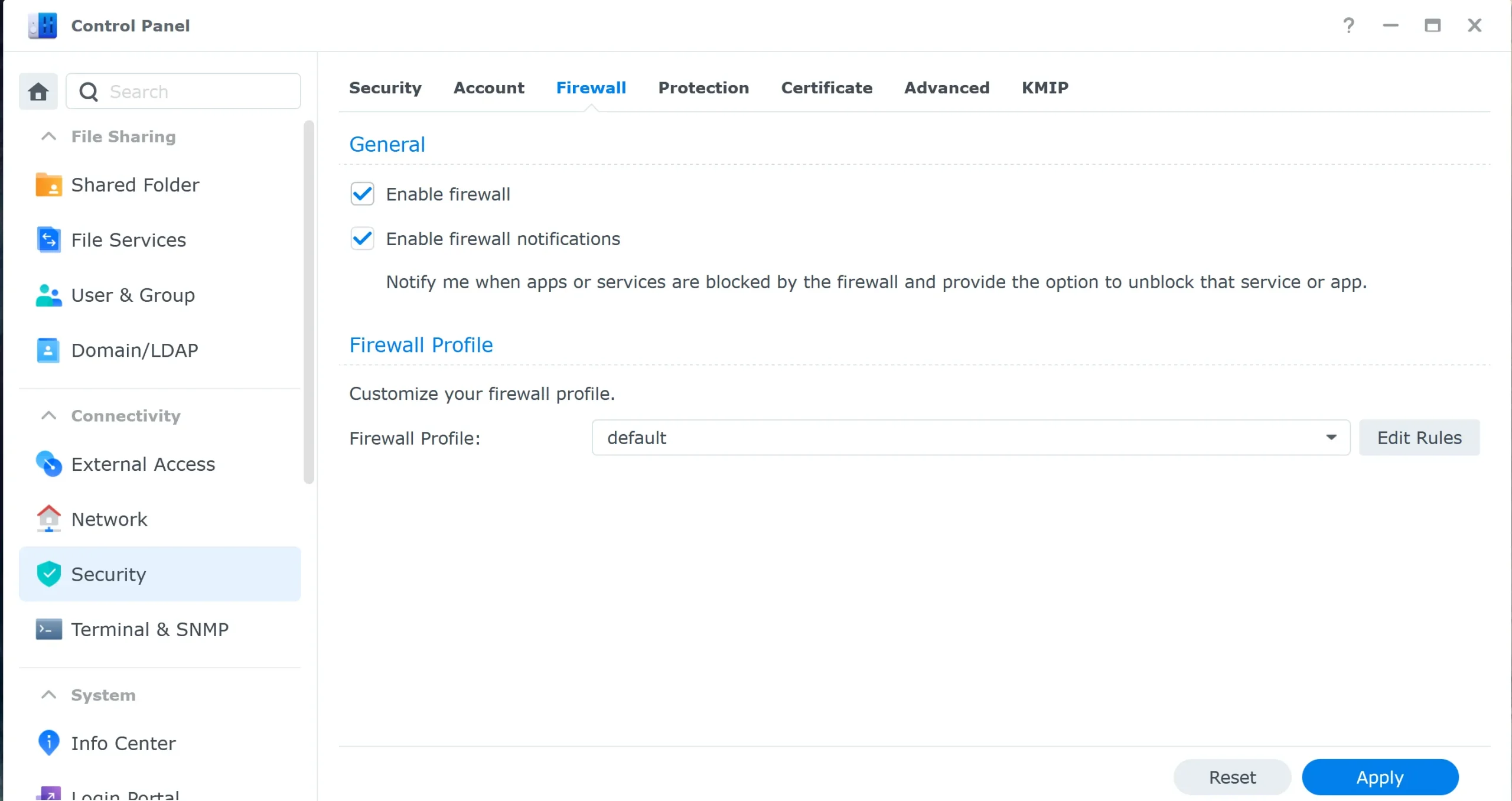
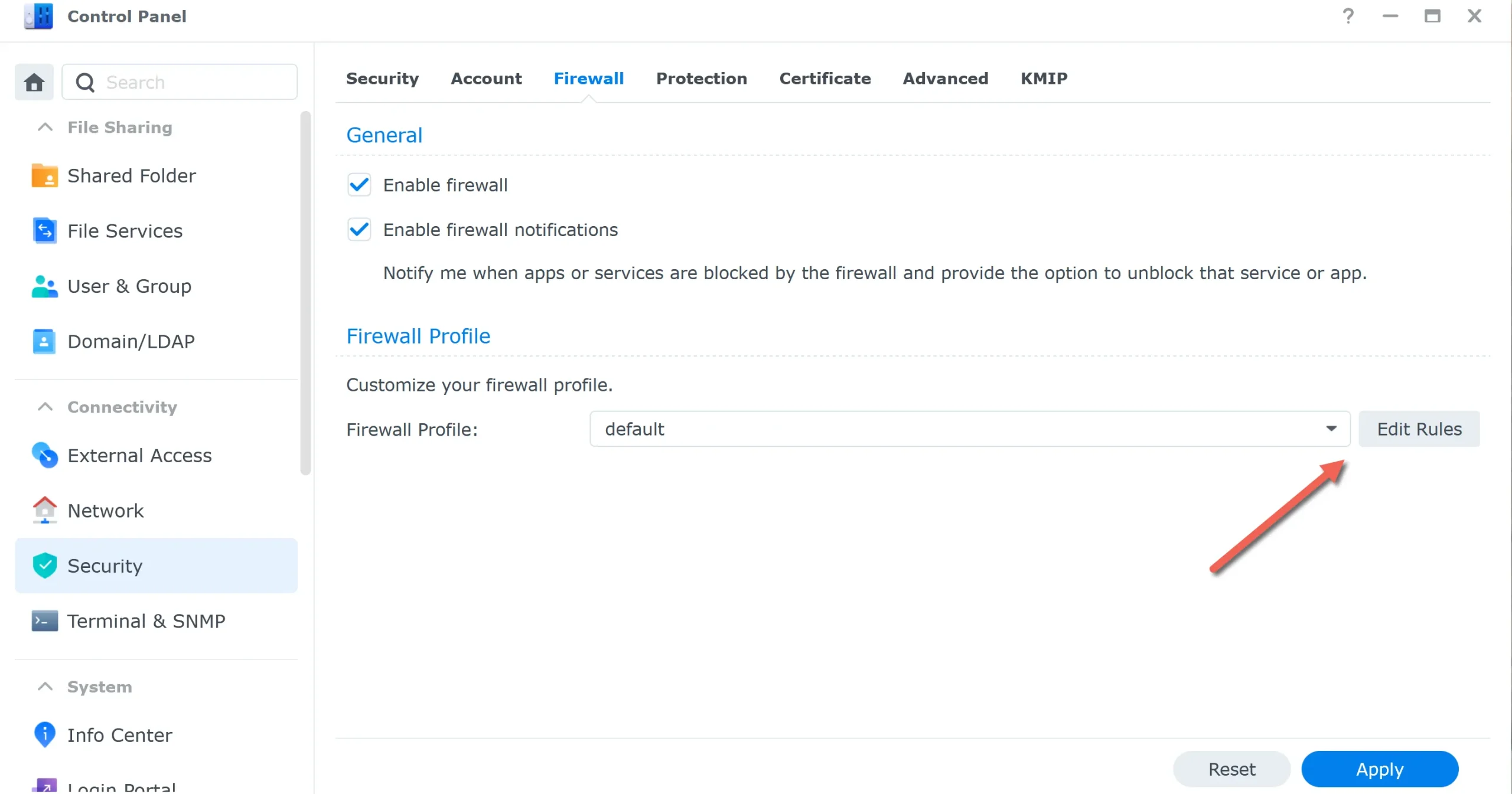
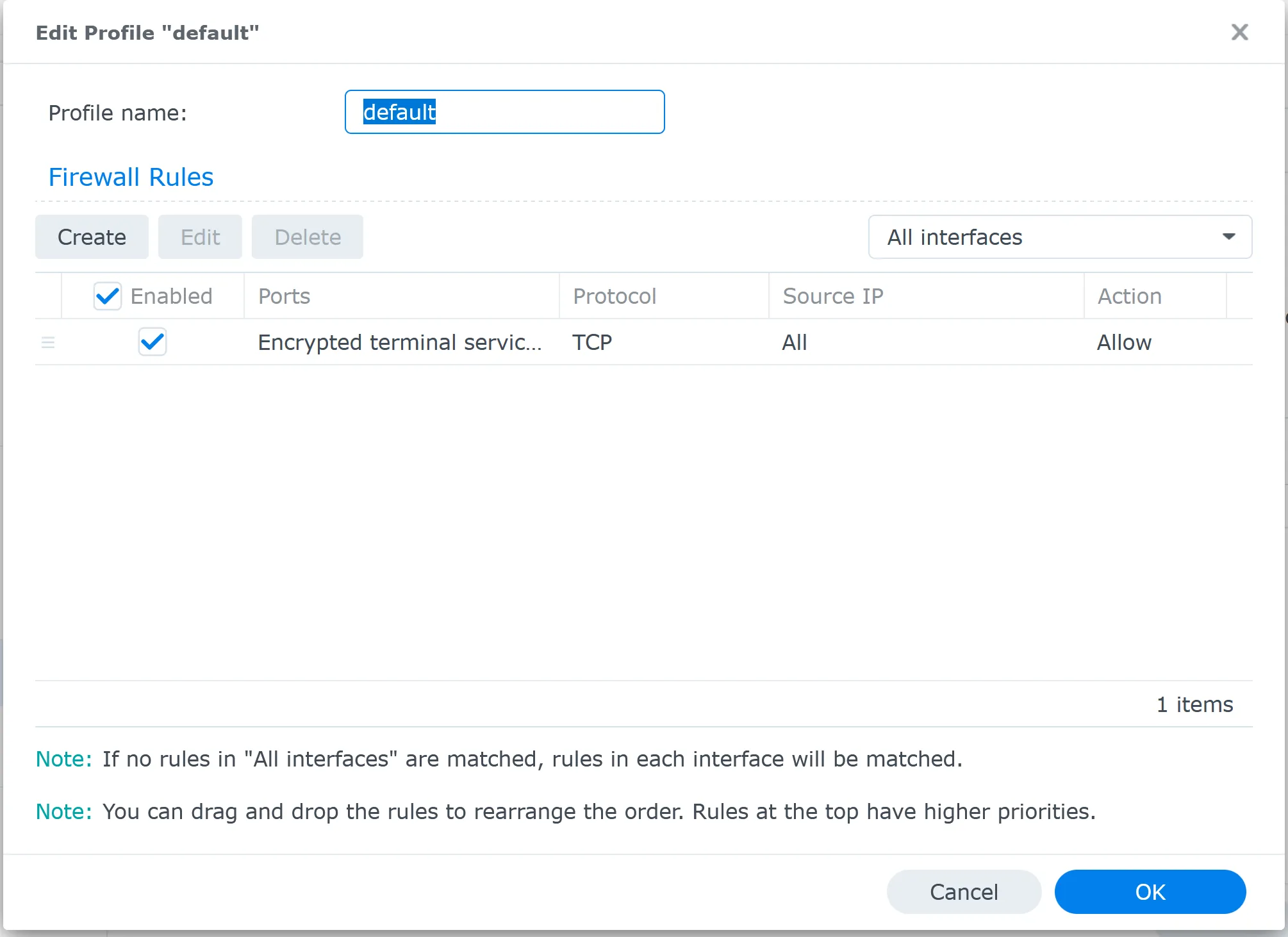
Click “Edit Rules”
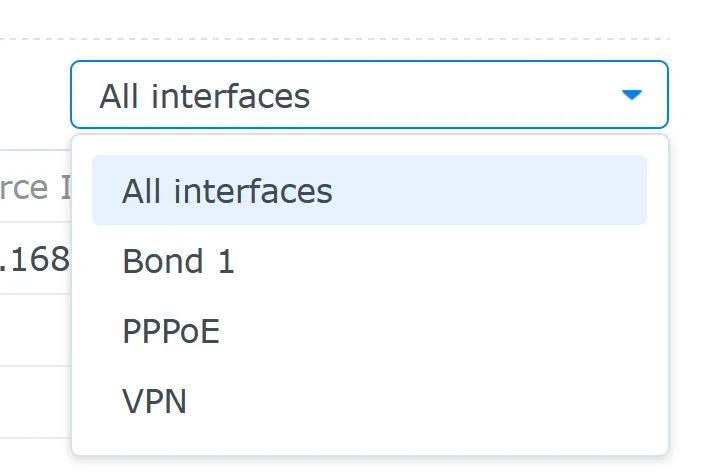
The Synology firewall allows you to create rules per interface. Here are my interfaces. I recommend creating rules for “All interfaces” only.
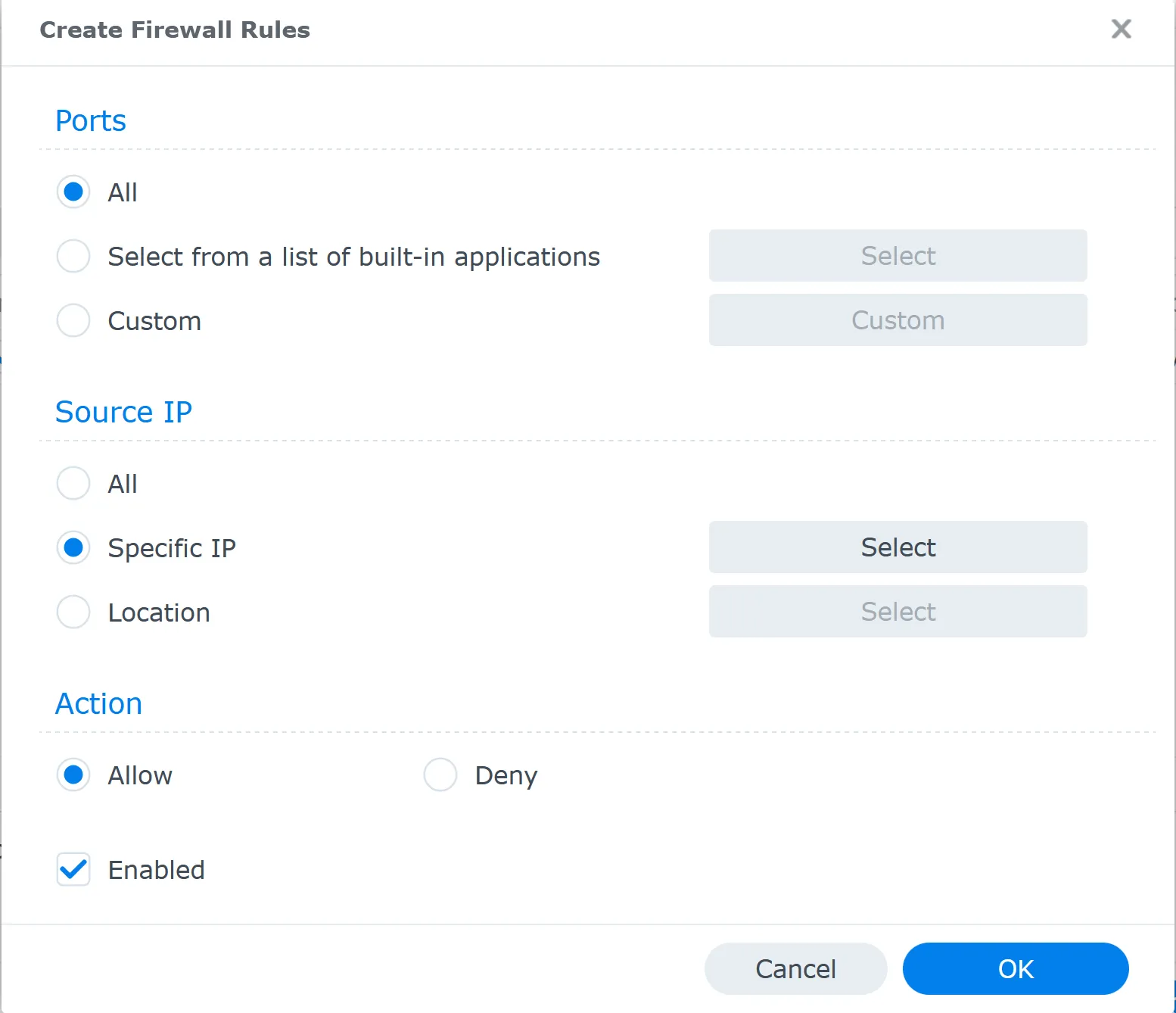
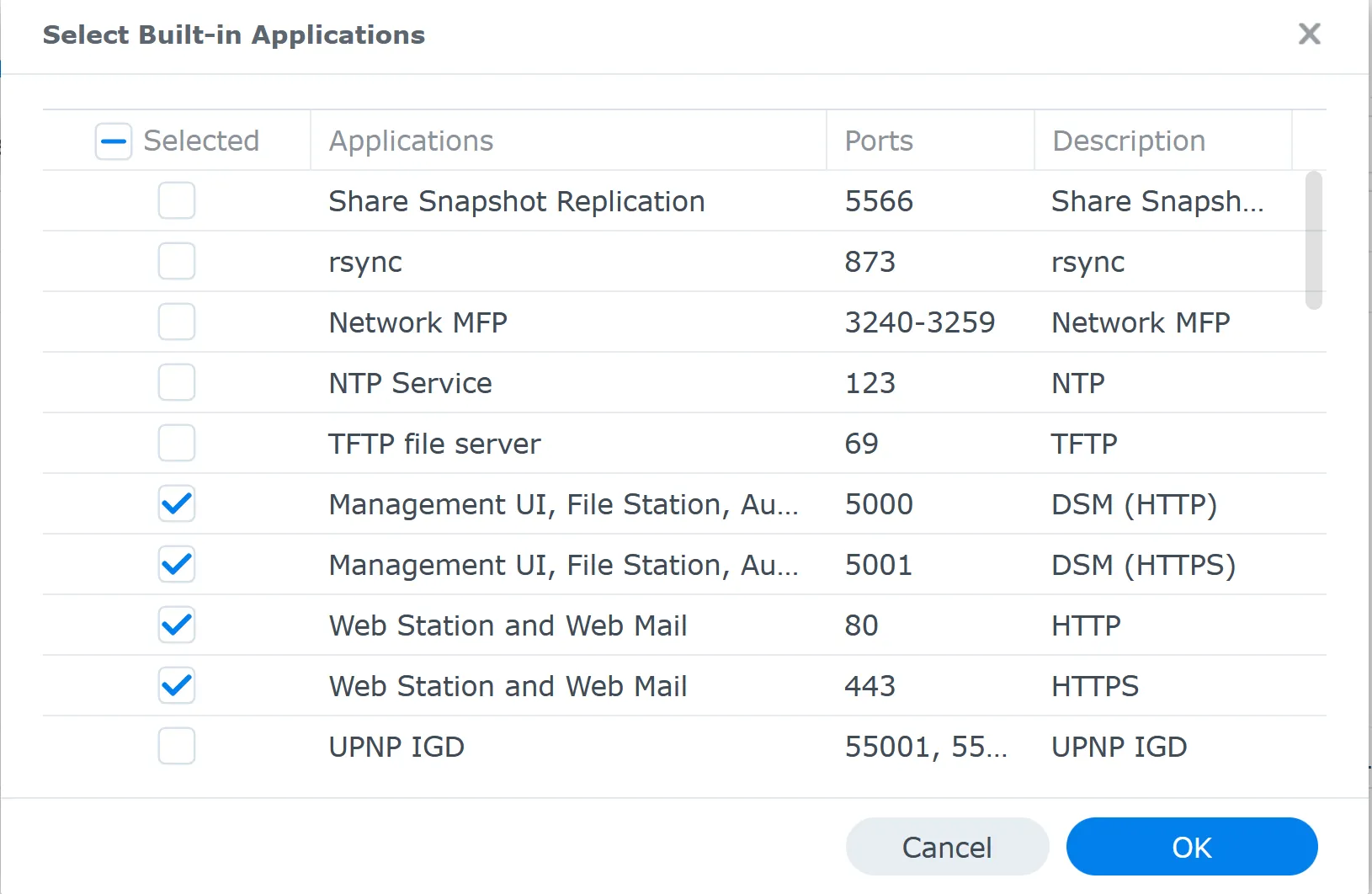
Select all the applications that require remote access. In my case, I use Synology Drive, Web Station (WordPress on Synology), FTP, and SSH.
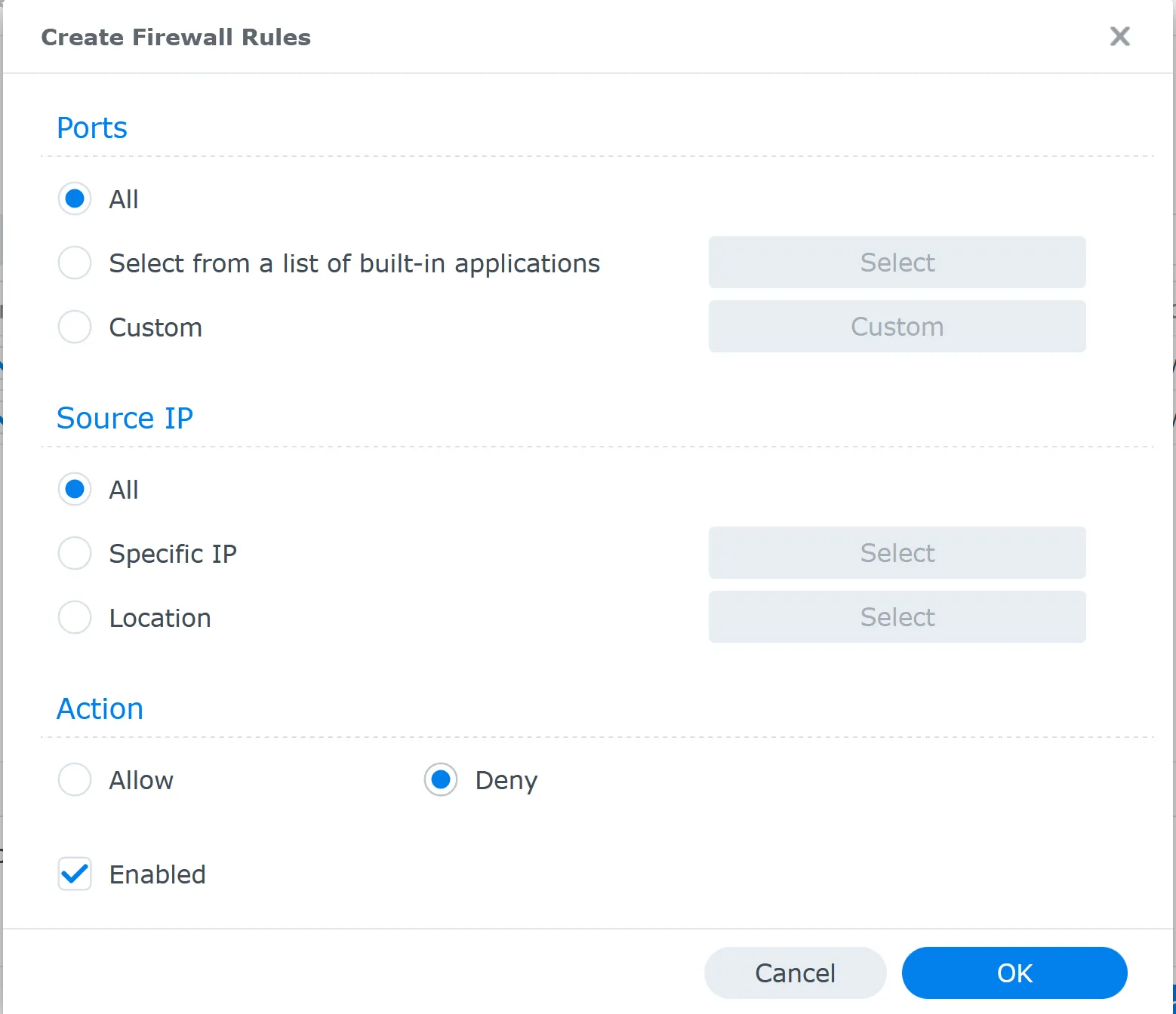
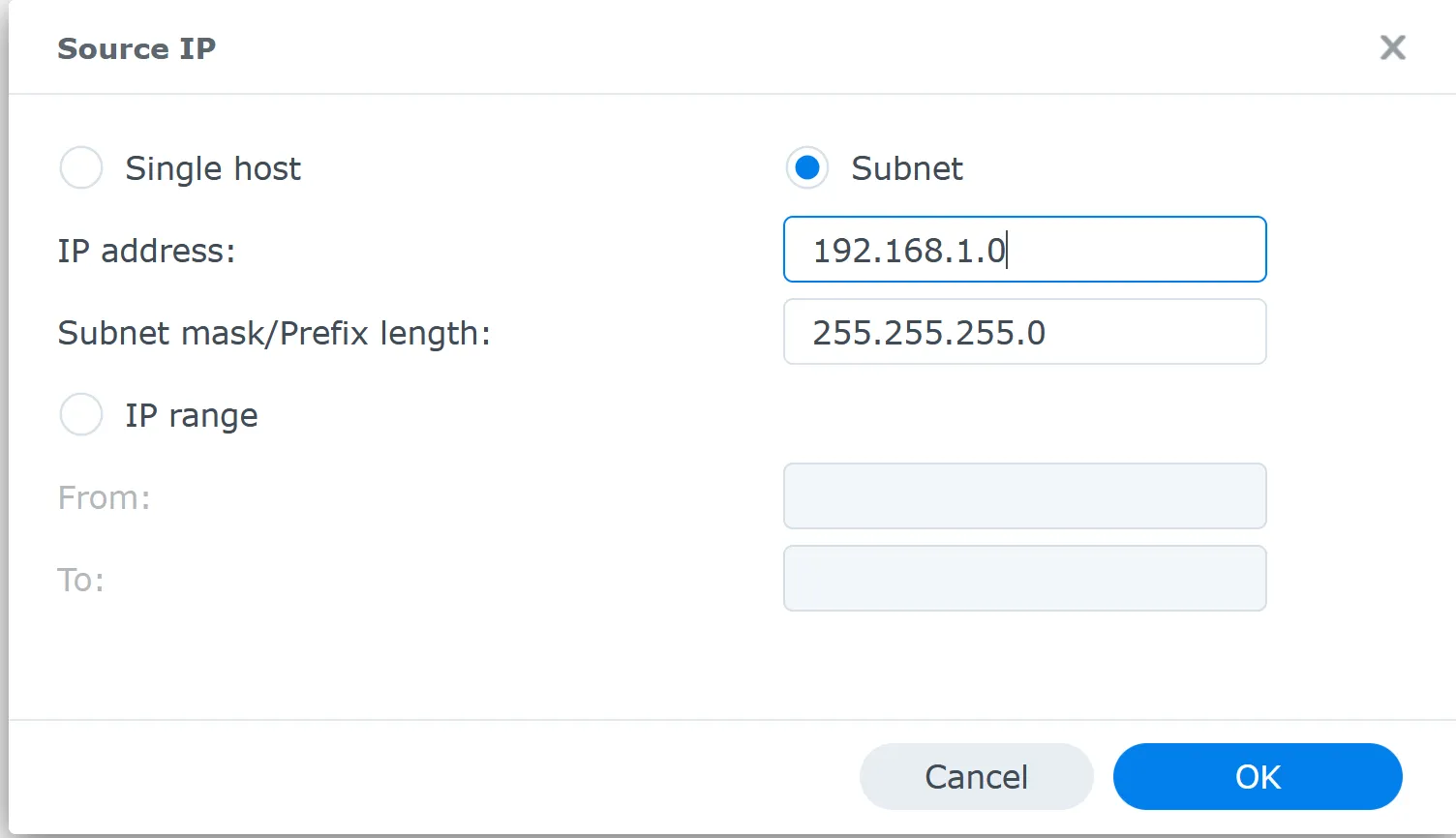
Remember, rule order is crucial. The firewall processes rules from top to bottom, stopping at the first match. By placing the “Allow Local Access” rule first and “Deny All” last, you ensure local network access while blocking unwanted traffic.
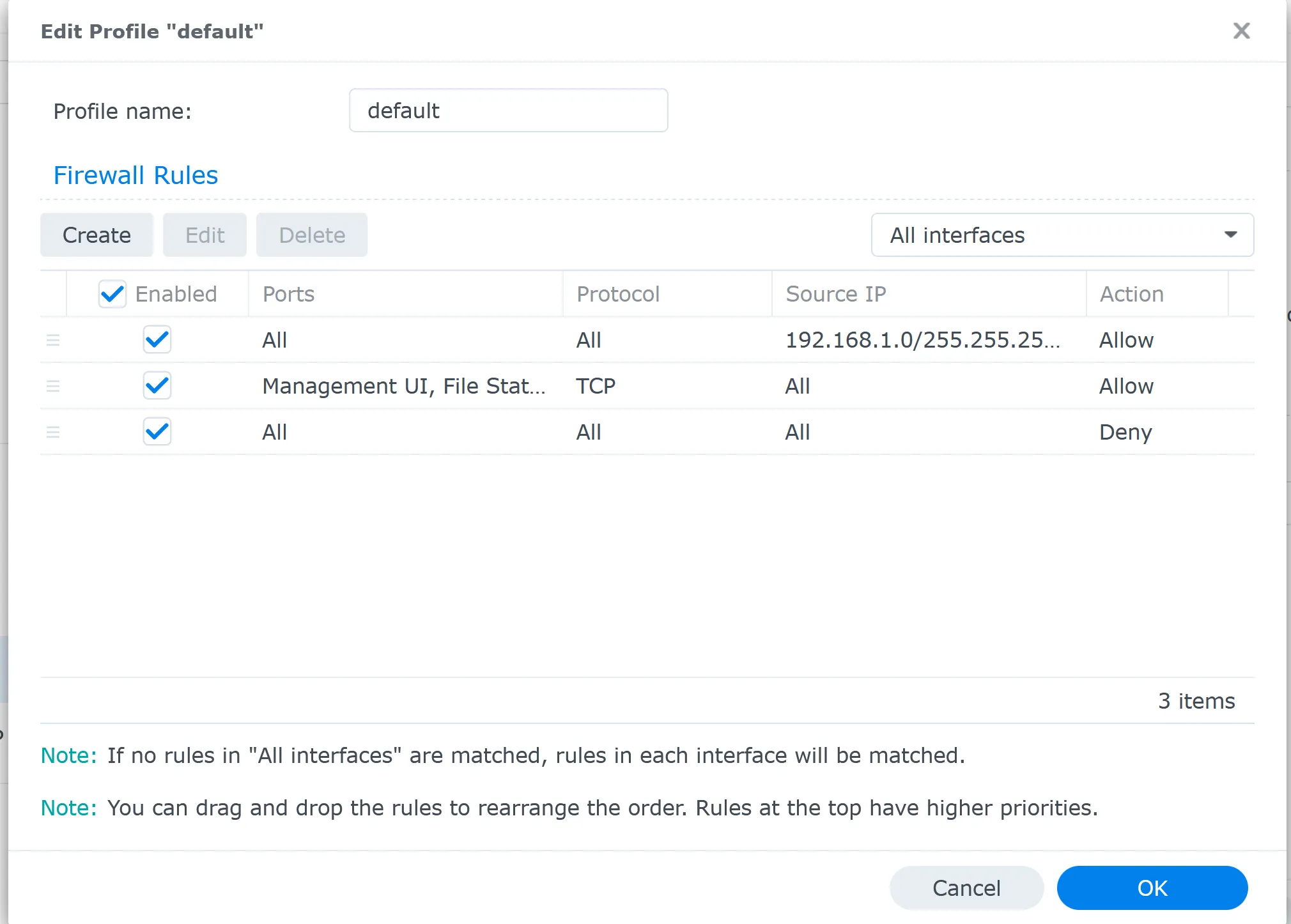
Always make changes cautiously. If you accidentally lock yourself out, you can still disable the firewall by logging in directly to the NAS.
The Synology Firewall offers a powerful feature that allows you to restrict or allow traffic based on geographical locations. This can be particularly useful for enhancing your NAS security. Here’s what you need to know:
How it works: Synology’s firewall can identify the country of origin for incoming traffic based on IP addresses. You can use this to create rules that block or allow access from specific countries.
Best practice: Using geographical restrictions to deny rules rather than allow them is generally recommended. This means you should focus on blocking traffic from countries you don’t expect legitimate access from rather than trying to allow traffic only from specific countries.
Why use deny rules? Deny rules for specific countries are more flexible and less likely to accidentally block legitimate traffic. They allow you to maintain broader access while still protecting against threats from high-risk regions.
Setting up a country-based deny rule:
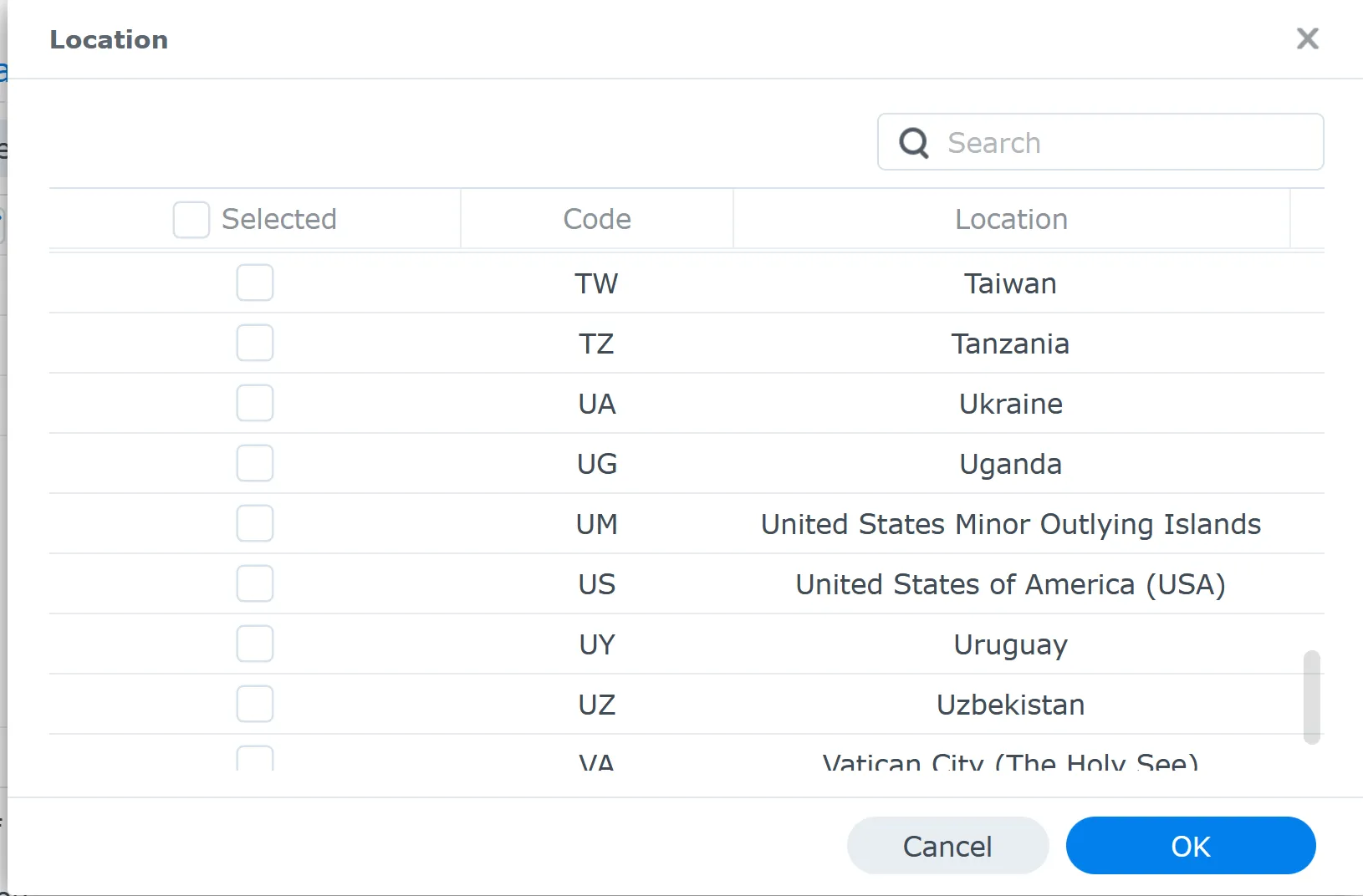
Rule Order is Critical: Place your geographical deny rule below your rule, allowing internal network access before any rules allowing access for specific applications or ports. This order ensures that:
If you’ve accidentally locked yourself out due to firewall misconfiguration, here are the correct steps to regain access:
Yes, a NAS server definitely needs a firewall. A firewall is crucial for protecting the valuable data stored on the NAS from unauthorized access, especially if it is accessible from the internet. It helps control which services are accessible and from where reducing your NAS’s vulnerability to potential threats. While your router likely has a firewall, the NAS firewall provides an additional, more specific layer of protection. Think of it as an extra lock on the door to your digital valuables.
The most critical firewall rule for a Synology NAS is allowing all traffic from your local network while denying all incoming traffic by default. This ensures you can always access your NAS from within your home or office while blocking potential threats from the internet. If you need remote access, create specific rules only for the necessary services, like HTTPS protocol (website) on port 443, rather than opening all ports. It’s also crucial to protect administration ports, like 5000 for DSM, by restricting them to local access only. Remember, the key is to start restrictive and then carefully allow only what’s absolutely necessary for your needs.
I’d love to hear from you. Was this article helpful? Share your thoughts in the comments below. If you prefer, you can also reach me by email or connect with me on Reddit at Navigatetech.
Before you go, if you’re interested in maximizing the utility of your Synology NAS, you’ll want to check out How to Set Up and Use Synology QuickConnect. This guide will show you how to securely access your NAS from anywhere, enhancing your remote connectivity. It’s a perfect next step after configuring your firewall. Dive into it to ensure your Synology experience is both secure and convenient!
Hi, I'm Edy Werder. I write hands-on guides about servers, virtualization, NAS and WordPress, based on setups I run in my own homelab. Real configs and real results, no fluff.
Enjoying the content?