

By Edy Werder, a tech blogger with 20 years of experience in IT infrastructure
Unlock the full potential of your Synology NAS with Synology Virtual Machine Manager, a powerful tool that brings NAS virtualization to your fingertips. With VMM, you can efficiently run virtual machines on your NAS — no extra hardware or hypervisor is needed.
In this guide, I’ll show you how to get started and explain why this solution is both cost-effective and surprisingly capable. Whether you’re exploring alternatives to Proxmox or VMware ESXi, Synology VMM offers a streamlined virtualization experience built into DSM.
Running VMs on my Synology NAS feels like unlocking a secret power. With NAS virtualization, I can play with different operating systems, test new software, and ensure everything runs smoothly before pushing anything live. It’s like having multiple servers in one device—no need to buy extra hardware. That’s a huge win for saving money and reducing clutter.
My Synology NAS isn’t just storage anymore; it’s become a full virtualization host, capable of running Windows, Linux, or even another instance of DiskStation Manager. I often set up sandbox environments to experiment safely without putting my main system at risk.
Plus, with the btrfs file system, I get snapshot capabilities and enhanced data protection.
The VMM has my back with snapshots and replication to keep data safe if anything goes wrong. It turns my NAS into an all-in-one server that can do almost anything I need.
Explore the Synology Virtual Machine Manager realm, VMM, where technology enthusiasts find their haven. This isn’t just a tool; it’s your command center, effortlessly bringing virtualization into your workspace. Seamlessly run various operating systems on your reliable Synology NAS, expanding the possibilities of your digital domain.
I love how Synology Virtual Machine Manager (VMM) makes running virtual machines simple. It turns my Synology NAS into a powerful server where I can create and manage different operating systems.
Synology Virtual Machine Manager lets me run different types of VMs on my NAS. Here’s a rundown of the virtual machines I can set up:
Diving into Synology’s Virtual Machine Manager installation is simpler than you might think – I’ll walk you through the transformative steps, ensuring your NAS isn’t just storage but a virtualization powerhouse; keep reading to unlock this game-changing capability.
I appreciate how easy it is to start using virtualization with Synology. All I have to do is prepare my NAS and create a virtual space with just a few clicks. Of course, I need to ensure that my Synology model supports virtualization and that I have enough storage and RAM available before I begin.
Let’s get everything ready to use Synology Virtual Machine Manager. I’ll make sure you have what it takes before we dive in.
Now that you’ve got your area prepped for those future VMs. Let’s move on to “Easy Steps to Install VMM.”.
Synology Virtual Machine Manager (VMM) turns your Synology NAS into a powerful server. Let’s get started on how to install this tool and run virtual machines.
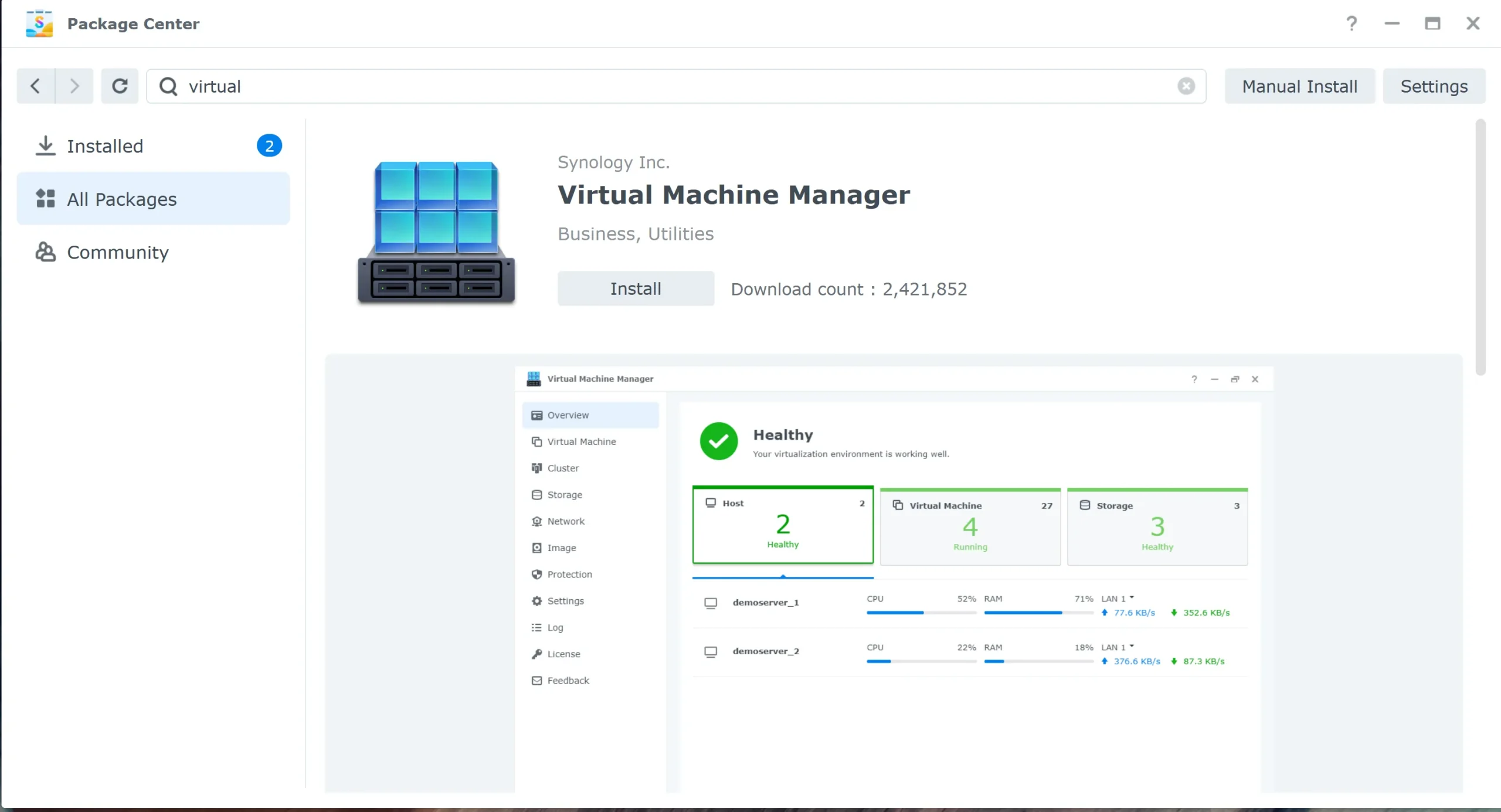
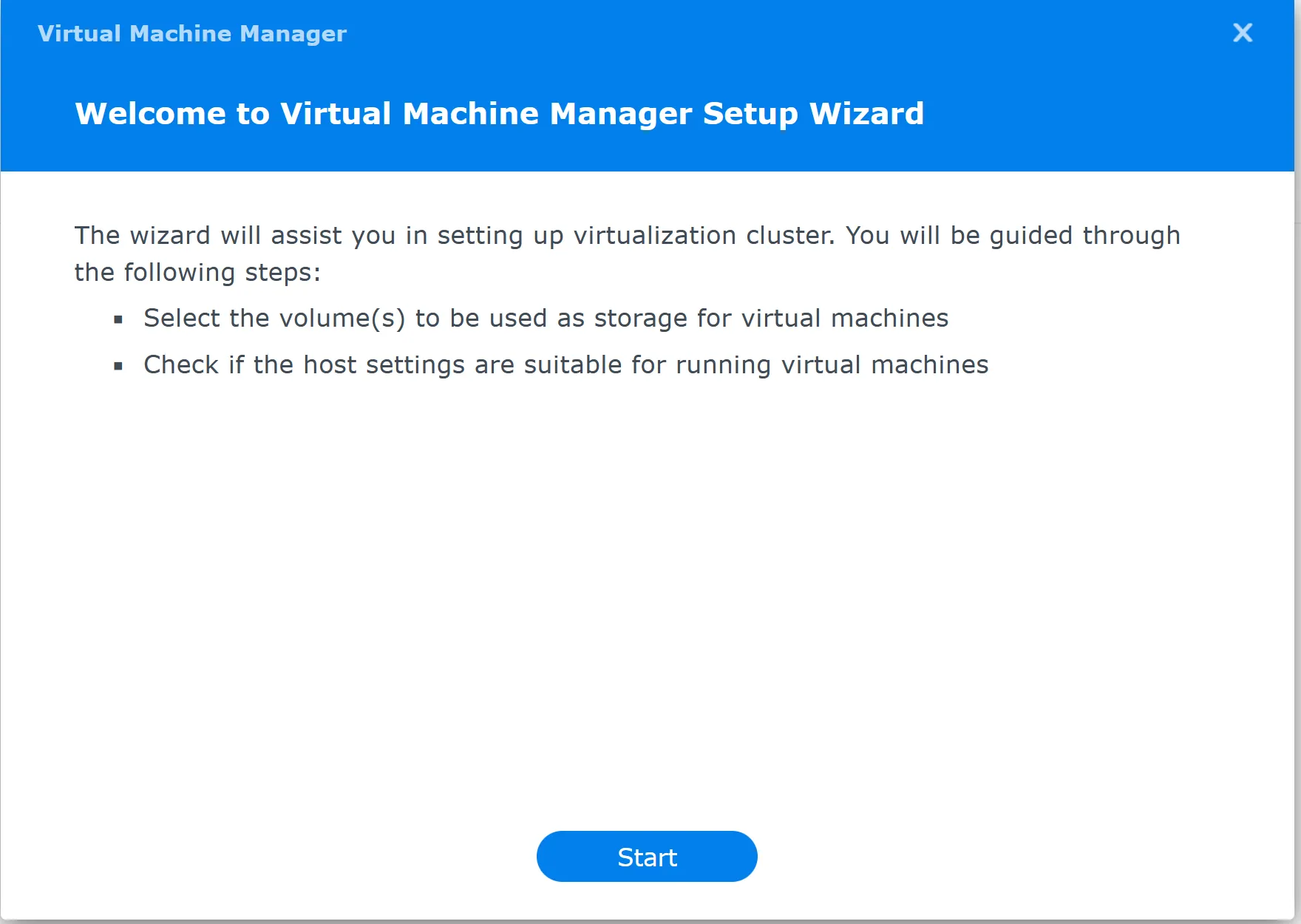
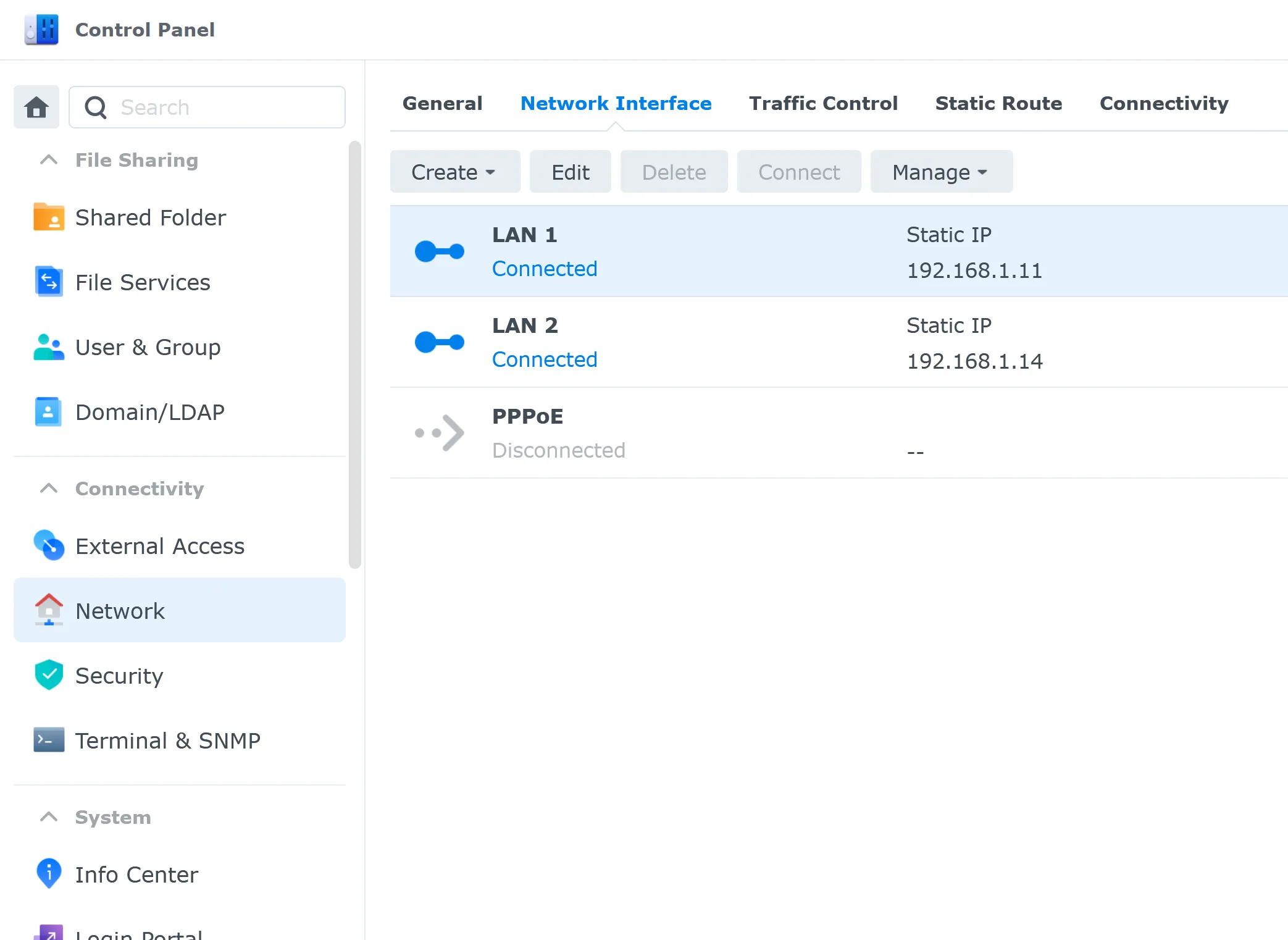
Configure all your network interfaces; in my case, I have two network interfaces. Please make sure that you don’t use a bond for configuration. Bond means configuring network interfaces to use the same IP address. The Virtual Machine Manager automatically configures ‘Open vSwitch. It’s not compatible with a bond.
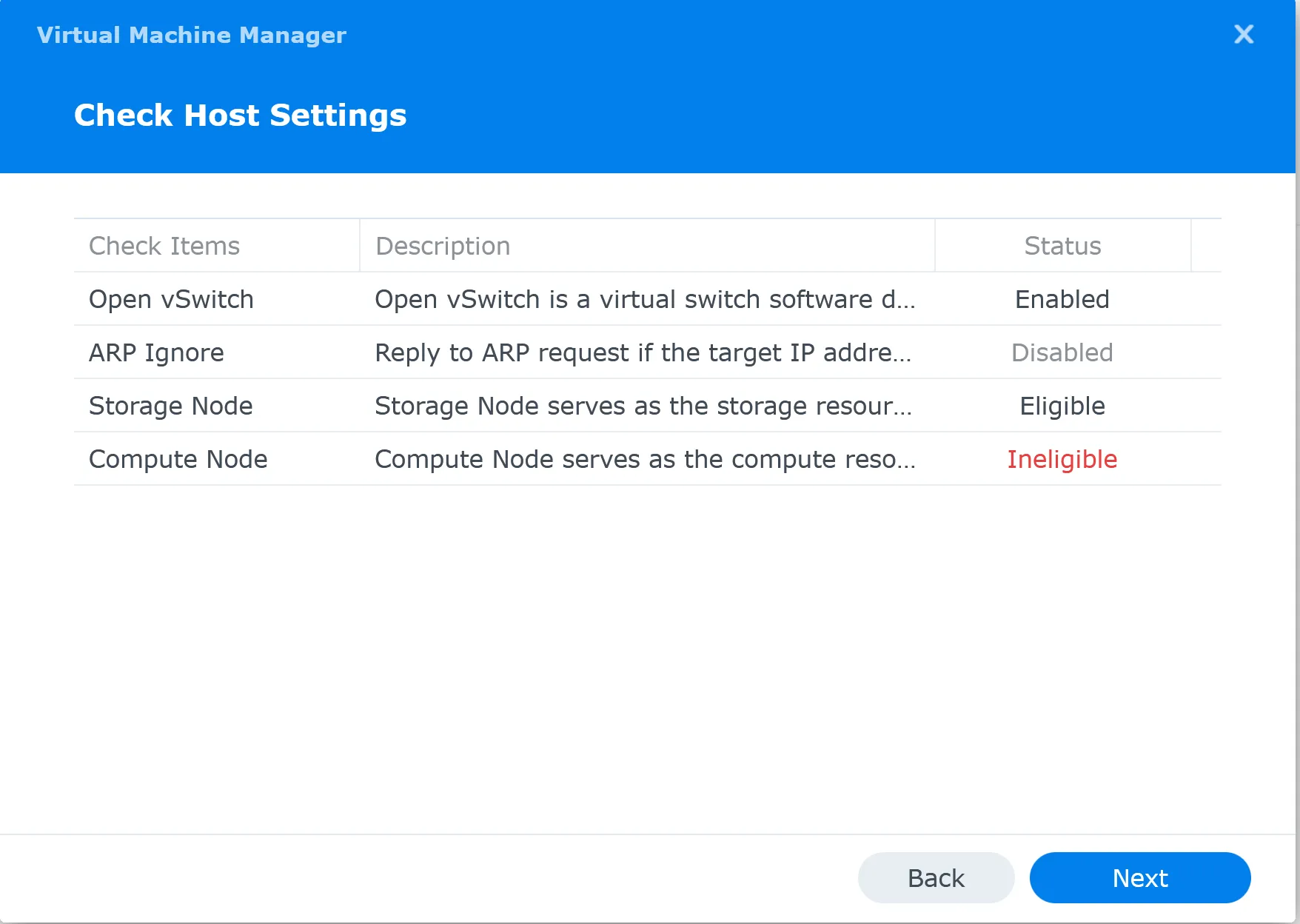
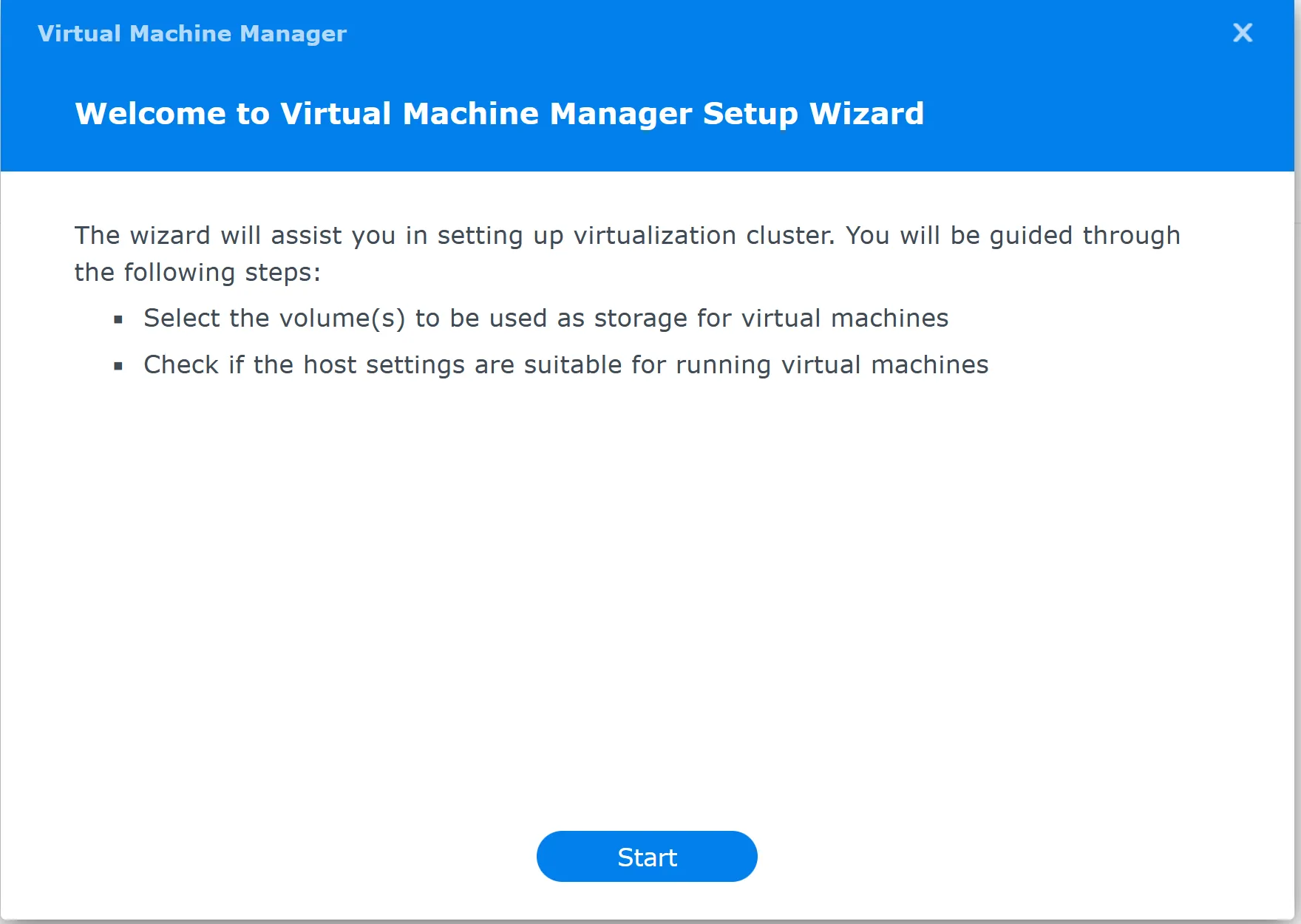
You are now all set to create your first VM
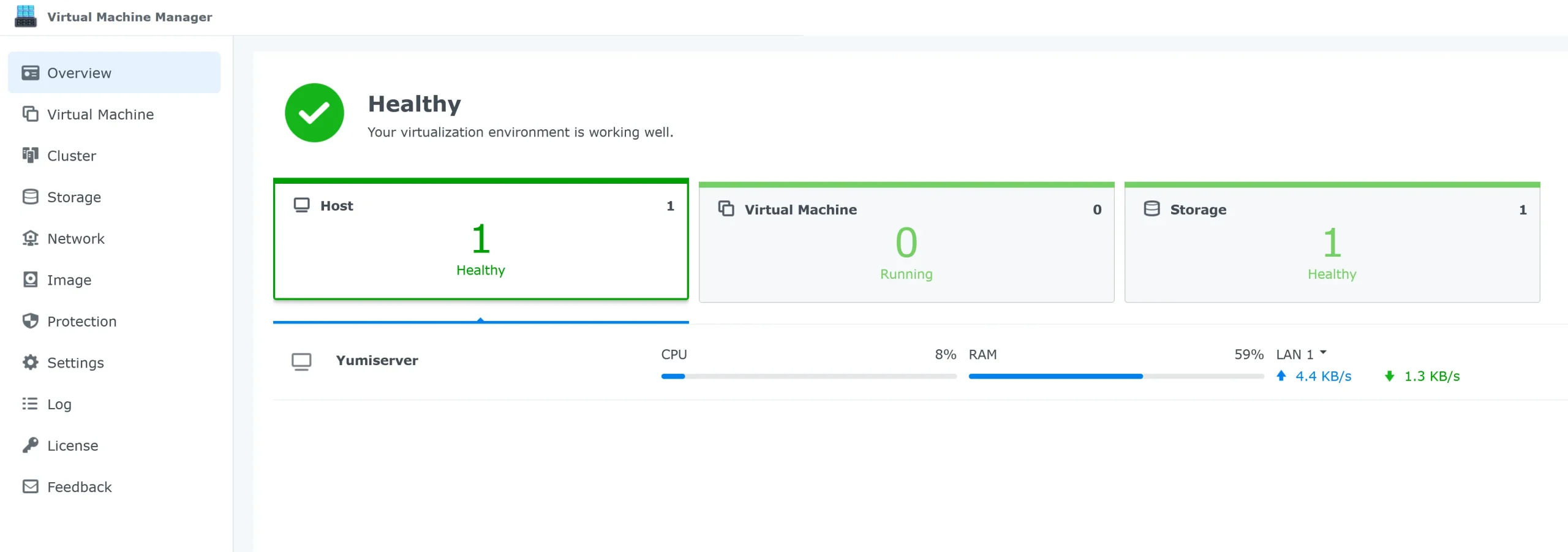
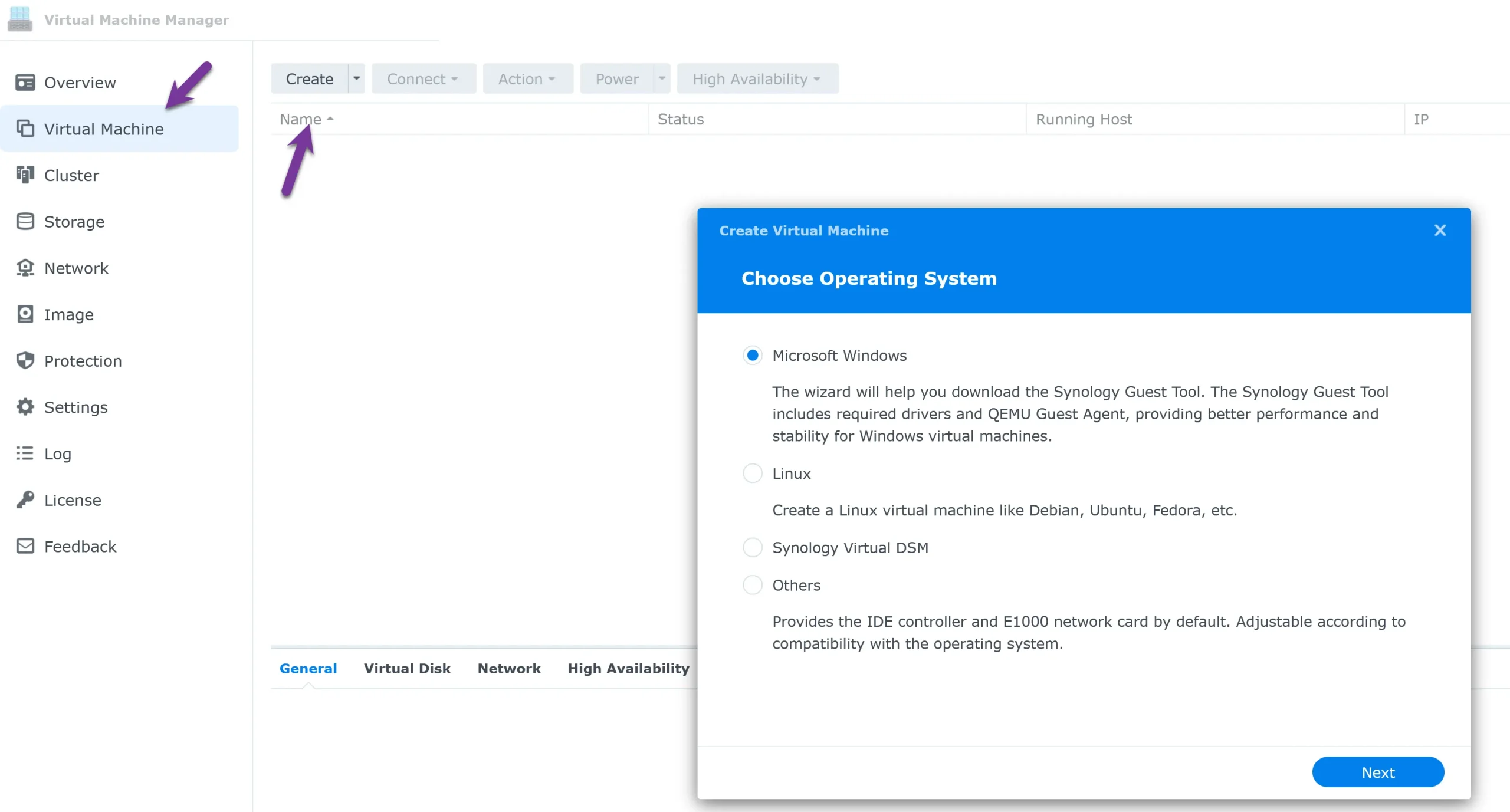
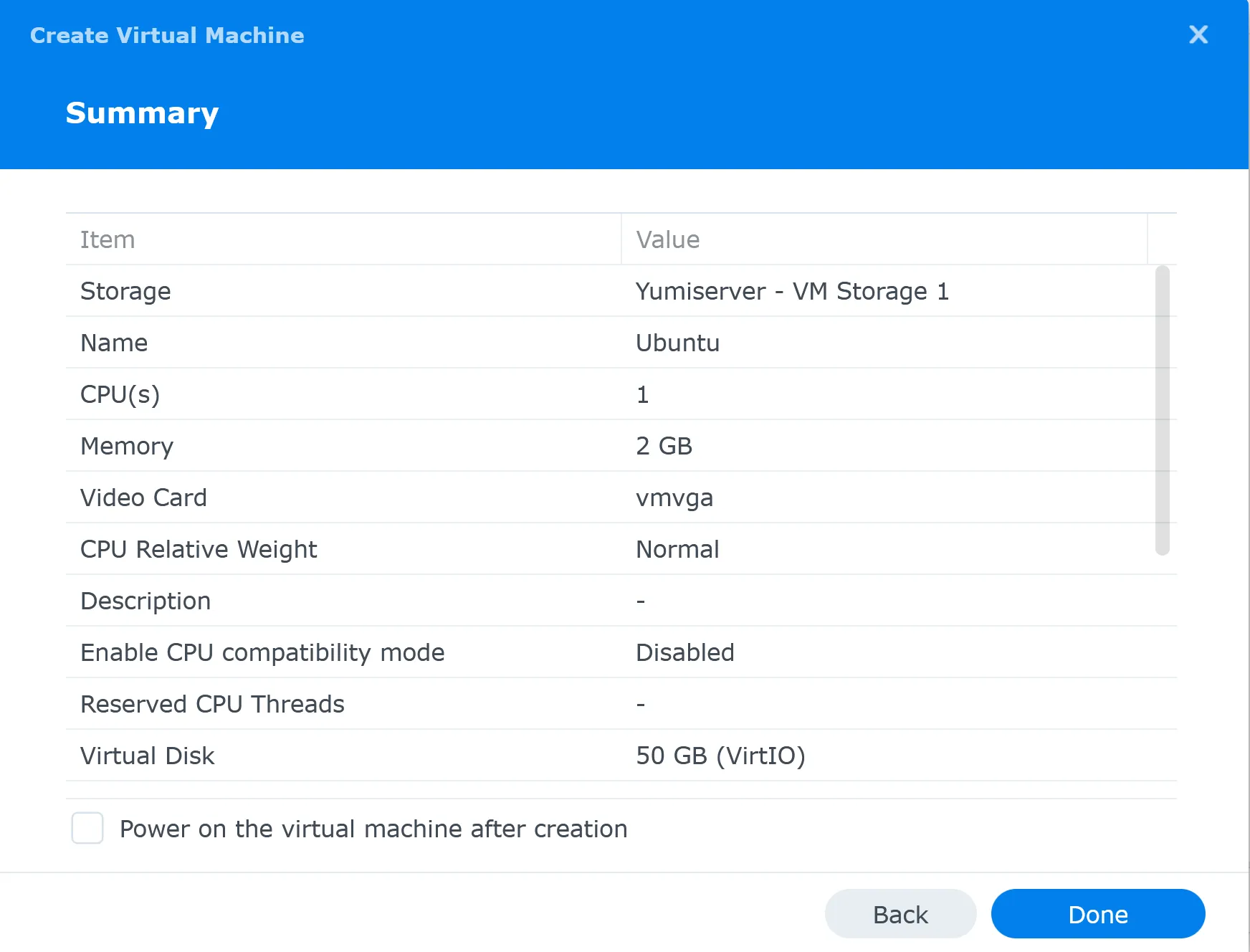
Let’s create our first VM, a Linux guest. I recommend downloading the installation ISO file and storing it somewhere on the NAS. Later, during the wizard process, you can assign the disk image ISO file to the wizard.
Navigating the licensing landscape for your virtual Synology setup is crucial—it’s like having the right key to unlock a treasure chest of features. Let’s dive in and explore how getting that license can elevate your virtualization experience, ensuring you’re all set for seamless operation and management without a hitch.
Understanding the licensing landscape for Synology’s Virtual Machine Manager is pivotal—after all, it dictates just how much virtualization power is at your fingertips. Here’s a snapshot of what you need to know:
| Licensing Plan | Features | Max Virtual DSM Instances | Target Deployment |
|---|---|---|---|
| Free Version | Basic virtualization, snapshot, storage management | Varies by NAS model | Small office/home office, personal use |
| VMM Pro | Advanced clustering, snapshot retention, remote replication, live migration, high availability, remote storage migration | Up to 7 connected Synology NAS | Enterprise deployments |

Let’s not overlook that the free tier satisfies basic needs, perfect for dipping your toes into the virtualization pool. For those who demand more—think businesses and power users—the VMM Pro packs a hefty feature set with impressive specifications. It’s a game-changer, enabling seamless management of multiple machines while offering features that are nothing short of robust. With VMM Pro, you wield the full potential of Synology’s virtualization capabilities, handling more demanding scenarios like a champ.
For those who want to delve deeper, I have a wealth of tips, tricks, and expert add-ons exclusively designed for virtualizing with Synology, readily available at your fingertips. The most out of running virtual machines (VMs) on your Synology NAS.
Synology Virtual Machine Manager lets me run virtual machines on my NAS, providing excellent functionality. With the suitable add-on packages, I can do even more!
For more information, please check my article, ‘Which Synology NAS should I buy? Here are some suggestions for NAS I recommend with VMM. I suggest buying a diskless NAS and purchasing the hard drive and memory separately to have more configuration options.

I would love to get some feedback from you. Was this article helpful? Please share your opinion with me in the comment section below. Or, if you prefer a more personal touch, feel free to email me directly at info@edywerder.ch. Your thoughts and insights are always appreciated.
If you found the intricacies of setting up a virtual machine on a Synology NAS interesting, you might appreciate diving deeper into the world of home labs. I recommend checking out Homelab Software & Hardware, where you can explore a range of software and hardware options to enhance your personal tech playground. This article is particularly useful for tech enthusiasts looking to expand their knowledge and setup, offering insights into various configurations and tools that can elevate your home lab experience.
Hi, I'm Edy Werder. I write hands-on guides about servers, virtualization, NAS and WordPress, based on setups I run in my own homelab. Real configs and real results, no fluff.
Enjoying the content?

