

By Edy Werder, a tech blogger with 20 years of experience in IT infrastructure
Microsoft has changed the import procedure for CSV files. A new wizard imports a CSV file into Excel quite straightforwardly, and the imported tables look fine at first glance. However, imported numbers are stored as text in the Excel sheet. You realize this when you try to use the SUM function, and the result is 0. It’s a significant hassle to work with the imported information.
Search results from Microsoft are not helpful or cover old versions; the same is true of contributions from the Answer Microsoft community.
In this article, I will show you how to import a CSV file into Excel using the latest version of Excel 365. While an earlier version of Excel had a different CSV import wizard, the new one in Excel 365 uses Power Query, which offers a lot of functionality.
First, I will show you how you should not import a CSV file into Excel and then a better way to avoid a headache later.
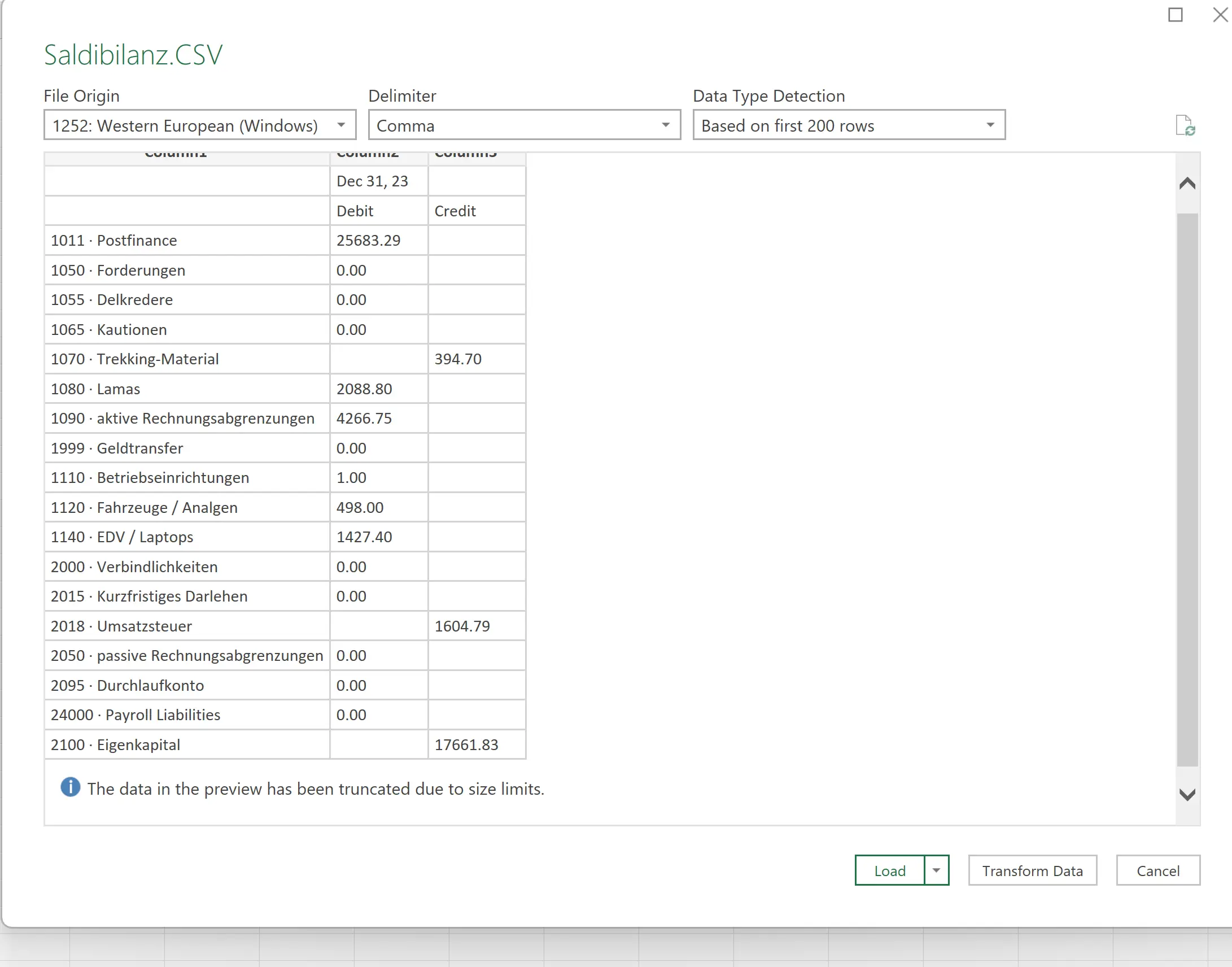
The problem with this procedure is that Excel stores numbers as text, and you cannot use the numbers for calculation.
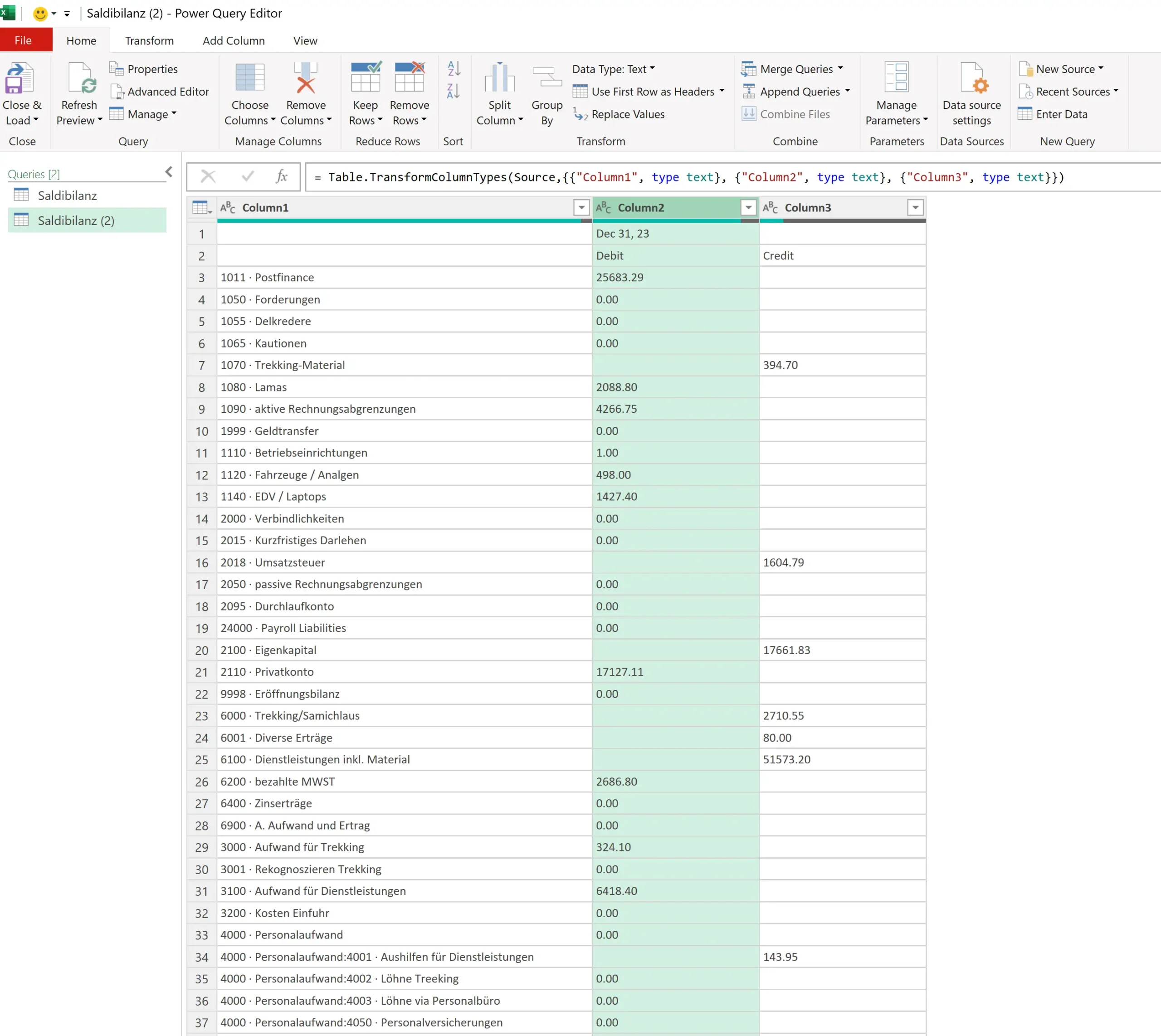
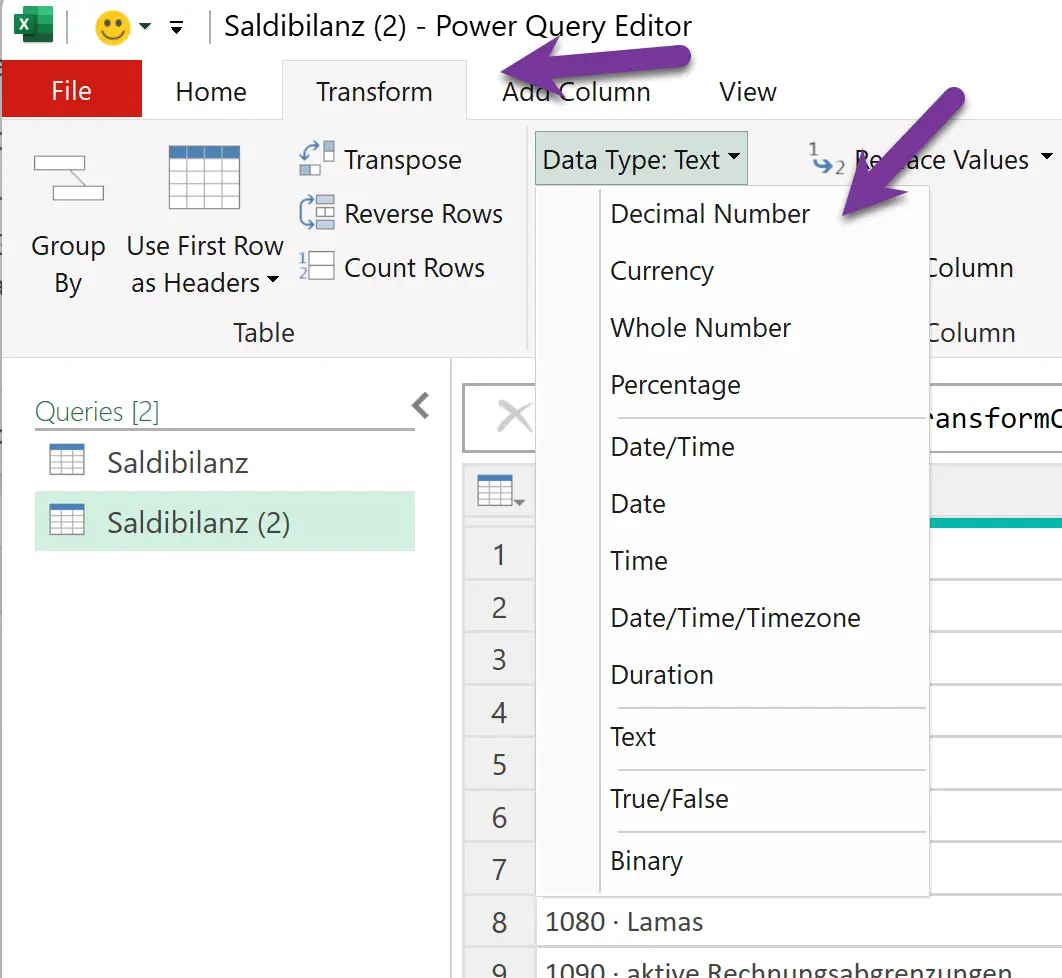
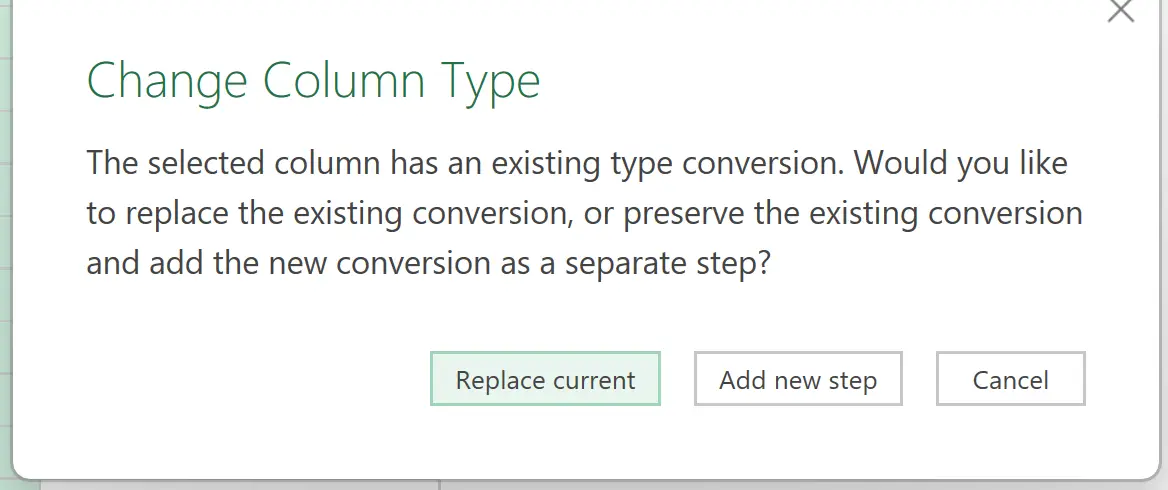
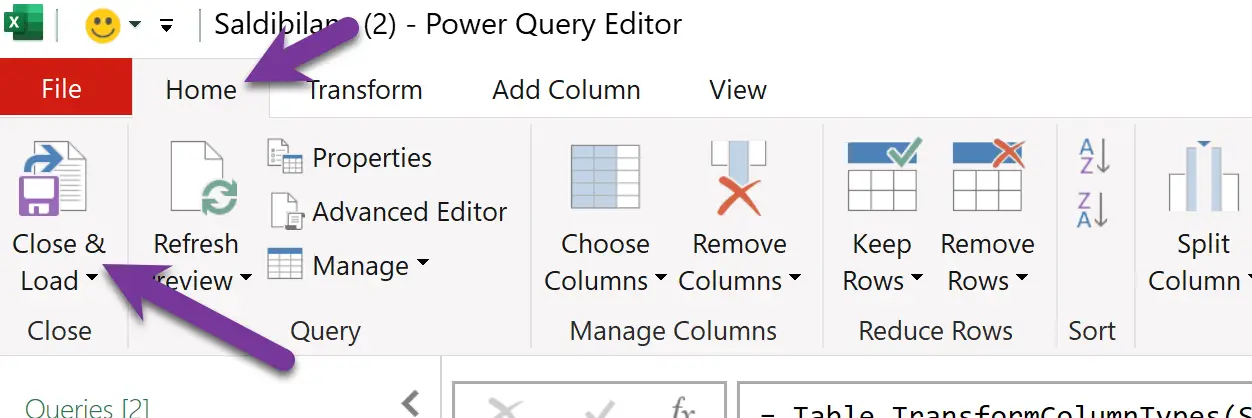
The Power Query Editor in the newer Excel 365 Version is very powerful and helps import big data from various sources. However, it may not be the best tool for importing data from a simple CSV file due to its complexity and the time it takes to set up.
The old import wizard for CSV files was easier to understand.
I’m an accountant who often imports accounts with balances from accounting software into Excel. Believe me or not, I often wasted a lot of time importing a CSV file into Excel the wrong way until I figured it out. I wanted to share my experience with you.
I can even update the CSV file from my accounting software; I only need to refresh the Excel sheet’s data. To do so, select a cell in the table, right-click, and choose ‘refresh.’

I’d love to hear from you. Was this article helpful? Share your thoughts in the comments below. If you prefer, you can also reach me by email or connect with me on Reddit at Navigatetech.
Hi, I'm Edy Werder. I write hands-on guides about servers, virtualization, NAS and WordPress, based on setups I run in my own homelab. Real configs and real results, no fluff.
Enjoying the content?

