
By Edy Werder, a tech blogger with 20 years of experience in IT infrastructure
How to use Elementor efficiently is often a question, especially when sites look inconsistent and become challenging to manage. Fonts vary between pages, buttons look different, and adjusting spacing means editing dozens of widgets individually.
I’ve seen it too many times. But the truth is that Elementor can stay clean and scalable with a proper workflow, even without Elementor Pro.
Here’s how I keep styling chaos under control:
.btn-primary) for elements like buttonsThis approach means I don’t need to revisit dozens of pages when I want to change a font size or update brand colors. It’s a clean setup that saves hours in the long run.
I usually use Hello or Biz for simple sites like brochures — they’re lightweight and pair well with Elementor. However, when building a site with a blog, I still prefer Kadence, where I set global styles for fonts and typography directly in the classic Theme Customizer.
One tip I’ve learned the hard way is to add CSS in Elementor Site Settings rather than a snippet plugin (like WPCode or Code Snippets), especially if you’re styling for the visual editor.
When CSS is applied in Site Settings, you see changes instantly inside the Elementor editor — no refresh needed. But if you use a plugin to inject global CSS, you won’t see the styling reflected until you preview or reload, which can interrupt your workflow.
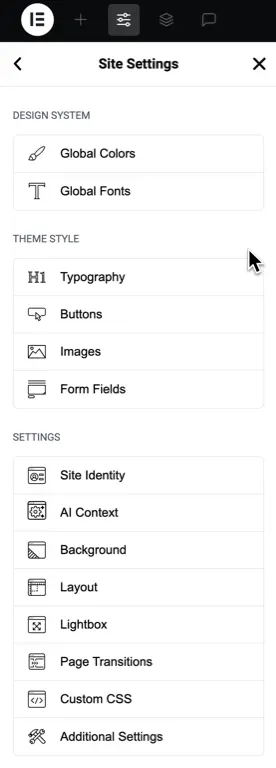
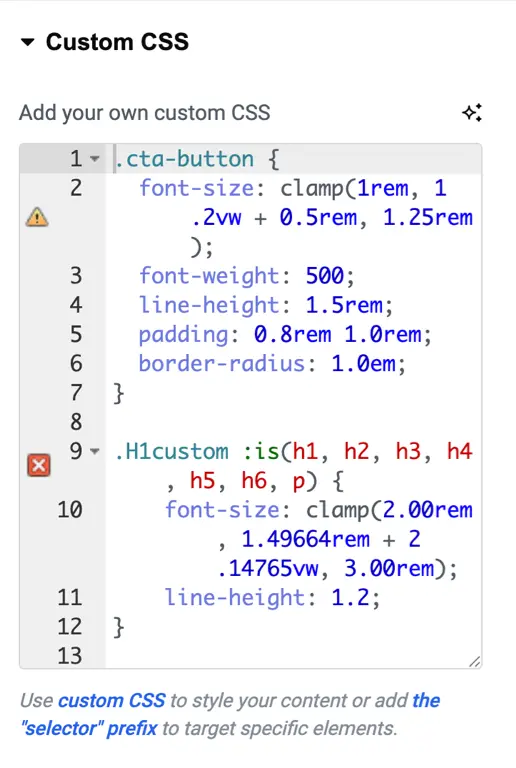
In the Elementor settings under “General”, I always check the boxes to:
These settings let your theme control the base design instead of forcing Elementor to use its styles.

Because I want complete control from one place. When Elementor’s defaults are active, it injects its font and color styles, which can conflict with your theme or custom styles. This can result in:
By disabling Elementor’s defaults, I allow my theme (Kadence, Blocksy, Hello, etc.) to define the base styles, which I then override using global settings or custom classes.
If you’re already applying global styles in Elementor or the theme customizer, disabling the defaults avoids duplicate styling and conflict. It’s cleaner, faster, and avoids surprises when switching themes or updating designs later.
I recently shared this exact approach in a Reddit post, and the response was reassuring. Some highlights:
“Use global as much as possible and it really saves on headaches later!”
– ardnoik
“Your workflow is what SHOULD be. The problem is users or agencies who ignore it.”
– Dry_Satisfaction3923
“I solved it by placing font sizes in a CSS file inside my child theme, linked via functions.php. Works thanks to clamp().”
– Imaginary_Raisin_403
These replies highlight a common pain point: styling chaos happens when different people work on a site and don’t follow a consistent structure. Global styles help prevent that.
This workflow works great even with the free version of Elementor. But if you’re using Elementor Pro, you get additional tools that help with consistency:
If you’re considering upgrading, I’ll break down all the benefits in this article:
Elementor Free vs Pro – Is Elementor Pro a Smart Upgrade?
I originally shared my approach on Reddit and was surprised how many users agreed, even those using other page builders. That confirmed it was worth expanding the post into a full blog article.
Hopefully, it helps keep your Elementor site clean and consistent from day one.
I’d love to hear from you. Was this article helpful? Share your thoughts in the comments below. If you prefer, you can also reach me by email or connect with me on Reddit at Navigatetech.
Hi, I'm Edy Werder. I write hands-on guides about servers, virtualization, NAS and WordPress, based on setups I run in my own homelab. Real configs and real results, no fluff.
Enjoying the content?