

By Edy Werder, a tech blogger with 20 years of experience in IT infrastructure
Docker is a lightweight containerization platform that lets you run isolated applications without the overhead of virtual machines. It’s widely used in DevOps, homelabs, and testing environments. When it comes to running Docker on Proxmox, often referred to as “Proxmox docker,” you have a few options to consider. While this article isn’t about Docker itself, I’ll show you the best way to run it inside your Proxmox environment—either in an LXC container or a virtual machine (VM).
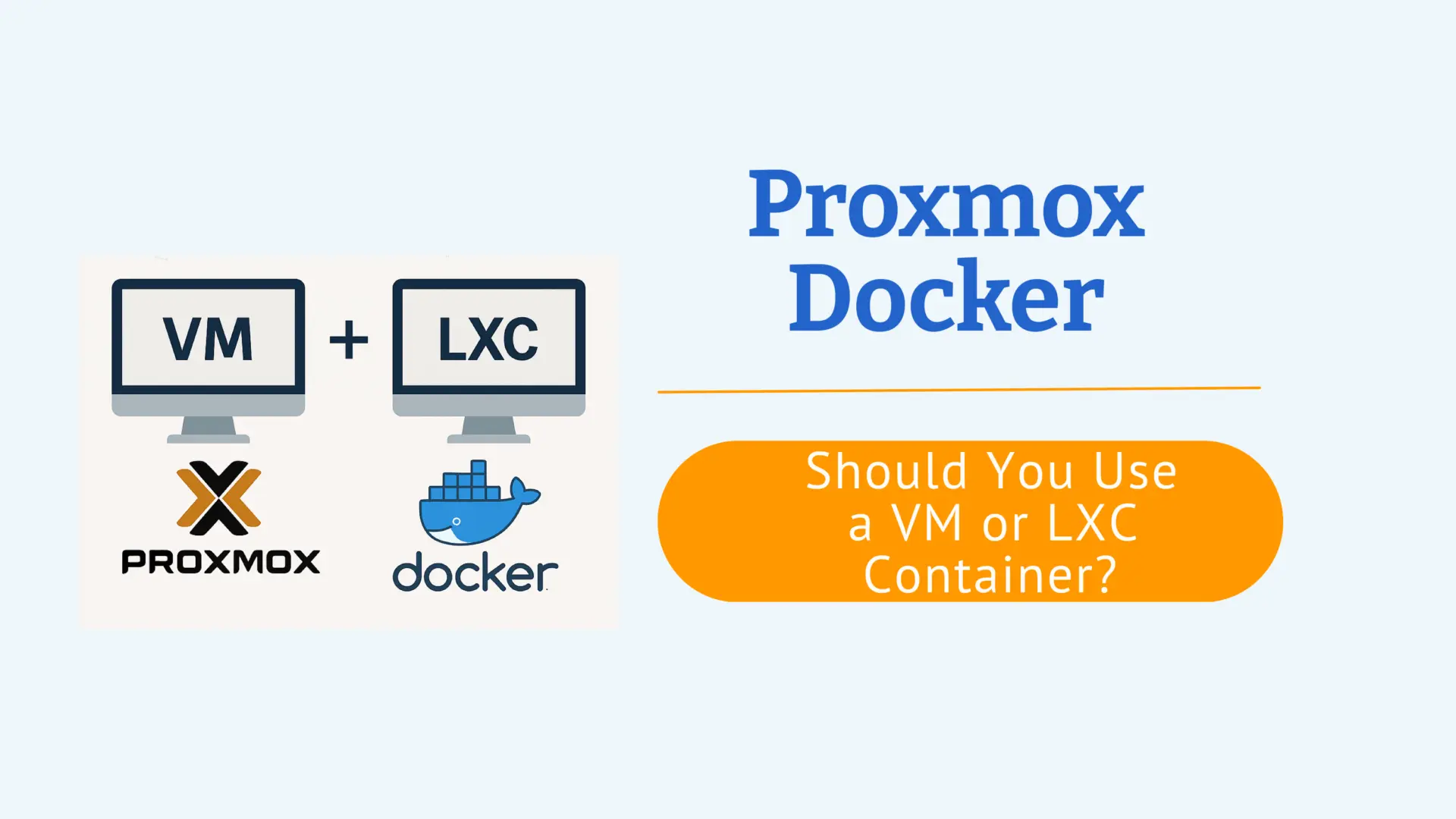
Since Proxmox VE is my virtualization platform of choice, the next logical question is: how should I run Docker inside Proxmox?
There are two main options—either inside a VM or inside an LXC container. A third option, running Docker directly on the Proxmox host, comes up often too. In this article, I’ll walk you through the pros and cons of each setup and explain why I think the VM option is the best choice in most cases.
Technically, yes—you can install Docker directly on the Proxmox host. After all, it’s just Debian underneath. But I don’t recommend it—and neither does the Proxmox community.
“Docker injects iptables rules that will interfere with the PVE firewall and will—per default—render networking useless.”
— Proxmox Forum
Docker reconfigures network chains and NAT tables, which can break networking for your VMs and containers. You’ll end up troubleshooting random connectivity issues every time Docker restarts. Unless you like that kind of pain, skip this route.
A top Reddit post summed it up perfectly:
“Proxmox is a hypervisor—and should be used as such. If you’re not thinking of using it that way, maybe you should start over and install a regular Linux distro instead.”
While Docker can run in LXC or even on the Proxmox host, running it inside a VM is the safest and cleanest option—especially for a stable and secure setup.
Running Docker in an LXC container is possible—and quite popular among experienced Proxmox users.
Pros:
Cons:
If you’re comfortable tweaking container settings and fixing things when they break, LXC is a valid option—especially for lightweight services.
When setting up Docker in an LXC container, you might wonder about the difference between using a privileged or an unprivileged container.
– Unprivileged containers
offer better isolation and security, but can break Docker unless you’re ready to tweak cgroup, AppArmor, and systemd settings.
– Privileged containers
They are easier to work with and get Docker running faster—especially in a homelab or non-critical setups.
If you’re not sure which to choose, go with the privileged option. It just works for Docker.
Running Docker in a VM offers full isolation from the Proxmox host. This setup is ideal when you need to test new applications, run production workloads, or deploy more complex container stacks like Mailcow.
Pros:
Cons:
By installing Docker on a Debian or Ubuntu VM, you get all the benefits of Docker without the risk of breaking your virtualization platform. It’s stable, flexible, and more future-proof.
From a security perspective, a VM is better isolated than an LXC.
“My rule is this… if the service(s) are ever to be exposed outside of my LAN, I run Docker in a VM. If not, I usually use an LXC. My reasoning is simple: the LXC container shares the host kernel. So if a service gets compromised, it’s much closer to the host. A VM adds an abstraction layer and its own kernel — it’s the security onion idea.”
— Reddit user
Here’s how I typically set up Docker in Proxmox. I’ll walk you through both approaches—VM (my recommendation) and LXC (for advanced users only). This section includes OS and template suggestions to keep your setup clean and future-proof.
This setup gives you full compatibility, clean backups, and no interference with Proxmox’s internals.
Recommended ISO Downloads
Use one of the following server images:
Both are lightweight, stable, and Docker-friendly. I personally lean toward Debian for minimalism or Ubuntu for its wider support.
Step 1: Create a New VM in Proxmox
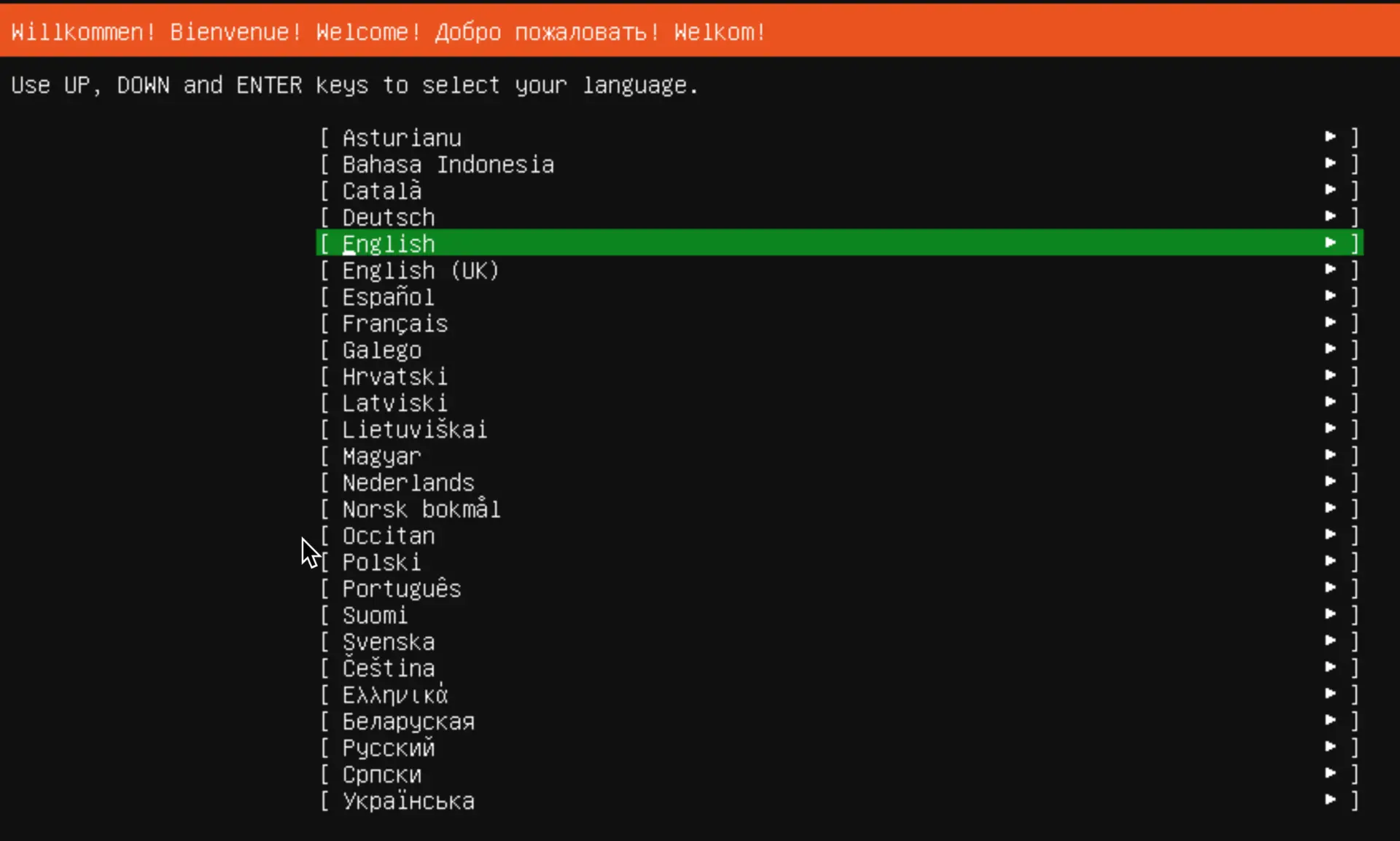
Step 2: Install the OS
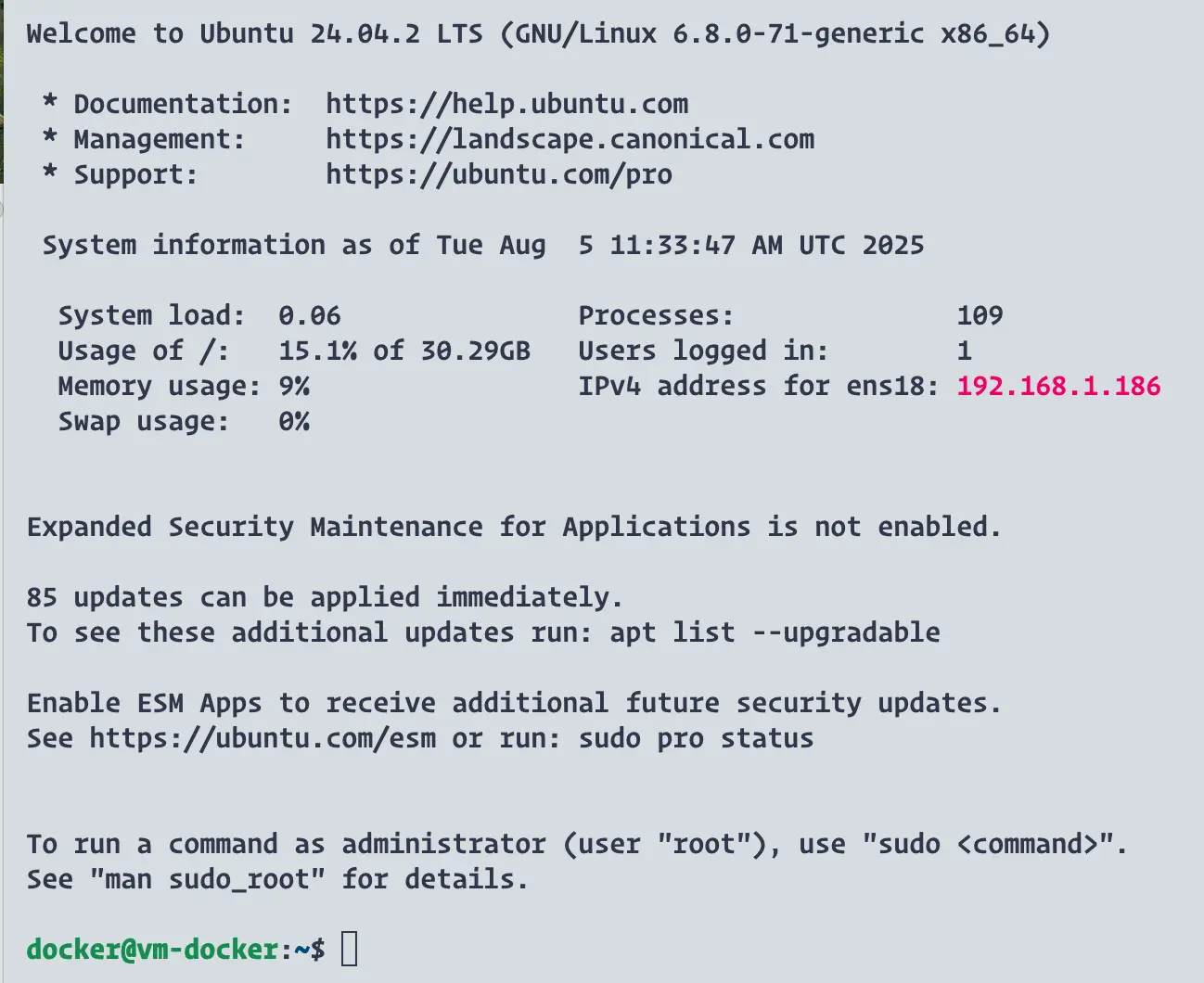
Step 3: Install Docker
Once inside the VM:
sudo apt update
sudo apt install -y docker.io docker-compose
sudo systemctl enable --now docker
Optional: Add user to Docker group: – This command adds your current user to the docker group.
sudo usermod -aG docker $USERThis gives your user permission to run Docker commands without root. Just make sure to log out and back in after running the command so the change takes effect.
Log out and back in to apply group change.
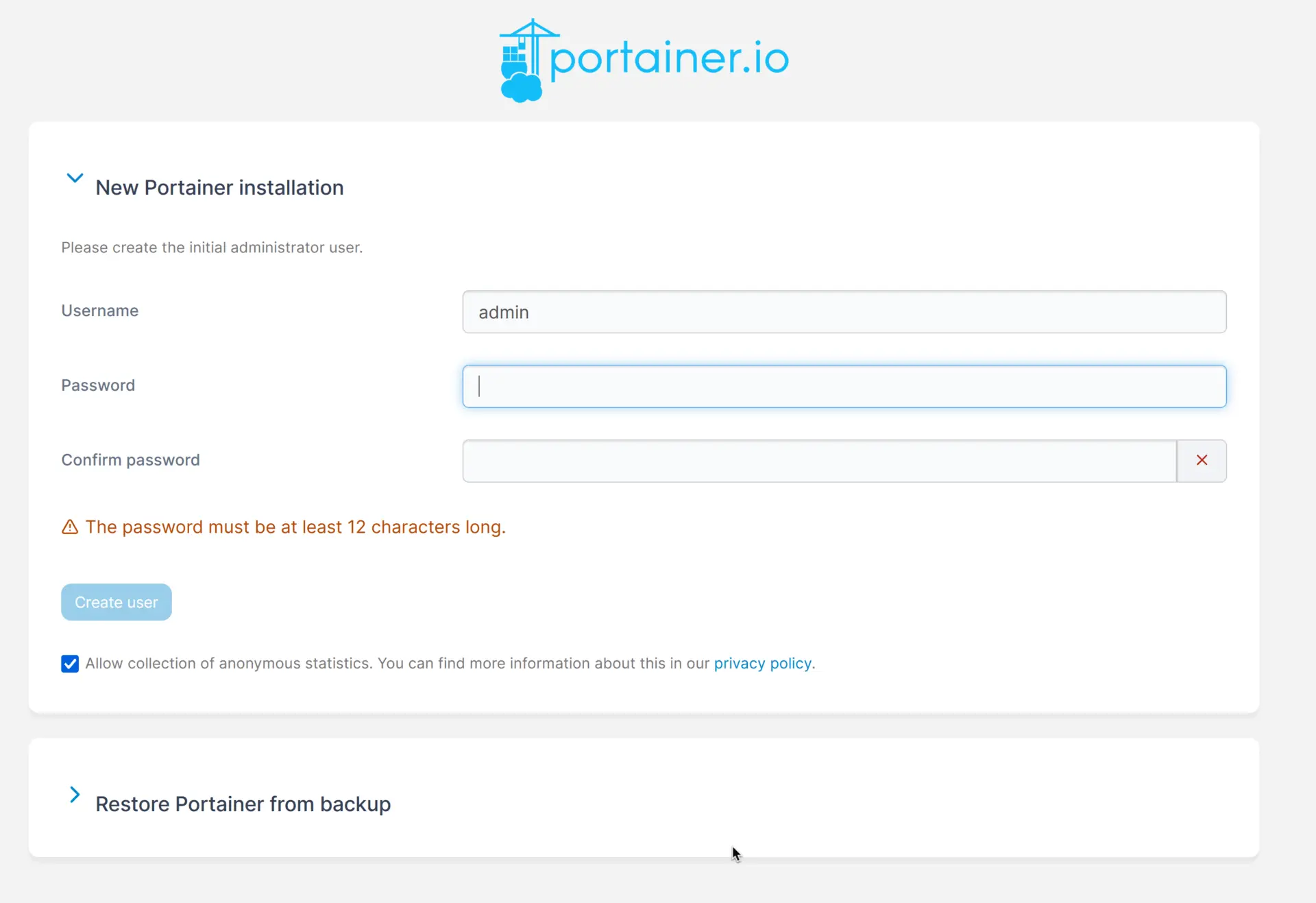
Step 4: (Optional) Install Portainer
If you want a web UI to manage containers:
docker volume create portainer_data
docker run -d -p 9000:9000 -p 9443:9443
--name=portainer
--restart=always
-v /var/run/docker.sock:/var/run/docker.sock
-v portainer_data:/data
portainer/portainer-ce:latest
Portainer ports for http 9000 or https 9443
This is for experienced users comfortable modifying container configs and troubleshooting. It’s lightweight, but not officially supported.
Recommended Container Templates
Use the Debian or Ubuntu templates directly from Proxmox:
These base images are minimal and easy to customize.
Step 1: Create a Privileged LXC Container
Step 2: Modify the Container Config
Before starting the container , edit:
nano /etc/pve/lxc/<CTID>.confAdd:
lxc.apparmor.profile: unconfined
lxc.cgroup.devices.allow: a
lxc.cap.drop: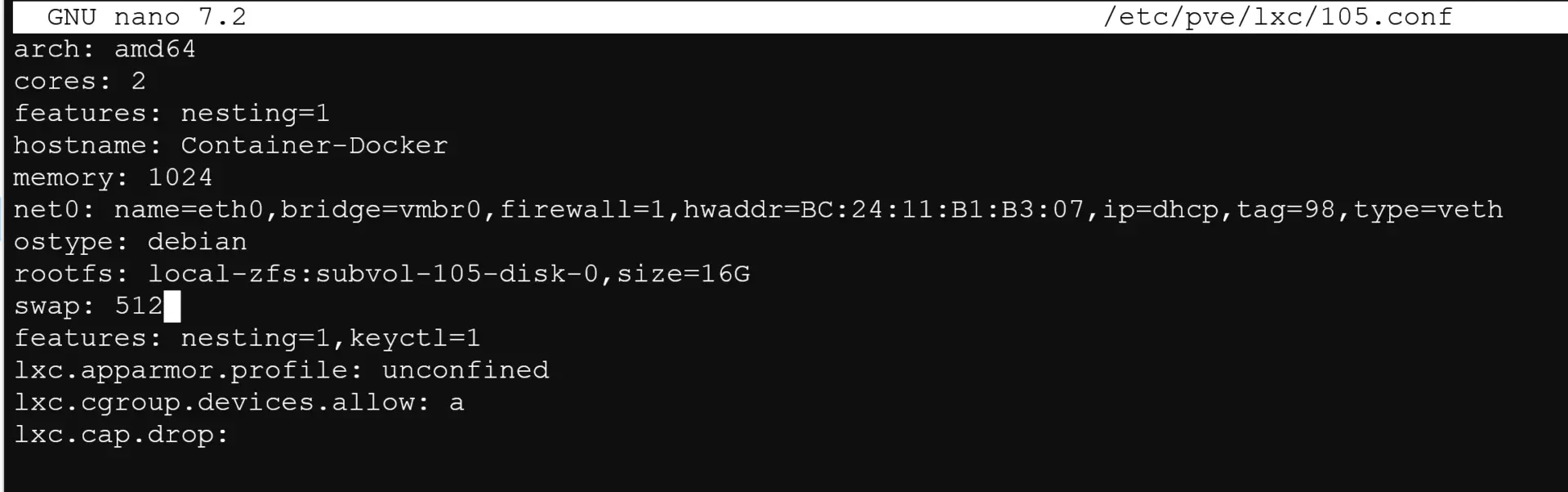
Then you can start the container
Step 3: Install Docker
Inside the container:
apt update
apt install -y docker.io docker-compose
systemctl enable --now docker
Docker should now work.
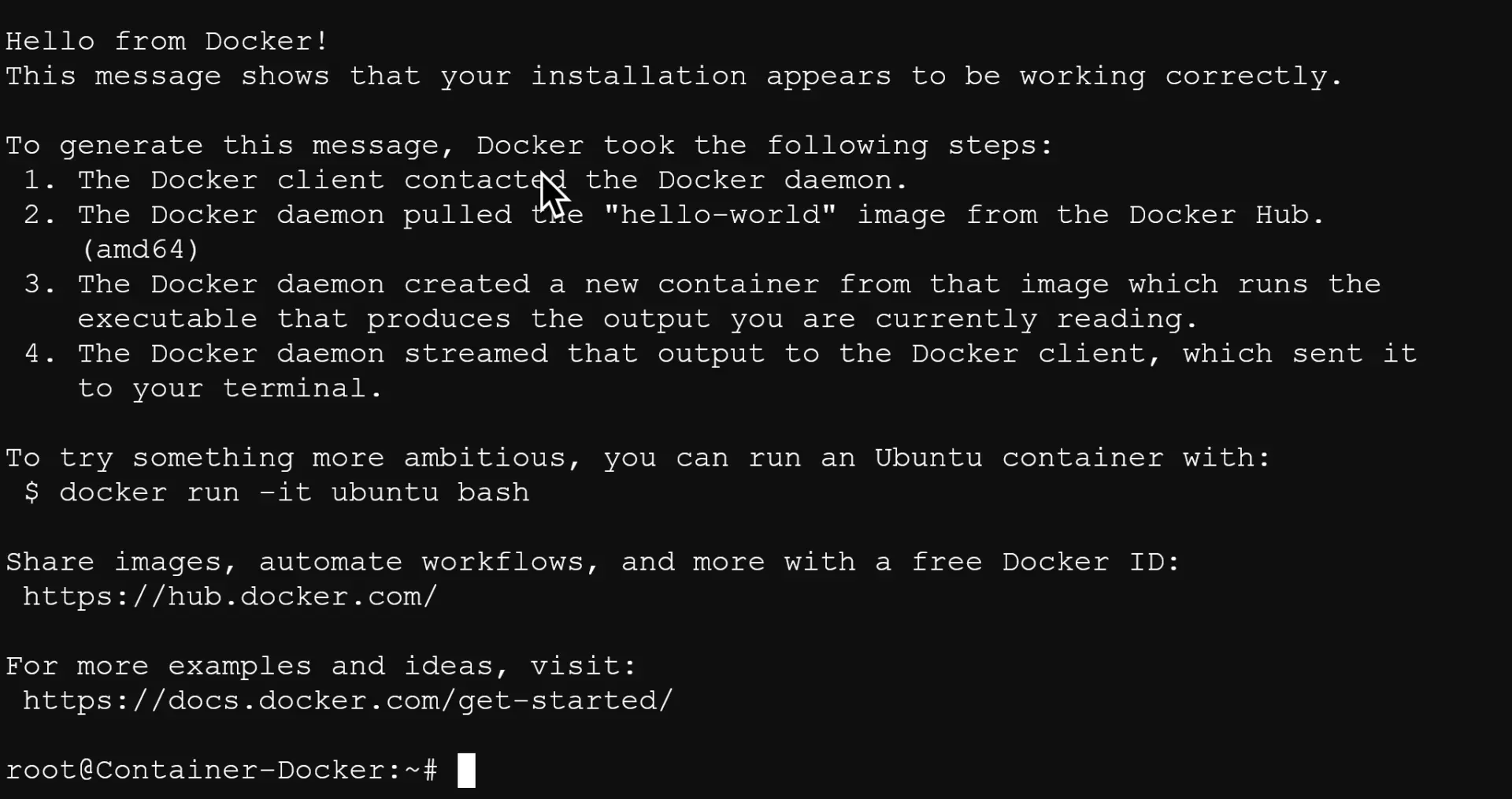
Be aware: some updates to Docker or Proxmox may break the container, and overlay networking might not function correctly.
featured blog

A Complete Buying Guide
A good example of why I recommend using a VM for Docker is Mailcow, a full mail server suite that runs entirely in Docker. It uses Docker Compose and relies on system-level networking and privileges. Running Mailcow in an LXC container often leads to broken services or permission issues. A dedicated VM ensures full compatibility and easier troubleshooting.
Both LXC and VM approaches have their advantages. LXC is efficient but fragile; VMs offer full compatibility and are better suited for critical or production-like workloads.
If you value stability and want all Docker features to just work, go with a VM. It’s slightly more resource-intensive, but much cleaner and easier to maintain.
LXC is tempting because of its performance and low overhead, but you need to be comfortable fixing things if updates break your container.
And running Docker directly on the Proxmox host? Just don’t.
I’d love to hear from you. Was this article helpful? Share your thoughts in the comments below. If you prefer, you can also reach me by email or connect with me on Reddit at Navigatetech.
I want to draw your attention to another insightful blog post of mine. If you found the information on VMware’s USB network adapter helpful, you might also be interested in a comparison I made between Proxmox and ESXi.
This post delves into their respective features, performance, and overall efficiency. Whether you’re trying to decide between the two for your homelab or looking for a more environment-friendly option, this blog post provides a comprehensive analysis that could help you make an informed decision.
Hi, I'm Edy Werder. I write hands-on guides about servers, virtualization, NAS and WordPress, based on setups I run in my own homelab. Real configs and real results, no fluff.
Enjoying the content?

