

By Edy Werder, a tech blogger with 20 years of experience in IT infrastructure
As a system administrator, securing SSH access is crucial for protecting my servers. That’s why I’ve implemented two-factor authentication (2FA) on my Linux and Proxmox systems. In this guide, I’ll walk you through the process of securing SSH with 2FA, step by step.
I’ve found that adding this extra layer of security reduces the risk of unauthorized access, even if someone manages to get hold of a password. Whether running a standard Linux distribution or a Proxmox virtualization environment, these steps will help you lock down your SSH connections.
Let’s dive in and strengthen your server’s defenses!
SSH 2FA is one layer of a secure home lab. My hands-on homelab guide covers the network and server decisions that support it.
Before securing SSH with two-factor authentication, I always ensure I have everything I need. Here’s what you should check:
systemctl status sshor
systemctl status sshdLook for “Active: active (running)” in the output. This confirms that SSH is installed and running. SSH may not be installed or running if neither command shows an active service.
apt updatedpkg -s libpam-google-authenticatorIf you see “package is not installed,” don’t worry. We’ll install it in the next step.
With these prerequisites, we can start setting up two-factor authentication for SSH. In the next section, I’ll show you how to install the necessary software if it’s not already on your system.
If we discovered in the prerequisites that the Google Authenticator PAM module wasn’t installed, let’s take care of that now. You can skip this step if you’ve already confirmed it’s installed.
To install the module:
sudo apt install libpam-google-authenticatorAfter the installation is completed, I always verify it was successful:
dpkg -s libpam-google-authenticator | grep StatusThis should return “Status: install ok installed” if everything went well.
With the PAM module now installed (or confirmed to be already present), we’re ready to set up 2FA for our user accounts. In the next section, I’ll guide you through configuring it for your first user.
Now that we have installed the Google Authenticator PAM module let’s set it up for a user. I’ll do this for my account, but you can apply these steps to any user on your system. my username is ‘edyadmin’
su - usernameReplace ‘username’ with the actual username.
google-authenticatorWith these steps, I successfully set up 2FA for my user account. In the next sections, we’ll configure SSH to use this new authentication method.
Now that we’ve set up 2FA for our user, we need to configure PAM (Pluggable Authentication Modules) to use it with SSH. Here’s how I do it:
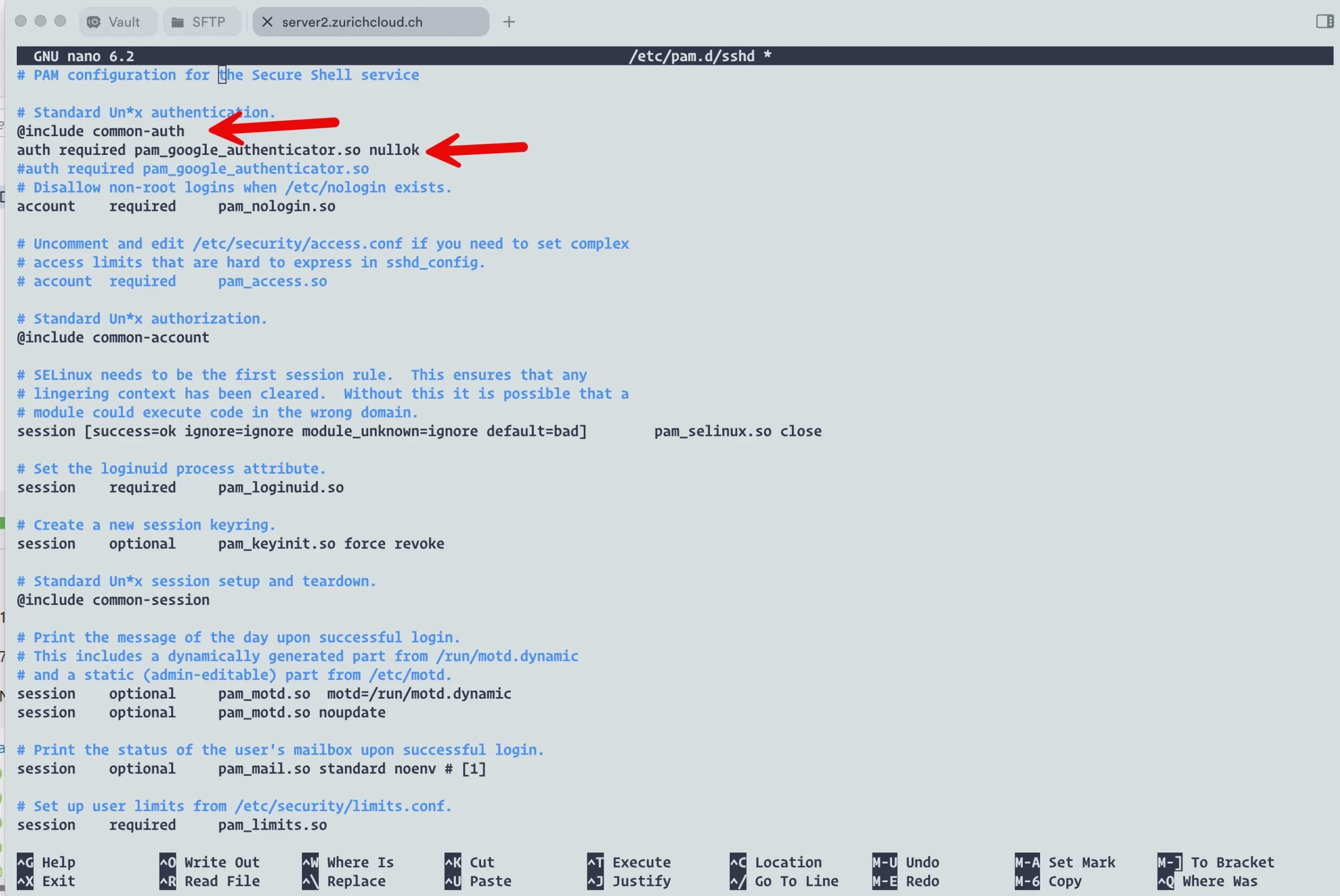
sudo nano /etc/pam.d/sshd@include common-auth line (if it exists), I add:@include common-authnauth required pam_google_authenticator.so nullokWhat does the ‘nullok’ option.
sudo nano /etc/ssh/sshd_configPubkeyAuthentication yes
PasswordAuthentication yes
KbdInteractiveAuthentication yes
UsePAM yes
AuthenticationMethods keyboard-interactive,publickey keyboard-interactiveThis allows authentication with either a public key + password or a public key + 2FA code.
It’s possible that in your sshd_config file, you have to add the lines.
After making these changes, we need to restart the SSH service so that they take effect. We’ll do that in the next section and test our new setup.
After configuring PAM and SSH, testing our new 2FA setup is crucial. Here’s how I do it:
sudo systemctl restart sshdssh username@your_server_ipI’ll be prompted for my password, and then I’ll be asked for my 2FA (verification code).
For a deeper dive into Proxmox user management, including the intricacies of the root user, check out my related article: What Secrets Lie Behind the Proxmox User Root?
Enhance your virtualization experience with these budget-friendly and high-performing servers.
| Product Name | View on Amazon |
|---|---|
| Dell PowerEdge Dell R630 Server | 2X E5-2690 v4 = 28 Cores | 128GB RAM | 2X 1TB SSD (Renewed) | View on Amazon |
| Dell PowerEdge R730 Server 2X E5-2680v4 2.40Ghz 28-Core 128GB 8X 4TB 12G H730P (Renewed) | View on Amazon |
| ProLiant MicroServer Gen11 Tower Server w/one Intel Xeon E-2434, 3.4GHz 4-core 1P 32GB-U VROC 4LFF‑NHP 4TB HDD iLO KIT 180W External PS (HPE Smart Choice P74440-005) | View on Amazon |
| HPE ProLiant DL20 Gen11 Rack Server w/one Intel Xeon E-2436 Processor, 2.9GHz 6‑core 1P 32GB‑DR MR408i‑o 4SFF 2x500W RPS | View on Amazon |
| Dell PowerEdge R830 Server 2.20Ghz 56-Core 128GB 16x 300GB 15K H730P Rails (Renewed) | View on Amazon |
| Dell PowerEdge R440 Server 2X Gold 6126 2.60Ghz 24-Core 96GB 960GB SSD + 3.6TB (Renewed) | View on Amazon |
| HPE ProLiant DL380 Gen9 2U RackMount 64-bit Server + 2×8-Core E5-2640v3 Xeon 2.6GHz CPUs + 64GB PC4-2133P RAM + 8×600GB 10K SAS SFF HDD, P440ar RAID, 4×GigaBit NIC, 2×Power Supplies, NO OS | View on Amazon |
| HPE Proliant DL380 Gen10 8B SFF 2U Server, 2X Intel Xeon Gold 6126 2.6Ghz (24-cores Total), 192GB DDR4 RAM, 8X 1.2TB 2.5” 10K SAS 12Gbps, P408i-a SR 2GB RAID, No Operating System | View on Amazon |
While implementing 2FA significantly enhances your SSH security, there are additional considerations to ensure a robust and manageable setup:
Backing up 2FA Keys:
Losing access to your authenticator app without backups can lock you out of your server.
Handling Multiple Users:
auth required pam_google_authenticator.so nullokBy adhering to these practices, I balance robust security and practical usability in my SSH configuration with two-factor authentication.
SSH keys and 2FA significantly reduce your attack surface. To automate brute-force blocking, I compared Fail2ban vs CrowdSec to find the better tool for homelab SSH protection.
Implementing two-factor authentication (2FA) for SSH significantly enhances the security of your Linux systems, including Proxmox nodes. By requiring both something you know (password or SSH key) and something you have (2FA code), you create a robust defense against unauthorized access.
The steps we’ve covered work across various Linux distributions and can be directly applied to Proxmox servers, providing additional protection for your virtualization environment. Remember, the small effort of setting up 2FA pays off immensely in improved security.
I encourage you to implement these measures in all your critical systems. In today’s threat landscape, 2FA is not just a luxury—it’s a necessity for maintaining the integrity and security of your servers.
I’d love to hear from you. Was this article helpful? Share your thoughts in the comments below. If you prefer, you can also reach me by email or connect with me on Reddit at Navigatetech.
Before you go, if you’re managing user accounts on your Linux servers, you might find it useful to learn how to effectively manage users and groups in Ubuntu. This guide will help you streamline user management, ensuring tighter security and better organization. You can explore the details in this article. It’s a great next step after securing SSH with 2FA.
Hi, I'm Edy Werder. I write hands-on guides about servers, virtualization, NAS and WordPress, based on setups I run in my own homelab. Real configs and real results, no fluff.
Enjoying the content?

