

By Edy Werder, a tech blogger with 20 years of experience in IT infrastructure
Knowing how to update Proxmox manually keeps you in control of when patches and kernel updates hit your server. This guide covers both the command-line and the web GUI approaches.
Quick Answer: To update Proxmox manually, run these three commands via SSH or the shell:
apt update
apt list --upgradable
apt dist-upgrade
If the upgrade output includes a package containing pve-kernel-* or proxmox-kernel-*, reboot. Your VMs keep running throughout the update and only a reboot interrupts them
I update manually, and only when Proxmox announces a new version or a significant security fix. Here’s exactly how I do it.
Connect via SSH or open a shell on your node, then run these three commands in order.
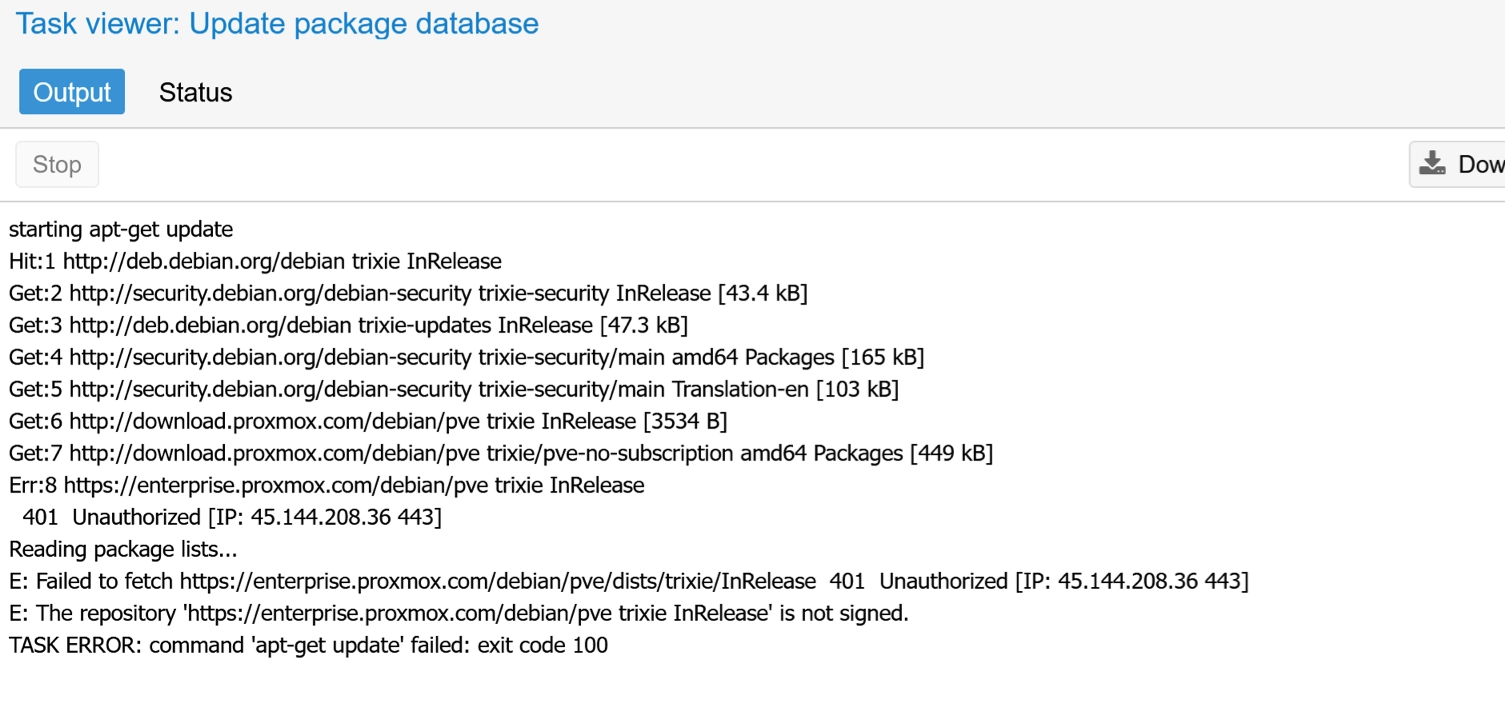
apt updateThis checks the repositories for what’s available. Nothing gets installed yet. If you see a 401 Unauthorized error, as shown in the screenshot below, the enterprise repository is active without a subscription key. Run this to disable it:

To fix it, go to your node → Updates → Repositories, select the enterprise repository and click Disable, then run apt update again.
apt list --upgradableThis shows every package with a pending update. Scan the list before committing. It tells you whether a kernel package is included. Look for names like proxmox-kernel-* or pve-kernel-*. If you see those, a reboot will be needed after the upgrade.
apt dist-upgradeProxmox recommends dist-upgrade over plain apt upgrade. The reason matters: when multiple Proxmox packages update together, plain apt upgrade can hold some back due to dependency changes. dist-upgrade handles those correctly.
If you prefer not to use the command line, the web GUI produces the same result.
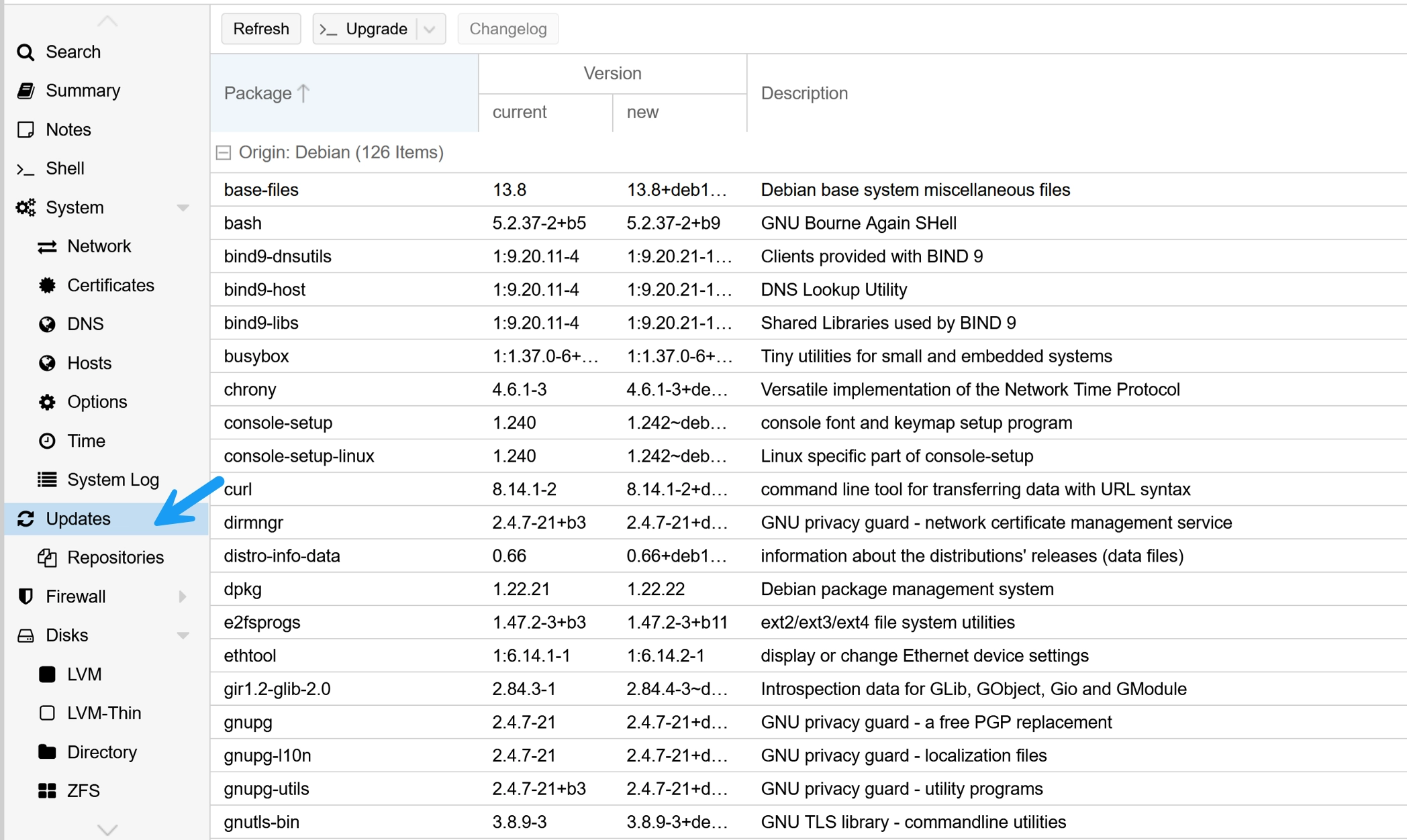
Go to your node → Updates → click Refresh. Review the list, then click Upgrade. A console window opens and runs the equivalent of apt dist-upgrade.
If you see a 401 Unauthorized error, as shown in the screenshot below, the enterprise repository is active without a subscription key. Go to Repositories, disable the enterprise repo, add the no-subscription repo, then click Refresh again.
I use the command line because it’s faster and I can see exactly what’s happening — but either method works.
Curious what hardware I run Proxmox on?
I created an Amazon storefront with all the gear I use and recommend.
Yes. Running apt dist-upgrade does not interrupt your virtual machines or containers. They stay running throughout the entire update process. The only thing that interrupts them is a reboot and a reboot is only needed when a kernel package was part of the update.
This is one of those things nobody seems to state clearly, so update freely without shutting down your VMs first.
Proxmox does not display a reboot required message after an update. To make this check easier, I wrote a small bash script that compares the latest installed kernel against the currently running one and tells you clearly whether a reboot is needed.
The script is available on GitHub. Read the README before running it on your node.
If you are comfortable with bash scripts, install it directly on your Proxmox node:
wget -O /usr/local/bin/proxmox-kernel-check.sh https://raw.githubusercontent.com/EdyWerder/proxmox-scripts/main/kernel-check/proxmox-kernel-check.sh && chmod +x /usr/local/bin/proxmox-kernel-check.shThen run it:
proxmox-kernel-check.shIf the kernels match, no reboot is needed.
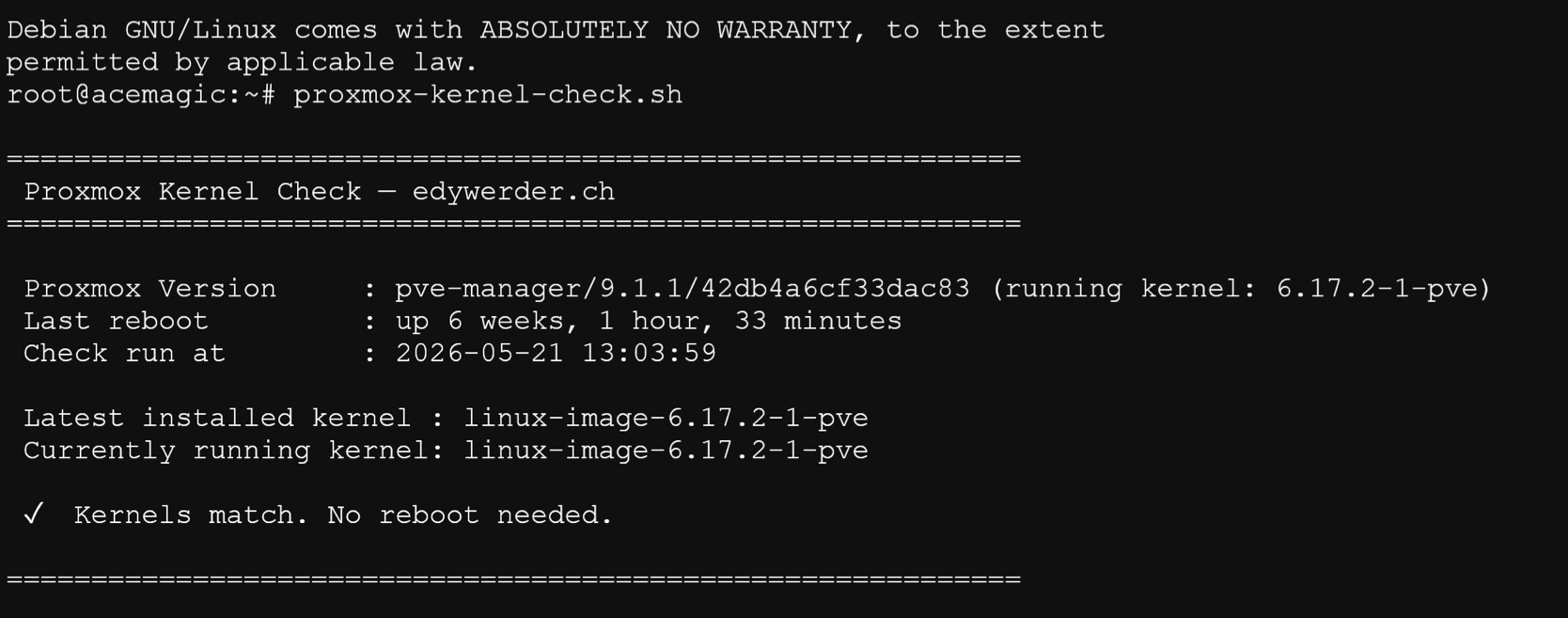
If the latest installed kernel differs from the running kernel, a reboot is recommended.
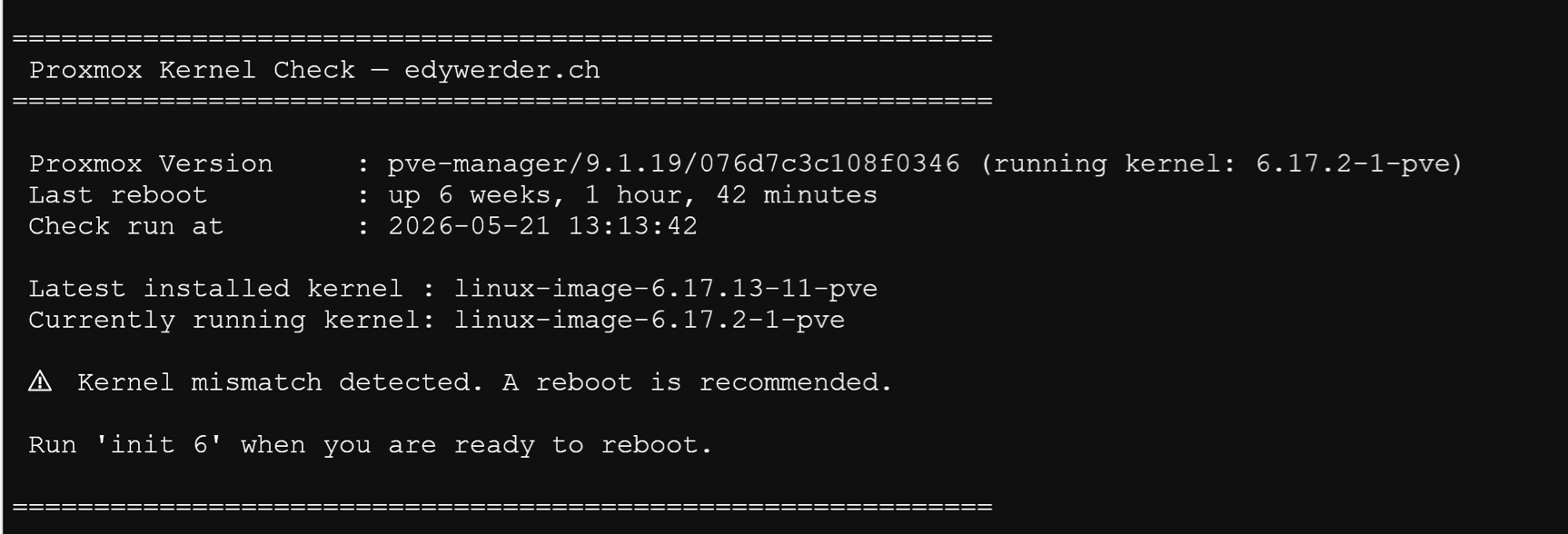
When you are ready to reboot, run:
bash
rebootThat depends on your setup. In my homelab, I update when Proxmox announces a new version, not for every individual kernel patch. The tradeoff is that some interim updates contain security fixes. If your server is internet-facing or exposed beyond your local network, staying closer to current makes sense.
For a homelab behind a firewall with no direct external exposure, the practical risk of waiting is low. The bigger risk is applying an update without checking what’s in it first — which is why I always run apt list --upgradable before committing.
Before running any update, make sure you have a current backup. If you haven’t set up Proxmox Backup Server yet, this guide walks you through it.
I’d love to hear from you. Was this article helpful? Share your thoughts in the comments below. If you prefer, you can also reach me by email or connect with me on Reddit at Navigatetech.
Hi, I'm Edy Werder. I write hands-on guides about servers, virtualization, NAS and WordPress, based on setups I run in my own homelab. Real configs and real results, no fluff.
Enjoying the content?

