

By Edy Werder, a tech blogger with 20 years of experience in IT infrastructure
I didn’t plan another server move this soon, but here we are. This post is my real-world xCloud WordPress migration story, including what went wrong on day one, what fixed it on day two, and how I ended up with a setup that’s now genuinely fast.
In April 2025, I moved from shared hosting to a VPS and documented the journey using a different panel. Since then, my requirements changed. I wanted tighter WordPress integration for server-side caching, plus an easier path to Cloudflare edge caching. That’s what pushed me to try xCloud.
At the same time, I also moved my VPS location:
Quick Answer: xCloud WordPress migration (my safest method)
The short version: I wanted server-side caching that does not depend on a WordPress caching plugin.
xCloud made that part simpler for me:
For front-end tweaks, I still use Perfmatters for things like CSS and JS minification and performance toggles. But I don’t use a WordPress caching plugin. My preference is to keep caching at the server level and at Cloudflare’s edge, and keep WordPress itself lean.
xCloud offers a convenient-looking workflow:
On paper, it sounds perfect. In practice, it can turn into a trap if you assume “push to live” updates everything.
Right after cutover, my live domain redirected back to the demo domain.
At first, I blamed Nginx, but it was not an Nginx redirect. WordPress was doing it because the database still had the demo domain saved as the site URL.
I fixed the redirect quickly in phpMyAdmin by updating home and siteurl in the wp_options table. That got me back into the site.
Then I noticed the bigger issue: internal links and assets still pointed to the demo domain. Some URLs were in post content, others in plugin settings, and some were probably buried in builder data.
Since DNS had already been switched, I didn’t want a half-broken site for hours while waiting for support. So I rolled DNS back to my old server and paused the migration.
A “push to live domain” feature does not guarantee every URL in your database is updated. If your site is more than a simple blog, you need to plan for cleanup.
On day two, I did the same migration, but changed one key thing: I staged using my real domain from the start.
I created a new WordPress install in xCloud using my real domain on plain HTTP, no SSL yet.
Then I added a hosts file entry on my computer to point the domain to the new server’s IP address. This let me access and test the new server using the correct domain, while everyone else still hit the old server.
This single change removed most of the “sticky URL” risk.
With the environment set to the correct domain, I restored my latest Duplicator Pro backup.
Now the site was already on the correct domain during restore, which made the migration much cleaner.
Once everything looked good, I switched DNS to the new server.
After configuring DNS to point to the xCloud server, I let xCloud issue a Let’s Encrypt certificate. That worked as expected.
xCloud also automatically updated WordPress to HTTPS. Browsing the site looked fine, and at this point, many people would stop.
I didn’t.
featured blog
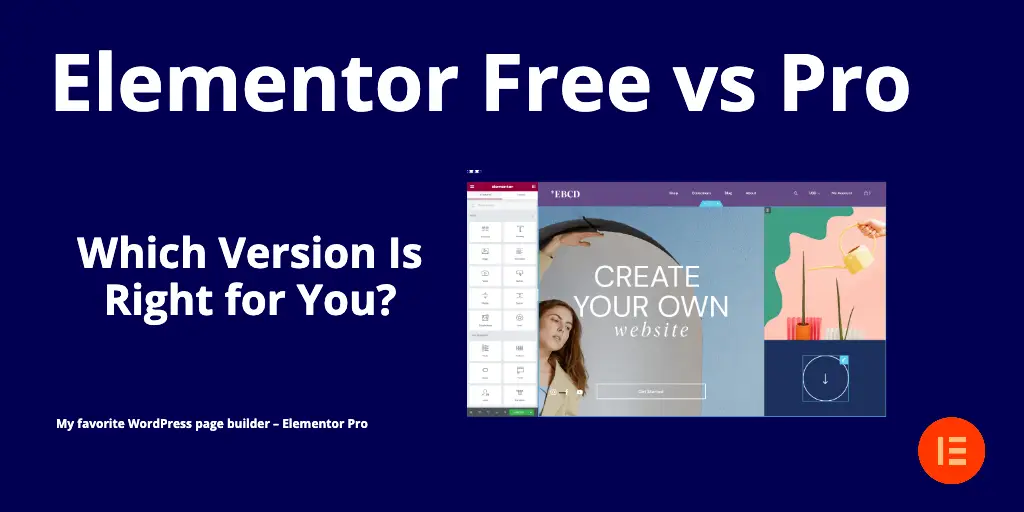
A comparison between Free and Pro
Even when a site looks fine, it can still contain old HTTP links inside plugin tables. That can lead to mixed content warnings, subtle redirects, or broken resources later.
So I SSH’d into the VPS and ran WP-CLI search-replace:
The dry run found many HTTP references that weren’t obvious from browsing the site. After the live run, my database was clean and consistent.
# Run this from anywhere, it uses --path to target the right WordPress install
# 1) Optional safety net: export the database first
sudo -u u4_edywerder -i -- wp --path=/var/www/edywerder.ch db export before-search-replace.sql
# 2) Dry run: shows how many replacements would happen (no changes made)
sudo -u u4_edywerder -i -- wp --path=/var/www/edywerder.ch \
  search-replace 'https://edywerder.ch' 'https://edywerder.ch' --all-tables --precise --dry-run
# 3) Live run: actually replaces the URLs
sudo -u u4_edywerder -i -- wp --path=/var/www/edywerder.ch \
  search-replace 'https://edywerder.ch' 'https://edywerder.ch' --all-tables --precise
Replace u4_edywerder with your site user
Replace /var/www/edywerder.ch with your WordPress path
You can also use the command with a demo (temporary) domain.
Tip: If SSH isn’t available, use your host’s WP-CLI tool. Same command, but you might need --path=... or --allow-root.
This was the moment the migration finally felt “done”.
Once the site was stable, I moved to performance.
Redis was running on the server, PHP had the Redis extension, and xCloud provided credentials. The only tricky part was getting authentication right. If you run into the Redis Object Cache error with Cloudflare proxy enabled, this guide shows the fix I use.
Enabling Nginx page cache was easy, and xCloud installed the Nginx Helper plugin for cache purge events. That matters because caching is only useful if updates invalidate correctly.
Finally, I enabled Cloudflare edge caching. Combined with Nginx page cache and Redis object cache, the site became noticeably faster.
For front-end cleanu,p I still rely on Perfmatters for minifying CSS and JS and disabling a few things I don’t need. But the heavy lifting is server-side caching plus Cloudflare at the edge.
Result: my site is now blazing fast, but it was a real project.
If you’re planning an xCloud WordPress migration, here is the process I recommend:
I’d love to hear from you. Was this article helpful? Share your thoughts in the comments below. If you prefer, you can also reach me by email or connect with me on Reddit at Navigatetech.
Before you go, if you’re wrapping up your WordPress migration to xCloud, there’s one more thing to keep in mind.
DNS settings, understanding how DNS Time to Live (TTL) works can make or break a smooth transition. A well-managed TTL can significantly reduce downtime and ensure your visitors are directed to the right server without hiccups. I cover how TTL affects DNS propagation and why adjusting it before a migration is a smart move. It’s a quick read that can save you hours of troubleshooting later.
Hi, I'm Edy Werder. I write hands-on guides about servers, virtualization, NAS and WordPress, based on setups I run in my own homelab. Real configs and real results, no fluff.
Enjoying the content?

