
By Edy Werder, a tech blogger with 20 years of experience in IT infrastructure
In my homelab, I run a single Active Directory domain controller. It holds the AD-integrated DNS zone and, until recently, my DHCP server too. It is a VM on a Proxmox node. When it goes down, every client loses DNS resolution and internet access, because the DC forwards everything it is not authoritative for to my ISP’s resolvers.
The standard is to add a second domain controller. I set up a FortiGate secondary DNS server instead. It pulls werder.local from the DC by zone transfer, so clients keep resolving internal and external names when the DC is offline.
I found this while moving my DHCP role from the domain controller to the FortiGate, where I already run DHCP for my other VLANs. That move raised a question I had been ignoring: what actually happens to my network when the DC is down or reboots? The answer is not just internal name resolution is down. Internet stops resolving, too. Domain-joined or not, no client reaches the internet.
A second domain controller would fix it, but that would be another VM on the same Proxmox cluster. Different node, same dependency class. The FortiGate is already the gateway. It is the lowest item in my stack and the first device to come back up after an outage.
I did not know FortiOS could do this. Setup took about fifteen minutes.
This is the fix most people reach for, and in an Active Directory environment, it quietly breaks things.
The Windows DNS client does not load-balance across the servers it is given. It queries the first one, and only moves to the second when the first fails to respond. That part is fine. The problem is what happens once it does move.
Your fallback resolver has never heard of werder.local. It answers NXDOMAIN. The client accepts that answer as authoritative and caches it. Internal name resolution now intermittently fails in a way that is hard to reproduce and even harder to diagnose.
A public resolver is not a backup for an AD zone. It is a resolver for a completely different namespace.
The distinction matters and the terminology hides it.
A second DNS server is any other resolver you point clients at. It knows nothing about your domain.
A secondary zone is a read-only copy of your actual zone, pulled from the primary by zone transfer (AXFR). It knows every record your DC knows, because it is the same data.
FortiOS supports the second one. The feature is called DNS Database, and a zone can be configured as Primary or Secondary. That is what makes this work.
AD-integrated zones block zone transfers by default. Nothing happens on the FortiGate until you change this.
Do not pick “Only to servers listed in the Name Servers tab.” Your FortiGate is not in that tab and should not be. Microsoft also documents a separate failure where that option stops transfers from working at all.
When you add the FortiGate IP, Windows will very likely show:
Validation error, please try again later
Ignore it. Click OK anyway. The entry saves and the transfer works.
Here is what I believe is happening. When you add a server to that list, DNS Manager tries to verify the target is a name server that is authoritative for the zone. The FortiGate cannot be authoritative for a zone it has not received yet, and it cannot receive the zone until you finish adding it to this list. Chicken and egg. Validation fails, the entry saves regardless, and the transfer happens on the next notify or refresh.
I could not find Microsoft documenting that exact error string, so treat the explanation as my interpretation rather than official documentation. What I can confirm is that the transfer worked in my case despite the error.
This trips people up badly. There are threads on the Fortinet community forum where people stop here, assume the setup failed, and never get an answer. Do not troubleshoot on the Windows side. Verify on the FortiGate instead. I show it below.
While you are on this tab, click Notify and add the FortiGate IP as well. That pushes changes immediately instead of waiting for the refresh timer.
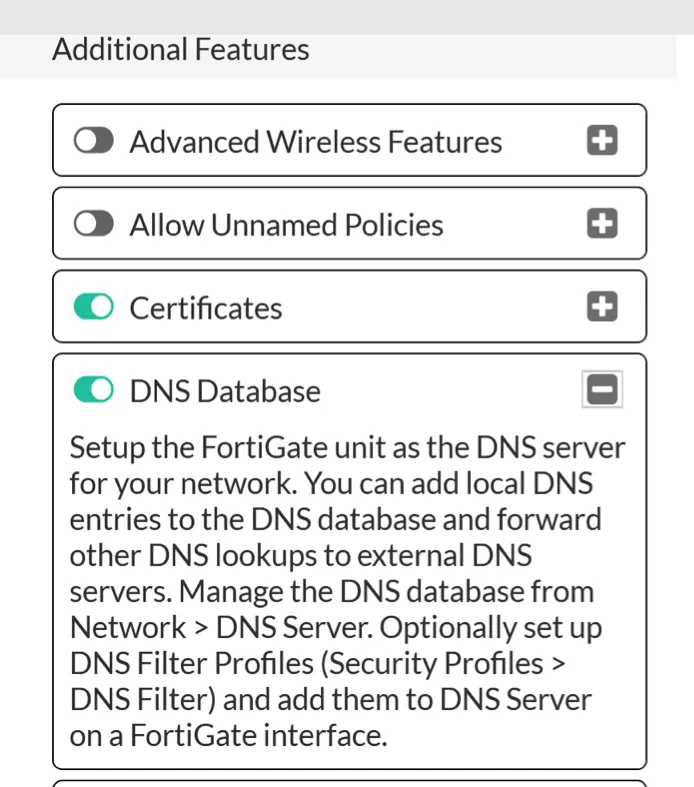
The DNS Database feature is hidden by default and nothing appears in the menu until you enable it.
Go to System > Feature Visibility > Additional Features and turn on DNS Database. Apply.
Go to Network > DNS Servers > DNS Database > Create New.
| Field | Value |
| Type | Secondary |
| View | Shadow |
| DNS Zone | werder |
| Domain Name | werder.local |
| IP of Primary | your DC’s IP |
| Authoritative | Off |
| DNS Forwarder | your DC’s IP |
Or in the CLI:
config system dns-database edit "werder" set domain "werder.local" set type secondary set ip-primary 192.168.1.10 set view shadow set forwarder 192.168.1.10 set authoritative disable nextendOlder FortiOS builds use set type slave and set ip-master. Check which version you accept.
Three of those fields are worth explaining because two are counterintuitive, and one is the difference between working and not working.
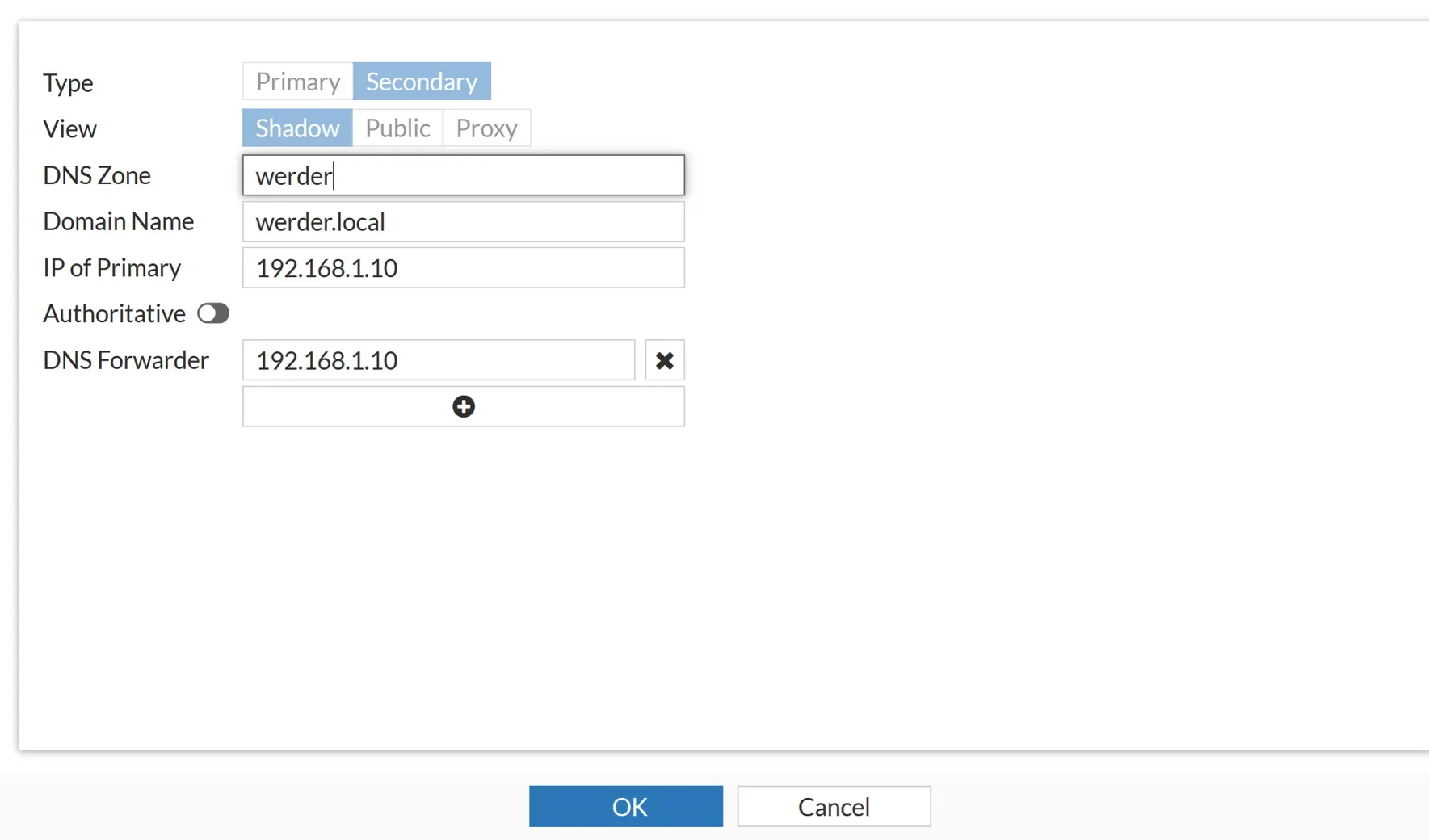
Shadow serves internal clients. Public serves external ones. If you leave this on Public, queries get forwarded and your transferred zone is ignored entirely. Fortinet’s own technical tip is explicit about this.
This one caught me. It looks like the field where you put your upstream resolver. It is not.
This forwarder is scoped to the zone. It only handles queries for werder.local that the transferred copy cannot answer itself, which in practice means SRV records. Active Directory depends heavily on SRV records, which is why Fortinet’s documentation says a forwarder is required for this setup.
Your ISP resolver has never heard of werder.local. Put it here, and internal SRV lookups return nothing.
Your public resolvers belong somewhere else entirely, under Network > DNS, or in the CLI:
config system dns set primary 1.1.1.1 set secondary 9.9.9.9endThe split ends up like this:
| Query | Path |
| nas.werder.local | Answered locally from the shadow zone |
| _ldap._tcp.werder.local | Zone forwarder to the DC |
| github.com | System DNS out to the internet |
With Authoritative on, the FortiGate treats its copy as the final word. Anything missing from that copy returns NXDOMAIN instead of being forwarded to the DC.
With it off, misses fall through to the forwarder. Since the copy can be up to fifteen minutes stale, off is the safer setting. A gap degrades to slow rather than broken.
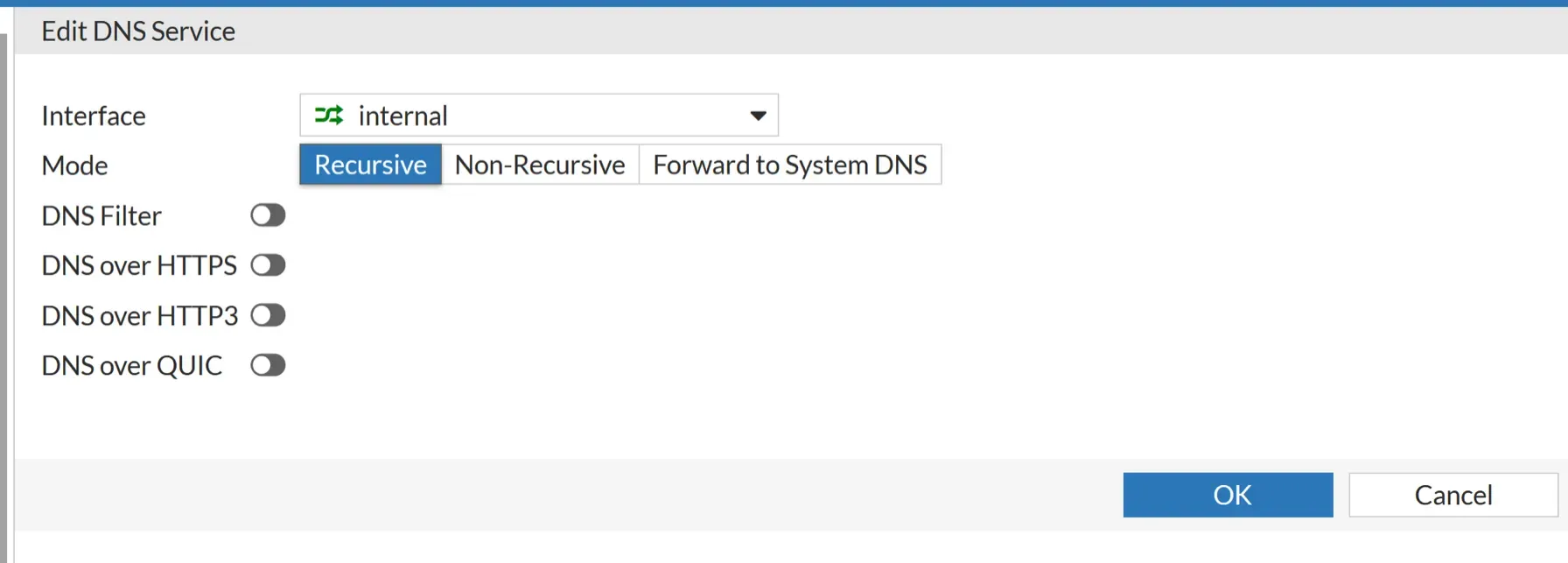
The zone exists now, but nothing is listening. Go to Network > DNS Servers > DNS Service on Interface > Create New.
Recursive is what makes the FortiGate answer from the shadow zone first and forward everything else. Without it the zone is ignored.
Leave DNS Filter, DNS over HTTPS, HTTP3 and QUIC off. Those control whether the FortiGate accepts encrypted DNS from clients. They have nothing to do with this setup.
Note that this service is per interface. It only serves clients on the interface you select. If you run multiple VLANs, you need one entry per interface.
The GUI will probably show 0 entries next to your zone. That is not a reliable indicator. Mine showed zero, even though the transfer had already completed.
Check from the CLI over SSH:
diagnose test application dnsproxy 8You are looking for your zone with a non-zero serial:
vfid=0 name=werder domain=werder.local ttl=86400 authoritative=0 view=shadow type=secondary serial=1164099 refresh=900forwarder(s): 192.168.1.10 A: router.werder.local-->192.168.1.1(3600) A: nas.werder.local-->192.168.1.9(3600) ...
Serial 0 means nothing transferred. Go back to the Zone Transfers tab on Windows.
Then test properly, from a client, against the FortiGate:
nslookup dc.werder.local 192.168.1.1nslookup github.com 192.168.1.1The first proves the zone is loaded. The second proves recursion works. If both answer, you are done.
Only after both lookups succeed should you add the FortiGate as the second DNS server in your DHCP scope.
config system dhcp server edit 1 set dns-server1 192.168.1.10 set dns-server2 192.168.1.1 nextend
Order matters. The DC stays first, so clients get live records and can still register their own A records. The FortiGate is the fallback.
In the output above, refresh=900. The copy can be up to fifteen minutes behind.
For servers, printers and anything with a DHCP reservation, that is irrelevant. For a laptop that just got a new address and registered a new A record, fifteen minutes is a long time.
Setting Notify on the Windows zone, as in Step 1, solves this. Changes push immediately instead of waiting for the timer.
Be clear about what you solved here, because it is easy to misunderstand.
You gained resolution redundancy. When the DC is down, every client still resolves internal and external names. Non-domain devices notice nothing at all. Internet access keeps working. That was the actual problem I set out to fix.
You did not gain Active Directory redundancy. The FortiGate serves a read-only copy. When the DC is down:
Clients can still find the domain controller. They just cannot use it because it is not there.
Exchange is the clearest example of the boundary. It resolves its own name fine while the domain controller is down, then prompts for Windows credentials it cannot validate, because it authenticates against Active Directory rather than DNS. Outlook does not always reconnect cleanly afterward either, and sometimes needs a restart.
Only a second domain controller fixes that. This is not a replacement for one. It resolves, it does not authenticate.
One more thing worth naming. My DNS now depends on the FortiGate, and so do my DHCP and routing. The FortiGate Firewall is a greater single point of failure than before. In a homelab, I accept that, because nothing works without the gateway anyway. But it does mean the config backup matters more than it used to.
For fifteen minutes of work and no additional VM, removing DNS as a single point of failure is a trade I would make again.
I’d love to hear from you. Was this article helpful? Share your thoughts in the comments below. If you prefer, you can also reach me by email or connect with me on Reddit at Navigatetech.
Hi, I'm Edy Werder. I write hands-on guides about servers, virtualization, NAS and WordPress, based on setups I run in my own homelab. Real configs and real results, no fluff.
Enjoying the content?