
By Edy Werder, a tech blogger with 20 years of experience in IT infrastructure
I had to reset Synology NAS admin password after an update locked me out of DSM. Nothing was lost, but I definitely had that “please don’t wipe my NAS” feeling.
To reset a Synology admin password without losing data, do a Mode 1 reset: hold RESET button for 4 seconds until you hear a beep sound, then use find.synology.com to reconnect. Log in as admin with a blank password, set a new password, and reapply your static IP if needed.
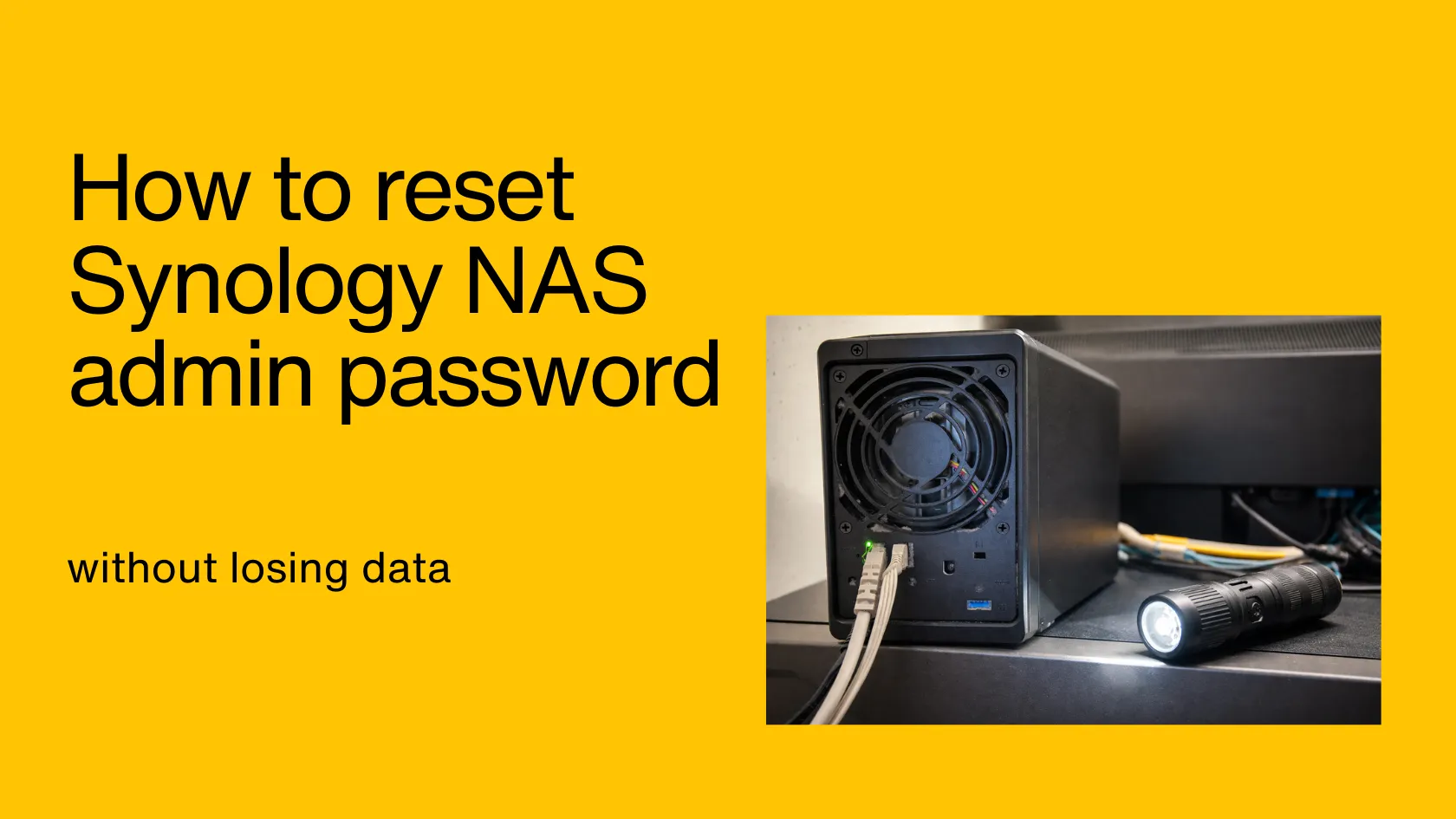
In my case, I followed Synology’s recommendation and disabled the built-in admin account. Instead, I used a separate user with admin rights for daily logins.
Then, after an SMB package update, DSM suddenly refused my password. The only way back in was a Mode 1 reset. I didn’t lose any data. I just had to reapply my static IP afterwards.
Sometimes — but it depends on whether you can still access DSM.
Having a Synology Account doesn’t automatically let you bypass a forgotten DSM password. A Synology Account is separate from your DSM user accounts, and QuickConnect still uses your DSM username/password to sign in. The one exception is if you previously enabled Synology Secure SignIn (Approve Sign-In / passwordless). In that case, you may still be able to log in and fix your account without a Mode 1 reset.
This is where people get nervous: “reset” sounds like “factory reset.” But for password recovery, you’re usually looking for Mode 1.
Mode 1 is designed to:
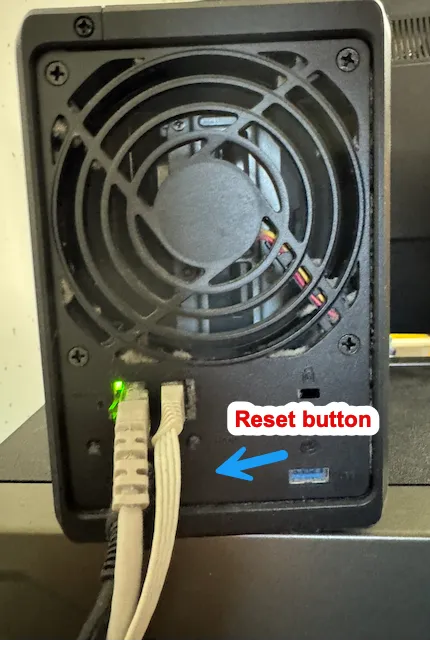
That’s exactly what got me back into my system after the SMB update drama.
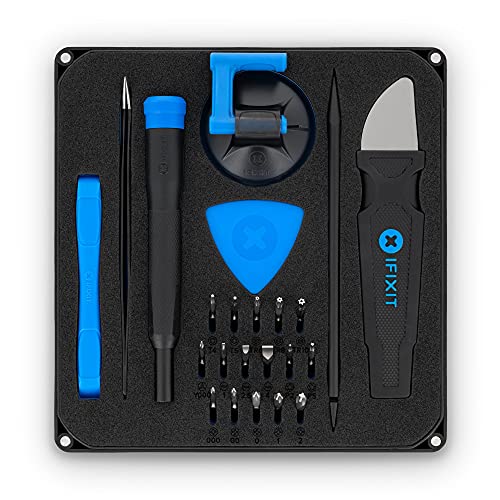
Tip: If your NAS sits in a dark corner or on a dark rack, a small flashlight makes it much easier to find the RESET button.

For password recovery using Synology’s reset procedure, the practical answer is that the password will temporarily be blank so you can sign in and set a new one. Synology’s guidance commonly instructs logging in as admin with an empty password after the reset.
So if you’re searching for a universal “default admin password,” don’t. Focus on the Mode 1 reset path instead.
Here’s my quick checklist based on what actually matters in real life:
If you still can’t get in, Synology also documents a Mode 2 reset. This option resets the NAS more deeply and may require reinstalling DSM. Your data volume is typically intended to remain intact, but your system settings will be removed, making this more disruptive than Mode 1.
The main takeaway: Mode 1 gets you back in fast, and a second admin account helps you avoid doing it again
I’d love to hear from you. Was this article helpful? Share your thoughts in the comments below. If you prefer, you can also reach me by email or connect with me on Reddit at Navigatetech.
If you’ve just reset your Synology NAS admin password, it’s a good moment to reassess whether your current setup still meets your needs. Whether you’re running out of storage or exploring more advanced features, upgrading might be worth considering. I’ve put together a guide to help you decide which Synology NAS is right for you. It breaks down the options based on use case, performance, and budget. Before you go, take a look.
Hi, I'm Edy Werder. I write hands-on guides about servers, virtualization, NAS and WordPress, based on setups I run in my own homelab. Real configs and real results, no fluff.
Enjoying the content?