

By Edy Werder, a tech blogger with 20 years of experience in IT infrastructure
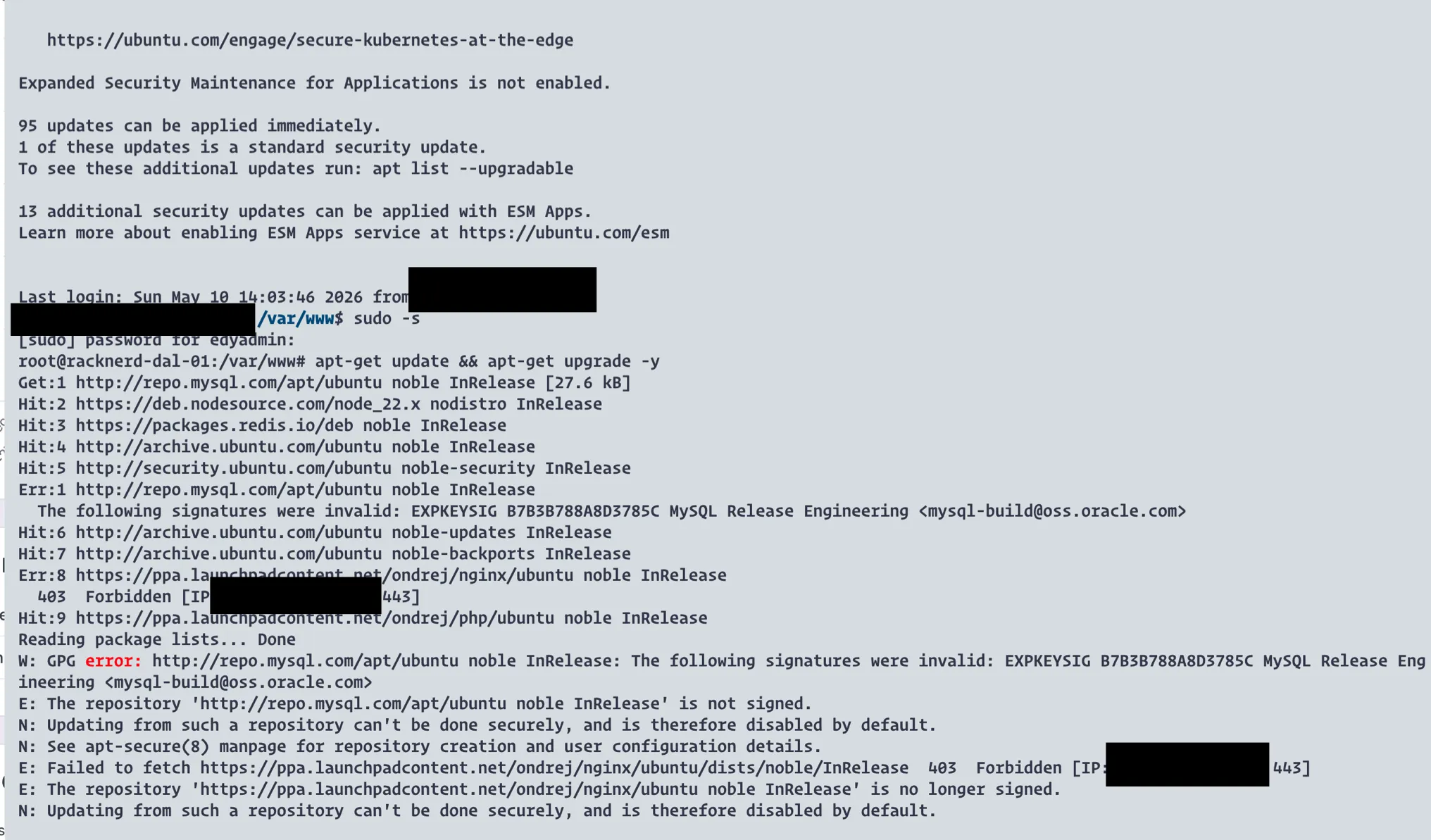
I SSH’d into my self-managed VPS last week, ran apt-get update && apt-get upgrade -y, and immediately hit two errors. That moment made me realize I had no clear idea who’s actually responsible for keeping this server updated.
This post is my real experience figuring out the answer. If you run WordPress on a self-managed VPS with a control panel like xCloud, RunCloud, CloudPanel, or SpinupWP, this applies to you too.
apt upgrade on your own. The panel configured the stack and knows how the pieces fit together.Before I get into what happened, a quick primer for context.
A self-managed VPS (also called an unmanaged VPS) is a virtual private server where the hosting provider gives you the hardware, network, and hypervisor. Everything above that is your responsibility:
With shared hosting, the hosting provider takes care of all of that for you. With a fully managed VPS, it’s similar. The hosting provider handles server maintenance, applies security patches, and provides technical support. You pay more, but you don’t worry about server administration.
That’s the textbook version. But my setup doesn’t fit neatly into either category.
Here’s the setup that creates confusion. You buy a self-managed VPS from a provider like RackNerd, Vultr, or DigitalOcean. Then you connect it to a control panel like xCloud, RunCloud, or CloudPanel.
The panel installs and configures your web server, PHP, MySQL, Redis, and everything else your WordPress site needs. It adds package repositories. It manages Nginx configs and caching layers. You get a clean dashboard to manage sites, databases, and deployments.
But the underlying operating system? That’s still your self-managed VPS. Your hosting provider doesn’t touch it. And the panel? It owns the stack, not the OS.
This is where the responsibility split gets blurry. The panel added the repositories, but you’re the one with full root access who can run apt upgrade. If an update breaks something the panel configured, who’s at fault?
That’s exactly the situation I ran into.
I run a RackNerd VPS in Dallas with xCloud as the management panel. The server’s only job is hosting my WordPress sites. xCloud installed the full stack: Nginx, PHP, MySQL, and Redis. I didn’t set up any of that manually. It’s a self-managed VPS hosting setup where xCloud handles the application layer.
When I ran apt-get update, two repositories failed:
Both of these repositories were added by xCloud during the initial server setup. I didn’t add them myself.
On top of that, 95 package updates were pending, including one security patch. None of them could install because of these two broken repos.
I opened a support ticket and asked two simple questions:
The first reply was helpful but felt like it was written for a managed hosting customer. It said I shouldn’t run apt upgrade manually and that xCloud handles security patches through their own process.
That confused me. My server is self-managed, not a fully managed VPS instance. So I followed up and asked them to clarify.
The second reply cleared things up. Here’s what I took away:
The panel pushes critical security patches centrally. When a major vulnerability hits, xCloud tests and deploys fixes across all connected servers. That includes both managed and self-managed servers. They gave the example of patching two critical vulnerabilities before Ubuntu even had official package updates available.
Routine security patches can be automated. xCloud offers an unattended security upgrades feature that installs official Ubuntu security patches automatically when they become available. I just had to enable it from the panel.
Don’t run broad apt upgrades. A blanket apt upgrade on a self-managed VPS with a panel can introduce compatibility issues with the server configuration the panel set up. If I need a specific package updated, I should ask their support team to review it first.
If the panel added the repo, the panel should fix it. Since xCloud added both the MySQL repo and the Nginx PPA, I asked them to handle it. They refreshed the expired GPG key, carefully disabled the broken Nginx PPA, and confirmed that the web server was still running normally. They even created a backup of the APT source config before making changes.
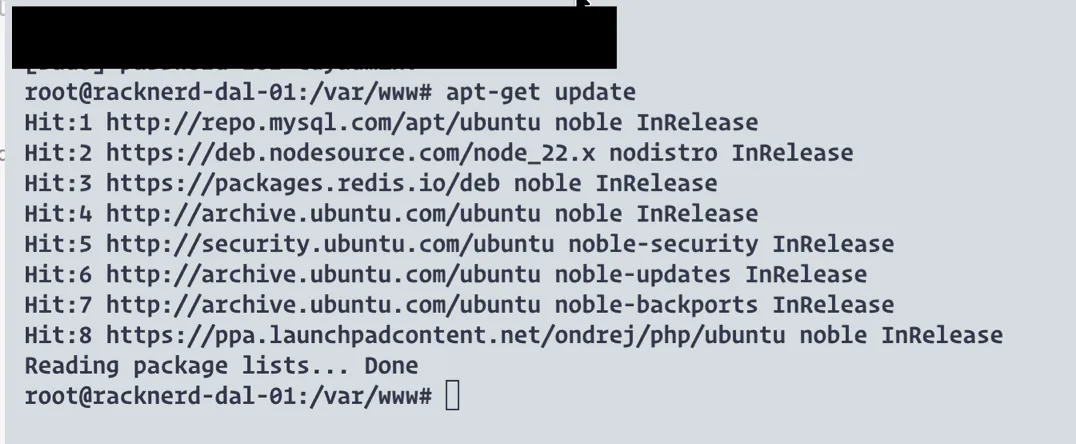
I verified it myself. After the fix, apt-get update completed without errors.
That last part impressed me. Good support.
If you run WordPress on a self-managed VPS with a panel, here’s what I’d suggest based on this experience.
A self-managed VPS with a panel is its own category. It’s not unmanaged VPS hosting where you do everything, and it’s not managed hosting where you do nothing. Keep that in mind.
Ask before you upgrade. Check with your panel provider before running apt upgrade. Find out what they manage, what they don’t, and what could break if you update packages on your own server.
Enable unattended security updates. Most control panels and VPS platforms offer this. It covers the important security patches without touching the web stack. Your server stays secure without risking breaking anything.
Leave the panel’s repos alone. If a GPG key expires or a PPA breaks, open a support ticket. If the panel added the repo, the panel should fix it. They know why it’s there and how to handle it safely.
Know your boundaries. Understand where your responsibility starts and where the panel takes over. The clearer that line is, the fewer surprises you’ll get.
I made the switch from shared hosting to a self-managed VPS about a year ago and never looked back. The answer to why is simple: I like understanding how things work
A self-managed VPS gives me full control over my server environment. I choose the hosting provider, the VPS plan, and the data center location. I have full root access to the command line. I can SSH in, inspect logs, and troubleshoot issues myself. When I ran into a Redis Object Cache error with Cloudflare, I figured it out and documented the fix. That level of control matters to me.
It also costs less. Self-managed VPS plans are significantly cheaper than managed VPS plans because you’re not paying for server administration and dedicated support. For someone comfortable managing a server, the savings add up.
And with a good control panel on top, you get the best of both worlds. The panel handles the tedious parts of server setup, application deployment, and stack configuration. You keep the flexibility and the understanding of what’s actually running on your machine.
Is it for everyone? No. If you don’t have the technical expertise or the interest in server administration, a managed VPS hosting plan is the better choice. But for me, a self-managed VPS with a panel like xCloud hits the right balance between control and convenience.
If you’re considering xCloud for your WordPress VPS, I documented my full migration in xCloud WordPress Migration: My 2-Day VPS Move (and What I’d Do Differently).
I’d love to hear from you. Was this article helpful? Share your thoughts in the comments below. If you prefer, you can also reach me by email or connect with me on Reddit at Navigatetech.
Hi, I'm Edy Werder. I write hands-on guides about servers, virtualization, NAS and WordPress, based on setups I run in my own homelab. Real configs and real results, no fluff.
Enjoying the content?

