

By Edy Werder — IT Consultant & Tech Blogger
In this article, I emphasize the significance of putting an Exchange Server in maintenance mode, a state in which the server is temporarily taken offline for CU (cumulative updates), security updates, or maintenance tasks. However, please note that this article does not provide step-by-step instructions on how to perform this task. If you are looking for a guide on how to do it, I recommend reading the article by Ali Tajran, which includes the necessary steps.

For those seeking a more streamlined and efficient approach, Go to GitHub and download the PowerShell scripts from Roman Gelman here.
These scripts, equipped with an importable module, empower you to enable Exchange Server Maintenance Mode with a single click, simplifying the process and putting you in control.
Okay, back to the article. There are two types of Exchange installation.
Absolutely. Switching to maintenance mode when updating or maintaining your single Exchange server is wise. Here’s the straightforward reason why:
In essence, engaging maintenance mode on your single Exchange server isn’t just a technical step; it’s you taking the reins, ensuring the update process is smooth, controlled, and without unexpected email flow or service hiccups. This way, you keep surprises to a minimum and reliability to a maximum.
Okay, let’s move on to Exchange DAG; here, it is more obvious why you should put the Exchange server in maintenance mode.
If you manage servers as part of an Exchange Database Availability Group (DAG), you’re in a unique position regarding updates and maintenance. Here, putting your server into maintenance mode isn’t just recommended; it’s a crucial part of ensuring the smooth operation of your email services. Let’s talk about why:
In short, the interconnected nature of DAGs makes using maintenance mode not just a best practice but a foundational aspect of effectively managing your Exchange environment.
Let’s dive deeper into what this looks like in practice to put an Exchange Server in Maintenance mode.

Draining mode is a preparatory state for the Exchange Hub Transport server, where it begins to cease accepting new messages and processes any existing messages in the queue. Here’s what it entails and why it’s important:
By redirecting the message queue, you ensure that email communication within your organization is not interrupted, even as one server is being prepared for maintenance.
The step of suspending the server from the Database Availability Group (DAG) is pivotal when preparing for maintenance. Here’s what it entails:
This step is essential for a smooth maintenance process, keeping the server isolated from the DAG’s active data management tasks.
This step focuses on preventing the automatic activation of mailbox database copies on the server slated for maintenance. Here’s a straightforward explanation:
By taking this step, you ensure that your maintenance activities can proceed without the server inadvertently taking on active database roles, maintaining the stability and efficiency of the maintenance process.
The final step officially sets the server into maintenance mode, preparing it for the update or maintenance tasks ahead. Here’s the essence of this step:
Remember that Exchange Services will not stop when the Exchange is in maintenance mode.
Once you have executed the steps to put your Exchange server into maintenance mode, confirming the server has correctly entered this state is crucial. This verification step ensures that all preparatory measures have been effectively applied, safeguarding your maintenance activities. Here’s how you can check if the server components are successfully in maintenance mode:
Get-ServerComponentState "YourServerName" | Select Component, State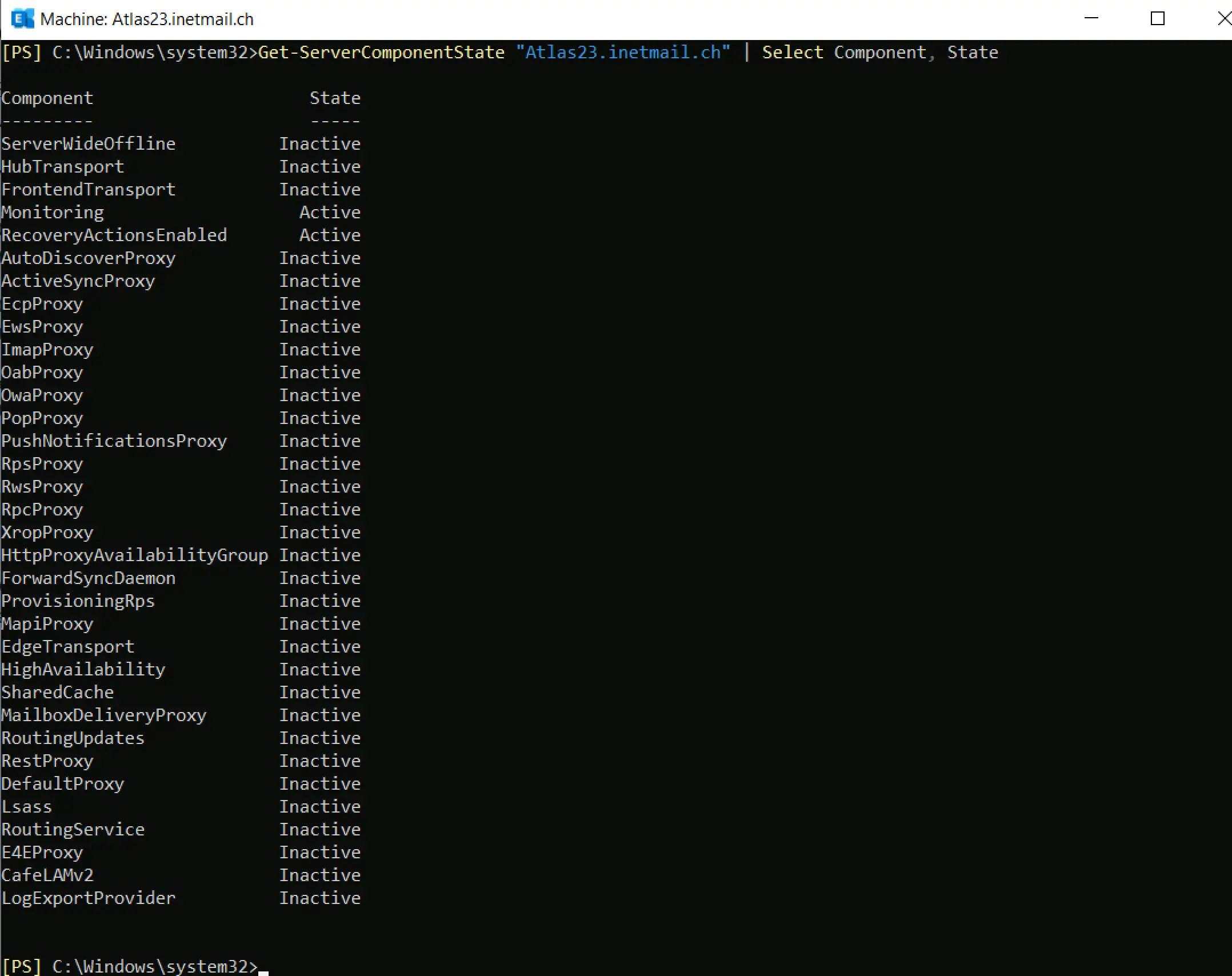
The state of all components should be ‘Inactive’ except for two components listed in the screenshot above.
The Exchange servers I administer are VMs on VMware or Proxmox. Before I start performing updates with the new Exchange CUs, I reboot the server after putting it into maintenance and take a snapshot. You should know a recent backup is on hand. It’s better to have more than one fallback possibility.
I have performed updates with two Exchange Servers in a DAG during business hours in a production environment and have not received any user complaints.
You can use the PowerShell script from the above collection to remove the Exchange server from maintenance mode.
I always rerun
Get-ServerComponentState "YourServerName" | Select Component, Stateto check if all components are in active state
With
Test-ReplicationHealthyou check if the process database copy has been resumed
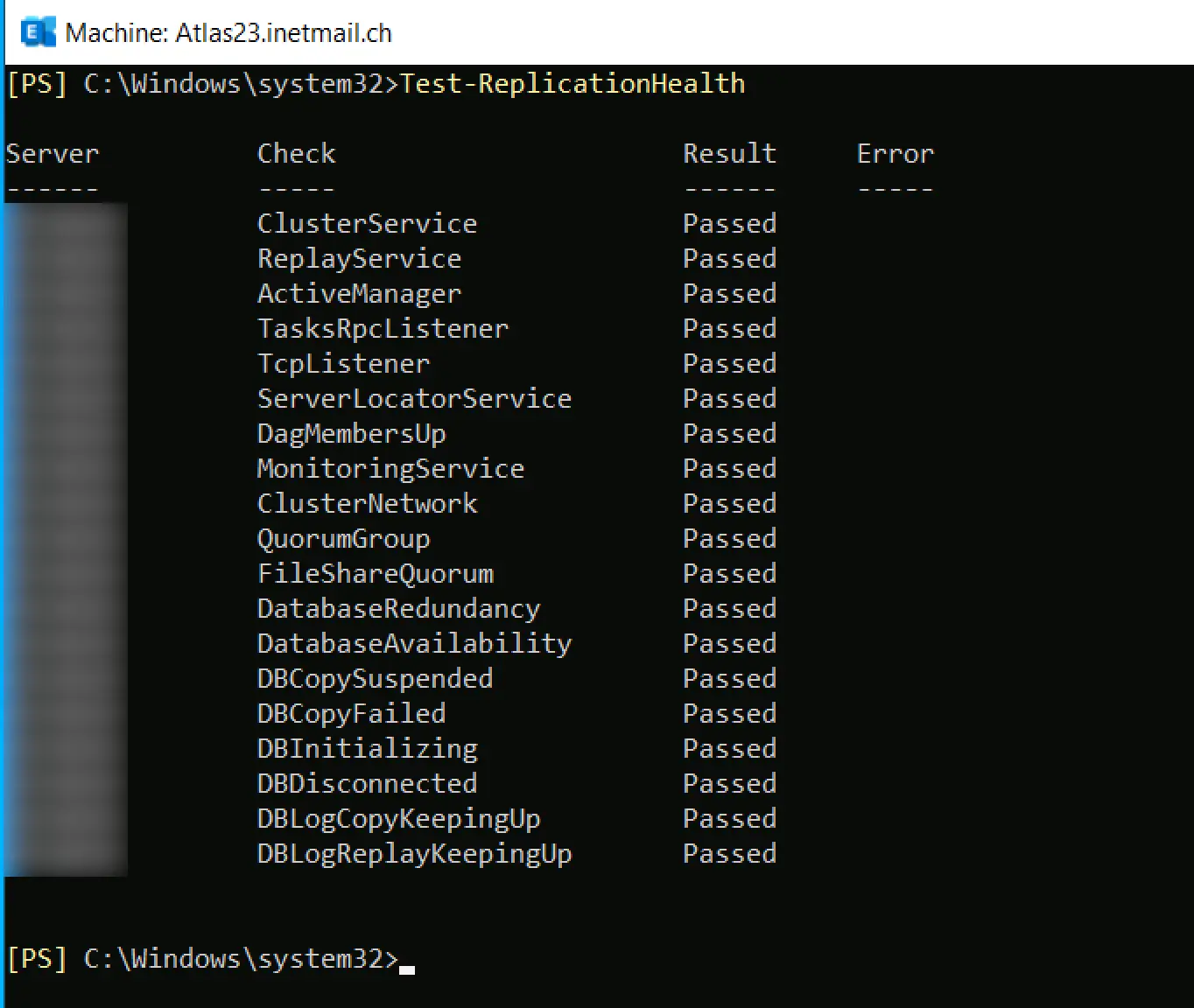
Lastly, it is good practice to run the Exchange Health Checker after each Update to ensure everything is in good shape.
I’d love to hear from you. Was this article helpful? Share your thoughts in the comments below. If you prefer, you can also reach me by email or connect with me on Reddit at Navigatetech.
It’s also crucial to ensure that your server’s security is up to date. A key part of this is maintaining the certificates that secure communications. I recommend checking out how to renew your Exchange certificate, which can help prevent potential security issues and ensure uninterrupted service. This follow-up is essential for keeping your Exchange environment secure and operational.
Hi, I’m Edy Werder. I write hands-on guides about Proxmox, homelab servers, NAS, and WordPress, based on real setups I run and document.
No sponsors, no fluff—just real configs and results.
Enjoying the content?

