

By Edy Werder, a tech blogger with 20 years of experience in IT infrastructure
Many people trust Microsoft 365 for storing important files, emails, and collaborative work. But did you know that Microsoft doesn’t fully back up your data? While Microsoft ensures platform reliability, protecting your data is your responsibility.
This is where Synology’s Active Backup for Microsoft 365 comes in. It’s an entirely free solution that offers a solid alternative to costly services like Veeam, ensuring you have control over your data backups. Let’s dive into why it’s crucial to back up your Office 365 data and how Synology can make that easy.

Using Microsoft 365 doesn’t mean your data is automatically safe from accidents. Sure, Microsoft provides some data redundancy, but that doesn’t protect you if files are accidentally deleted or maliciously altered.
Picture this: you mistakenly delete a critical document or email. Without a backup, that data might be lost forever. Worse yet, if a ransomware attack hits, your files could be locked down, and Microsoft’s recovery tools may not be enough to save the day.
Synology Active Backup for Microsoft 365 steps in to fill this gap. It allows you to back up your emails, files, and entire SharePoint sites, ensuring you can recover important data whenever needed—with just a few clicks.
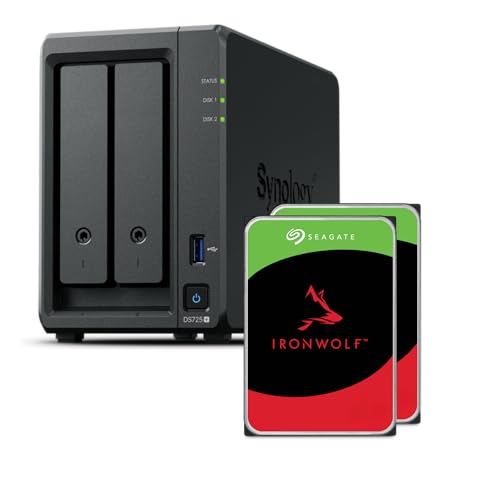
Synology’s Active Backup for Microsoft 365 is a free application designed to give you full control over your Microsoft 365 data backups. If you’re already using a Synology NAS, you can leverage this tool to back up and restore your data without any additional licensing costs. This makes it a powerful, budget-friendly solution for both individuals and businesses looking to protect their critical information.
So, how does it work? Active Backup for Microsoft 365 integrates seamlessly with your Synology NAS to create and manage backups of your Microsoft 365 environment. It’s designed to be simple, even for non-tech-savvy users. With just a few clicks, you can set up automated backups of your emails, OneDrive files, SharePoint sites, and even Microsoft Teams conversations.
One of the standout features is that it’s all handled from a central dashboard. You don’t need multiple apps or tools—everything is in one place, making backup management straightforward and efficient.
Active Backup for Microsoft 365 has features that make it an appealing choice, especially since it’s free. Here are some of the key features that stand out:
One key question I often hear is whether Microsoft Teams data can be backed up, and the answer is yes. Active Backup for Microsoft 365 goes beyond just emails and files—it also covers Teams conversations, channels, and files shared within Teams.
Why is this important? Teams is increasingly becoming the backbone of collaboration for many businesses, and losing valuable conversations or files shared within it could be disastrous. With Synology Active Backup, you can safeguard this critical communication layer, ensuring that you can restore both individual conversations and shared files should anything go wrong.
Cost and setup requirements are the biggest factors when comparing Synology Active Backup for Microsoft 365 and Veeam Microsoft 365.
Synology Active Backup for Microsoft 365 is free but requires a Synology NAS. If you already own one, it’s a cost-effective solution. However, if you don’t, purchasing a NAS adds to the overall expense, making it less budget-friendly if you’re starting from scratch.
Veeam, on the other hand, offers a Community Edition that is free for up to 10 users, making it accessible for smaller teams or businesses. However, once you exceed 10 users, you’ll need to pay for licenses for all users, and the cost can scale quickly as your team grows.
Both solutions offer excellent features for backing up Microsoft 365 data, including email, SharePoint, OneDrive, and Teams. For most small—to medium-sized setups, Active Backup provides all the essential functionality.
Veeam, however, is more geared toward enterprises that need advanced features like detailed reporting, enhanced security options, and better scalability. If your business requires enterprise-grade solutions or you’re managing a larger IT infrastructure, Veeam’s flexibility and advanced features may be worth the investment.
Setting up a Microsoft 365 backup task with Synology Active Backup for Microsoft 365 is straightforward. Let me walk you through the steps:
First, install the Active Backup for Microsoft 365 app on your Synology NAS.
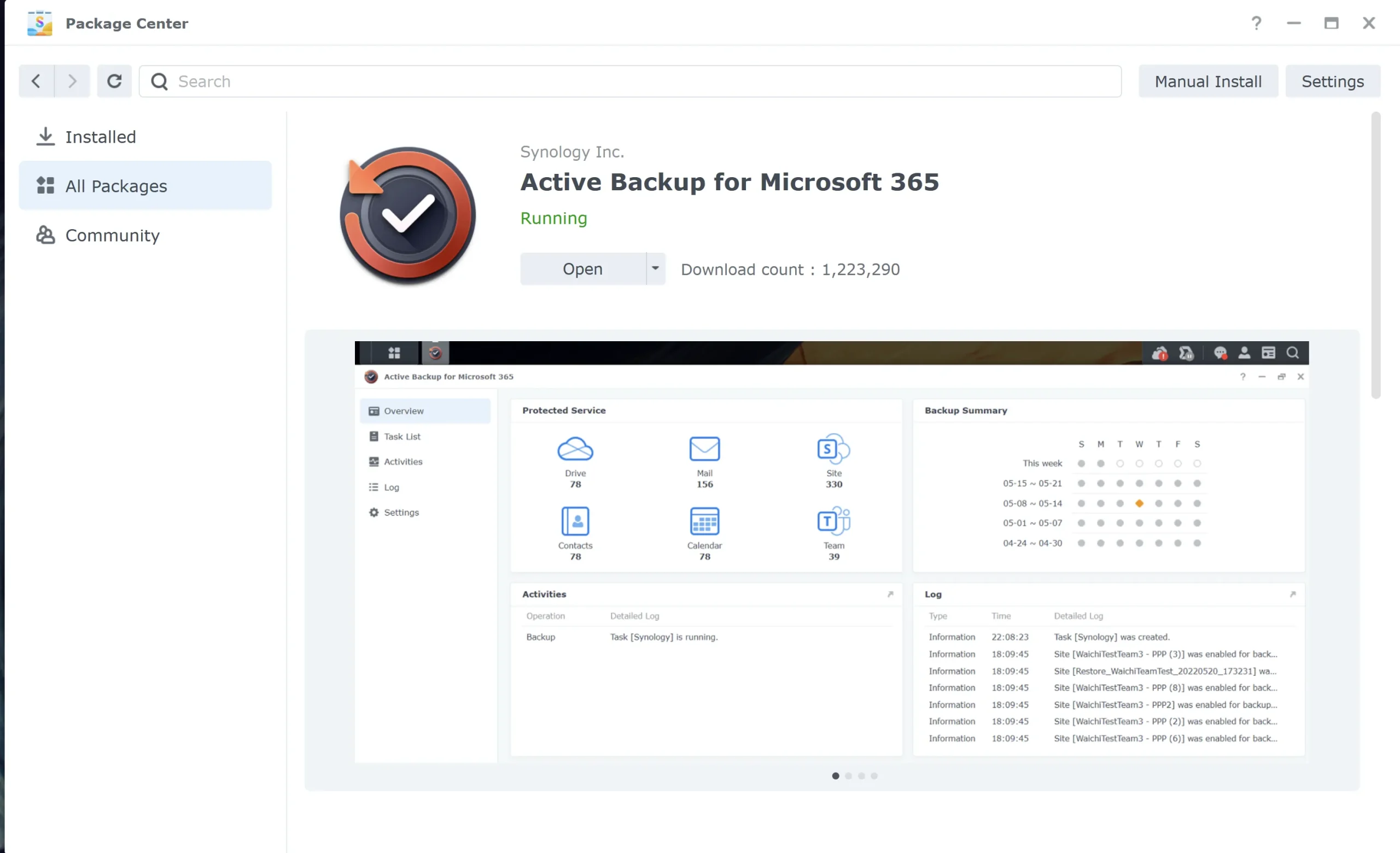
To back up your Microsoft 365 data, you must connect to your Microsoft 365 environment by creating a special certificate with your Azure tenant. The package will do it for you. It’s pretty easy.
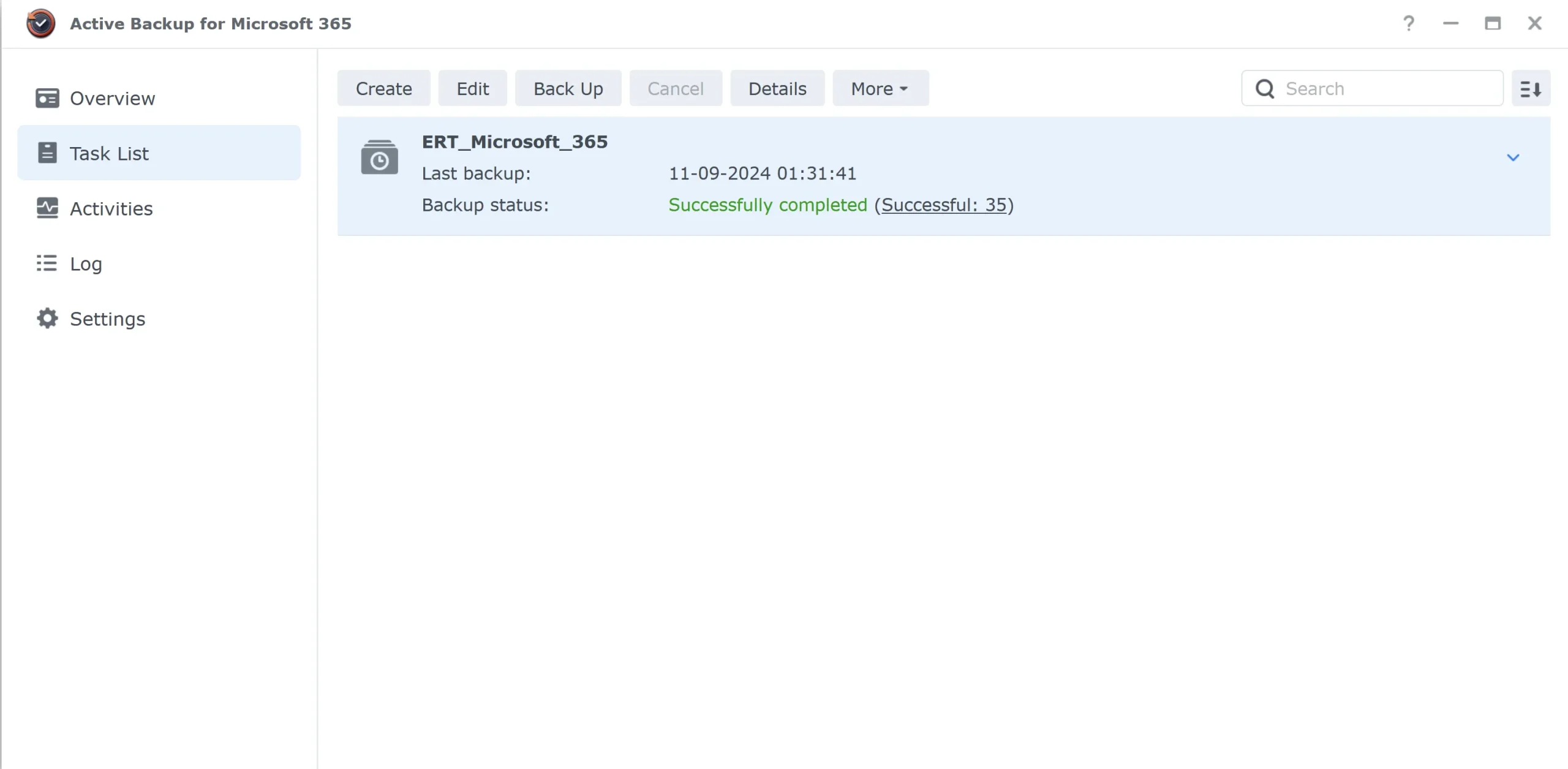
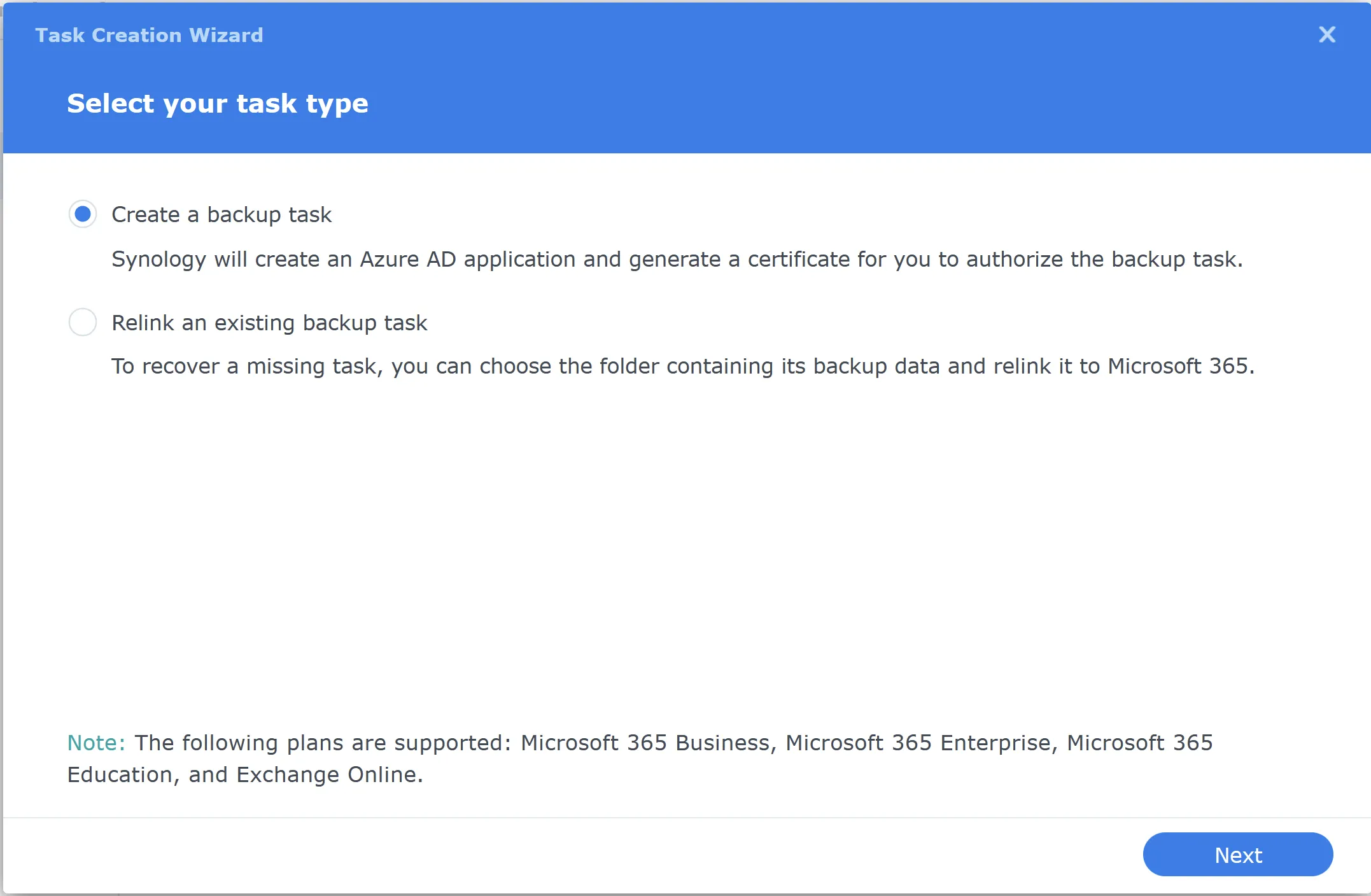
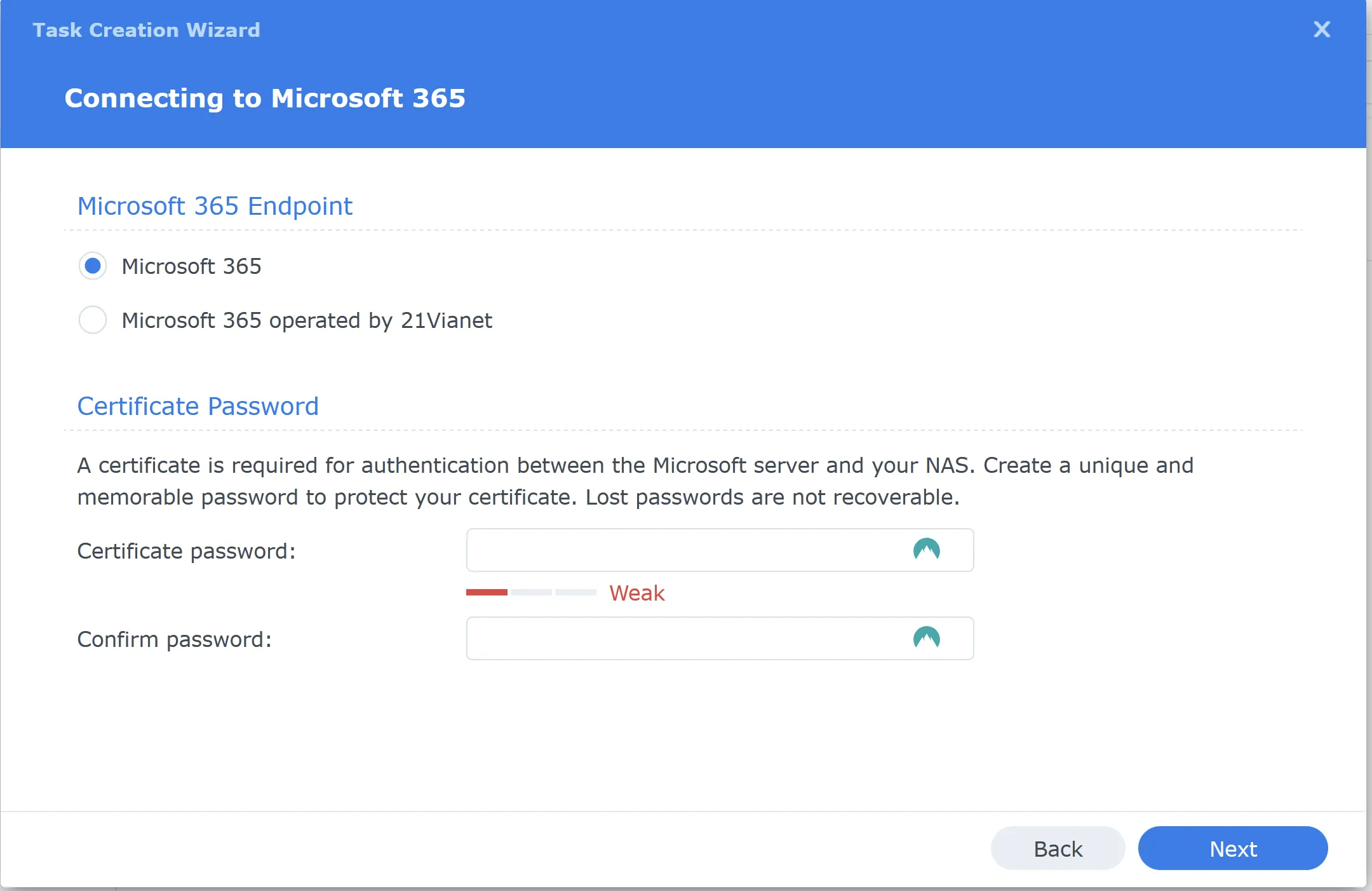
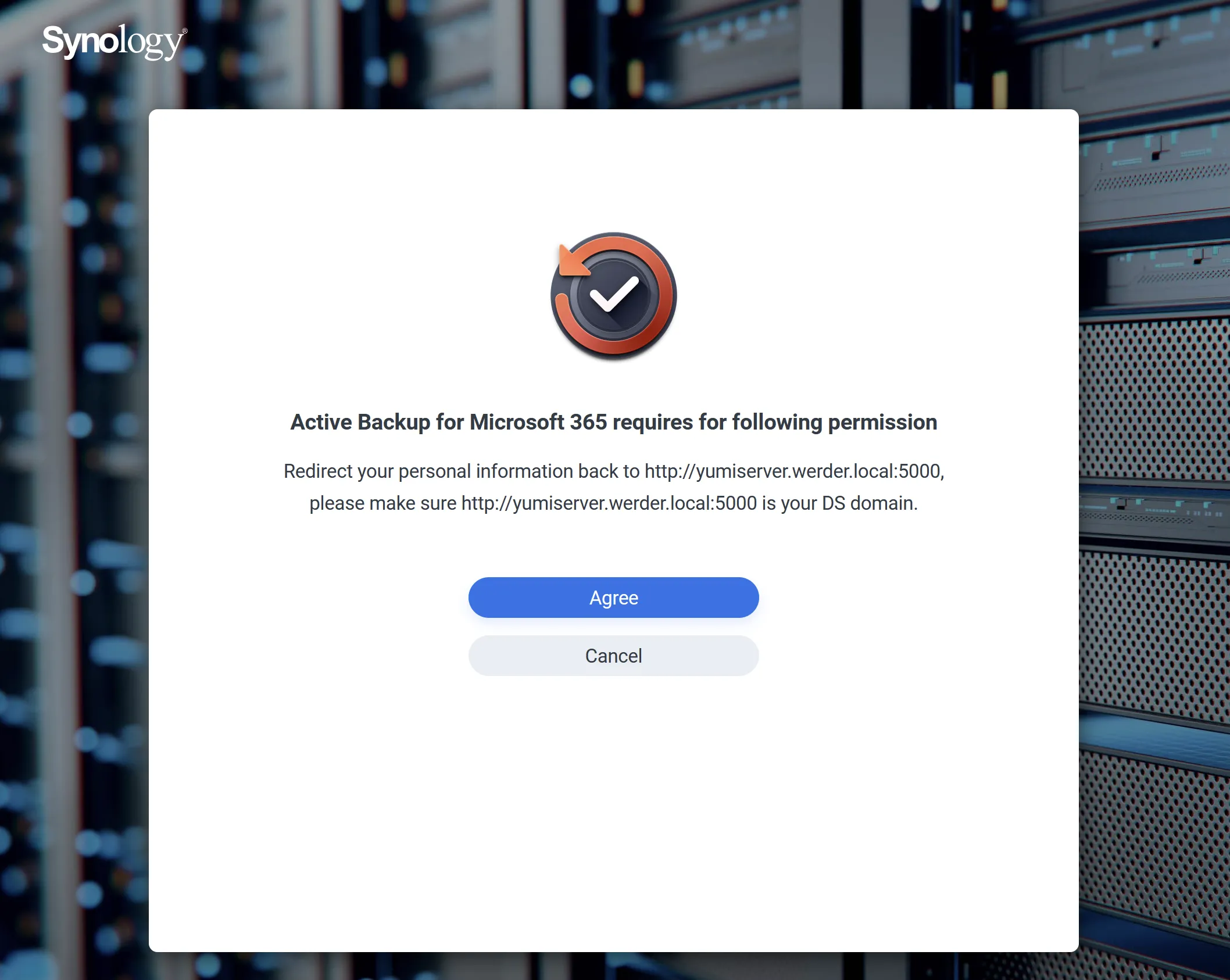
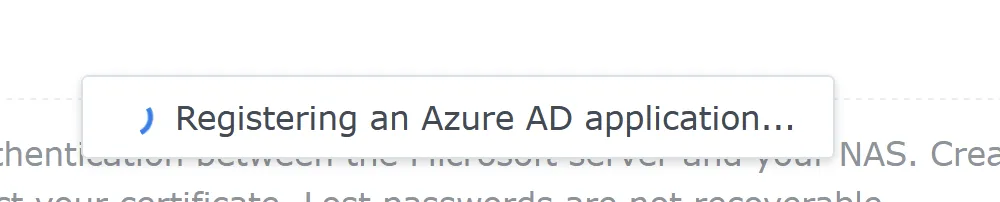
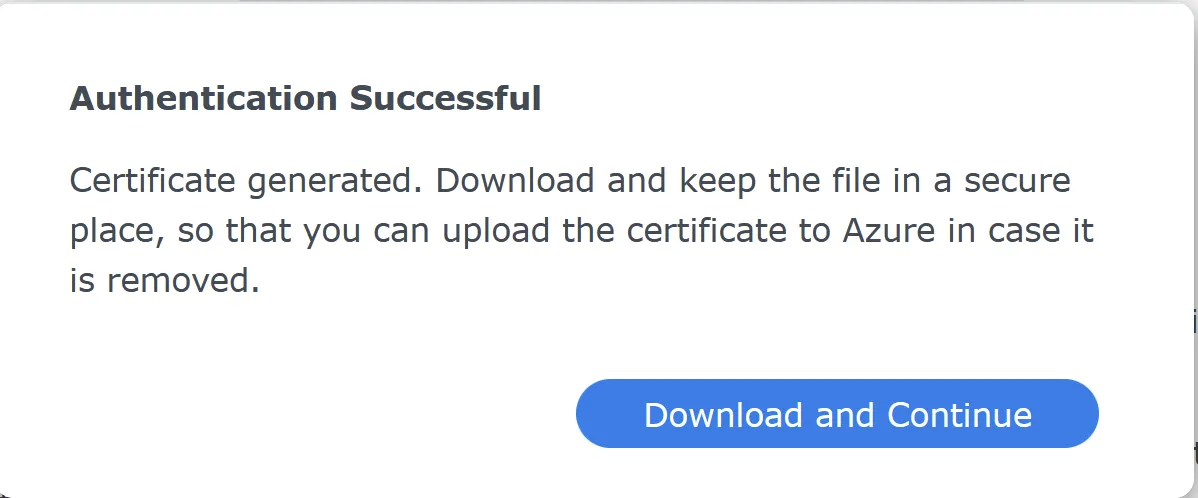
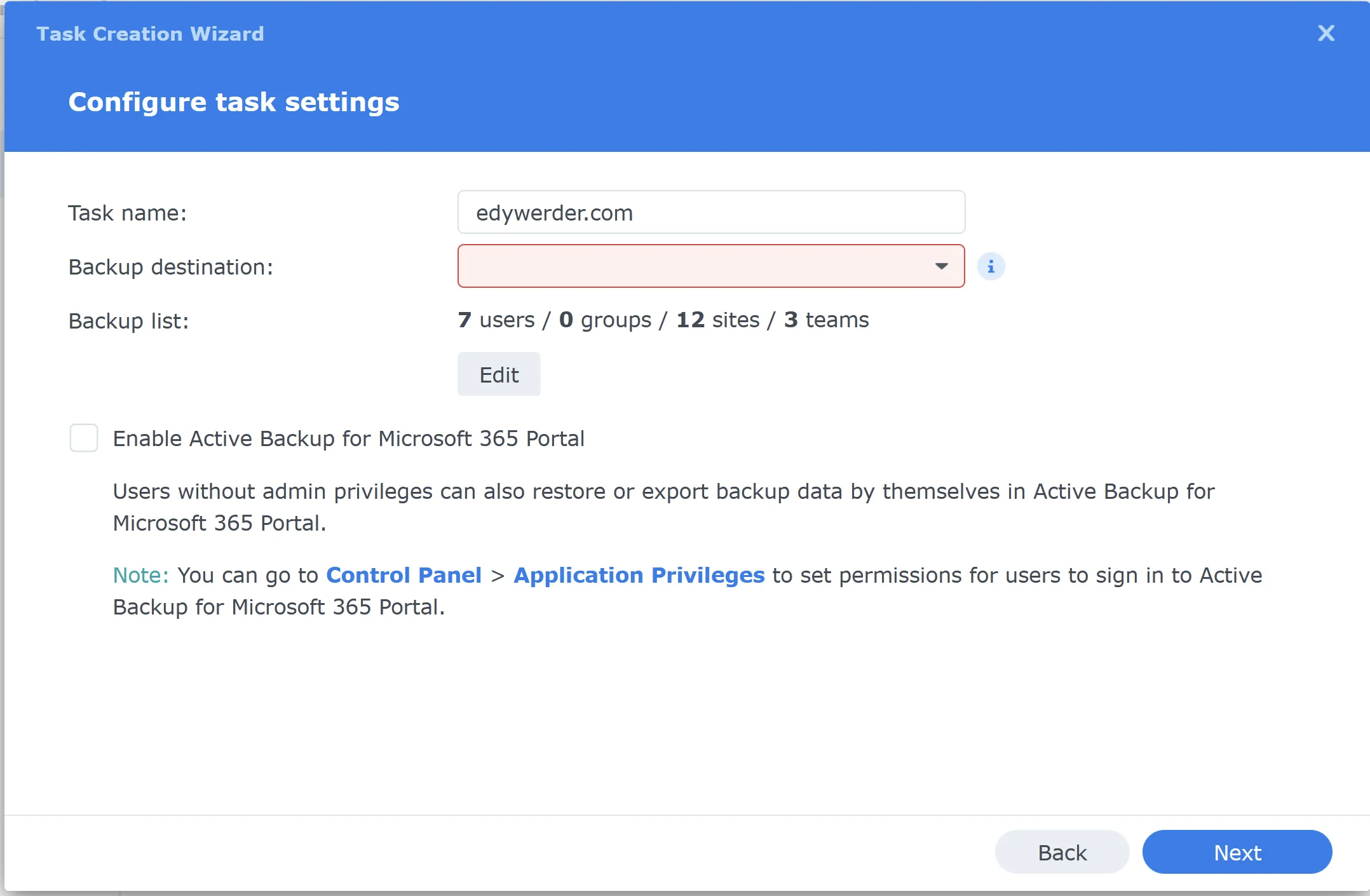
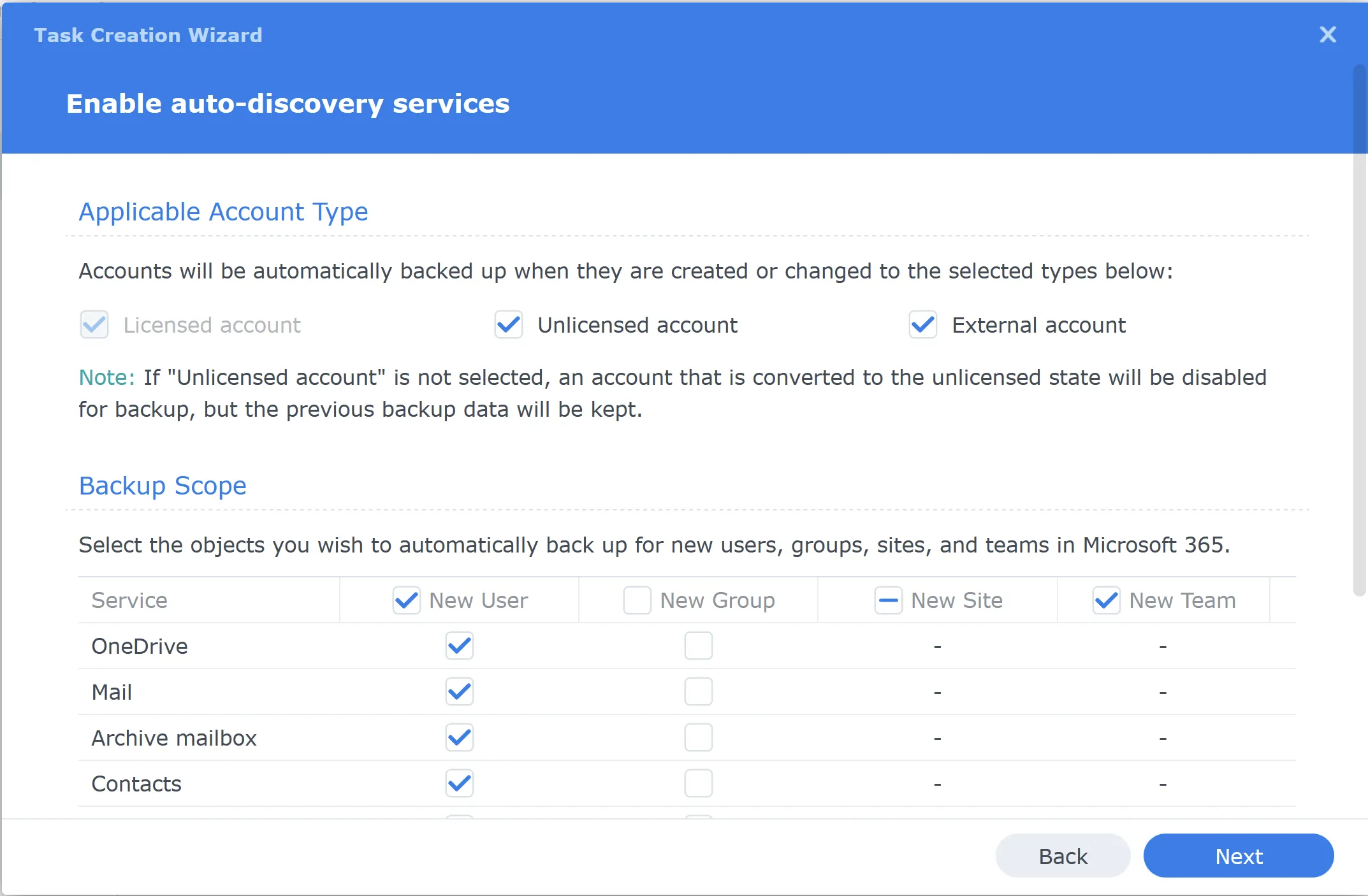
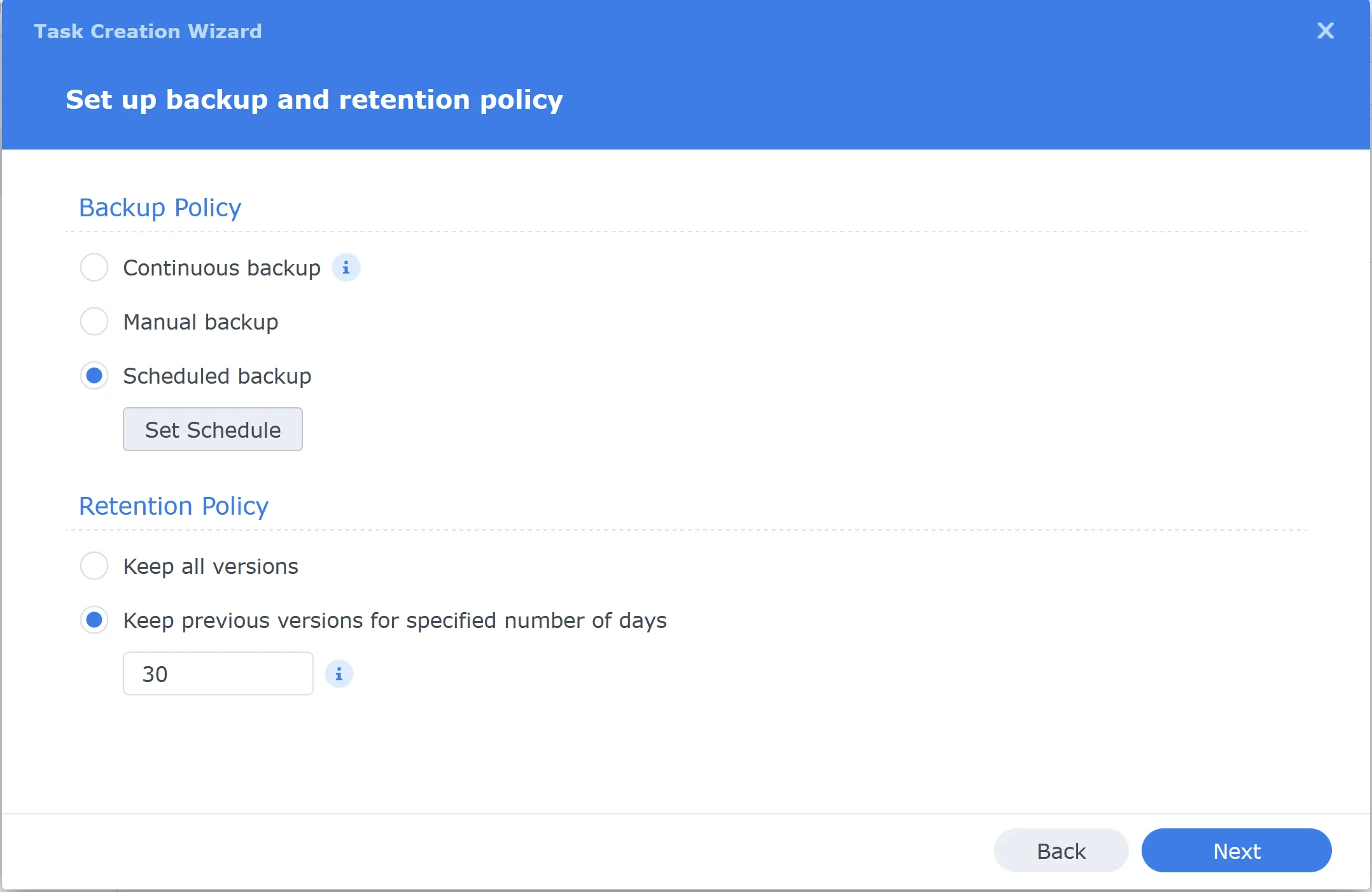
The last screen in the wizard is the summary, which completes the backup creation process.
My pick
The Synology Microsoft 365 Recovery Portal is the central hub to view, manage, and restore your Microsoft 365 backups. It offers a user-friendly interface that allows you to recover individual items like emails, files, or even entire SharePoint sites with just a few clicks. This portal is designed to make data recovery fast and easy, ensuring that you can restore critical information whenever needed.
Accessing the Recovery Portal is simple. Here’s how you can get started:

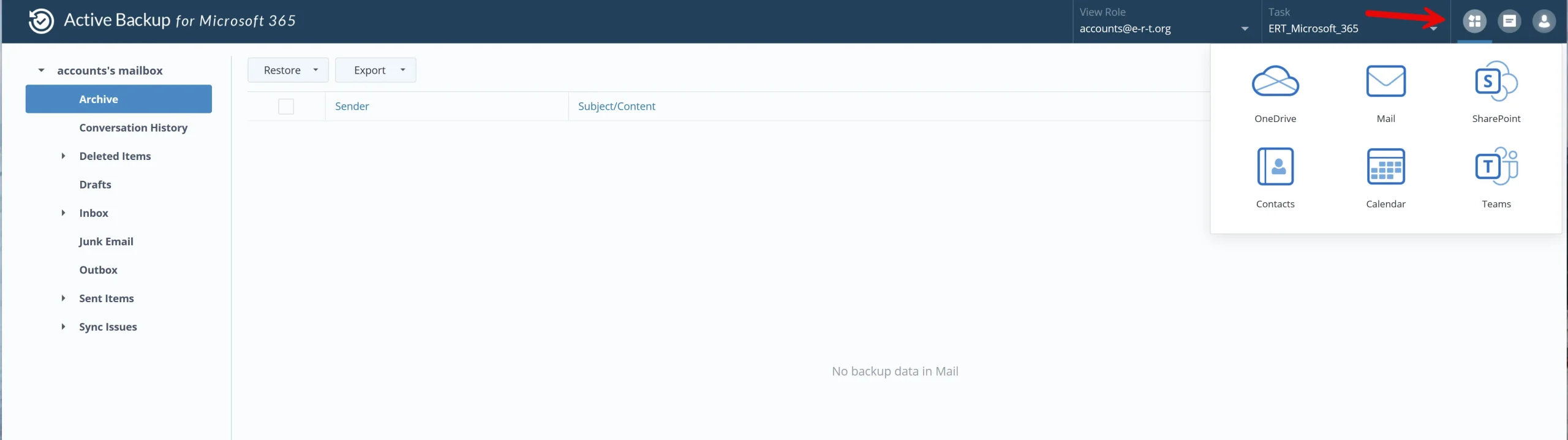
The portal offers granular search options, allowing you to pinpoint precisely what you need—whether it’s a single email or an entire SharePoint site. The screenshot above shows the service icon for the applications. In this example, you see the Outlook emails.
Using the backup point, you can choose the dates. Restoring Synology offers two ways:

This Kb article from Synology gives you further information.
The Synology Microsoft 365 Recovery Portal is designed to give you full control over your backup and recovery processes. Whether you need to restore a single file or monitor the health of your backup tasks, the portal offers a comprehensive and user-friendly interface to ensure the security of your data. It’s accessible by every user or only for admins. You have full control.
The easiest way to monitor the backup status is to set email notifications. Unfortunately, this feature is somewhat hidden in DSM.
Go to ‘Control Panel,’ Notification, Rules
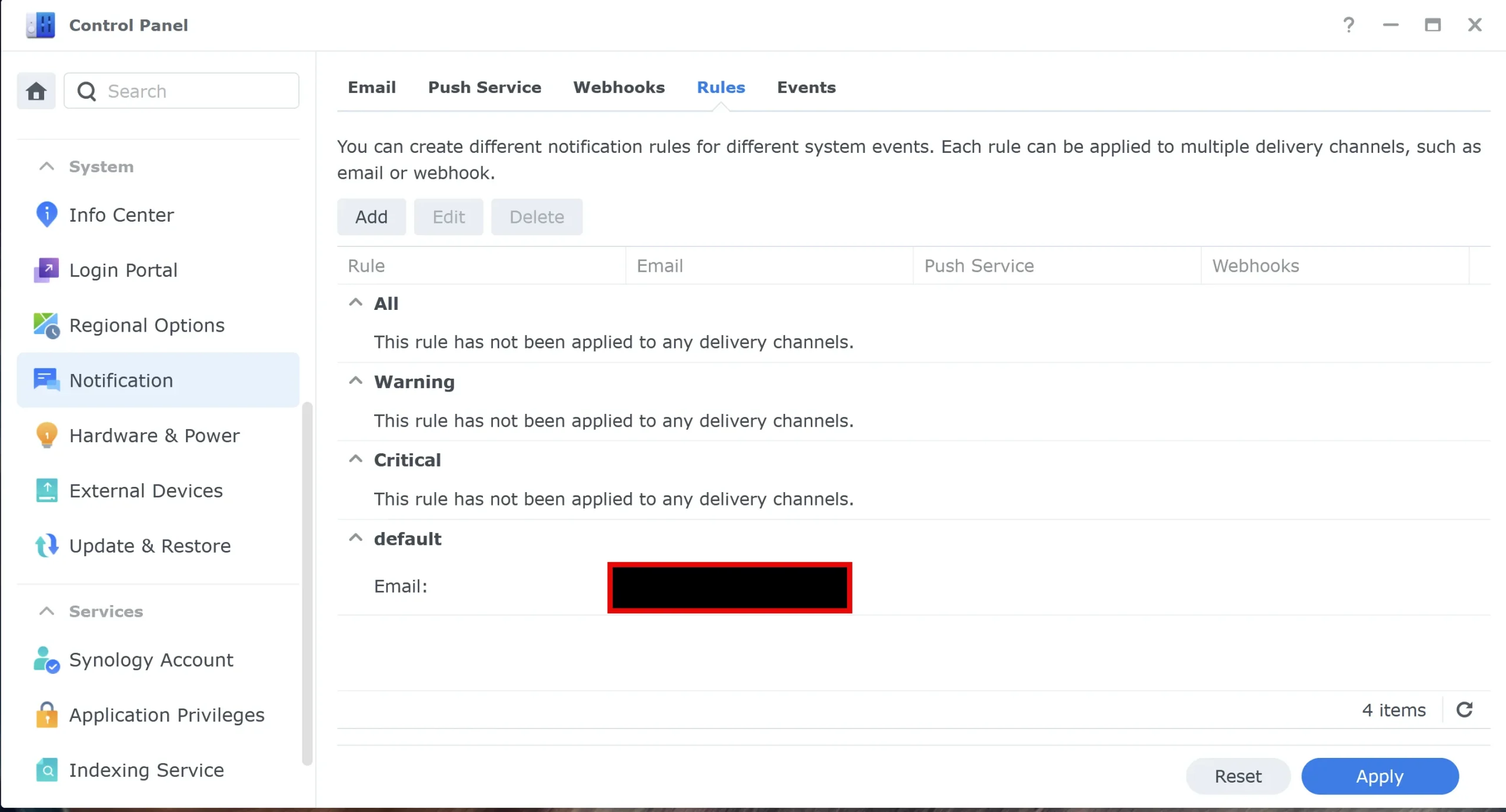
, click Email, and edit. You will get this screen below. Open ‘Active Backup for Microsoft 365’ and select the notifications you want by email.
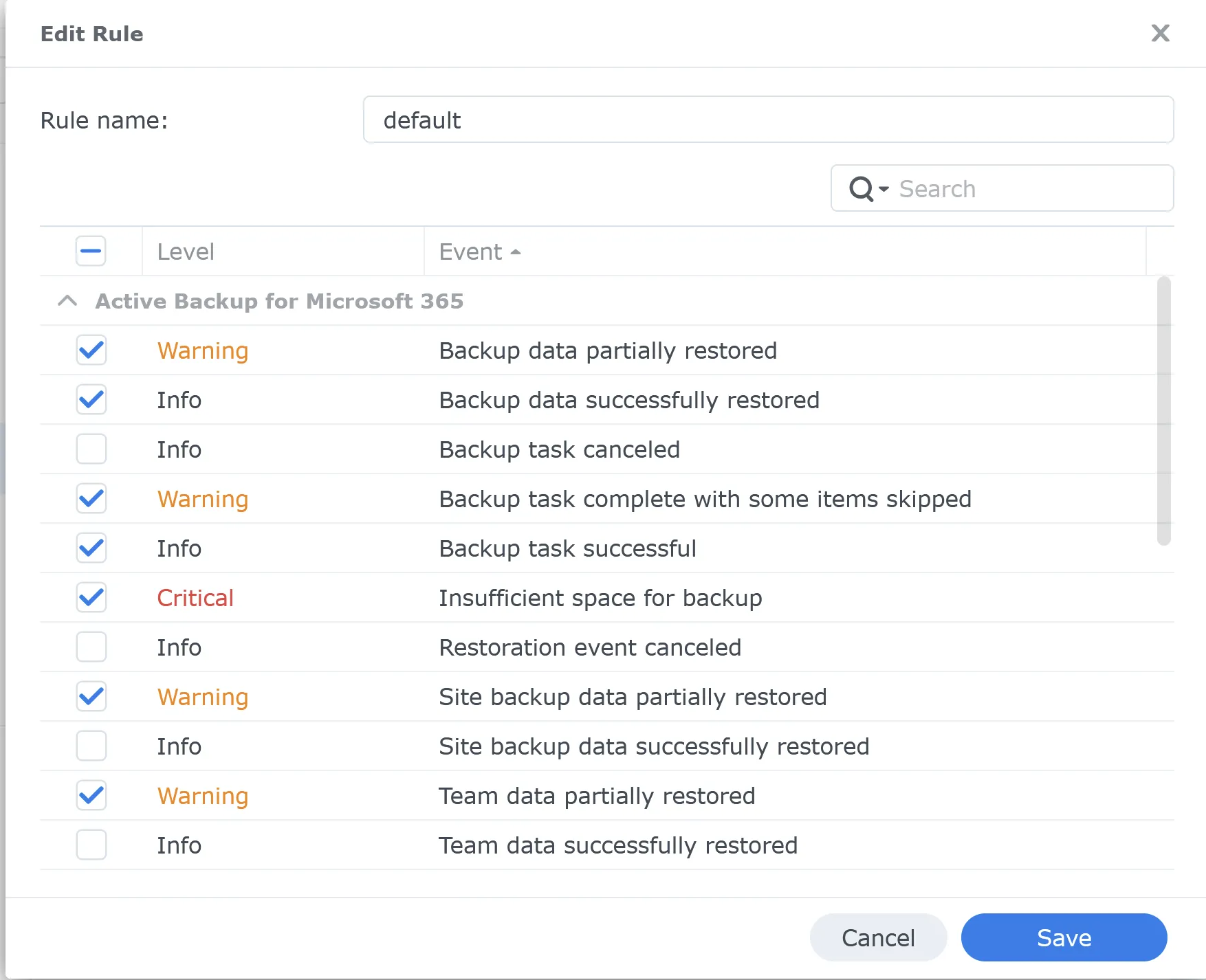
I also recommend checking the logs and task details from time to time.
Using Active Backup for Microsoft 365 offers several key advantages beyond just backing up your data. Whether you’re a small business or a larger organization, Synology’s free backup solution can help reduce the risk of data loss and ensure a solid disaster recovery plan. Let’s dive into two important benefits.
Microsoft 365 may seem secure because it’s cloud-based, but it doesn’t protect you from accidental deletion, ransomware, or data corruption. With Active Backup for Microsoft 365, you take control of your data protection strategy by ensuring you have full backups of your emails, SharePoint sites, OneDrive files, and Teams conversations.
Having a reliable backup solution reduces the risk of data loss in scenarios such as:
This backup solution ensures that your business-critical data is always safe and recoverable, giving you peace of mind.
A solid backup strategy is essential for comprehensive data protection. One of the most recommended methods is the 3-2-1 Backup Strategy, which means:
With Synology Active Backup for Microsoft 365, you can easily integrate this strategy into your data protection plan. While your primary data lives in Microsoft 365, you can store a backup on your Synology NAS and even set up an offsite backup location, whether that’s another NAS or cloud service.
This redundancy ensures that you’ll have copies of your Microsoft 365 data stored elsewhere, even if your NAS or local network encounters issues. Implementing the 3-2-1 strategy minimizes the risk of complete data loss and increases your business resilience.









I’d love to hear from you. Was this article helpful? Share your thoughts in the comments below. If you prefer, you can also reach me by email or connect with me on Reddit at Navigatetech.
Before you go, if you’re using Synology Active Backup for Microsoft 365 to streamline your cloud data management, you might also be interested in Synology Drive. It’s a powerful tool that allows you to sync, share, and access your files across multiple devices. This could complement your backup strategy by giving you seamless file access and collaboration features. Dive into how it works and see how it fits into your Synology ecosystem here.
Hi, I'm Edy Werder. I write hands-on guides about servers, virtualization, NAS and WordPress, based on setups I run in my own homelab. Real configs and real results, no fluff.
Enjoying the content?


Microsoft has a reputation of spying on anyone using Windows 10 or 11. Ya know, like taking screen shots of whatever is on you monitor and sending it to Microsoft where their AI system scans it and sends a report. Anyway, how often does the AI look at any data one has put up on the Microsoft cloud and how do Microsoft employees peruse the data that has been backed up to the Microsoft cloud. Asking for a friend.