

By Edy Werder — IT Consultant & Tech Blogger
Since its introduction in WordPress 3.7, the auto-update feature has been a double-edged sword. It keeps your site secure and up to date, but it can also break things if you’re not prepared.
Minor security patches? Let them run automatically. But major version updates, like WordPress 7.0, require a manual approach. Test first, update on your terms.
In this article, I show you how to take control of WordPress automatic updates.
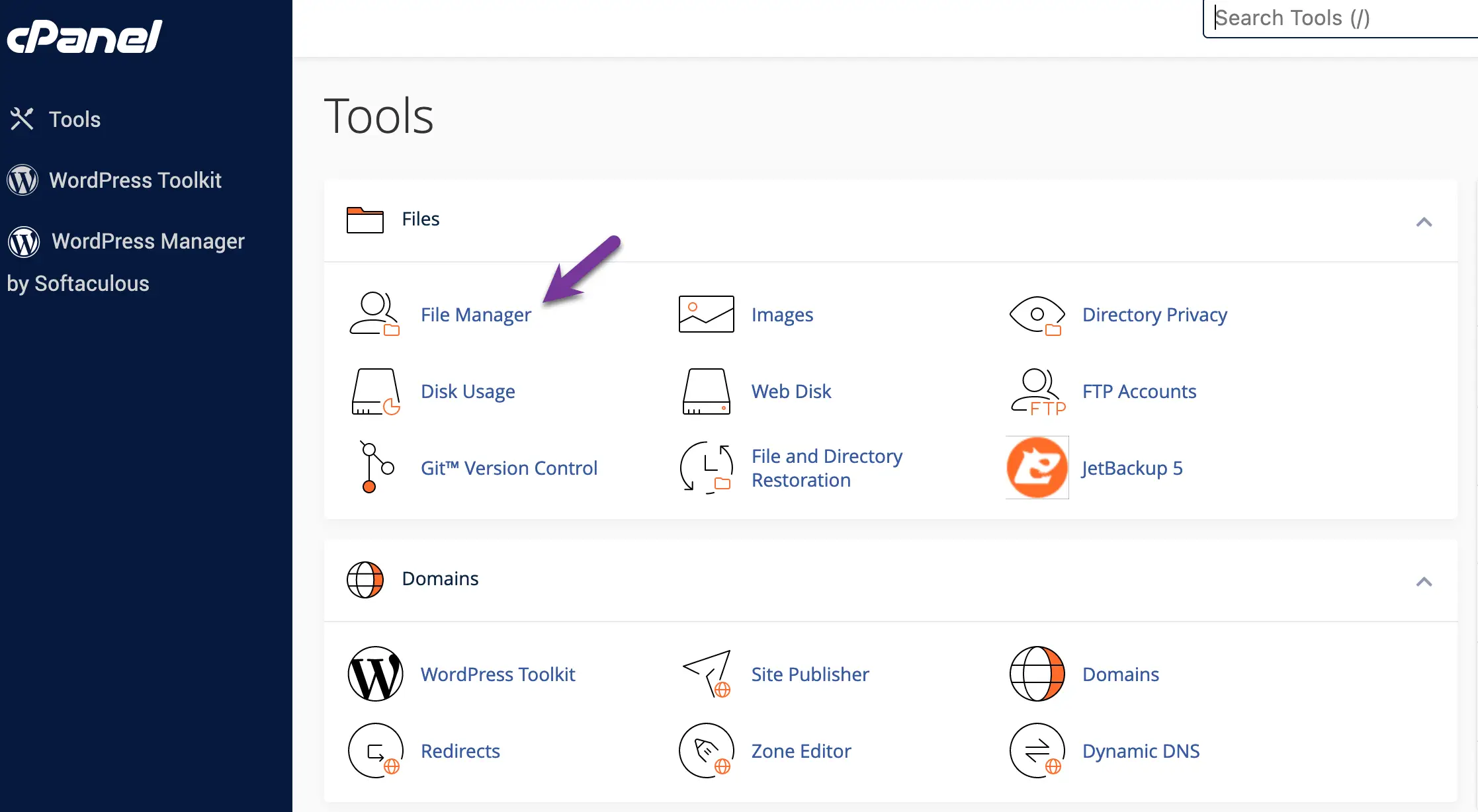
The best way to control WordPress’s automatic updates is to modify wp-config.php. Usually, wp-config.php is in the root of your WordPress installation, often the public_html folder.
You need to log in to your hosting provider and access the file manager.
There are various options available. Here is an example of the file manager in CPanel. Many hosting companies use cPanel.
If you want to turn off all automatic updates completely, add this statement
define( 'AUTOMATIC_UPDATER_DISABLED', true );A major core update is a version jump like 6.9 to 7.0. A minor core update is a security or maintenance release like 6.9.4.
# Disable all core updates:
 define( 'WP_AUTO_UPDATE_CORE', false );
 # Enable all core updates, including minor and major:
 define( 'WP_AUTO_UPDATE_CORE', true );
 # Enable core updates for minor releases (default):
 define( 'WP_AUTO_UPDATE_CORE', 'minor' );
Use this command to tell WordPress only to update minor security updates.
define( 'WP_AUTO_UPDATE_CORE', 'minor' );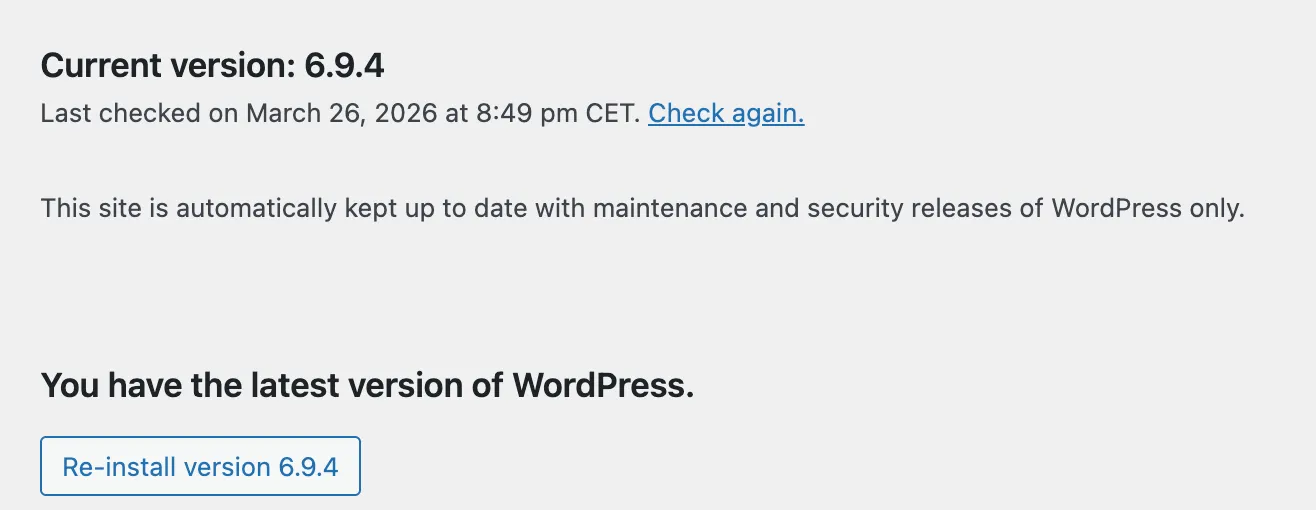
Here is a link to the Wordpress.org website with a detailed description of all available statements in wp-config.php. You can control many other options.
WordPress sends an email to the administrator’s email address with the result of the update. The subject line is “Your site has updated to WordPress XXX (case success).” It is possible to disable the notification email. But I don’t suggest doing that. It’s a good reminder that something happened in the background.
While I’ve shown you how to control WordPress auto-updates using built-in settings, there’s something crucial you should be aware of: some hosting providers can override these settings. Yes, you read that right. Even if you’ve diligently set up your wp-config.php file to disable auto-updates, your hosting company might still push updates to your site.
Here is why they do this and what you can do about it.
Many hosting providers, especially those offering managed WordPress services, implement their update mechanisms. They do this primarily for security reasons, ensuring all sites on their platform run the latest, most secure versions of WordPress. It’s generally good, but I understand if you want more control.
The good news is that some hosts offer ways to customize this behavior. For instance, SiteGround (a popular hosting provider) allows you to delay updates for several days.
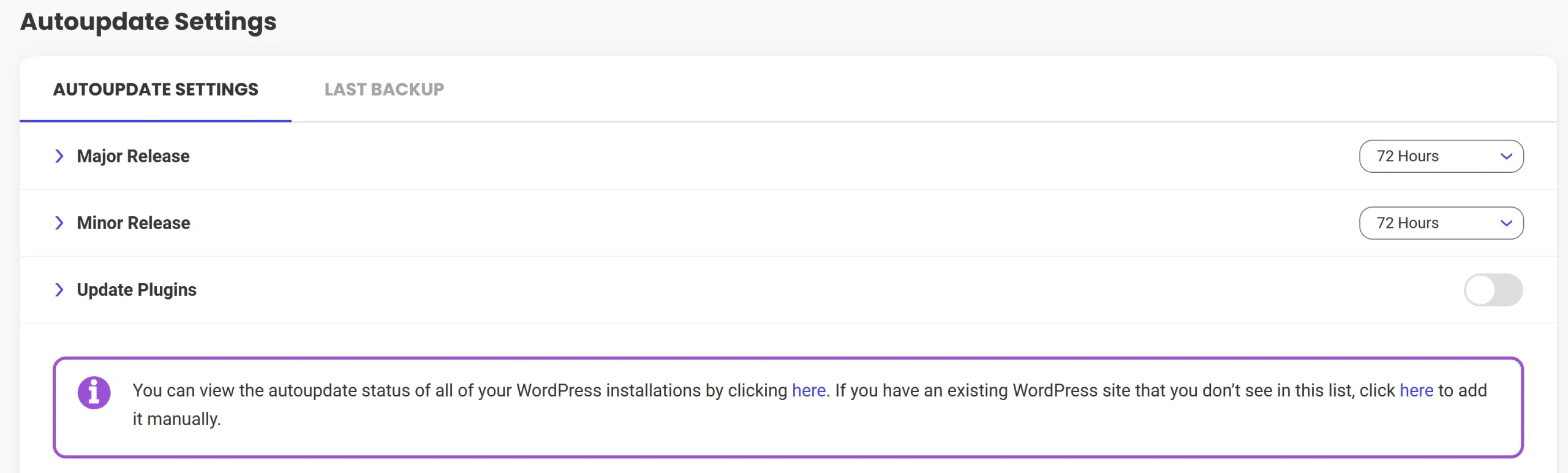
They’ve recently introduced an option to skip updates entirely, though you’ll need to log in to your hosting account to use it.
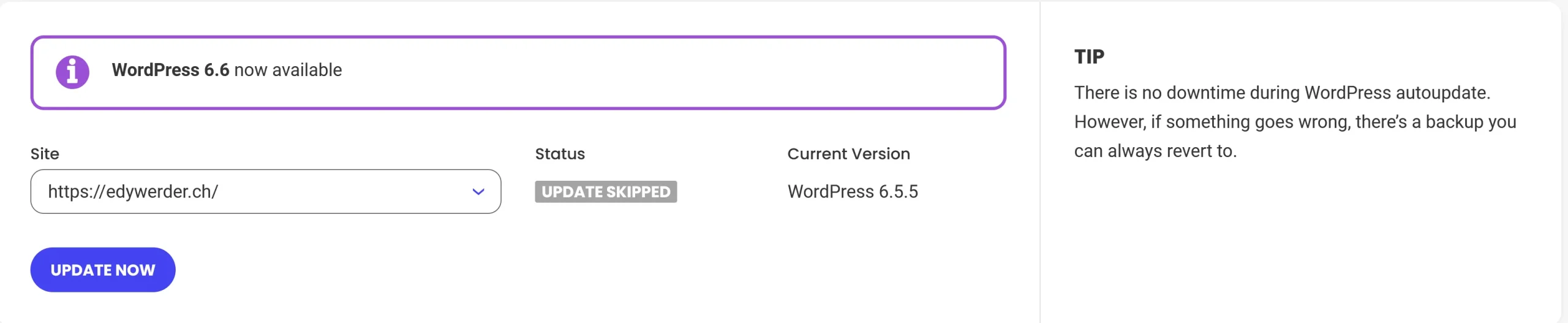
If you’re with a host that forces updates, here’s what I recommend:
Why do hosts force updates? Mainly because of shared hosting. On a shared server, a single outdated WordPress installation can serve as a gateway for malware that affects every site on the same machine. Hosts don’t want that risk, so they push updates across the board.
Based on community feedback, these hosting providers are known to override WordPress auto-update settings:
If full control over updates is a priority, a VPS with a management panel like xCloud, CloudPanel, or RunCloud is the only way to make sure your wp-config.php settings are actually respected.
That’s understandable. But if you opt out of auto-updates, the responsibility is on you. Stay on top of WordPress news and update manually. Your site’s security depends on it.
A reader on Reddit shared another approach: using WordPress filters in a must-use plugin (mu-plugin) to enforce your update preferences.
A mu-plugin loads before regular plugins and can’t be deactivated from the WordPress dashboard. That makes it a more reliable place for this kind of setting.
Create a file called disable-major-updates.php in your /wp-content/mu-plugins/ folder. If the folder doesn’t exist, create it. Then add this code:
<?php
// Block major core auto-updates
add_filter('allow_major_auto_core_updates', '__return_false');
// Allow minor security updates
add_filter('allow_minor_auto_core_updates', '__return_true');
This tells WordPress to allow minor security patches but block major version updates.
One important caveat. This only works if your hosting provider triggers updates through WordPress’s built-in update system. If your host pushes updates using their own mechanism outside of WordPress, these filters get bypassed entirely. The host never asks WordPress for permission.
So treat this as an additional layer of protection, not a guarantee. If your host overrides WordPress settings, check their hosting panel for update options or contact their support directly.
I recommend letting WordPress auto-update any security updates (minor). It will ensure your WordPress core installation is always up to date regarding security. I don’t recommend letting WordPress auto-update all updates. There is a danger that such an update can break your site. It is better to test a significant release on a staging site before deploying it.
I’d love to hear from you. Was this article helpful? Share your thoughts in the comments below. If you prefer, you can also reach me by email or connect with me on Reddit at Navigatetech.
If you’re running WordPress on your own hardware, you have full control over updates, no host overriding your settings. I run WordPress on a Synology NAS and wrote a complete guide on how to set it up. Check out my WordPress on Synology NAS guide.
Hi, I’m Edy Werder. I write hands-on guides about Proxmox, homelab servers, NAS, and WordPress, based on real setups I run and document.
No sponsors, no fluff—just real configs and results.
Enjoying the content?

