

By Edy Werder — IT Consultant & Tech Blogger
Editor’s Note: This article was fully updated in February 2026, with refreshed product picks, improved compatibility details, a Synology NAS SSD cache option, and new “Would I buy it?” recommendations.
Choosing the best hard drives for a NAS can be overwhelming with so many models. I’ve been through this process, so I compiled this guide to help you find the best NAS hard drives based on reliability, speed, and compatibility.
Which HDD should I buy for a NAS?
Pick a NAS-rated CMR drive built for 24/7 use in multi-bay enclosures. For most people, Seagate IronWolf or WD Red Plus is a safe starting point.
What should I avoid?
I avoid SMR drives for NAS and RAID. I also skip desktop drives in multi-bay enclosures, because vibration and rebuild stress can expose weak spots fast.
What will you get from this guide?
A short list of five drives I would actually consider today, with clear “best for” picks so you can choose quickly and move on.
What is the best hard drive for a NAS?
If I had to pick one line for most home NAS setups, it’s a NAS-rated CMR drive like Seagate IronWolf or WD Red Plus. Then I size the capacity based on bays and RAID level.
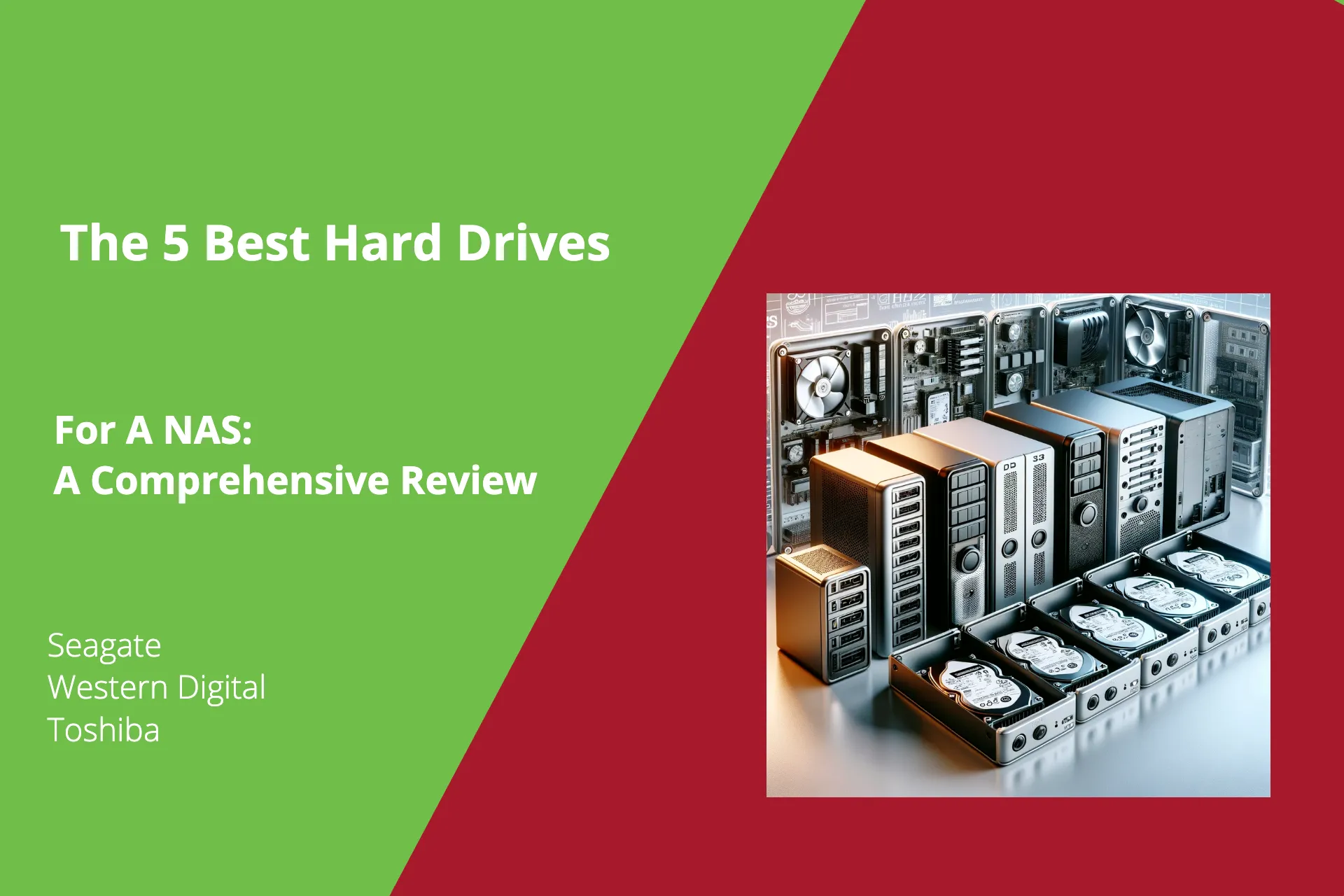
I treat NAS drives differently than desktop drives. A NAS runs 24/7 and rebuilds are brutal, so I stick with NAS-rated HDDs. IronWolf is my budget pick. WD Red Pro is my reliability-first pick. For a living-room NAS, I pay extra attention to noise and vibration.
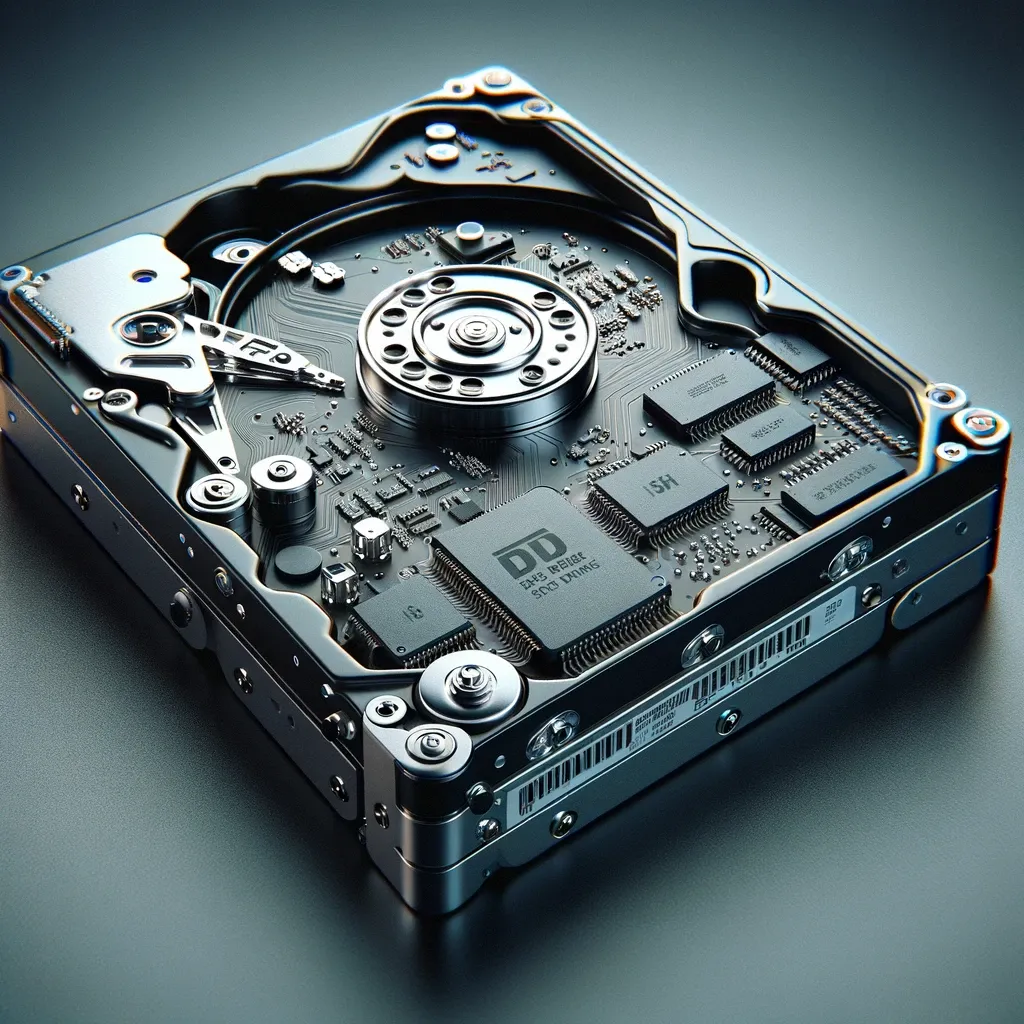
A NAS (Network-Attached Storage) works like your personal cloud — accessible from anywhere, great for backups, streaming, and file sharing across multiple devices.
But it’s not just about storage space. The drives in a NAS work constantly, often in RAID arrays, so they must be tough. That’s why regular desktop drives won’t cut it.
NAS-specific drives are optimized for nonstop use, vibration resistance, and data integrity. Whether managing media libraries or critical business files, choosing the right drive means better responsiveness and peace of mind.
Storage capacity is one of the first things to consider when choosing a NAS hard drive. Think of it like closet space for your digital life — you want room to grow without hitting a wall too soon.
If you store large amounts of media or backups, go for higher capacities like 16TB or 20TB — the Seagate Exos and WD Red Pro are great options. For smaller needs, 4TB to 8TB drives are more affordable and still offer plenty of space for home use or small offices.
If you’re worried about outgrowing your drives, don’t forget: many NAS systems allow for volume expansion. I even wrote a guide on how to expand storage on a Synology NAS without losing data — especially helpful in a RAID configuration.
Performance matters, especially when moving large files or working with multiple users. Most NAS hard drives spin at either 5400 RPM or 7200 RPM — the higher the RPM, the faster the drive can read and write data.
For home use or media streaming, 5400 RPM (like the regular IronWolf or WD Red Plus) is usually enough. But for heavier workloads, go with 7200 RPM drives such as the WD Red Pro, Toshiba N300, or Seagate Exos — they handle round-the-clock activity much better.
And while SSDs offer lightning-fast throughput, they’re often expensive per TB. If speed is your top priority and cost isn’t a concern, SSDs are worth considering — but most NAS users will do just fine with high-RPM HDDs.

NAS hard drives are designed to operate 24/7/365, handling constant workloads, minimizing wear, and reducing the risk of data loss.
Reliable drives like the WD Red Pro, Seagate IronWolf, and Toshiba N300 are rated for heavy usage and long lifespans. Many also include extra features like vibration sensors and advanced health monitoring features to keep things running smoothly.
I always recommend drives with at least a 3-year warranty, but some, like the WD Red Pro and Seagate Exos, offer up to 5 years — a big plus for peace of mind.
Many NAS systems rely on RAID configurations to keep data safe, even if one drive fails. That’s why it’s critical to use drives specifically designed for RAID environments — they maintain consistent drive handling and reduce the risk of rebuild issues.
Since most NAS systems use software-based RAID, choosing hard drives with firmware optimized for RAID environments is important. Features like error recovery control and vibration protection help ensure compatibility and stability during RAID rebuilds or heavy workloads.
For NAS use (especially RAID / ZFS), I stick with CMR drives whenever possible. SMR can slow down significantly during sustained writes and rebuilds/resilvering, precisely when you want predictable behavior.
All the drive lines I recommend in this guide are CMR-certified:
My rule before buying: I always double-check the exact model number on the manufacturer’s spec sheet, because retailers sometimes mix older/newer variants under similar names.
(And for the Synology SAT5210: it’s an SSD, so CMR/SMR doesn’t apply.)
Let’s face it, price matters. You want solid speed without breaking the bank.
If you’re on a budget, drives like the Seagate IronWolf or WD Red Plus offer reliable storage at a reasonable per-terabyte cost. They’re great for home use or small offices where price-to-performance is key.
On the higher end, options like the WD Red Pro or Seagate Exos cost more upfront but are built for heavier workloads and often last longer. Over time, that can actually lower your total cost of ownership.
It really comes down to your needs: do you want to keep costs low now, or invest a bit more for long-term performance and durability?
(Comparison Table & Compatibility List:)
If you’re not sure which drive fits your needs, start with this table. It highlights the key specs like capacity, RPM, and form factor, plus compatibility notes for Synology, QNAP, and other NAS devices.
See Synology’s official hard drive compatibility list
| Model | Capacity | RPM | Cache | Form Factor | Best For | Compatibility |
|---|---|---|---|---|---|---|
| WD Red Pro | Up to 26TB | 7200 | 512MB | 3.5" | High-capacity, 24/7 workloads | Synology, QNAP, up to 24-bay NAS |
| Toshiba N300 | Up to 20TB | 7200 | 512MB | 3.5" | Small business, 24/7 operation | Synology, QNAP, 1–8 bay NAS |
| WD Red Plus | Up to 12TB | 5400 | 256MB | 3.5" | Entry-level NAS setups | Synology, QNAP, 1–8 bay NAS |
| Seagate Exos | Up to 24TB+ | 7200 | 512MB | 3.5" | Enterprise-grade environments | Rackmount NAS, large-scale storage |
| Seagate IronWolf | Up to 8TB | 5400 | 256MB | 3.5" | Budget home/small office setups | Synology, QNAP, 1–8 bay NAS |
| Synology SAT5210 | Up to 3.84TB | N/A | N/A | 2.5" SSD | NAS caching or full-flash setups | Synology NAS with SSD cache support |
If you’re building a serious NAS with 8+ bays, the WD Red Pro is the drive to trust. With capacities up to 26TB, 7200 RPM speed, and a 512MB cache, it’s built for demanding workloads and always-on environments.
I’ve used the Red Pro in business environments, and it handles large transfers and RAID tasks without flinching. It’s rated for 24/7 use with up to 300TB/year workload and comes with a 5-year warranty — something I always look for in mission-critical drives.
Western Digital Red Pro drives are a top choice for Synology NAS users who need consistent performance and long-term reliability. Explicitly designed for NAS environments, these drives offer high transfer speeds, low failure rates, and support for up to 24-bay systems. Their built-in NASware 3.0 firmware helps optimize performance in RAID setups while reducing the risk of data loss. Whether you’re running a business or storing critical personal files, the WD Red Pro delivers the durability and efficiency needed to protect your data in a network-attached storage system.
Pros:
✔ Up to 26TB storage
✔ 7200 RPM with large cache
✔ 5-year warranty
✔ Designed for NAS with up to 24 bays
Cons:
✘ Pricier than standard drives
✘ Overkill for basic home setups
Would I buy it? Yes — especially for a 4–8 bay NAS that runs 24/7. I’d only skip it if the NAS sits in a quiet room and I’m optimizing for the lowest possible noise.
The Seagate IronWolf 4TB is among its class’s best NAS hard drives. It’s designed specifically for NAS devices and features Seagate’s AgileArray firmware to enhance RAID performance, balance power, and reduce vibration in multi-bay environments.
It runs at 5400 RPM, so it’s quieter and more energy-efficient, though not as fast as 7200 RPM options. What I like most is the IronWolf Health Management feature and the included 3-year warranty with Rescue Data Recovery — a nice touch for peace of mind.
Pros:
✔ Affordable and NAS-ready
✔ Runs calmly and quietly
✔ Includes 3-year Rescue Service
✔ Great for home
Cons:
✘ Slower than 7200 RPM drives
✘ Not ideal for high-demand environments
Would I buy it? Yes — this is the drive I’d choose when I want a NAS-rated model and I’m trying to stay sensible on budget. For everyday NAS workloads, it’s the practical pick.
Toshiba’s N300 line is still a solid NAS choice and is currently listed with “up to 20TB”, 7200 rpm, 512MB buffer, and a 3-year warranty (for the N300).
One standout feature is its vibration compensation technology, which keeps performance stable even in multi-bay NAS setups. I’ve seen this drive shine in Synology and QNAP systems where constant data access is crucial.
Pros:
✔ 7200 RPM performance
✔ High endurance (180TB/year)
✔ Affordable for its class
✔ Anti-vibration sensors
Cons:
✘ Can be a bit noisy under load
✘ Fewer extra features compared to IronWolf
Would I buy it? Yes, especially when it’s cheaper than WD Red Plus/Pro or IronWolf at the same capacity. If the price is similar, I usually choose based on availability and warranty rather than brand loyalty.
For users just starting with a NAS or running a simple 1–4 bay NAS the WD Red Plus is an excellent choice. It’s reliable, energy-efficient, and built with CMR technology — which is better for RAID than SMR alternatives.
At 5400 RPM, it’s not the fastest, but for file backups, media streaming, or light business use, it gets the job done quietly and consistently. I’ve used the 3TB model in a personal backup NAS, and it’s been rock-solid.
Pros:
✔ Reliable CMR technology
✔ Quiet and cool operation
✔ Great for home users
✔ 3-year warranty
Cons:
✘ Reduced efficiency for large workloads
✘ Limited cache (256MB)
Would I buy it? Yes — for most home NAS setups. It’s the reliable, no-drama choice. For heavier multi-bay workloads, WD Red Pro is my upgrade pick.
Need serious storage muscle? The Seagate Exos drive is designed for enterprise use — think datacenters and high-performance NAS arrays. It handles up to 550TB/year workloads, runs at 7200 RPM, and includes advanced vibration protection for multi-bay enclosures.
While it’s not the quietest option, its durability, power efficiency, and per-TB value make it ideal for heavy-duty environments. I recommend the Exos for tech enthusiasts or businesses who need long-term performance and aren’t afraid to invest in it.
Pros:
✔ Built for high workloads (up to 550TB/year)
✔ 7200 RPM with large cache
✔ 5-year warranty
✔ Excellent value for large capacities
Cons:
✘ Louder under load
✘ It may be overkill for home users
Would I buy it? Yes — for a “serious storage” NAS where noise doesn’t matter. It’s an enterprise drive that’s often excellent value. For a living-room NAS, I’d usually choose a quieter NAS line instead.
Use case: SSD cache (not bulk storage)
f I want to make a Synology NAS feel “snappier,” the Synology SAT5210 is one of the safest SATA SSD choices because it’s designed and validated for Synology systems. It’s a 2.5-inch SATA SSD, so it fits perfectly in models with spare 2.5″ bays — either as a cache drive or (if your NAS supports it) as part of an all-flash volume.
On paper, sequential speeds are typical SATA (up to 530 MB/s read), but the real reason to buy it is endurance and reliability features like power-loss protection, plus DSM integration for drive insights and lifespan tracking.
Planning to run VMs on your Synology? Read my Synology Virtual Machine Manager article
it’s the main reason I like pairing a SAT5210 cache SSD with a VM workload.
Pros:
✔ Optimized for Synology NAS with DSM integration
✔ Power-loss protection and consistent IOPS
✔ Perfect for SSD caching or full-flash
✔ Enterprise-grade endurance (DWPD: up to 1.3)
Cons:
✘ More expensive than standard SATA SSDs
✘ Cache isn’t a magic speed button, it helps specific workloads most
✘ 2.5-inch form factor may require adapters in some NAS bays
Would I buy it? Yes — but only when the workload benefits from caching (lots of small files, indexing, VMs, databases, many users). For simple media storage and backups, I usually skip SSD cache and spend that budget on bigger HDDs instead.

My final recommendation is simple: buy a drive line that matches your NAS size and your tolerance for risk. For most people who want reliability without overthinking, WD Red Pro is the safest “overall” choice. If budget is the priority, IronWolf is the practical pick.
If you’re building big storage and want enterprise value, Exos X24 is excellent — just be realistic about noise and heat. And if you want an alternative to WD/Seagate, Toshiba N300 is a dependable option for many NAS setups.
Was this guide helpful? Let me know in the comments — or email me at info@edywerder.ch if you’d rather chat directly. I’d love to hear your thoughts.
If you found the insights on selecting the best hard drives for a NAS system informative, you’ll definitely appreciate my next suggestion. Head over to Which Synology NAS, where I delve into the world of Synology NAS devices. This article will guide you through choosing the right Synology NAS to pair with your hard drives, ensuring optimal performance and reliability for your data storage needs. It’s a great resource to help you make an informed decision in building your ideal NAS setup.
Hi, I’m Edy Werder. I write hands-on guides about Proxmox, homelab servers, NAS, and WordPress, based on real setups I run and document.
No sponsors, no fluff—just real configs and results.
Enjoying the content?



