

By Edy Werder — IT Consultant & Tech Blogger
If you’re building a WordPress site, Elementor is one of the first tools you’ll come across. It’s beginner-friendly, comes with a powerful drag-and-drop editor, and has millions of active installs worldwide. But there’s always the big question: Is the free version enough, or do you really need Elementor Pro?
This guide is for:
- Beginners launching their first WordPress site who want to know if they can start with Elementor Free
- Bloggers, freelancers, and small business owners are considering whether Pro is worth the investment
- Web designers and agencies are comparing Elementor Pro’s advanced features with alternatives
In this 2026 comparison, I’ll break down:
- What you get in Elementor Free vs Pro
- When Pro is worth the upgrade (theme building, WooCommerce, popups, AI, etc.)
- Pros & cons of each version, including performance and cost considerations
- Community feedback from real users — both fans and critics
- My verdict after years of using Elementor myself
By the end, you’ll know whether Elementor Free is all you need, or if Elementor Pro is the smarter choice for your website.
What is My Verdict? [February 2026]
Elementor Pro remains a premium upgrade that significantly expands the capabilities of the free version.
Use Elementor Free for simple blogs, portfolios, or landing pages.
Upgrade to Elementor Pro if you need full theme-building features, WooCommerce support, or advanced marketing tools like popups.
Choose Elementor One if you want everything in one bundle: Pro features plus AI generation, image optimization, accessibility tools, and email deliverability. It simplifies billing and gives you a flexible credit pool for all these tools.
Elementor V4 Editor: What’s Changing in 2026
Elementor has rolled out the V4 Editor, the biggest overhaul in eight years. As of January 2026 (version 3.35), V4 moved from Alpha to Beta, then left Beta and became the stable release.
I upgraded myself, and here’s what you actually get out of the box.
Key V4 improvements:
- Atomic Elements: Build reusable components from smaller building blocks (headings, buttons, paragraphs) for consistent designs. On a new install, Atomic Elements is active by default. On an existing site, you need to enable it manually.
- CSS-first styling: A global Classes system replaces inline styles. Update a class once, and every element using it changes instantly.
- CSS Variables: Manage colors, fonts, and sizes centrally through a Variables Manager.
- Cleaner code output: Single div wrapper and lighter CSS footprint. This should improve page load times.
- V3 compatibility: Existing sites remain untouched. V3 and V4 elements can coexist on the same page.
The biggest fear in the Elementor community was that upgrading to V4 would break older installations. That is not the case. Your existing site stays intact, and the new Atomic components are entirely optional. You only use them if you choose to.
For a full timeline of Elementor updates, see my chronological guide to Elementor’s latest features.
What are the Pros and Cons? Elementor Free vs Pro?
Pros:
- Powerful Visual Editor: You benefit from an intuitive drag-and-drop interface, making it easy to create complex layouts and designs without coding.
- Extensive Widget Library: Elementor Pro offers a vast array of widgets and elements, including forms, sliders, galleries, and more, enabling you to customize your website extensively.
- Theme Builder: With Elementor Pro, you can create custom headers, footers, and other theme parts, giving you full control over your website’s design and layout.
- WooCommerce Integration: If you have an e-commerce website, Elementor Pro seamlessly integrates with WooCommerce, allowing you to design and customize product pages and shop layouts.
- Global Widgets and Templates: You can create and save global widgets and templates, making it easy to reuse design elements across multiple pages on your website.
Cons:
- Learning Curve: While Elementor Pro offers a user-friendly interface, mastering all its features and functionalities can take some time, especially for beginners
- Performance Impact: Excessive use of dynamic content and heavy widgets in Elementor Pro can slow page load times, affecting your website’s performance.
- Dependence on Elementor: Your website relies heavily on the Elementor plugin, and switching to another page builder or theme in the future may require significant redesign.
- Limited Theme Compatibility: Some themes may not fully support Elementor Pro’s advanced features, resulting in compatibility issues or limited customization options.
- Cost: While Elementor offers a free version, Elementor Pro costs a fee, which may be a downside if you’re on a tight budget or don’t need all the premium features.
Table comparison
| Feature | Elementor Pro | Elementor Free |
|---|---|---|
| Flexbox Container | ✔️ | ✔️ |
| Element Manager | ✔️ | ✔️ |
| Top Menu Bar | ✔️ | ✔️ |
| Global Styles Preview | ✔️ | ✔️ |
| Elementor AI (may have an additional charge) | ✔️ | ✔️ |
| Template Library | ✔️ | ✔️ |
| Export / Import Templates | ✔️ | ✔️ |
| Tablet and Mobile Editing | ✔️ | ✔️ |
| Icon Box | ✔️ | ✔️ |
| Load Google Fonts locally | ✔️ | ✔️ |
| Social Icons | ✔️ | ✔️ |
| Testimonials | ✔️ | ✔️ |
| Image Carousel | ✔️ | ✔️ |
| Accordion | ✔️ | ✔️ |
| Shortcodes | ✔️ | ✔️ |
| Sidebar | ✔️ | ✔️ |
| Page Settings | ✔️ | ✔️ |
| Mega Menu | ✔️ | ❌ |
| enhanced Display Conditions | ✔️ | ❌ |
| Loop Builder | ✔️ | ❌ |
| Pro Templates | ✔️ | ❌ |
| Variable Fonts | ✔️ | ❌ |
| Search Widgets with Live Results | ✔️ | ❌ |
| Off Canva widget | ✔️ | ❌ |
| Theme Builder | ✔️ | ❌ |
| Taxonomy Filter Widget | ✔️ | ❌ |
| Popup Builder | ✔️ | ❌ |
| Woocommerce Products, Card, Checkout, Notice, Thank you page | ✔️ | ❌ |
| Posts | ✔️ | ❌ |
| Forms | ✔️ | ❌ |
| Full-Site-Editing - change header and footer | ✔️ | ❌ |
| Header and Footer customization | ✔️ | ❌ |
| Image hotspot | ✔️ | ❌ |
| Slides | ✔️ | ❌ |
| Stripe widgets - no need for Woocommerce | ✔️ | ❌ |
| Notes | ✔️ | ❌ |
| Custom CSS | ✔️ | ❌ |
| Stripe widget | ✔️ | ❌ |
| Save as Default | ✔️ | ✔️ |
| Copy/Paste between websites | ✔️ | ✔️ |
| Disable Google Fonts | ✔️ | ✔️ |
Is Elementor Good for Beginners?

Page builder plugins, in general, are popular for making website design accessible to non-developers through simple drag-and-drop interfaces—and Elementor stands out among these. It’s ideal for beginners who want to launch a WordPress site without touching any code. Elementor’s straightforward drag-and-drop editor and real-time preview let you see changes instantly, so you can experiment freely and learn as you go.
Newcomers significantly benefit from the vast library of pre-designed templates, which can be tailored to fit any style or niche. This ensures a professional look right from the start—no complexity required. Elementor’s extensive documentation and active community offer solid guidance if you run into challenges. It also plays nicely with a wide range of WordPress themes, allowing beginners to focus purely on design without worrying about technical constraints.
Because Elementor offers both a free and a pro version, you can get comfortable with the basics first and then upgrade if you need more advanced features. This flexibility makes it a standout page builder for anyone just starting out in web design.
Elementor’s free version has over 10 million active installs and a super review rating from their user. Over 5000 users rated Elementor with five stars.
Source: WordPress.org / June 2025
What is included in the free version of Elementor?
Elementor Flexbox (Container)
Elementor introduces Flexbox Containers, a foundational feature that allows for infinite nested widgets. Containers mark a transformative shift in building websites using Elementor’s builder. With Flexbox Containers, you can easily create complex layouts.
Flexbox is one of the most important features introduced in CSS3, and all modern browsers support it.
What is an Elementor Flexbox Container?
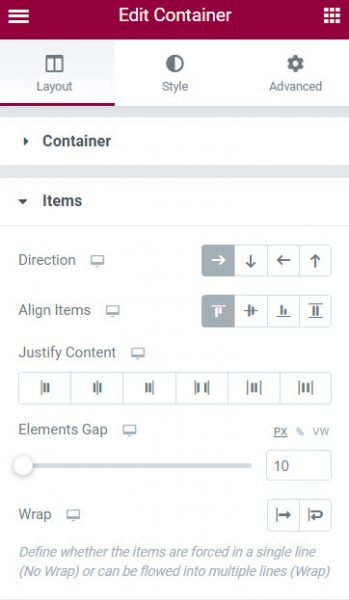
Flexbox is a layout mode that allows you to create complex responsive layouts easily. Adding a container is easy. Click on the ‘+’ symbol in the editor or drag the Container widget to the editor. Once you have added a Container, you can start adding widgets. Widgets can be placed directly inside a Container.
Before Elementor Flexbox arrived, you had to create a layout with several widgets in a row, or set the width of each widget, or create a section with four columns. You can now create a single container and add logos with Flexbox. You then have control over how they are justified using the justify-content property. This makes creating complex layouts much easier and faster.
The Elementor Flexbox Container replaces the traditional section-and-column setup. This innovative solution offers a substantial performance boost by minimizing layout shifts. Embracing this feature enhances the overall user experience and contributes to a smoother and more efficient web design process.
How does AI work in Elementor? (plus Angie)
Elementor AI (inside the editor)
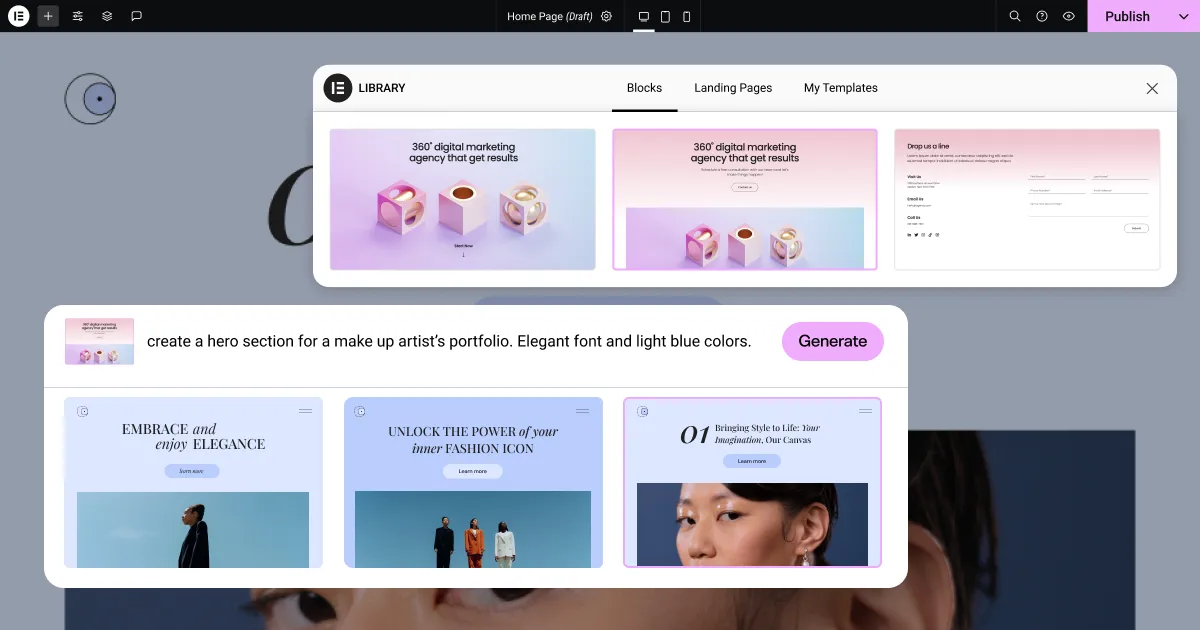
- Works with Free. AI can write copy, generate/edit images, and create code/CSS/HTML snippets in the Elementor editor. It also builds AI Containers from a prompt or by referencing a public URL (you get three variations to tweak). Usage runs on credits (free trial → paid credits).
- What Pro adds: Pro gives me more places where AI is useful (Theme Builder, Custom CSS/Code, Pro widgets), but AI itself doesn’t require Pro.
Quick takeaway: If you only need AI for copy, images, code, or quick section layouts, Elementor Free + AI already works. Pro amplifies it by unlocking more advanced areas where AI can help (theme parts, custom code locations).
Elementor AI Pricing
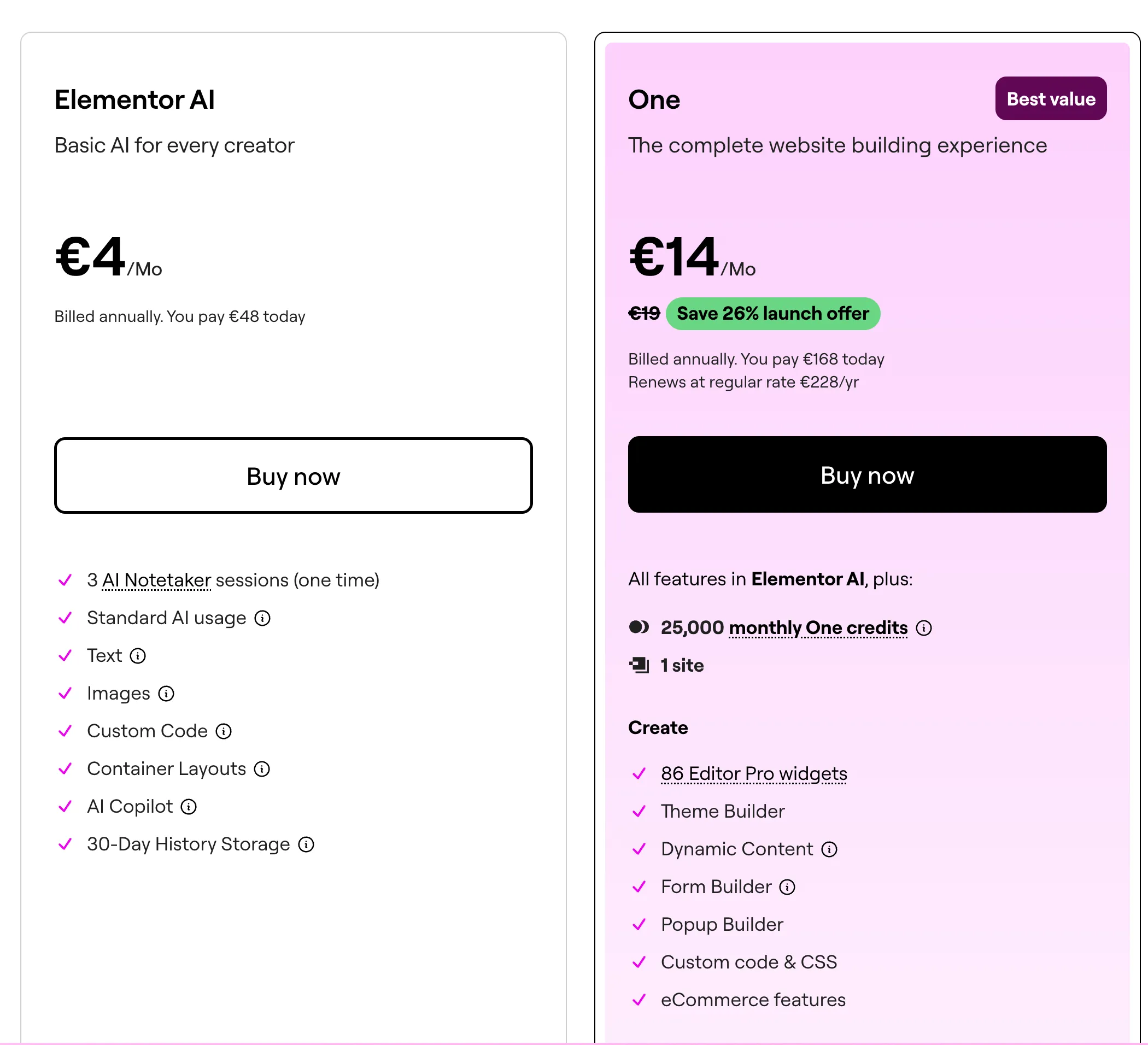
Elementor offers two ways to access AI features:
Elementor AI (€4/month, billed annually at €48): A standalone plan for AI-only users. Includes text generation, image creation, custom code, container layouts, AI Copilot, and 30-day history storage.
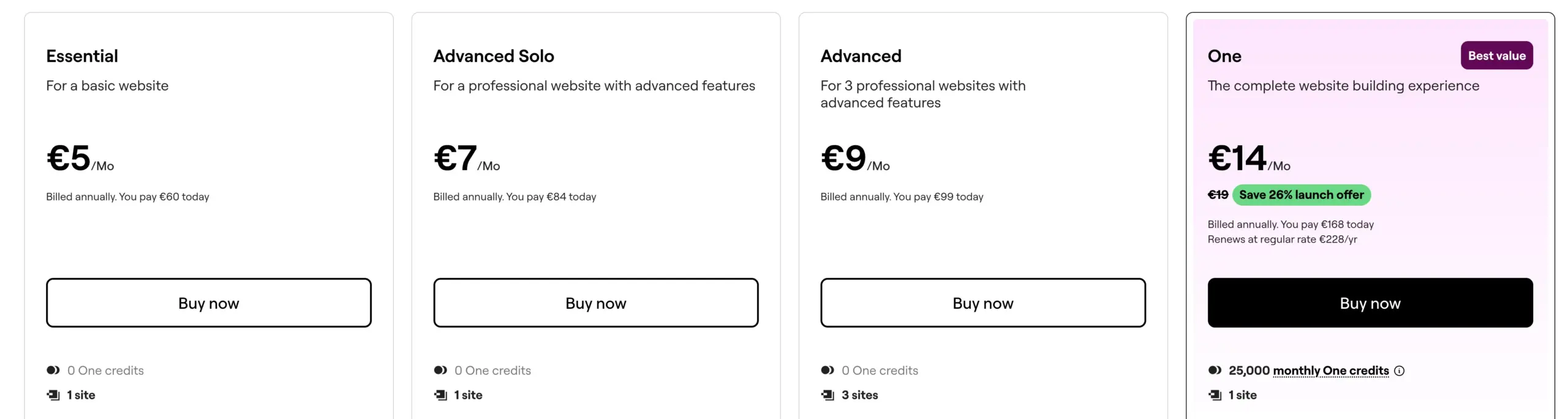
Elementor One (€14/month, billed annually at €168): The complete bundle combining AI with Pro features for one website. Includes 25,000 monthly credits, Theme Builder, Popup Builder, Form Builder, Dynamic Content, and eCommerce features.
What about Elementor Angie?
Angie is a separate, agentic AI plugin from Elementor. It runs across any WordPress site (Gutenberg, Woo, ACF, etc.), not just Elementor-built pages. Angie executes multi-step admin tasks (plan → build → maintain) and uses its own credited free tier + paid plans. It’s not tied to whether you use Free or Pro—think of it as an AI assistant for the whole site, while Elementor AI is your assistant inside the editor.
Bottom line for this comparison:
- Elementor AI: Editor-level help; credit-based; works on Free; gets more valuable with Pro features.
- Angie: Site-wide assistant; separate plugin and plan; useful regardless of Free vs Pro.
Here you can find more information about Angie.
Manage Google Fonts in Elementor
Google Fonts is widely used, but due to GDPR concerns in Europe, website owners need better control over font usage. Elementor now offers two solutions: disabling Google Fonts entirely or loading them locally.
If you disable Google Fonts, the online font library will no longer be available in the Editor, and your site will only have access to seven system fonts. Any existing Google Fonts on your website will revert to these default fonts.
Alternatively, Elementor allows you to load Google Fonts locally, ensuring compliance with privacy regulations while still using your preferred fonts. This feature downloads the fonts to your server, eliminating external requests to Google’s CDN. You can enable it under Elementor → Settings → Features → Load Google Fonts Locally.
For even more control, Elementor’s Font Manager lets you upload custom fonts, giving you full flexibility while ensuring compliance with legal requirements.
Other useful features in Elementor Free
- Save as Default: Save widget settings as your default. New widgets will use these settings automatically, keeping your designs consistent.
- Copy & Paste Between Websites: Copy elements from one site and paste them into another using right-click > “Paste from another site.” No export/import needed.
- Element Manager: Disable unused widgets to keep your workspace clean. Includes a “Scan Usage” button to check which widgets are active on your site.
Starter Templates, Website Kits, and Themes
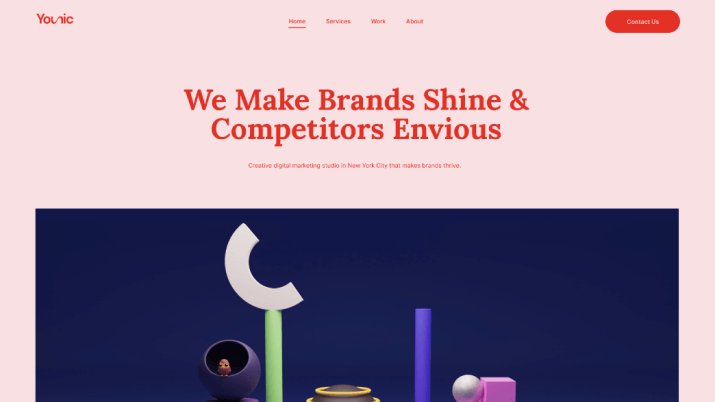
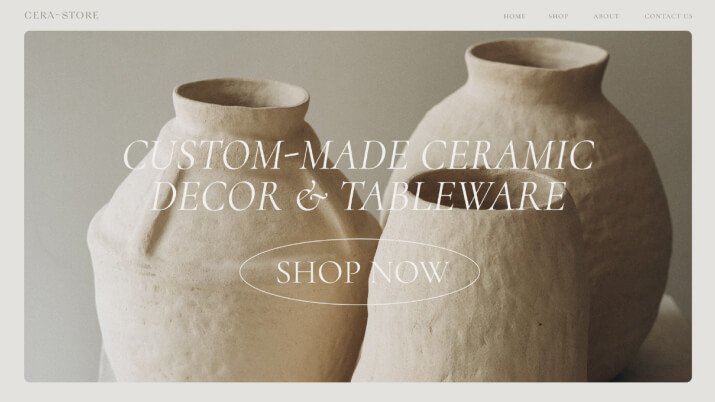
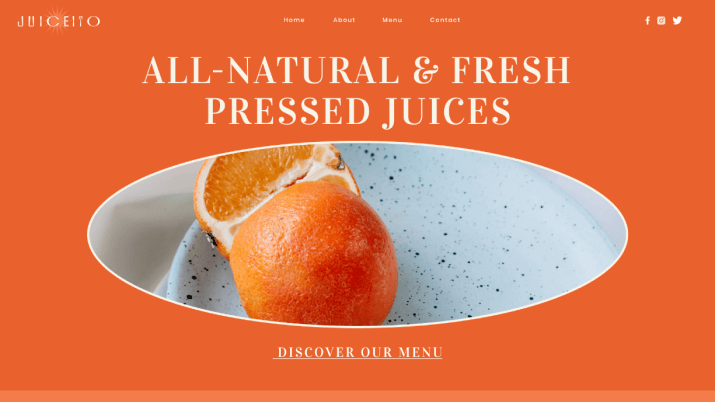
Elementor provides 100+ professionally designed templates, perfect for quickly launching a WordPress website. These templates cover a wide range of industries and can be easily customized using the Elementor page builder—just replace the content and make it your own. You can even insert individual sections instead of full pages.
Elementor takes things further with the Kit Library by providing complete website kits. Each kit includes prebuilt pages like Home, About, Services, Blog, and more—making it easy to build a consistent site design without starting from scratch.
To complement these templates, Elementor also provides optimized themes like Hello, a lightweight, fast-loading starter theme, and Biz, a business-focused theme built for speed and flexibility. Both work seamlessly with Elementor’s templates and kits to help you launch stunning websites faster.
What is the difference between Elementor Free vs Pro?
The Elementor page builder has free and pro versions. The free version includes widgets for building a website, such as text boxes, images, and buttons, making it ideal for beginners. In contrast, the Elementor Pro plugin unlocks powerful features like the Theme Builder, advanced widgets, custom CSS, and premium support.
WooCommerce Features: Why Elementor Pro is Needed
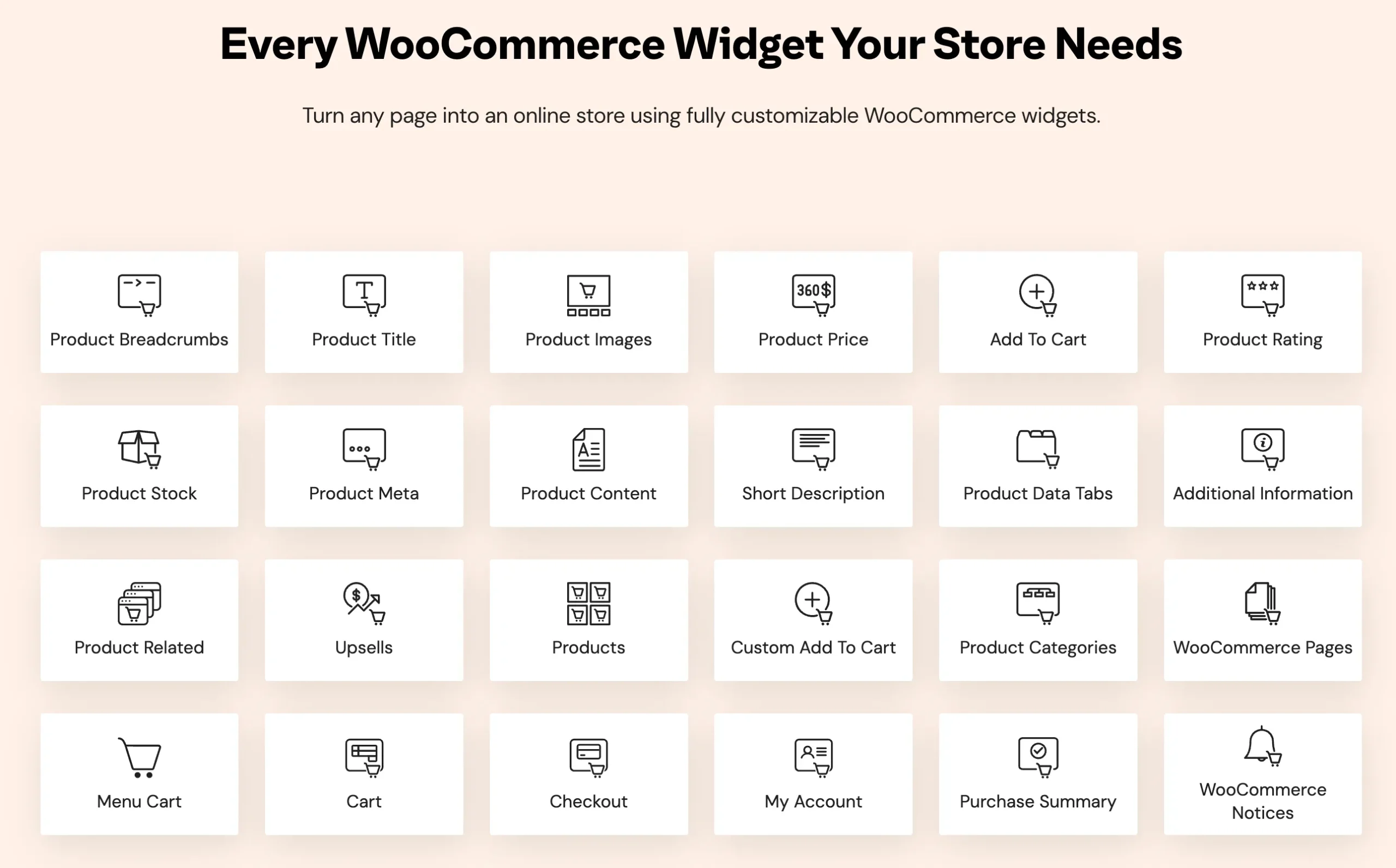
To fully customize your WooCommerce store, you’ll want to use Elementor Pro. It unlocks WooCommerce-specific widgets and advanced styling options directly in the Elementor editor. You can design product pages, checkout, and account sections with full control—no coding required. Plus, with custom CSS support, it’s easy to match your website to your brand. Elementor Pro gives you everything you need to create a seamless, professional, and ecommerce website.
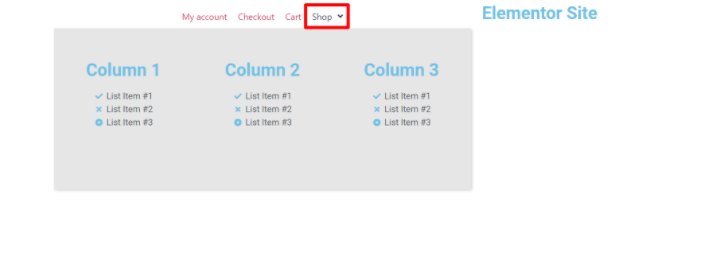
Mega Menu
Elementor offers users the Menu widget, which provides more advanced design and customization options than the WordPress Menu widget. With this new widget, users can create a Mega Menu that expands to include any widget, content, or page link.
Additionally, the Menu widget provides customization options for menu items, links, styling, responsive settings, and menu toggle icons.
The Mega Menu is a welcome addition to the Elementor community.
Loop Builder
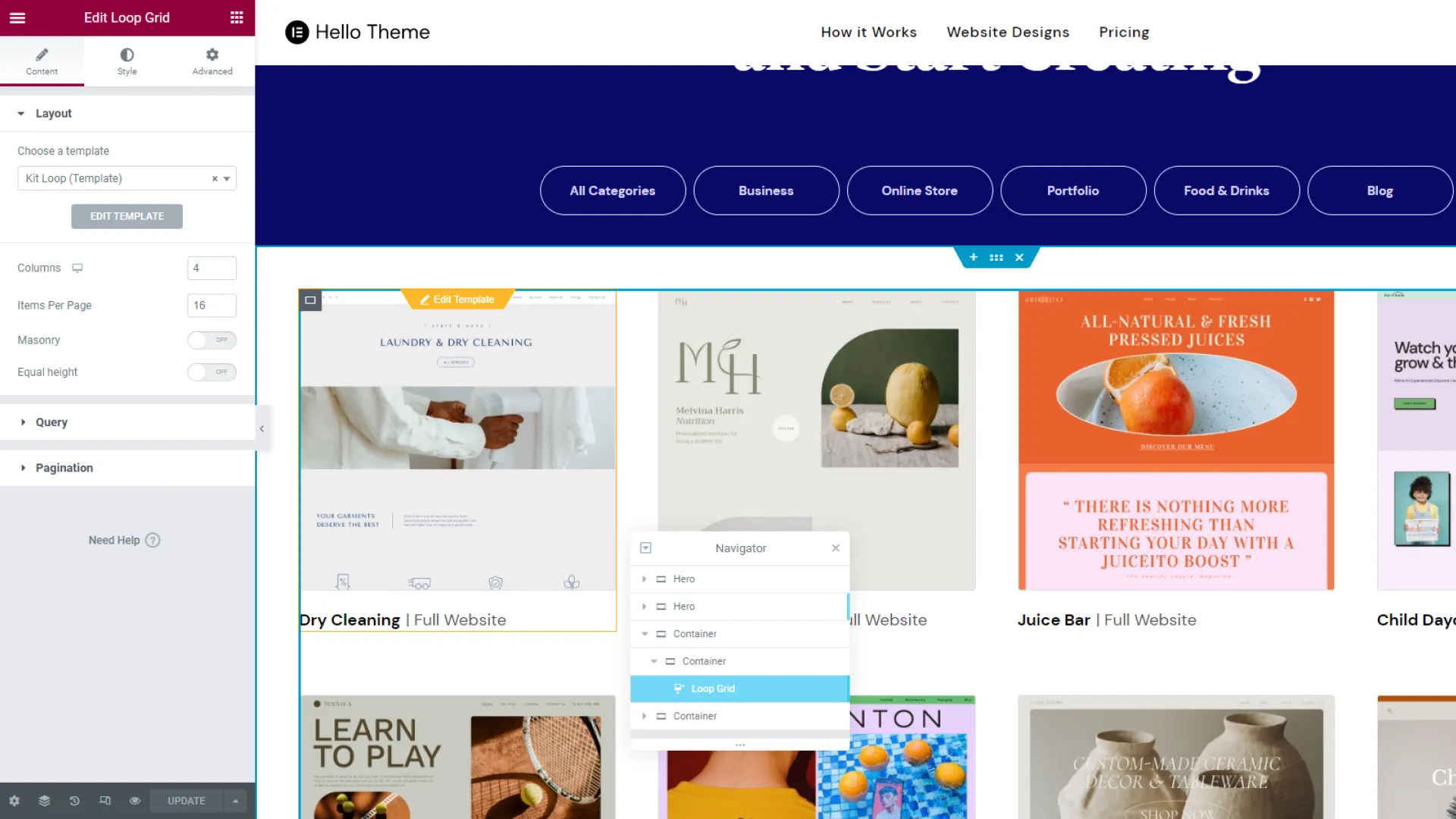
Elementor ships the Loop Builder in phases, allowing users to design and create a main item template for repeating content. This feature offers greater flexibility and customization than the Posts widget, allowing users to design and add dynamic content to their listings, posts, portfolios, and custom post types.
The first phase includes the ability to create a main item for posts, custom post types, and dynamic post content. Future updates will include full WooCommerce support and additional capabilities to enhance website design.
Visual theme builder?
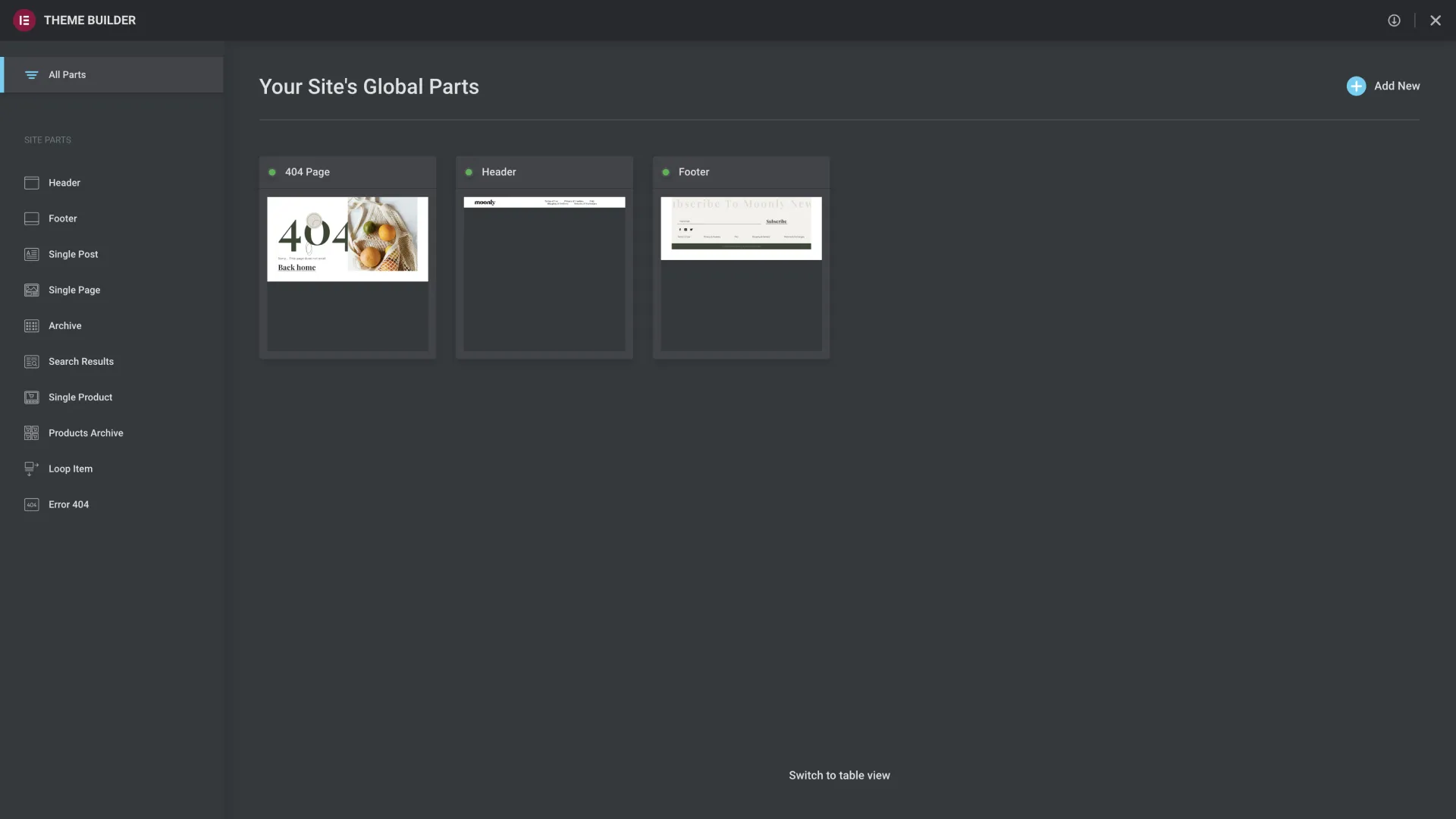
It’s a more visually appealing alternative to the text-based theme builder under Templates in the WordPress dashboard. With the theme builder, click “Add new” and select which part of your website to create a template.
The types of Templates are:
- header builder
- footer builder
- single post
- single page
- archive
- search results
- loop item
- 404 page
Once you’ve selected, the visual builder opens up, and you can choose either a full-page template or a block. You can also use your previously saved custom template to create a new one or start with a blank template in the visual editor.
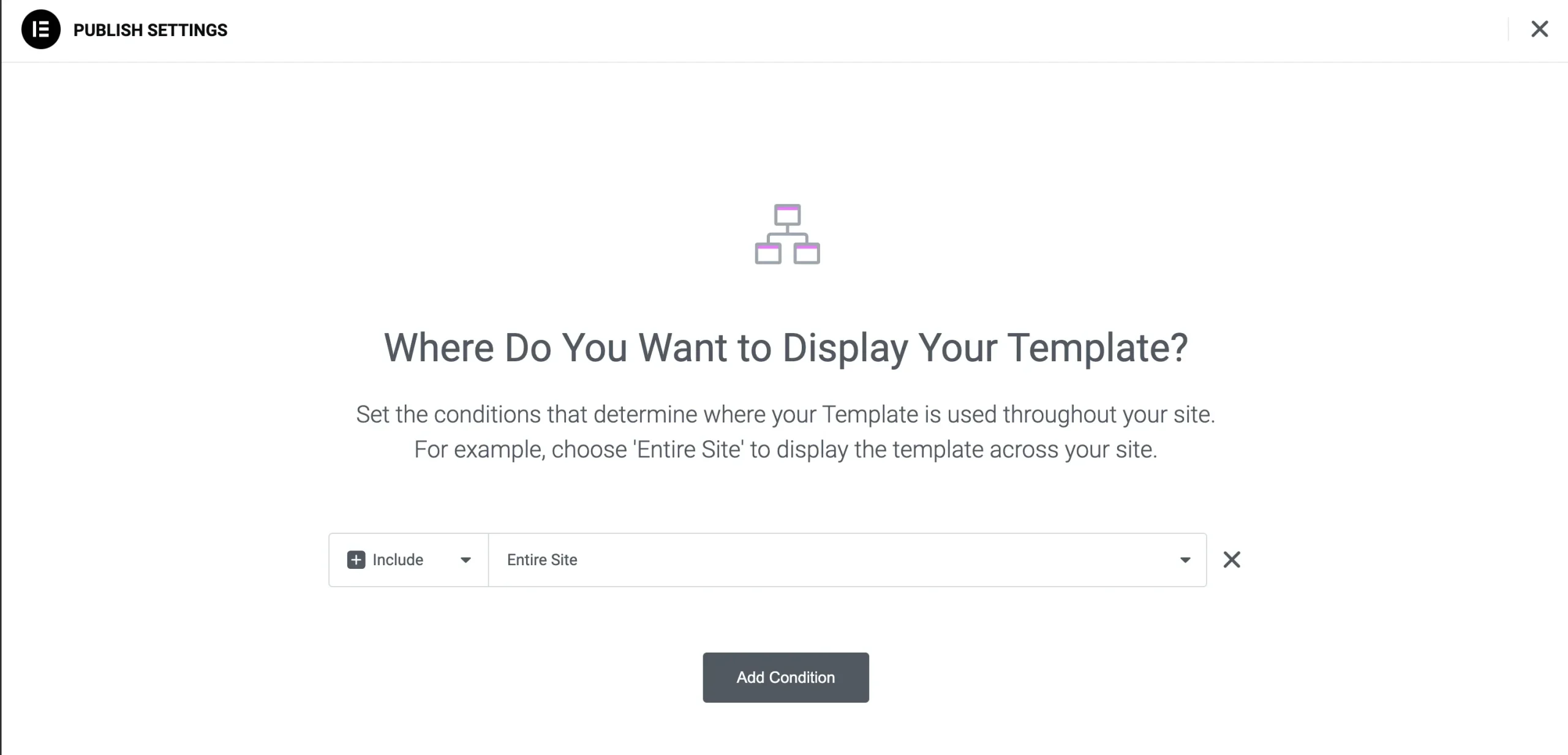
When you create a theme element, it will replace an element of the active theme. In the example above, if you make a header and publish it, the new header will replace the existing one. Before posting any theme element, you can set a display condition. Then, apply the header to the entire website or a specific page(s).
Popup Builder
Under Templates, there is an item called Popups. This feature can create any popup, from ad banners, subscription forms, announcements, exit intents, etc. Click “add new” to give your pop-up template a name, and choose premade pop-ups. It’s convenient to get some ideas.
It is possible to display pop-ups on some pages by setting specific parameters. For instance, you could display a popup right after the landing page has completely loaded. Another option is to trigger a popup, which can be displayed after your visitors have clicked a button.
I suggest using popups with caution. When the advertisement appears too prominent, visitors tend to leave the site.
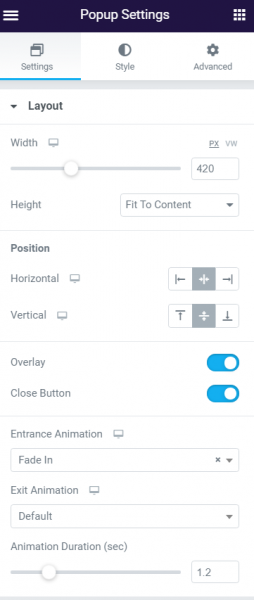
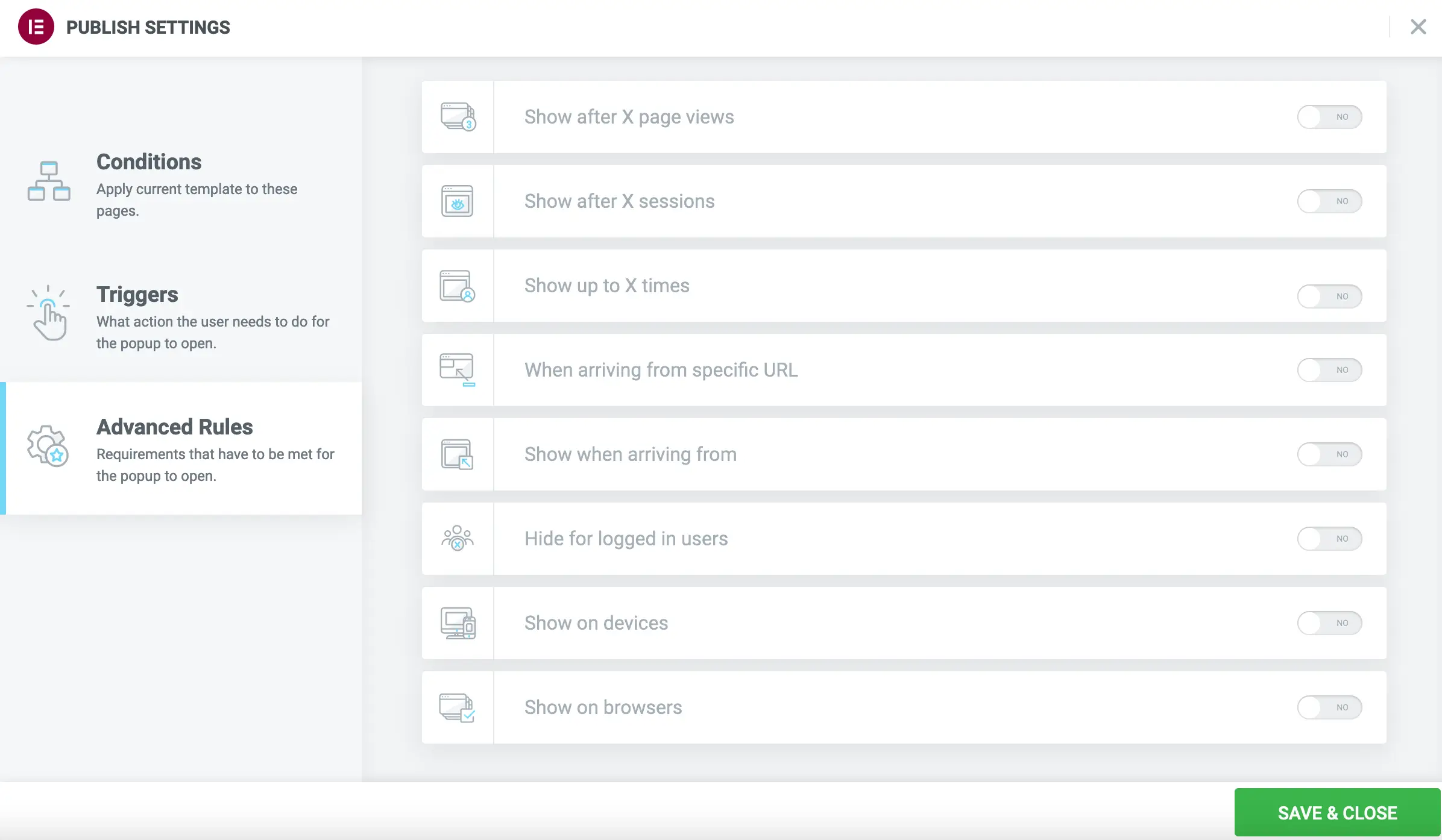
Further, using the Advanced Rule tool, you can determine precisely when and where you want a popup to appear up to X number of times within a predetermined duration, such as a session, day, week, or month—depending on your preference.
Dynamic Data: Custom Post Types, Custom Fields, and Taxonomy
Elementor’s dynamic content lets your website show information that changes for each visitor. It does this by using custom post types, custom fields, and taxonomy.
Custom post types are special content formats in WordPress, separate from regular posts or pages. You can use them to make things like portfolios, testimonials, or products. With Elementor, custom post types help display different content based on user actions or predefined rules.
Custom fields let you add more details to your posts. They can hold things like a user’s location, preferences, or past actions. Elementor uses this information to adjust content instantly. For example, if a custom field has a user’s location, the site can show local events or weather for that area.
Taxonomy is how you group posts in WordPress using categories and tags. Elementor uses these groups to show content that matches a user’s preferences or search history. So, visitors might see blog posts or products picked just for them, based on the categories or tags they’ve interacted with.
Does Elementor integrate well with most WordPress themes and plugins?
Elementor is a flexible WordPress tool compatible with many themes and plugins. You can seamlessly enhance your projects using your preferred tools. However, it is recommended against combining Elementor with other page builders, such as Divi or Beaver Builder. Elementor has also introduced its theme, Elementor Hello, which is available for free.
I recommend using Elementor with the Blocksy theme or Kadence theme.
Try Turbo AddOns for Elementor
If you want to expand Elementor’s capabilities, Turbo AddOns is a lightweight, performance-optimized addon with over 70 widgets and 100+ pre-designed templates. It’s fully compatible with Elementor Free and Pro, making it a great choice for beginners and advanced users. Plus, it’s fast, easy to use, and includes dedicated support.
Elementor Pro Pricing
Elementor now offers two pricing tracks: standalone Pro plans and the new Elementor One bundle. All plans are billed annually with a 30-day money-back guarantee.
Building for Myself
These plans are for personal projects or single websites:
Building for Clients
These plans are designed for freelancers and agencies:
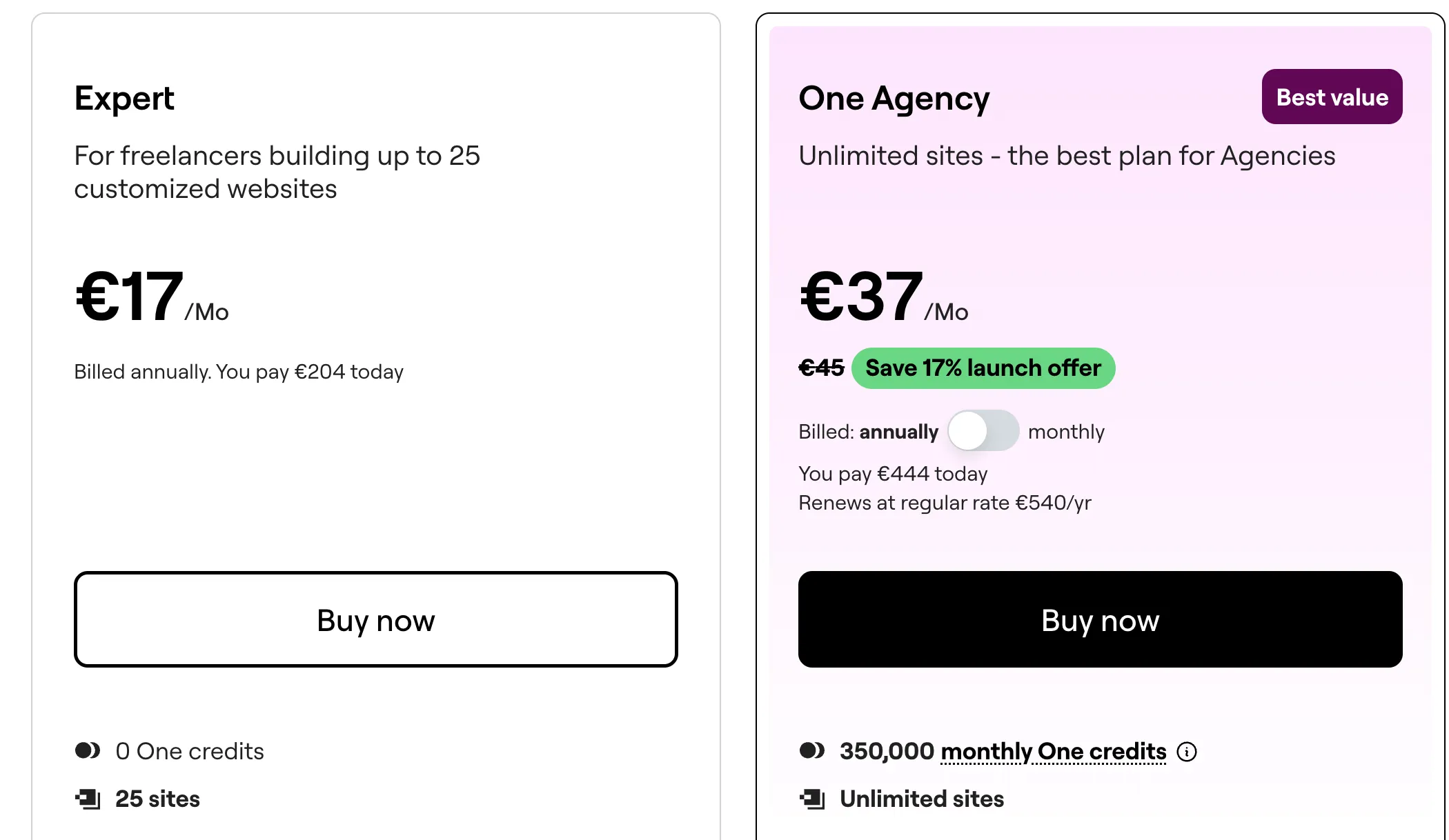
If you manage multiple sites, the Advanced plan covers 3 websites and the Expert plan supports up to 25.
What is Elementor One?
Elementor One is a new all-in-one bundle that combines Pro features with additional tools:
- AI generation for code, copy, images, and layouts
- Image optimization (WebP/AVIF conversion)
- Accessibility scanning and AI fixes
- Email deliverability (transactional emails without SMTP plugins)
- Shared credit pool for flexible usage across all tools
- Manage (Coming soon)
Important notes:
Avoid “nulled” versions from unofficial sources
Renewal is at list price (first-year discounts don’t carry over)
Subdomains like dev., staging., and test.* don’t require a separate license
Elementor Support: Free vs Pro
When choosing between Elementor Free and Elementor Pro, it’s important to consider the differences in support:
Elementor Free users can access the Help Center, detailed documentation, and community forums to find answers and solutions. However, there’s no direct technical support from the Elementor team.
Elementor Pro unlocks 24/7 expert support, including email, chat, and even priority channels depending on your plan—ensuring fast, professional help for any issues you might encounter.
| Feature/Support | Elementor Free | Elementor Pro |
|---|---|---|
| Help Center & Docs | Yes | Yes |
| Community Forum | Yes | Yes |
| Direct Team Support | No | Yes (ticket/email/chat) |
| Priority Support | No | Yes (on selected plans) |
| Premium Updates | No | Yes |
In summary: If you want direct, professional assistance, Elementor Pro is the way to go. For self-help resources, the Free version offers community-driven support and guides.
Frequently Asked Questions
What does the WordPress Community Say?
After sharing my thoughts on Elementor Free versus Pro in a Reddit discussion, I received a wide range of feedback from the WordPress community, over 30 comments from developers, freelancers, and agency professionals.
Here’s what stood out to me:
- Many developers are moving away from Elementor, especially those focused on performance and clean code. Bricks Builder came up several times as a preferred alternative due to its lighter output and leaner structure.
- Some didn’t hold back, calling Elementor bloated or even “garbage” — mainly from a developer perspective.
- On the other hand, agencies and site builders still appreciate Elementor for its rich ecosystem of third-party addons, visual workflow, and extensive template library. It’s still the go-to for quickly building client sites without writing much code.
- Others mentioned using Elementor Free with custom CSS or pairing it with lean themes like Kadence or Blocksy to keep things light but flexible.
This mix of praise and criticism helped me better understand where Elementor fits in 2026 It’s not for everyone, but depending on your goals, it can still be the right tool.
Want to read the full discussion? You can find it here on Reddit. It’s an insightful thread with opinions from all sides.
I would love to get your feedback. Was this article helpful? Please share your opinion with me in the comment section below. Or, if you prefer a more personal touch, feel free to email me directly at info@edywerder.ch. Your thoughts and insights are always appreciated.
Before you go …
I hope this blog post has helped you understand the differences between Elementor Pro and the free version and decide which one is better for your specific needs.
However, the world of page builders doesn’t stop at Elementor. To truly expand your knowledge and make the most informed decision possible, I encourage you to check out my other in-depth comparison: “Elementor vs Divi: The Ultimate Showdown“.
In this detailed review, I compare two of the most popular page builders in the market – Elementor and Divi. I explore their unique features, pros and cons, pricing plans, and more.
Related Articles
About the author
Hi, I’m Edy Werder. I write hands-on guides about Proxmox, homelab servers, NAS, and WordPress, based on real setups I run and document.
No sponsors, no fluff—just real configs and results.
Enjoying the content?

Elementor is a very popular and user-friendly page builder. If I choose Elementor Free, I would usually pair it with Crocoblock (JetEngine, JetFormBuilder) or GeneratePress. However, my tool of choice is now Bricks.