
By Edy Werder — IT Consultant & Tech Blogger
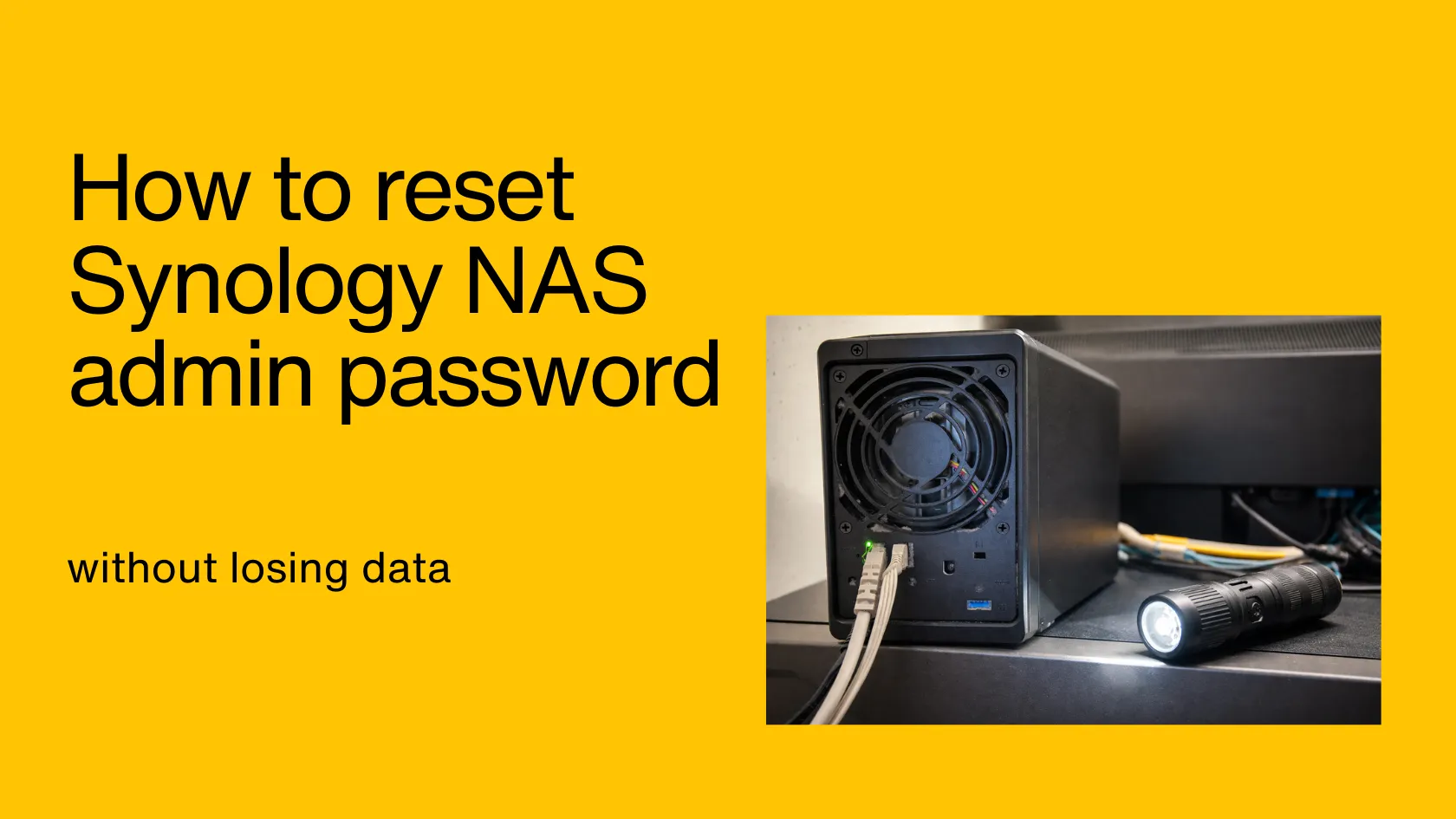
I had to reset Synology NAS admin password after an update locked me out of DSM. Nothing was lost, but I definitely had that “please don’t wipe my NAS” feeling.
To reset a Synology admin password without losing data, do a Mode 1 reset: hold RESET button for 4 seconds until you hear a beep sound, then use find.synology.com to reconnect. Log in as admin with a blank password, set a new password, and reapply your static IP if needed.
In my case, I followed Synology’s recommendation and disabled the built-in admin account. Instead, I used a separate user with admin rights for daily logins.
Then, after an SMB package update, DSM suddenly refused my password. The only way back in was a Mode 1 reset. I didn’t lose any data. I just had to reapply my static IP afterwards.
Can I reset the admin password remotely on my NAS server?
Sometimes — but it depends on whether you can still access DSM.
- Yes, if you can log into DSM with another administrator account (not “admin”). Then you can change the password from inside DSM.
- No, if you’re fully locked out and don’t have another admin account that still works. In that situation, Synology’s recovery path requires pressing the physical RESET button on the NAS.
What if I have a Synology Account (QuickConnect)?
Having a Synology Account doesn’t automatically let you bypass a forgotten DSM password. A Synology Account is separate from your DSM user accounts, and QuickConnect still uses your DSM username/password to sign in. The one exception is if you previously enabled Synology Secure SignIn (Approve Sign-In / passwordless). In that case, you may still be able to log in and fix your account without a Mode 1 reset.
Reset Synology NAS admin password using the RESET button (Mode 1)
This is where people get nervous: “reset” sounds like “factory reset.” But for password recovery, you’re usually looking for Mode 1.
Mode 1 reset (the one you want)
Mode 1 is designed to:
- reset administrator login credentials
- reset network settings (important!)
- Keep your data/volumes intact
How to do a Mode 1 reset
- Make sure the NAS is powered on.
- Locate the RESET button (often on the back).
- Use a paper clip and press and hold reset button for about 4 seconds until you hear a beep sound, then release.
- Your network settings (LAN IP address) may revert to DHCP, so your NAS might show up with a new IP address.
- Open find.synology.com (Synology Web Assistant) or enter the IPaddress to rediscover your NAS and connect to DSM login page.
- Log in with:
- Username: admin
- Password: field blank
- Set a new password and confirm you can access DSM again.
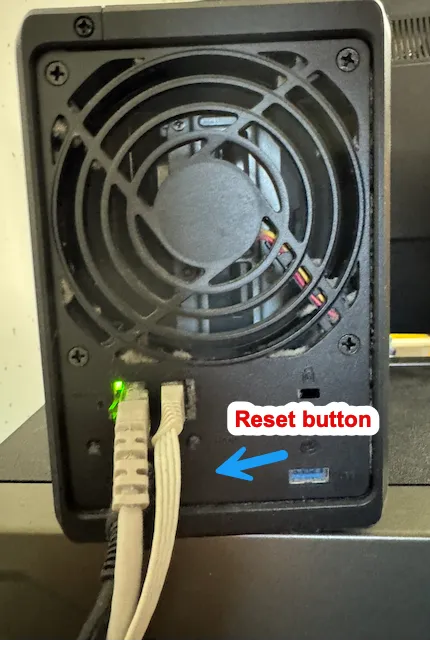
That’s exactly what got me back into my system after the SMB update drama.
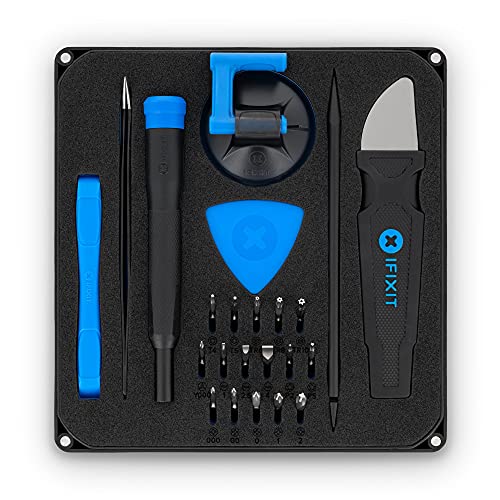
Tip: If your NAS sits in a dark corner or on a dark rack, a small flashlight makes it much easier to find the RESET button.

What is the default admin password after a factory reset on a Synology NAS?
For password recovery using Synology’s reset procedure, the practical answer is that the password will temporarily be blank so you can sign in and set a new one. Synology’s guidance commonly instructs logging in as admin with an empty password after the reset.
So if you’re searching for a universal “default admin password,” don’t. Focus on the Mode 1 reset path instead.
What precautions should I take before resetting the administrator password on my NAS?
Here’s my quick checklist based on what actually matters in real life:
- Expect your static IP to reset.
This was my only “issue” afterwards. My NAS came back on DHCP and I had to reconfigure network settings the fixed IP again. - Plan a short interruption.
SMB shares, backups, media streaming — anything connected may drop for a moment. - Know how you’ll rediscover the NAS.
find.synology.com, Synology Assistant, or your router’s DHCP lease list will usually do the job. - Have at least two DSM users with admin rights (future-proof tip).
This is the big one I learned from my lockout. If you keep a second admin account as an emergency fallback, you might be able to log in and fix the broken account without touching the reset button next time. - If you disabled “admin,” re-check your hardening after recovery.
The reset flow can temporarily make the built-in admin account usable again, allowing you to regain access. Once you’re back in, confirm your normal admin user(s) work, then disable admin again. - Enable Synology Secure SignIn for future logins.
Once you’re back in, consider turning on Synology Secure SignIn (Approve Sign-In / passwordless). It can save you in situations where your password suddenly stops working.
If Mode 1 doesn’t work: Mode 2 (last resort)
If you still can’t get in, Synology also documents a Mode 2 reset. This option resets the NAS more deeply and may require reinstalling DSM. Your data volume is typically intended to remain intact, but your system settings will be removed, making this more disruptive than Mode 1.
The main takeaway: Mode 1 gets you back in fast, and a second admin account helps you avoid doing it again
I’d love to hear from you — was this article helpful? Share your thoughts in the comments below. If you prefer, you can also reach me by email or connect with me on Reddit at Navigatetech.
Before you go …
If you’ve just reset your Synology NAS admin password, it’s a good moment to reassess whether your current setup still meets your needs. Whether you’re running out of storage or exploring more advanced features, upgrading might be worth considering. I’ve put together a guide to help you decide which Synology NAS is right for you. It breaks down the options based on use case, performance, and budget. Before you go, take a look.
About the author
Hi, I’m Edy Werder. I write hands-on guides about Proxmox, homelab servers, NAS, and WordPress, based on real setups I run and document.
No sponsors, no fluff—just real configs and results.
Enjoying the content?
